Enter Studio Passcode
Please enter the passcode provided by Note-worthy Experiences Music Studio.
Beta Testing Agreement
📱 Install NoteAdventure
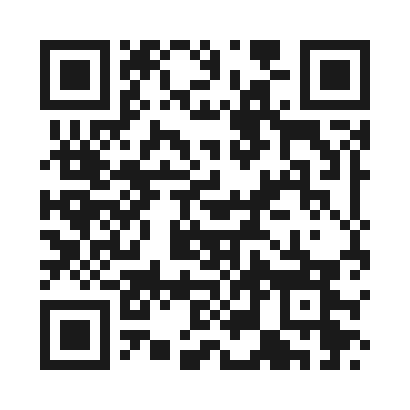
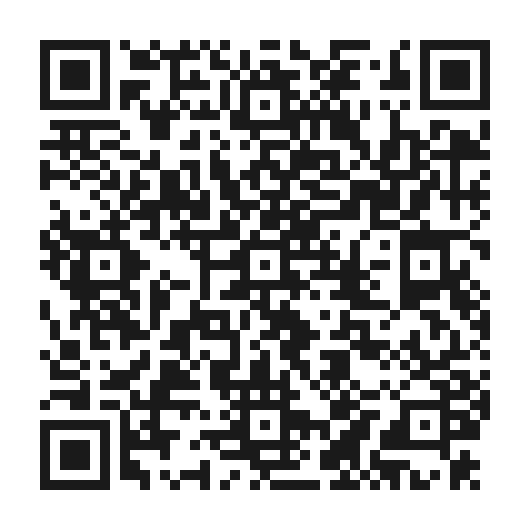
No invitation needed, and nothing to wait for. Point your phone's camera at the code that matches it, or tap the button if you're reading this on the phone.
iPhone & iPad
 Install on iPhone or iPad
First, install TestFlight — Apple's free beta testing app — from the App Store. Then tap this button and choose View in TestFlight. If Safari says the address is invalid, TestFlight isn't installed yet.
Android
 Download for Android
Downloads the app file directly. Chrome will warn that the “file might be harmful” — it says that about every app that doesn't come from the Play Store. Tap Download anyway, open the file, and allow the install when Android asks.
You'll need your studio login to get in. Note-worthy Experiences sets up every account — there's no sign-up inside the app. If you don't have your login yet, email issues-na@sniffsafarilabs.com and we'll sort it out.
Help Make NoteAdventure Better
You're testing real software with real kids. When something feels off, tell us — screenshots, half-thoughts, and "this is weird" reports are all welcome. Every submission shapes the final app.
Helpful to include, if you can: your device and iOS version, which child's account you were on, and what you were doing in the few seconds before it happened. Screenshots are gold. You'll get a reply from a real person.
New since your last build
Build 61 (version 4.15.9), November 2026. Two new celebrations, the Top 10 badges on your child’s name badge, a studio goal counted in minutes, a brighter practice screen, and an app that tells you when it needs updating. Much of this came straight from your reports and from our meeting with the studio. Thank you. Please re-check anything you reported: a fix that only works on our machines is not a fix.
Update your app first — this is the last time you have to remember. Android: download it again with the Android button at the top of this page. iPhone: open TestFlight and tap Update. From build 61 on, the app itself tells you when a newer version is ready.
For families and students
A first Saturday, and morning music
The first time your child ever practices on a Saturday, they get a card that says so. And a practice started between 5 and 9 in the morning earns a "Morning music!" card, at most once a week. Both were the studio’s idea.
Top 10 badges on the name badge
A Top 10 badge your child earns now shows as a small shield on their own name badge, in their menu and on their practice screen. You see it on their card on the family screen. It never shows on the map or on the screen where your family picks who is practicing.
The studio goal counts minutes
Minutes are what your child tracks, so the studio goal does too: "About 3,500 of 5,000 minutes." The meter moves once a night, never straight after a practice, so don’t worry if it stays put for the rest of the day.
A brighter practice screen
The colored wash over the land behind the practice timer is much lighter, so the art shows through. The timer and its words sit on their own darker panel and stay easy to read.
The app asks you to update
When a newer build is out, a box says "A new version is ready." Update opens TestFlight on an iPhone or downloads the new app on Android; Not now lets you carry on. You will first see it when build 62 arrives.
Help right where you need it
A "Start here" card at the top of the family screen links a short getting-started guide and the full guide, until you put it away. After that they live in Settings → Guides and help. The guides now have a permanent home on noteadventure.com.
The percentage screen is gone
The "How I’m Doing" screen, which compared a child with the studio as a percentage, has been removed. No child understood it. The Top 10 badges stay, and they still need your yes.
Easier to read, and to hear
Clearer text on top of the art, every button named for screen readers, the timer’s changes read aloud, and menus that fit at large text sizes.
For teachers and the studio
Dashboard numbers you can click
The four numbers at the top of the portal dashboard looked clickable and weren’t. Now Active Students and Active Streaks open Students, and Practice This Month and Goal Completion open Reports. A teacher’s links show only their own students.
Send a guide to anyone
On the Communication page, find anyone (waiting list, invited, enrolled, a teacher) and send them the app’s own guides, the install sheets or a shelf. The system picks how it is sent. Children are never emailed; a student’s guide goes to the parent.
Invitations that say where a family stands
A roster import now stops at Review and send and never sends by itself. Each family’s tile says one thing in plain words and offers one button, so "not invited yet" can’t be mistaken for "invited".
Install links in the emails
Family invitations and the teacher setup email now say "First time? Install NoteAdventure first" with a link to the iPhone and Android steps. Welcome emails link the guides for each role.
Studio goals in minutes
Set the target in minutes, any size you like. Families see a figure the nightly job updates, in steps of 5% of the target; you see the exact total in Settings.
"Start here" for staff too
Teachers get the same card on their home screen in the app, and the portal shows one on your first sign-in. The portal’s sidebar has a Help link to the guides.
From your reports
The website’s dead links are gone
A teacher found that the "At a glance" cards on noteadventure.com led to an error page. That section is removed, and a check now fails our build if the site links a page that isn’t there.
Two ways to tell us
Email issues-na@sniffsafarilabs.com, or on an iPhone take a screenshot and tap Share Beta Feedback. Either reaches a real person.
What the app does
NoteAdventure is a practice app that turns daily practice into a journey. A student walks a trail through musical lands, and the land itself wakes up as they go. Everything below works today — this is what you are testing, not a list of promises.
For your child
A music book, and then a companion
The first time a child opens the app they meet a sleeping world and a music book. When it opens, the companion they choose appears, travels with them, and grows as they practice.
Three lands to walk
Tempo Tower, the Island of Intervals and Chord Canyon. Each practice day moves the child one stop along that land's trail — not one point, one step somewhere real.
The land wakes up when they finish it
Reaching the end of a land plays a short film of that place coming back to life, and the map keeps it that way. It plays once, for them, and it is the point of the whole thing.
Music, and the option of silence
Each land has its own theme, and finishing a chapter has its own sound. There is a mute control and it works everywhere — please tell us if you find somewhere it does not.
When a teacher marks a piece mastered
The child gets a full-screen celebration that names the teacher who did it. It waits for them if the app was closed at the time.
It works without a signal
A practice finished on a train still shows its reward. The app catches up with the server when it can.
For parents
Your account starts with your yes
The studio sends an invitation that does not name your child. Tapping it opens the app, shows you the privacy policy, and creates the account only when you accept — not before.
Nobody is added to your family without asking you
If the studio adds another child to your account, you are asked by name, in the app, and nothing appears until you say yes.
Your child's own login is yours to switch on
Off unless you turn it on. You can reset their password from their settings, and turning it off stops it immediately.
Forgotten passwords work now
Use Forgot password on the sign-in screen. Setting a new one signs out every other device.
For the studio
Teachers have their own portal
A teacher signs in at the studio portal and sees their own roster, this week's focus, a four-week practice trend, and a calendar to place lessons on real dates. They see their students and nobody else's.
A roster arrives as a spreadsheet
Upload the studio roster, preview every row before anything is written, then send invitations. A re-import after a correction updates the child rather than duplicating them.
A System tab, in plain language
Whether the app is healthy, how much practice is happening, and when the automatic data cleanup last ran — written to be read, not to be decoded.
Telling us something is wrong
Email is the whole process
Use the button at the top of this page. It opens an email — say what you did, what you expected, and what happened instead. A screenshot helps enormously.
You will get a reply on the same thread
No form, no tracker, no account to create. If we need more detail we will just ask.
What to Test
Areas that especially need your eyes. If you spot anything odd, email us — we'd rather hear about a tiny thing than miss a big thing. Even "I think I saw X but couldn't reproduce it" is useful.
- Saturday and morning celebrations. If your child has never practiced on a Saturday, have them practice this Saturday, long enough to move along their trail. The next time the app opens there should be a "Your first Saturday practice!" card. Separately, a practice started before 9 in the morning should bring a "Morning music!" card, once that week. Tell us if a card never came, came twice, or showed up on the wrong day.
- The Top 10 badge on the name badge. If your studio has the Top 10 badges on and you opted your child in, look for a small shield on your child’s name badge in their menu and on their practice screen, and on their card on your family screen. It should not appear on the map or on the screen where you pick who is practicing. Is it easy to spot? Is it clear what it means?
- The studio goal, in minutes. If a studio goal is running, its card should read in minutes ("About … of … minutes"). Note the number, practice, and check it has not changed straight away, then look again the next morning.
- The practice screen on every land. Start a practice on each land your child has reached. The land’s art should show through clearly, and the timer and buttons should still be easy to read. Try it once with your phone’s text size turned up. Screenshot anything faint or cut off.
- "Start here" and the guides. Parents on the family screen, teachers on their home screen: tap each guide on the "Start here" card (they open in your browser), then put the card away and check it stays away. The same guides should be in Settings → Guides and help.
- Nothing still talks about percentages. The "How I’m Doing" screen is gone. If anything in the app still mentions a percentile or compares your child with the studio as a percentage, tell us where.
- Studio admin: the dashboard and Communication. Click each of the four numbers on the dashboard and check you land where you expect. On Communication, send one of the app’s guides to yourself first, then try a roster import and confirm it stops at Review and send without emailing anyone. Read each family’s tile: does it tell you plainly where they stand?
- Teachers: the portal. Sign in to the studio portal as a teacher. The dashboard numbers should count only your students, and clicking one should show only your students.
- The install line in emails. If you receive a new invitation or a teacher setup email, tap "Install NoteAdventure first" and check it takes you to the right steps for your phone.
- Screen readers, if you use one. With VoiceOver (iPhone) or TalkBack (Android) on, start and pause a practice and open a few dialogs. Every button should say what it does, and the app should tell you when the timer pauses. Only a real phone can prove this one.
- Telling us about a problem. Send one report the way you normally would: email issues-na@sniffsafarilabs.com, or on an iPhone take a screenshot and tap Share Beta Feedback. You should get a reply from a real person on the same thread.
Tip: when you email us, include the device model, the OS version (Android 15, iOS 18, and so on), and what you were doing in the seconds before. Screenshots help enormously.
📱 Get the app v4.15.9 ▾
November 2026 First-time setup or new device? Pick your platform below.
Setup instructions
Download the APK
Tap the "Download for Android" button above. Your browser will download the APK file. You may see a warning - tap "Download anyway".
Enable Installation
When the download completes, tap "Open". If prompted, tap "Settings" and toggle ON "Allow from this source", then tap the back arrow.
Install the App
Tap the downloaded APK file, review permissions, tap "Install", then "Open" to launch NoteAdventure!
Troubleshooting
- "App not installed" - Uninstall any previous version first
- "Blocked by Play Protect" - Tap "More details" then "Install anyway"
- Can't find APK - Check your Downloads folder
Install TestFlight
Download the free TestFlight app from the App Store. This is Apple's official beta testing app.
Open the Invitation Link
On the phone itself, tap this link. On a computer, scan the iPhone QR code at the top of this page with the phone's camera. No invitation email is needed — the link is open to everyone.
Tap "Accept"
TestFlight opens and shows NoteAdventure. Tap Accept, then Install. The app lands on your home screen like any other app.
Sign In
Use the login Note-worthy Experiences set up for you. There's no sign-up inside the app — if you don't have a login yet, email us and we'll get you one.
Troubleshooting
- Nothing happens when you tap the link? Install TestFlight from the App Store first, then tap the link again
- "This beta isn't accepting new testers"? Beta testing is full — email us and we'll make room
- Can't sign in after installing? That's the studio login, not TestFlight. Email us for your credentials
- Got an invitation email from us earlier? That still works — both routes land in the same place
Account information
Your login credentials have been set up by the studio.
- Teachers: Use your teacher email (e.g., teacher@note-worthyexperiences.com)
- Parents: Use the email you registered with the studio
- Students: Ask your parent to log in, or, if your parent turned on your own sign-in, use your own email and password
Everyone signs in on the same screen, and the app works out who you are. If your app still shows a Student Login button, update it (Android: the beta testing page; iPhone: TestFlight).
Don't have credentials? Contact Note-worthy Experiences Music Studio.
Documentation
Every guide we have, in one place — grouped by who you are. Nothing to ask us for.
Open the documentation center →
Nine guides: what to test, the user guide, the teacher guides, the studio setup, and both privacy documents.
Start here: Beta Testing Guide
If you only read one thing before opening the app, read this.
What to Test, and How
The accounts and passwords, and what each child is one practice session away from.
Important Notes
Beta Testing
You may encounter occasional bugs or incomplete features. Your feedback helps improve the app!
Practice Tracking
Practice sessions are recorded and visible to your teacher. Data syncs with the studio.
Privacy
Your data is only shared with Note-worthy Experiences Music Studio. Privacy Policy
Feedback
Email issues-na@sniffsafarilabs.com — the same address as the button at the top of this page. No form, no tracker, no account to create. Your input shapes the final app.