Trillo File Manager
Trillo File Manager
Trillo File Manager is an application for managing files on GCP Cloud Storage using - an intuitive UI. It supports secure and HIPAA compliant file transfers.
Key Use Cases
Upload large files to GCP for processing (data ingestion).
Backup of terabytes of organizational data.
Share files — e.g., a media company sharing assets with designers.
Version control — e.g., versioning a i model files stored in cloud buckets.
General file management on GCP cloud storage: organize in folders, archive, delete, copy, rename.
Gain insights into storage usage through built-in reports.
Core Features
Secure and HIPAA compliant: Ensures regulatory and organizational compliance.
SFTP support: Automate secure file transfers via SFTP.
User-Friendly UI: Designed for ease of use with drag-and-drop functionality.
Private deployment: Deploy in your private GCP VPC—your data stays under your control.
Group folders: Centralized folders for team collaboration, with controlled access.
Granular access control: Manage permissions at both user and group levels.
External link sharing: Create upload and download links for external users.
Customizable & Extensible: Tailor the platform to your specific needs.
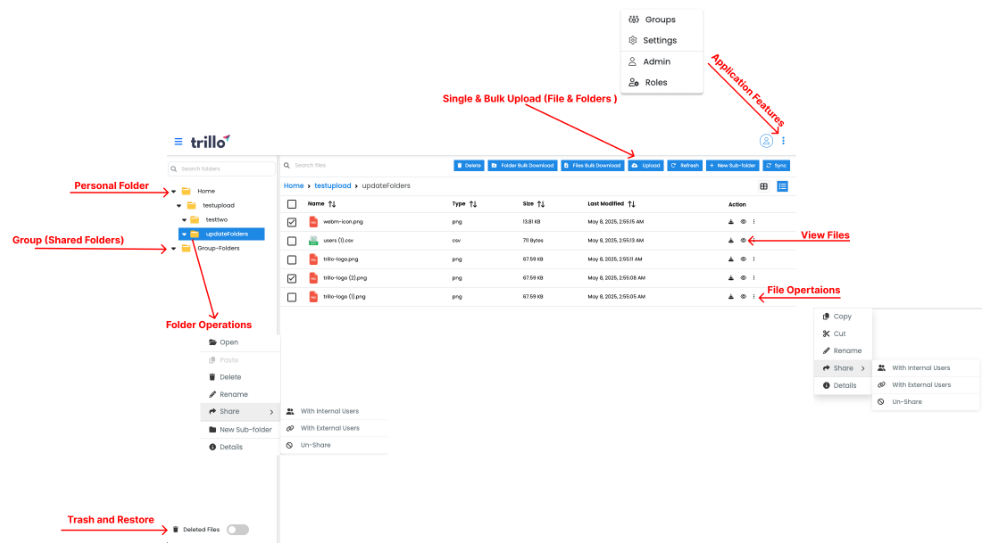
Trillo File Manager Homepage
Sharing & Access
Download for External Users
Create secure download links to share files externally—ideal for sending documents, software, or media to clients or partners.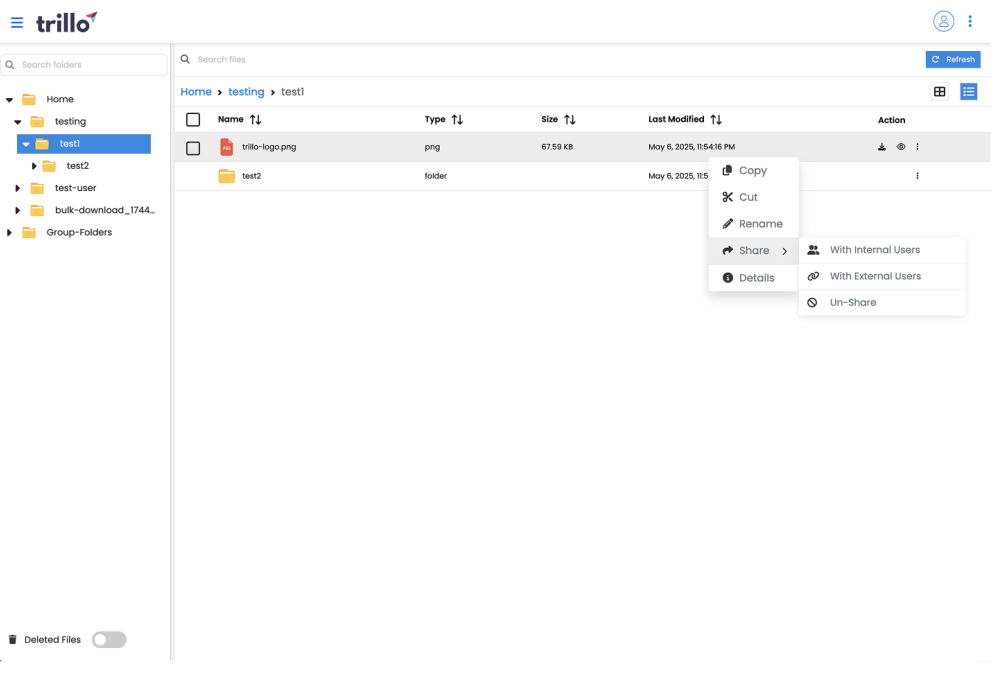
Download Link for Sharing
Upload for External Users
— Allow external users to upload files directly to a designated folder helpful for collaboration and data collection. This process is secure and organized for easy access.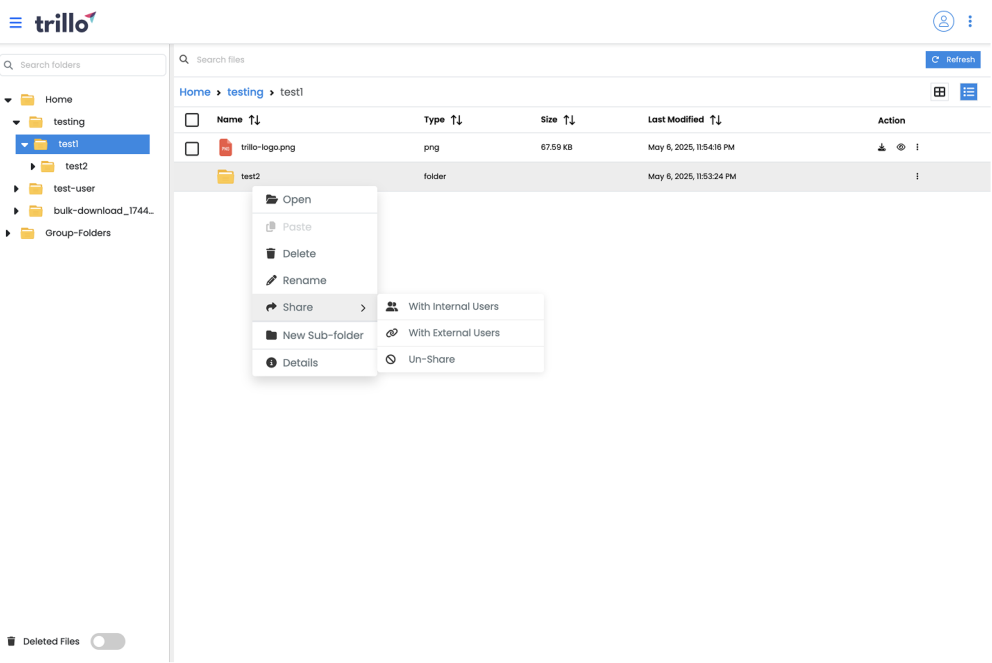
Upload link for external users
Folder and File Sharing (Internal Users)
Share with internal users
Share folders or individual files with other internal users:
Grant access to specific users or groups to view or download content.
Useful for seamless internal collaboration, similar to services like google drive or Dropbox.
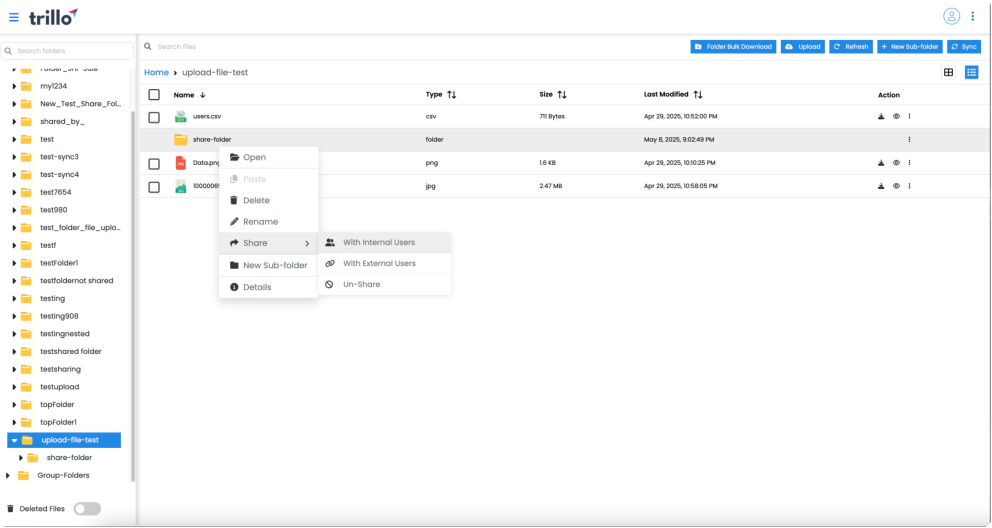
Share with internal users
- Un share Folders and Files
Revoke access to previously shared items:
Stop sharing folders or files at anytime.
Once revoked, users will no longer be able to view or download the content, ensuring privacy and data control.
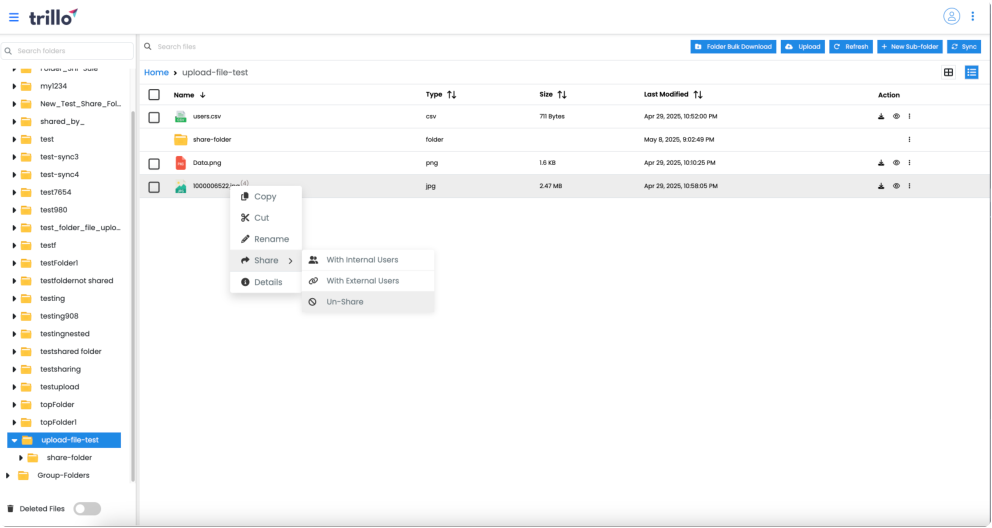
Un-share Folders and Files
Upload & Download Features
Bulk Download
Download multiple files or entire folders in a single step:
Items are bundled as a zip archive for convenience.
Saves time over downloading files individually.
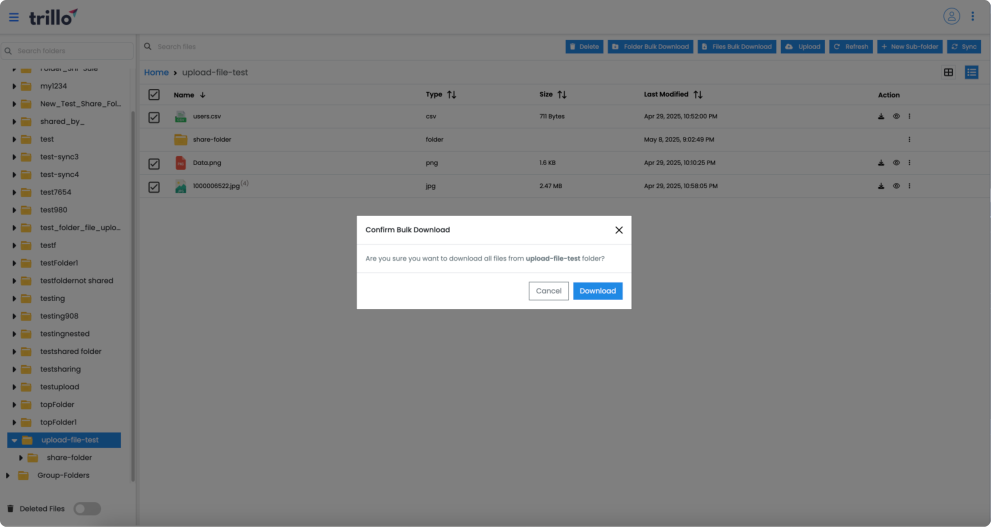
Select multiple files and click on the button Files Bulk Download
Folder and File Upload
Upload full folders (including nested directories) or multiple files at once:
Supports both single and bulk uploads.
Maintains internal folder structure.
Features drag-and-drop and progress indicators for better usability.
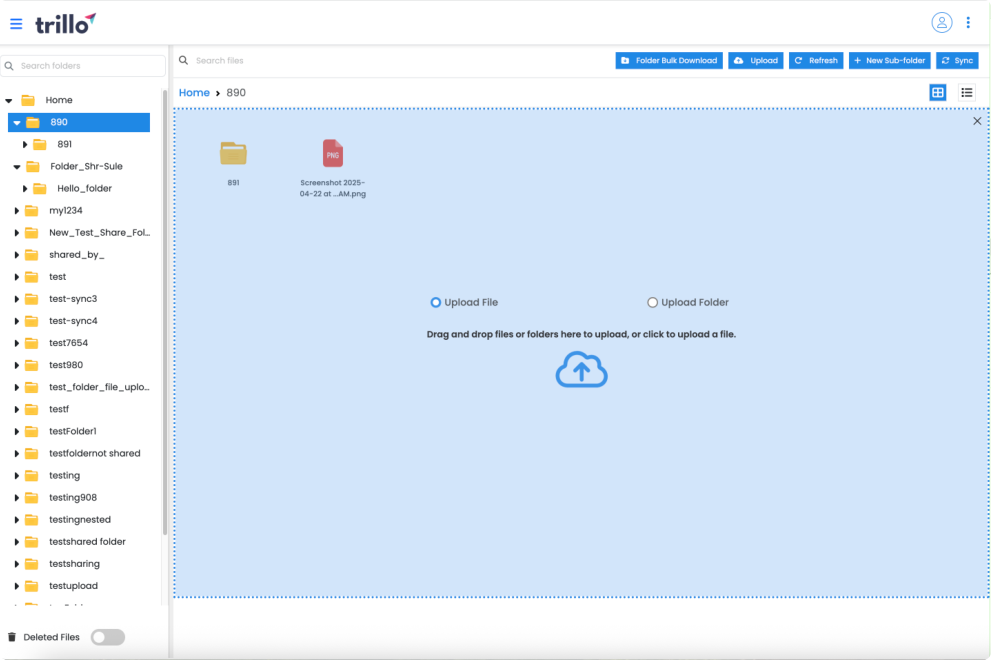
Folder and files upload
Group Folders
Group Folders are shared directories accessible to all members of a specific group or team. They centralize files in one location, making collaboration and organization easier. Access permissions (view, edit, manage) can be managed at the group level for security and control.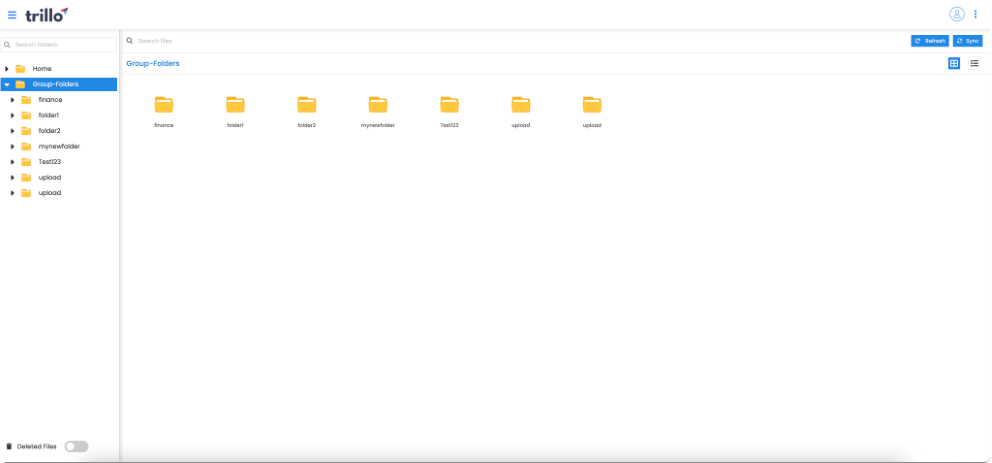
Group Folder
User Management
User management is a critical aspect of modern software systems, encompassing a range of functionalities that allow administrators to manage user accounts, permissions, and authentication processes. Effective user management ensures that only authorized individuals can access and interact with a system, enhancing security, usability, and compliance with regulatory requirements.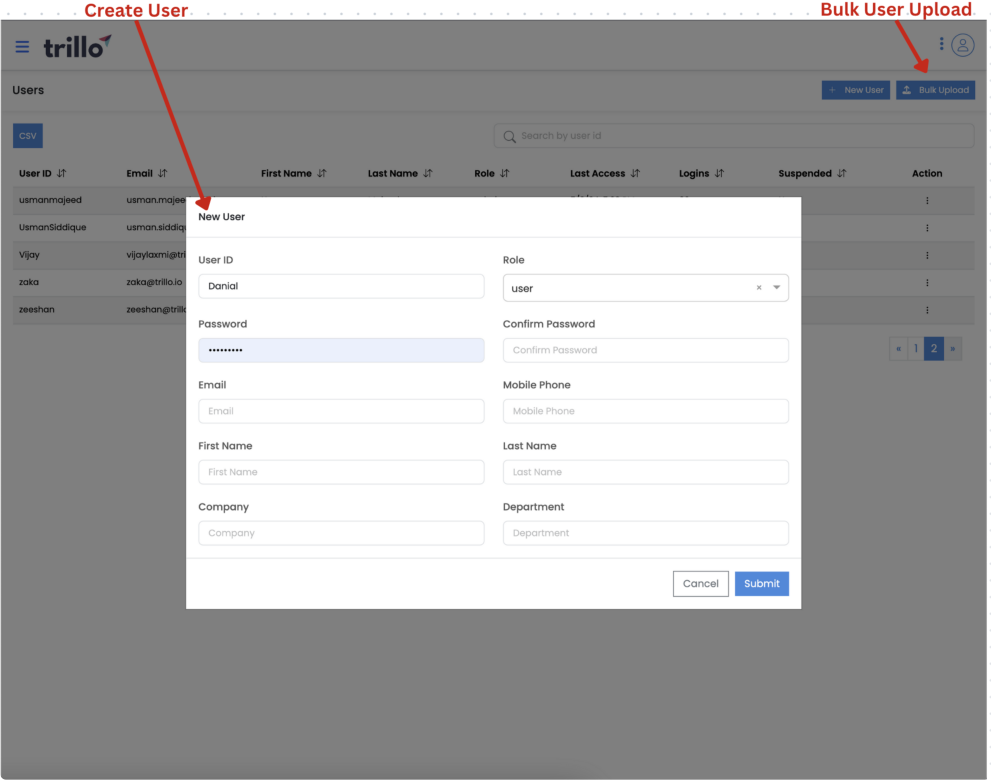
User Management: Adding new user
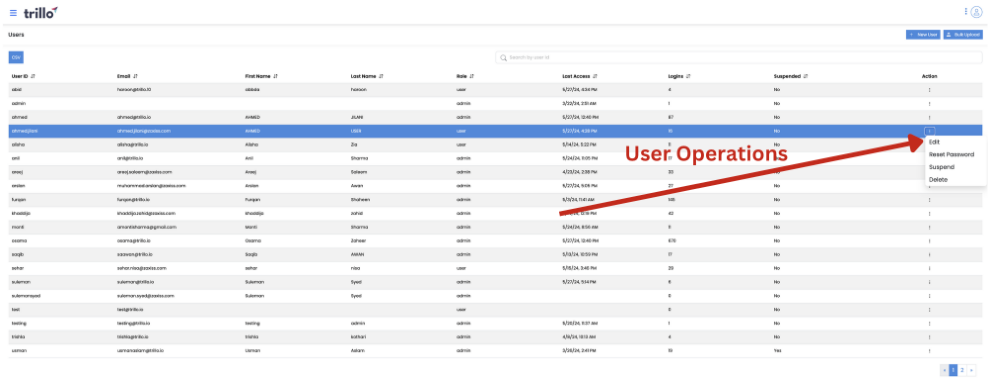
User Management: User Operations
Roles
In user management, roles play a pivotal role in defining and controlling access to resources within a software system. By assigning roles to users, administrators can efficiently manage permissions and ensure that users can access only the functionalities and data necessary for their specific duties. This approach enhances security, streamlines operations, and improves compliance with organizational policies.
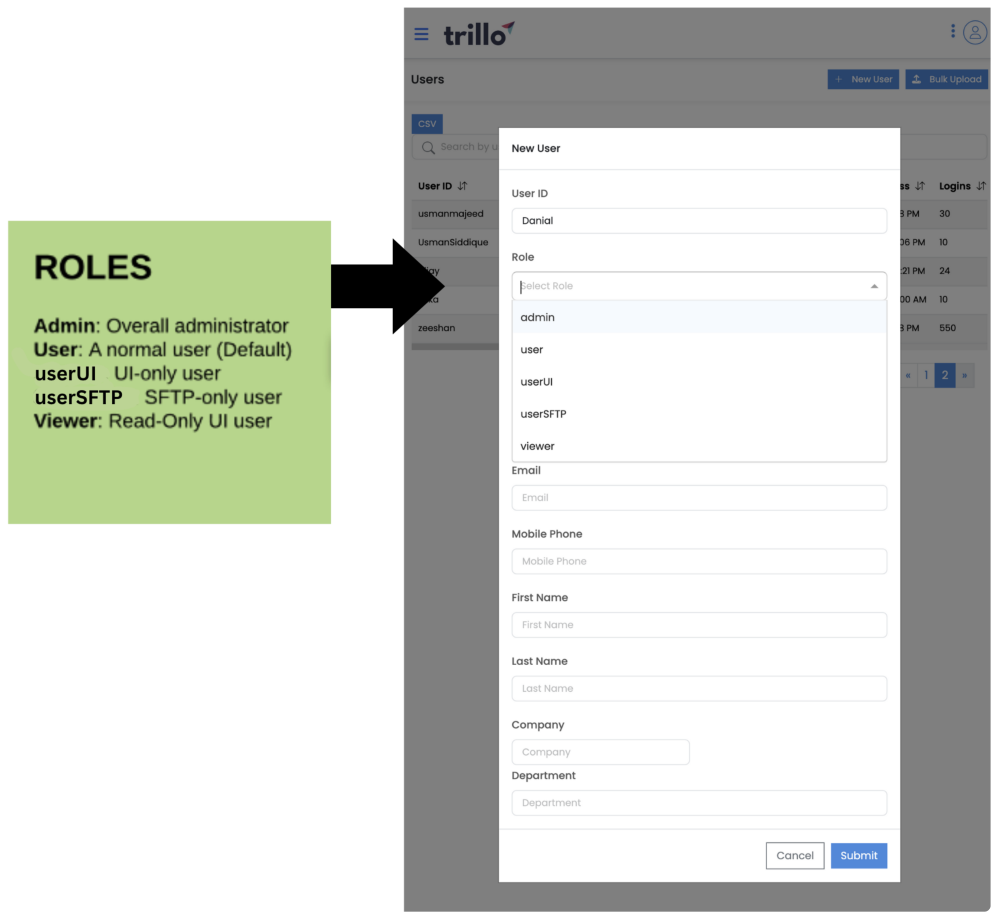
User Managment Roles
Group Management
Group management is an integral aspect of user management within software systems, enabling administrators to organize users into groups based on roles, departments, projects, or other criteria. This approach simplifies the administration of permissions and access control, enhances collaboration, and ensures a structured and scalable way to manage users.
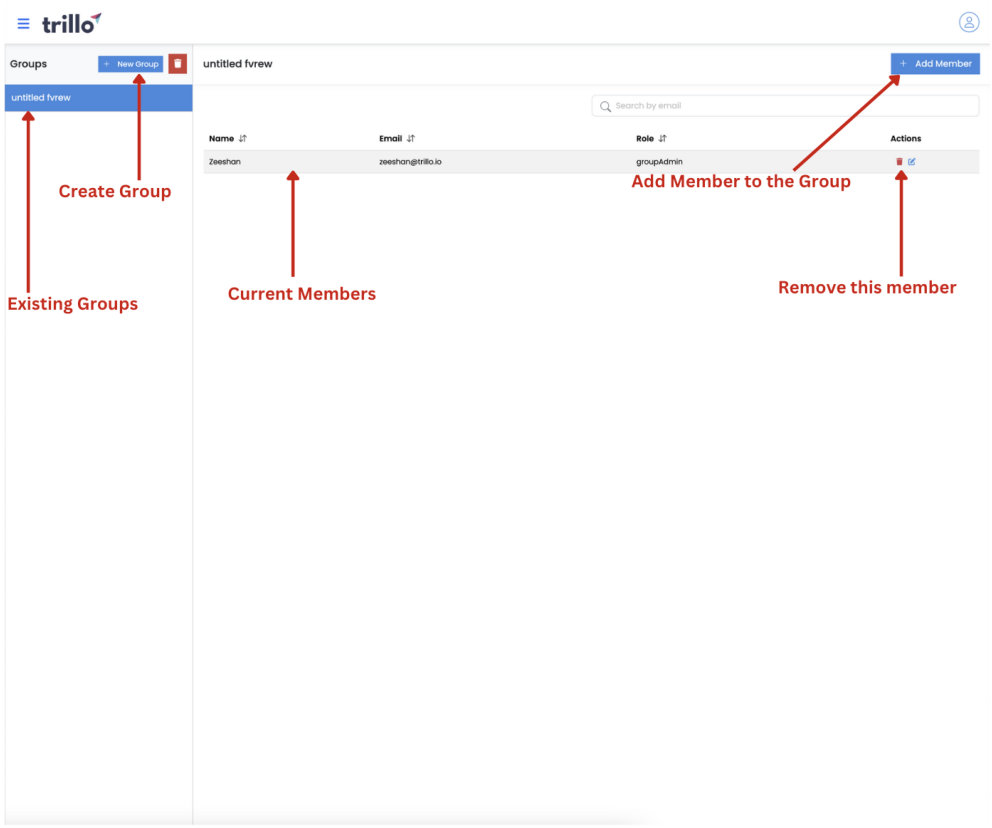
Group Managment Homepage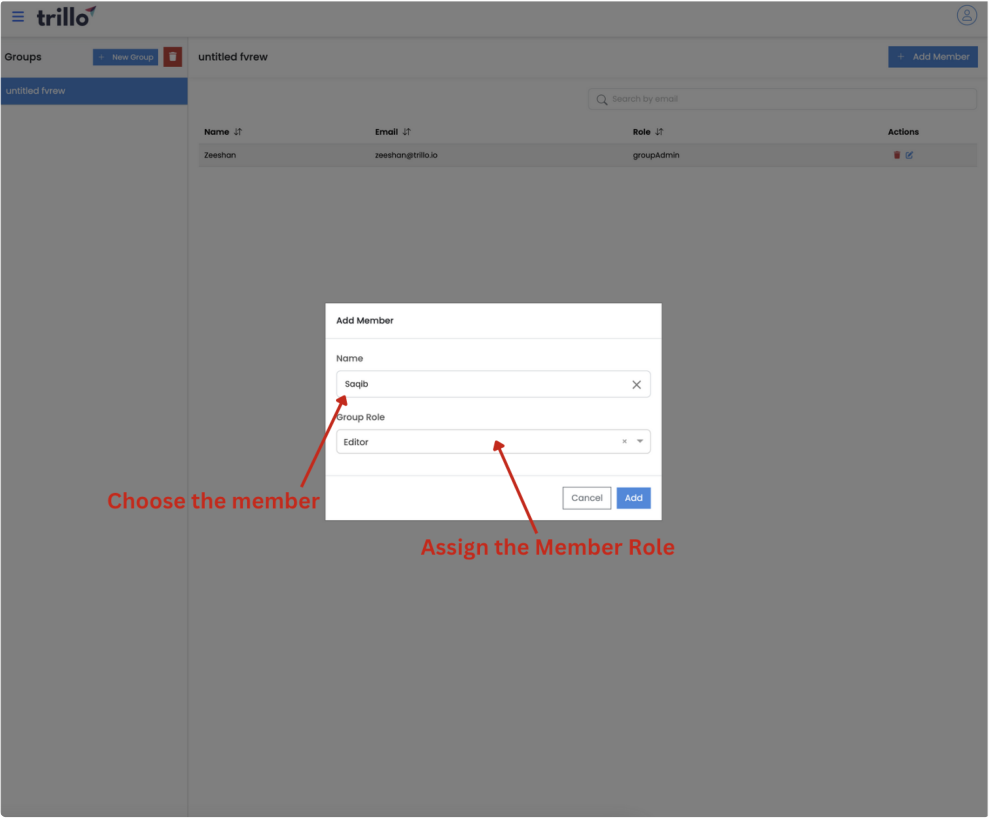
Adding a member to a group
SFTP (FileZilla Client)
Secure File Transfer Protocol (SFTP) is a robust method for securely transferring files between systems over a network. Unlike FTP, which transfers data in plain text, SFTP uses SSH (Secure Shell) to encrypt the data, ensuring that the transfer remains secure from eavesdropping and tampering. FileZilla Client is a popular, - open source FTP application that supports SFTP, making it easy for users to transfer files securely.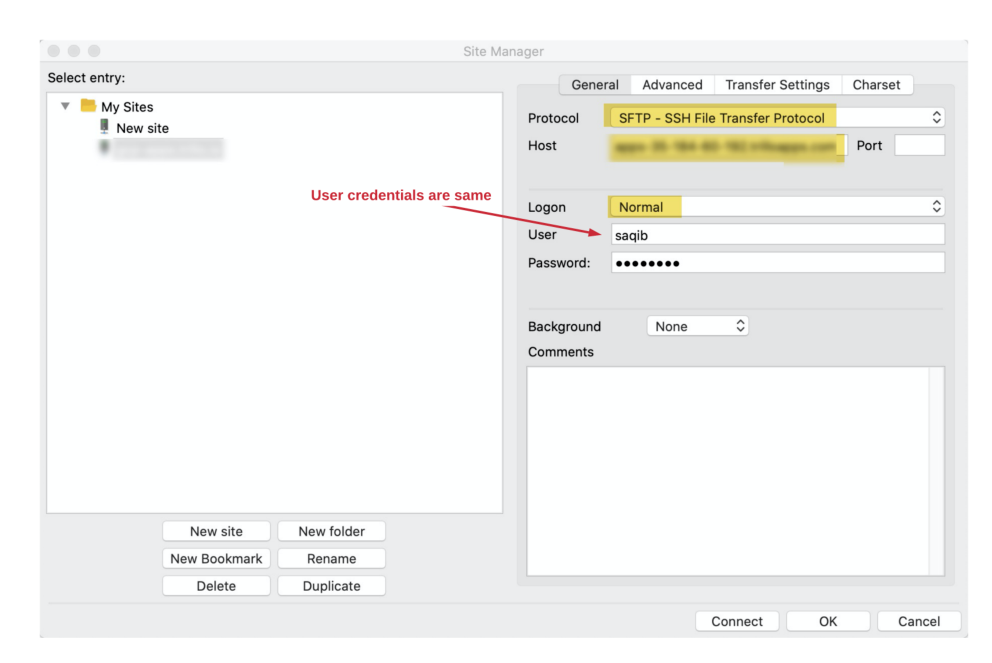
FileZilla Connection Page
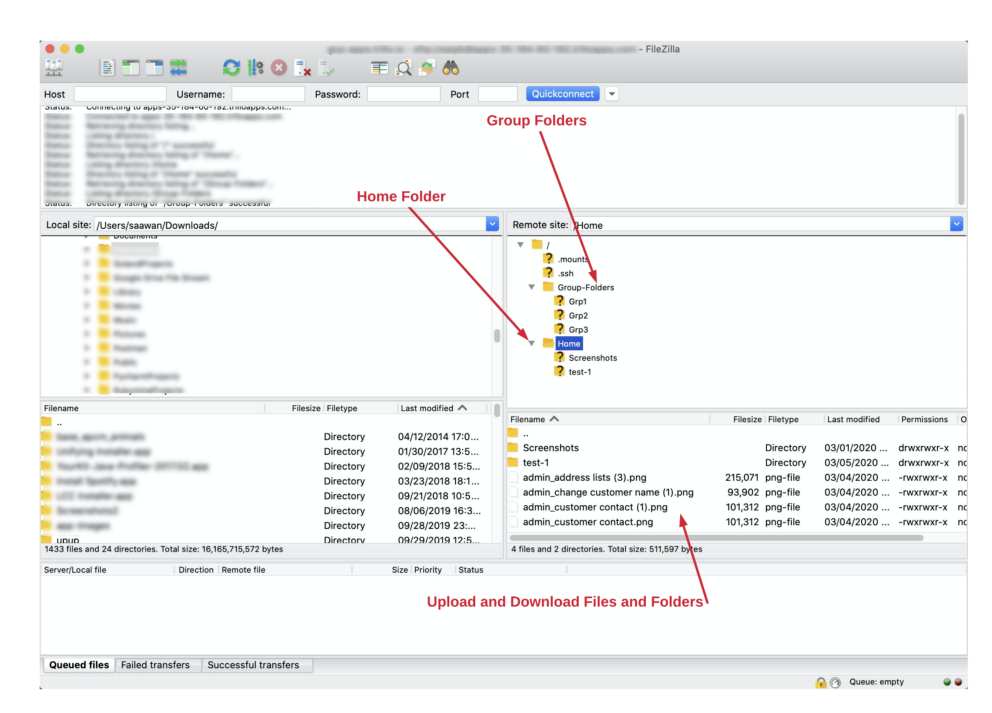
Connected FileZilla Page
Settings
Add your Logo
Incorporating your logo into various aspects of your business operations and materials is a vital part of establishing brand consistency and recognition. Whether itʼs on your website, marketing materials, or internal documents, your logo helps to create a unified brand identity that customers and employees can easily recognize and trust.
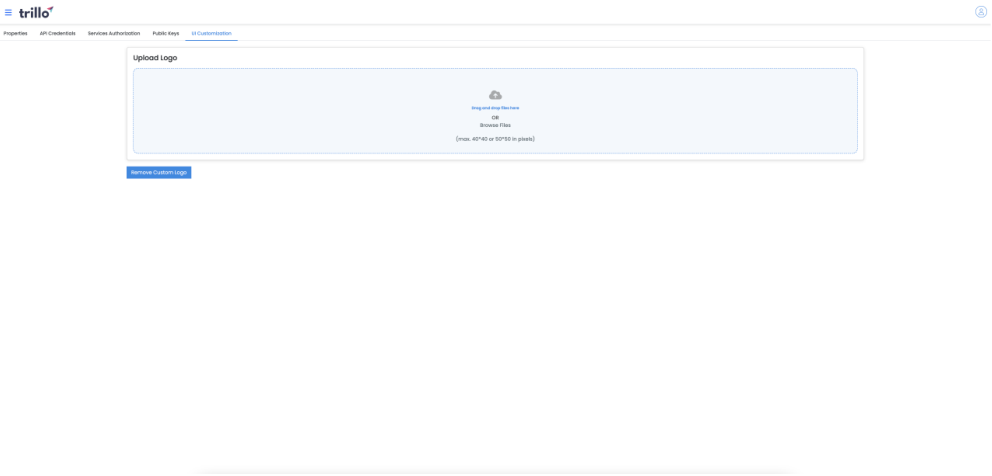
Adding Custom logo for application
Add your own public SSH keys
- SSH (Secure Shell) keys are a vital component of secure, password less authentication for accessing servers and other resources over a network. By adding your public SSH key to a server, you can enable secure and streamlined access without the need to enter a password each time.
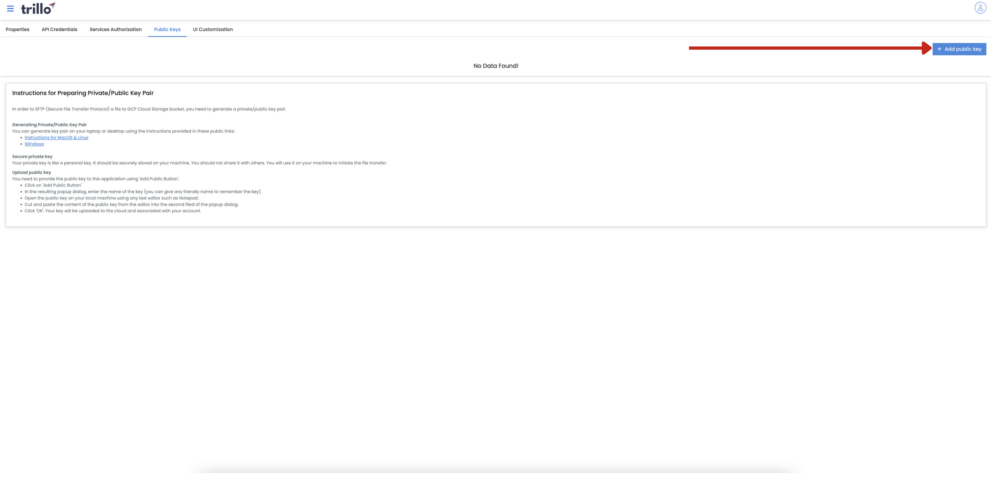
Adding own public SSH key
Cloud Storage
Cloud storage refers to storing data on remote servers accessed via the internet. These servers are maintained and operated by cloud service providers who offer storage solutions to individuals and organizations. Users can store, manage, and access their data from anywhere with an internet connection.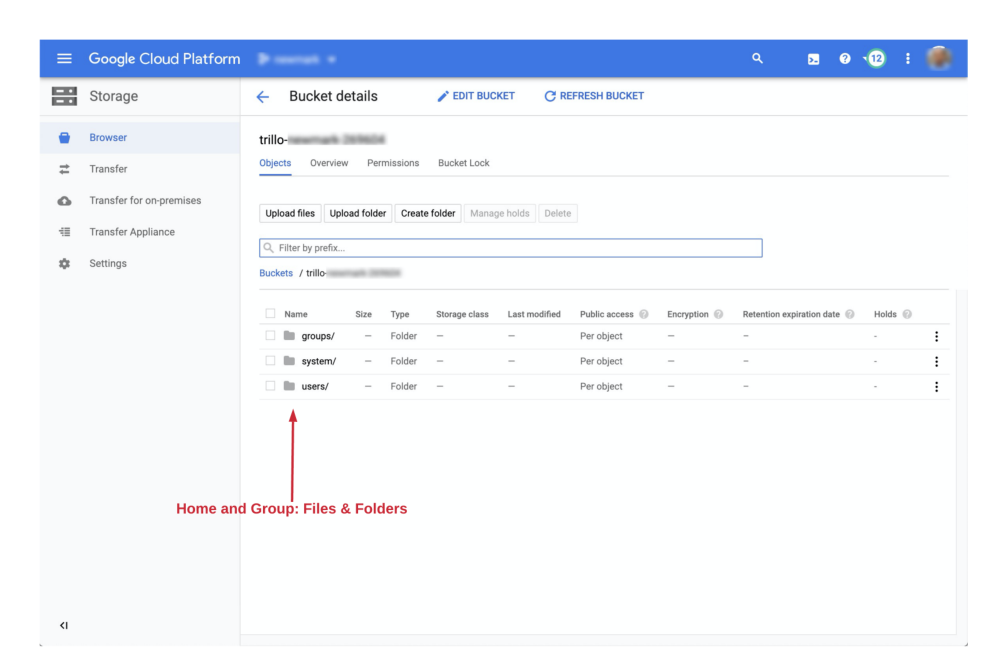
GCP Cloud Storage Page
Logs & Audits
Logs and audits are the silent guardians of digital landscapes, diligently recording every digital footprint and transaction. In the realm of cybersecurity and data governance, they serve as invaluable tools for maintaining accountability, ensuring compliance, and investigating incidents.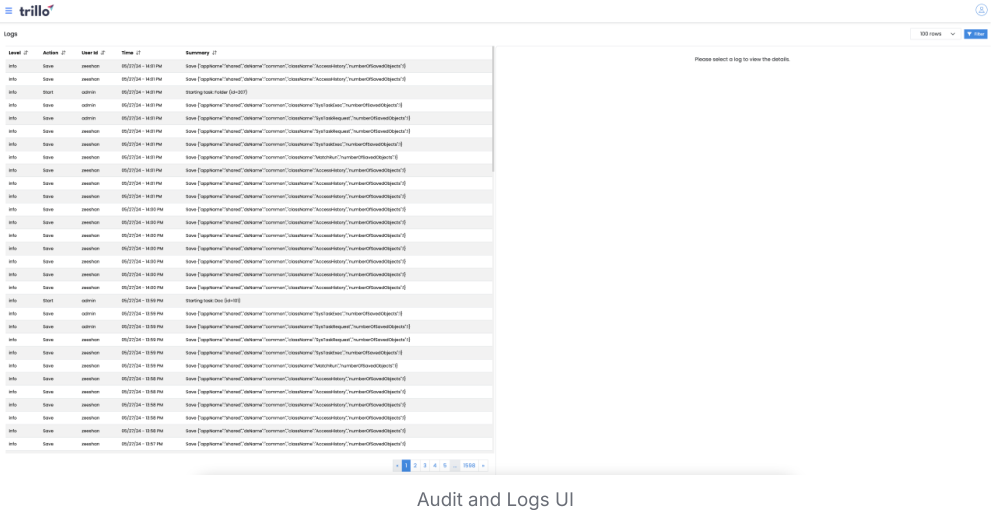
Audit and Logs UI
Install (GCP Marketplace)
Installing from GCP marketplace
Please follow the steps in the exact sequence.
Preparing for the installation
Deploy from the marketplace
Provision FM VM
Application Install
Create FM Users
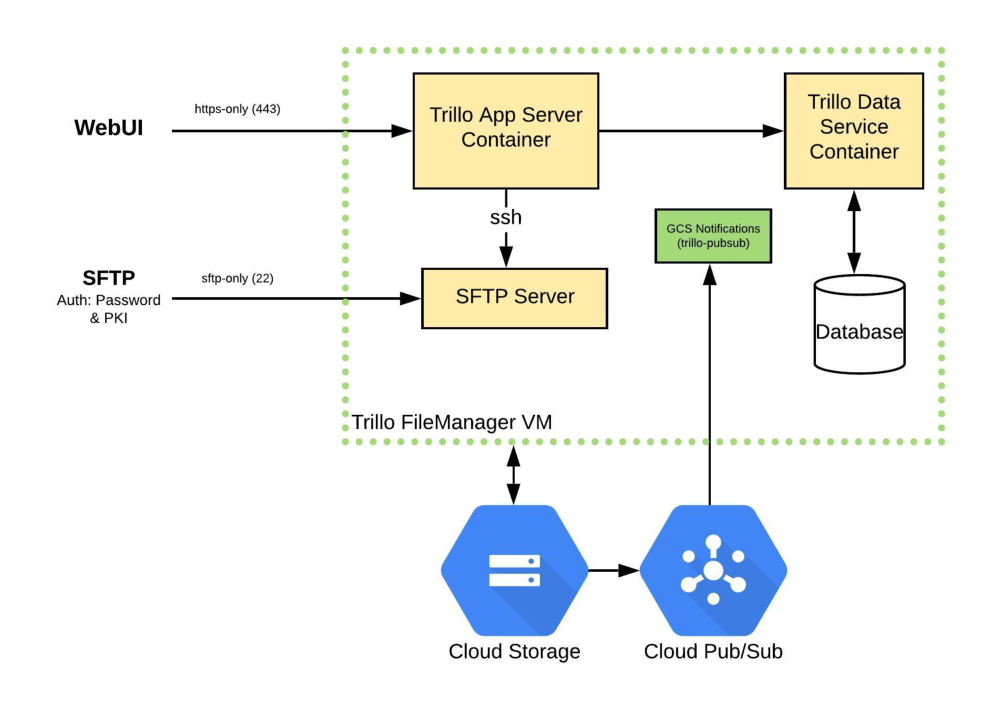
Preparing the GCP project for the install
As an administrator of the Google project, you must first execute the following steps before deploying the application from the marketplace.
Enable the required services
Create the service account for the application
We provide a script that can set up the project from the Google Cloud console command line. You can download the script and see what it does and also can execute it directly as:
gsutil cp gs://trillo-public/fm/trillo rt-preinstall.sh . && chmod +x
./trillo rt-preinstall.sh && ./trillo rt-preinstall.sh
The complete operation is shown below.
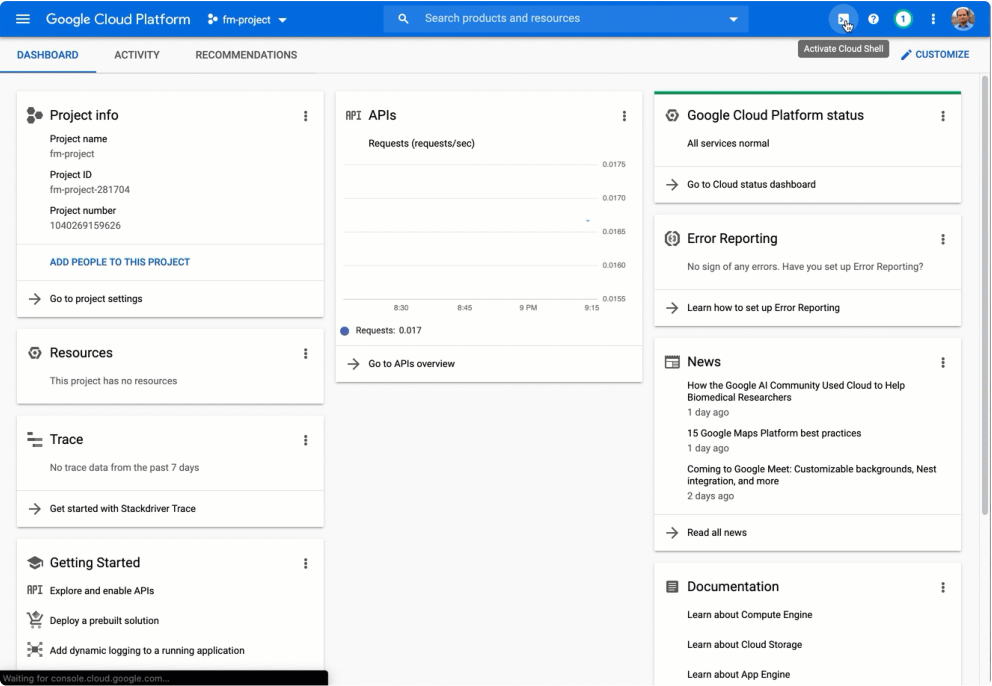
Deploy from Marketplace
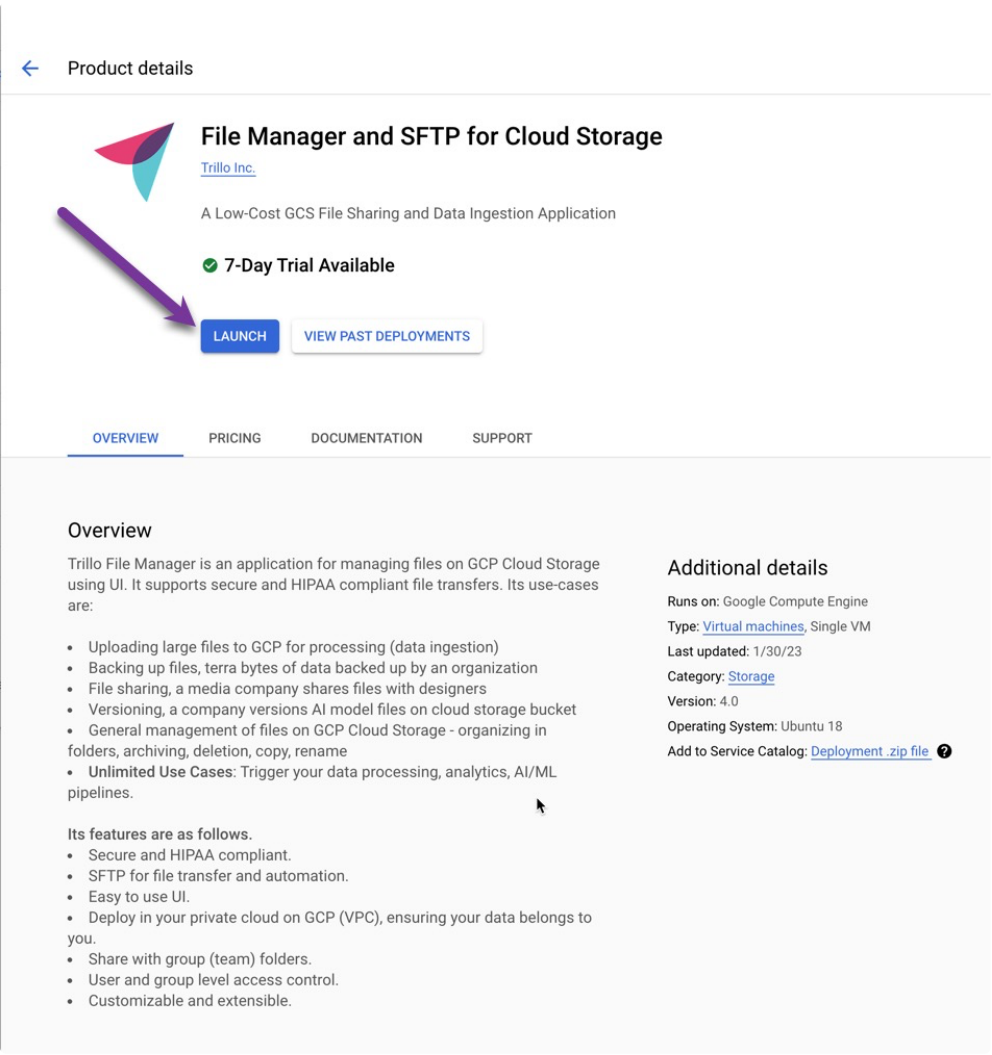
•In the GCP marketplace ( https://console.cloud.google.com/marketplace ), search for the "File Manager and SFTP for Cloud Storage". Launch the installation and select the appropriate zone. Finally, you are ready to deploy.
Launch
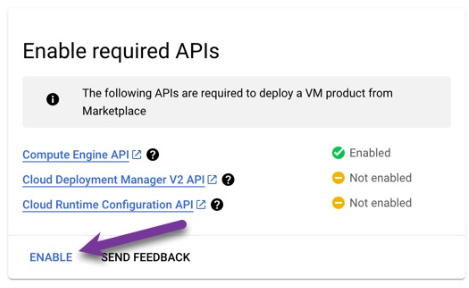
- You may be asked to enable required apis so please enable them
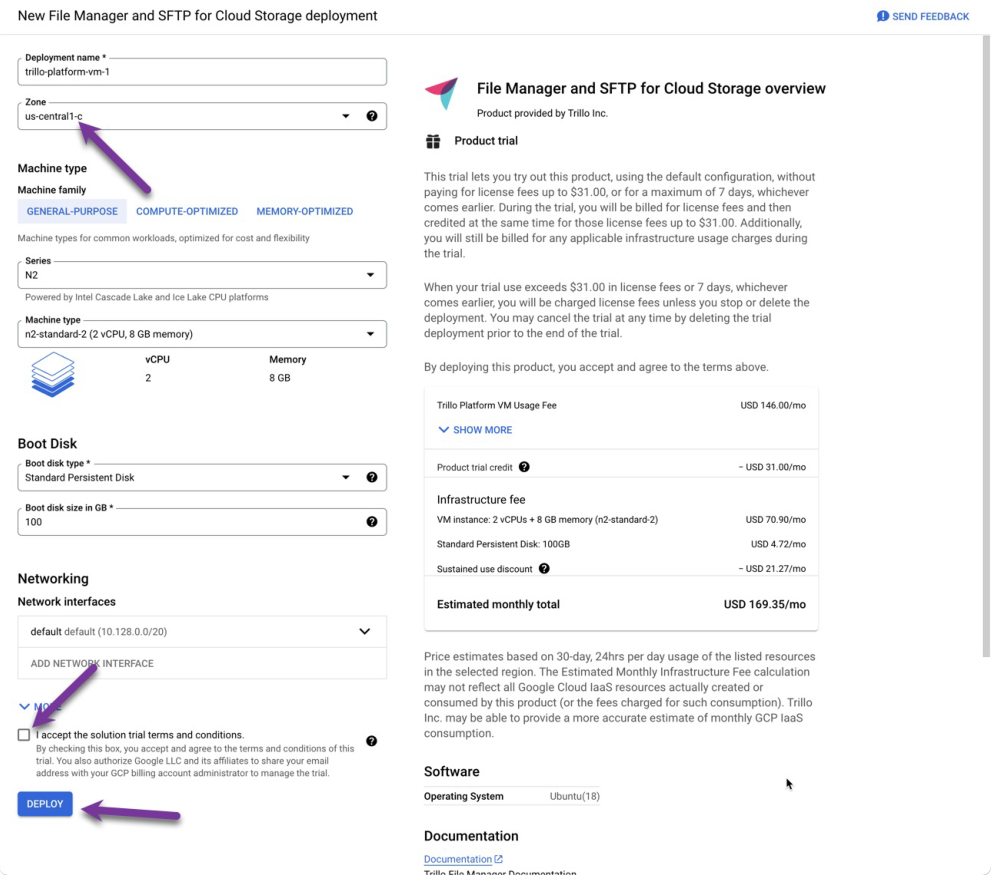
- Select your specific zone, accept terms and conditions and click deploy.
Deployment Video
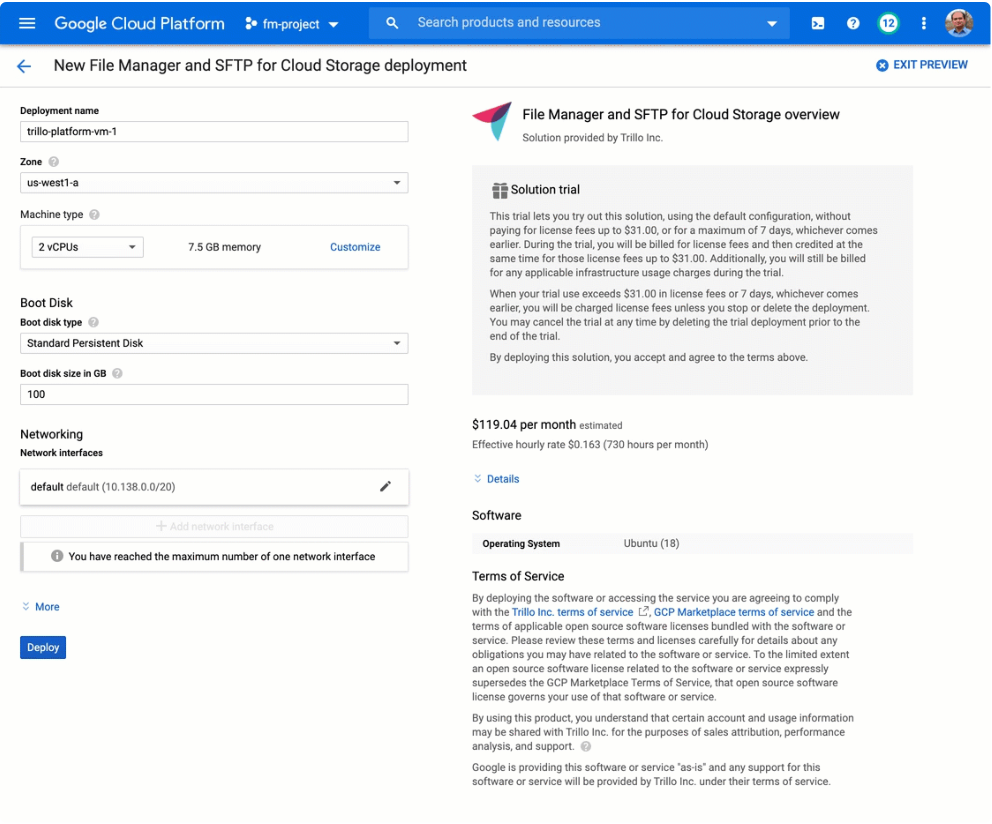
Preparing VM
File Manager VM
On the compute engine page you will notice that the file manager virtual machine has been deployed. We will select this virtual machine and stop it. We need to provision it correctly to install the software.
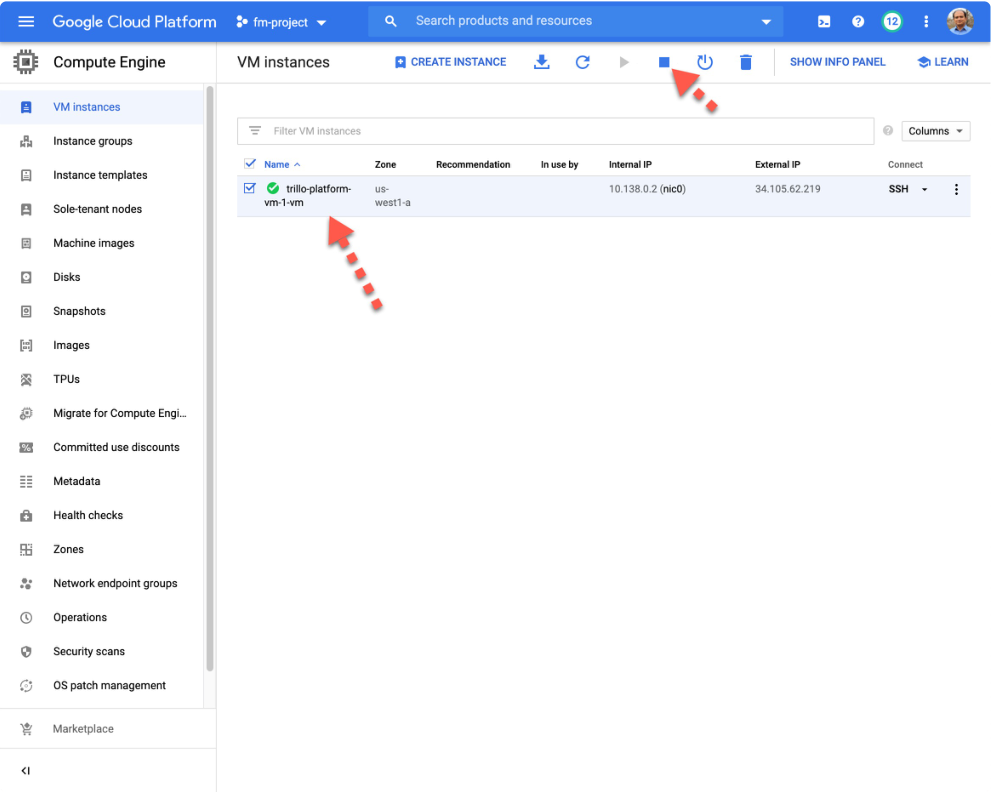
Preparing FM VM
Once the virtual machine is completely stopped then you can edit it. We want to set three things correctly before it and install the application.
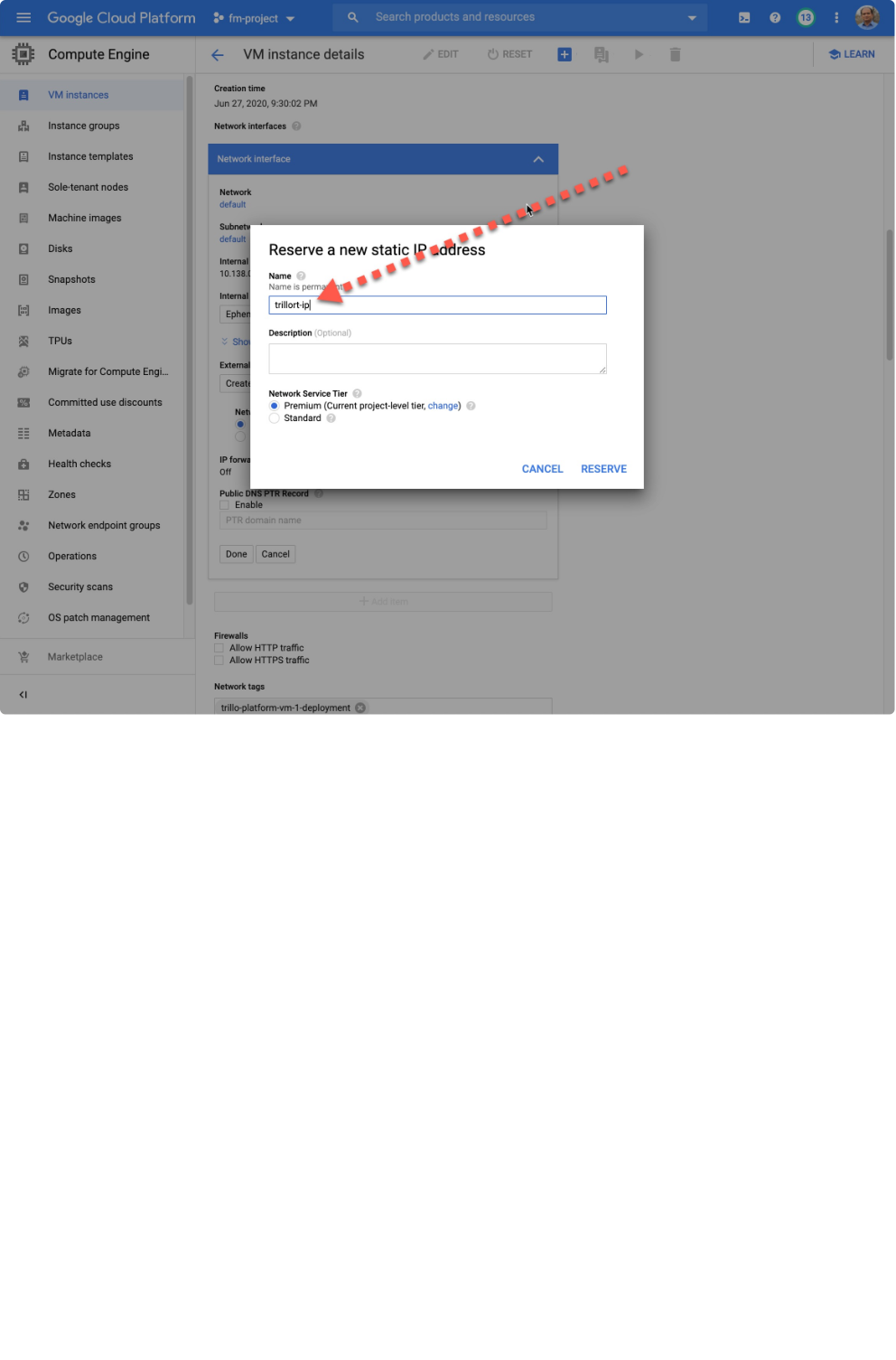
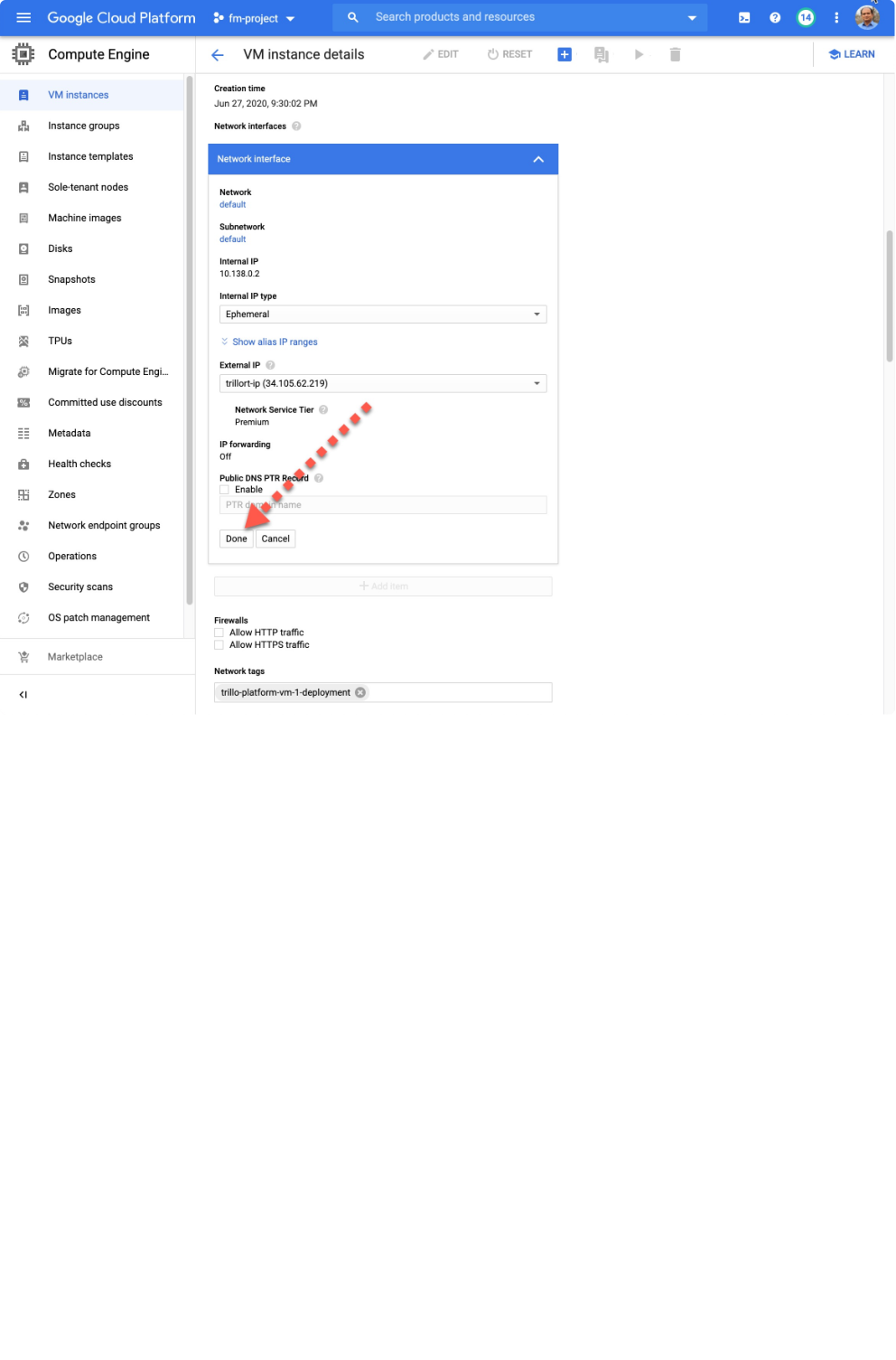
Reserve an IP address so that valid certificates can be obtained.
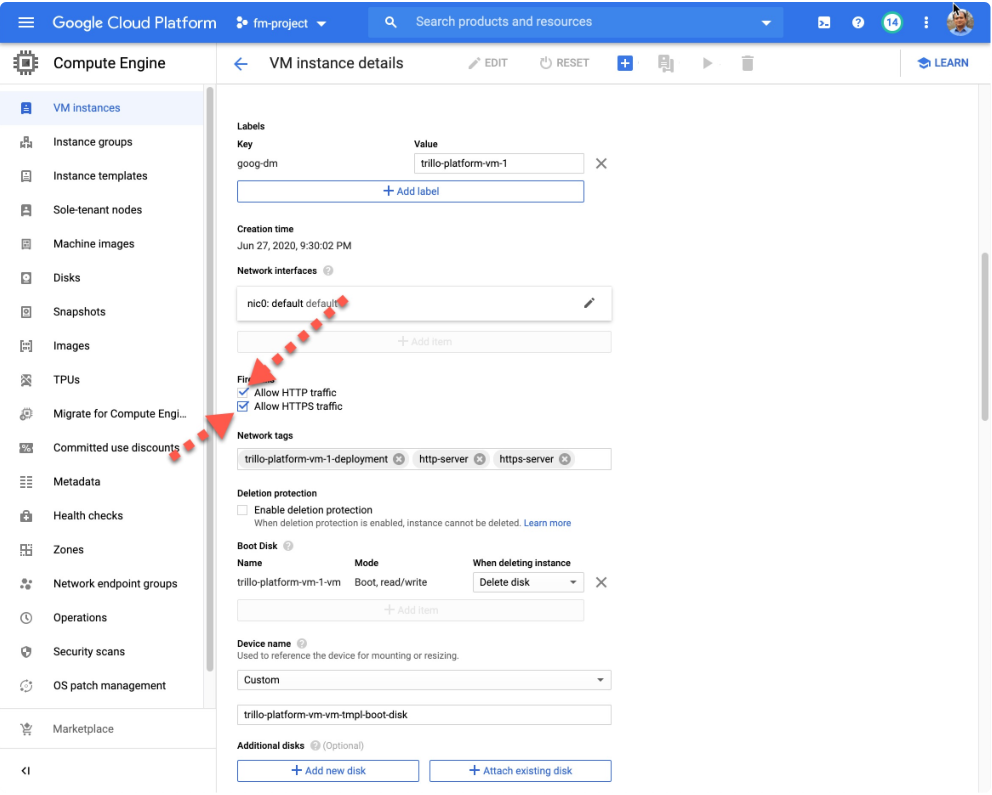
Allow both HTTP & HTTPS so that the server can be accessed via HTTPS. HTTP is only needed for certificate renewal.
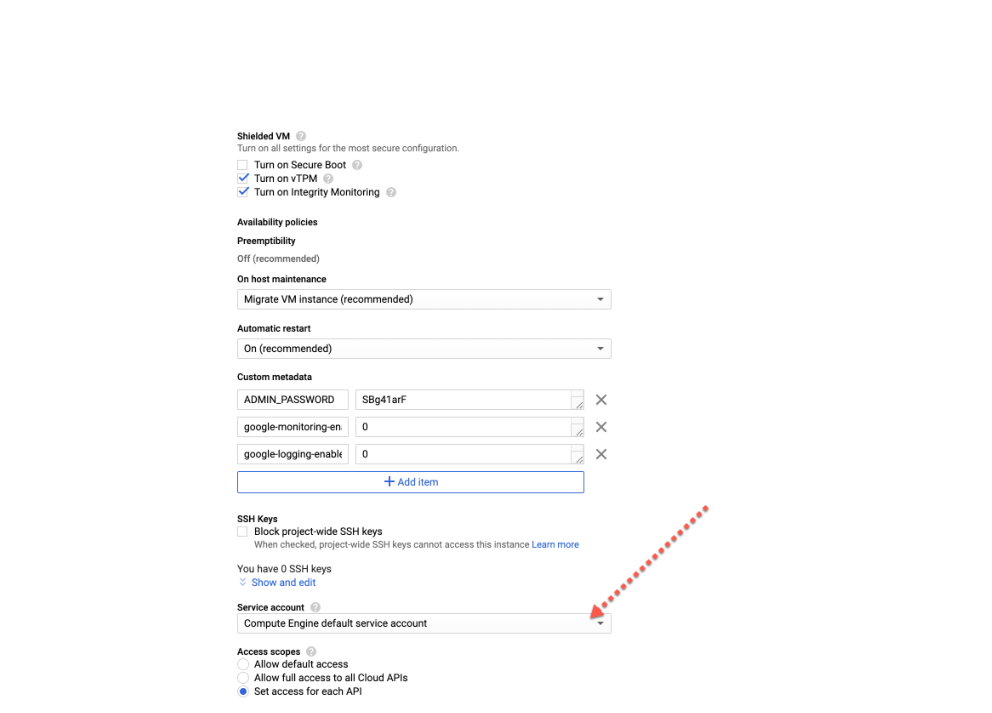
Assign the correct service account to this virtual machine. You have already created a service account for this machine during the pre-installation phase.
These three steps are highlighted in the following figure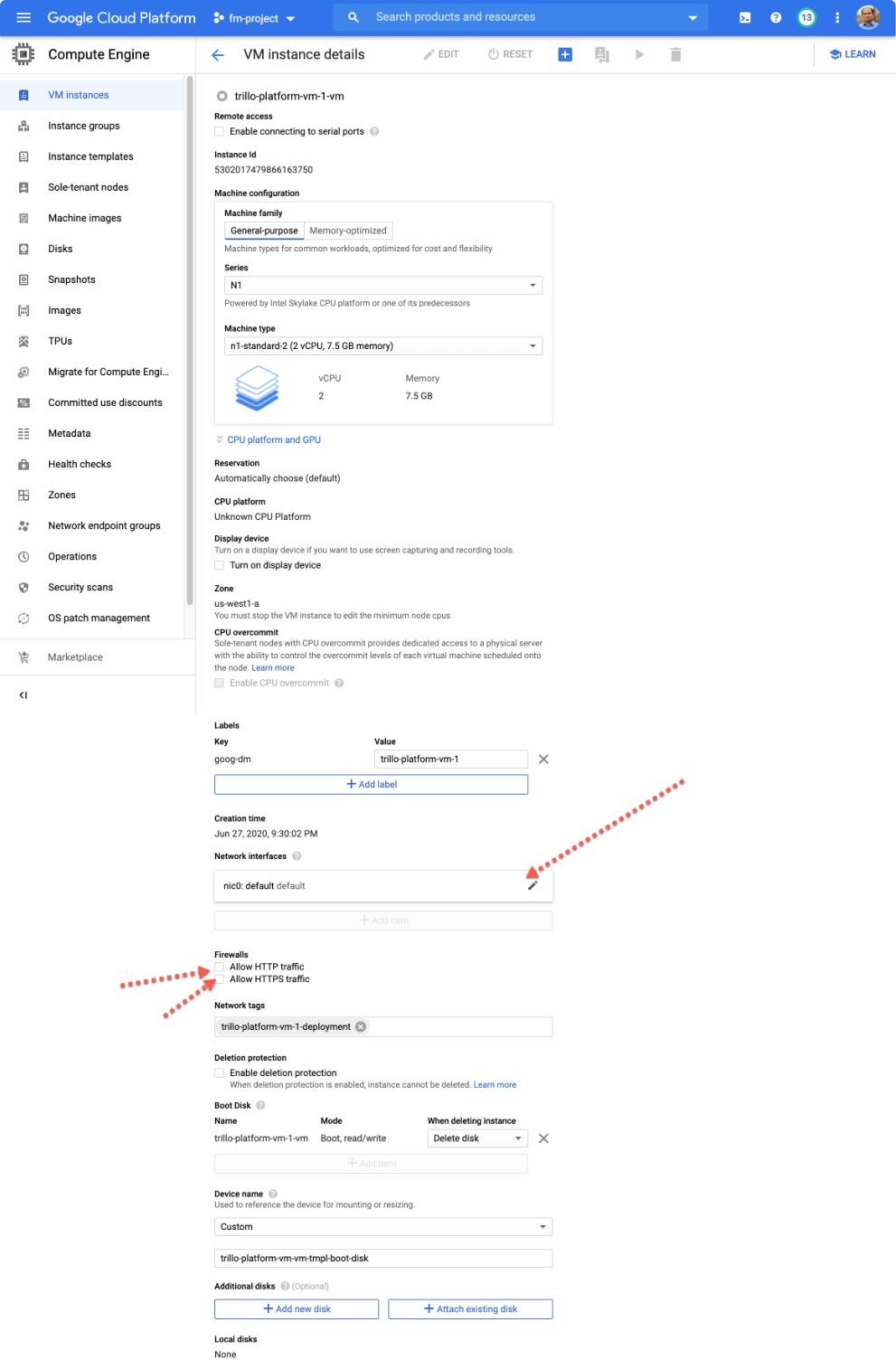
Step-1: Reserve IP address
Create the new external IP address as shown below. Click "Done" when finished.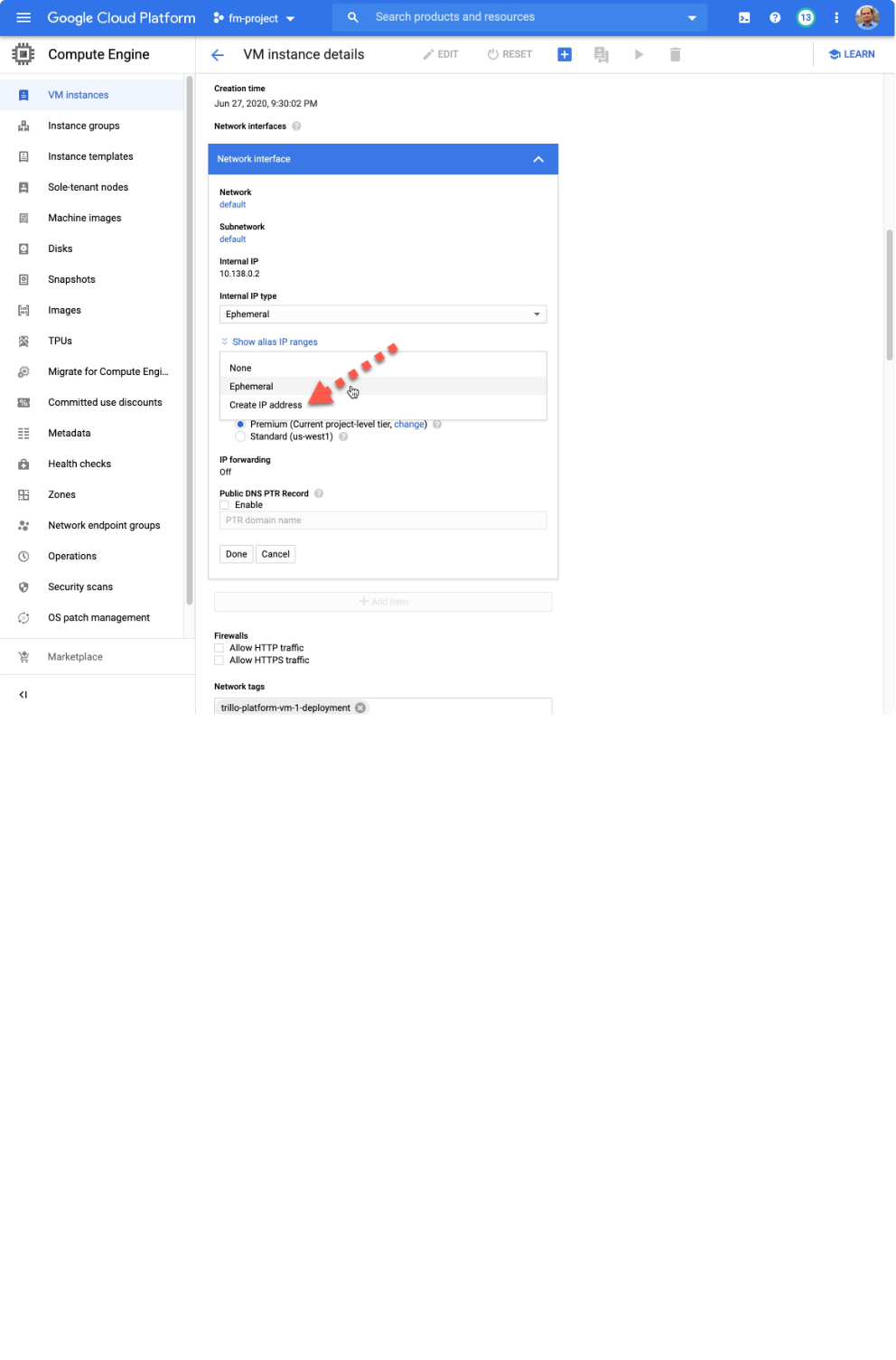
Step-2: Allow HTTP & HTTPS
Step-3: Set the Service Account
Select the highlighted service account, ensuring its "access scope" grants the necessary permissions.
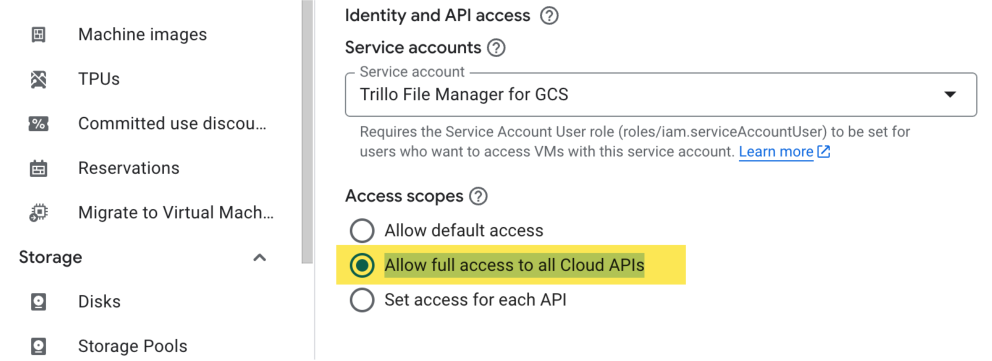
Note: If there is no effect on the "access scope" then enable "Allow full access to all Cloud APIs".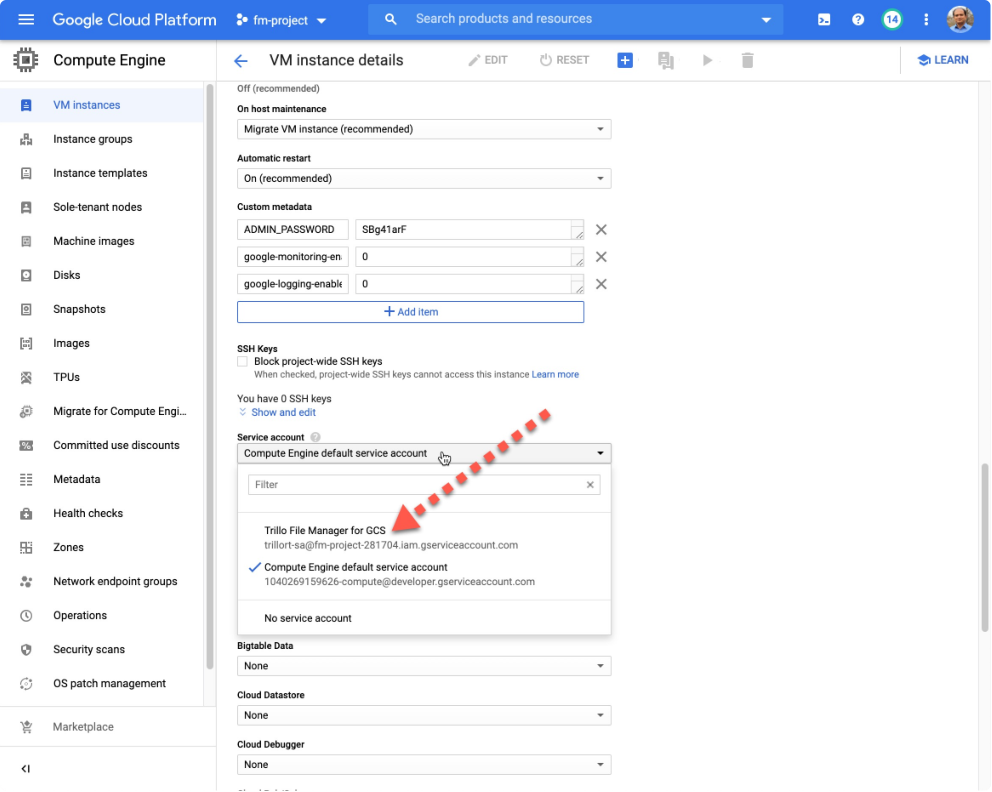
Note: Allow the full access to all cloud APIs.
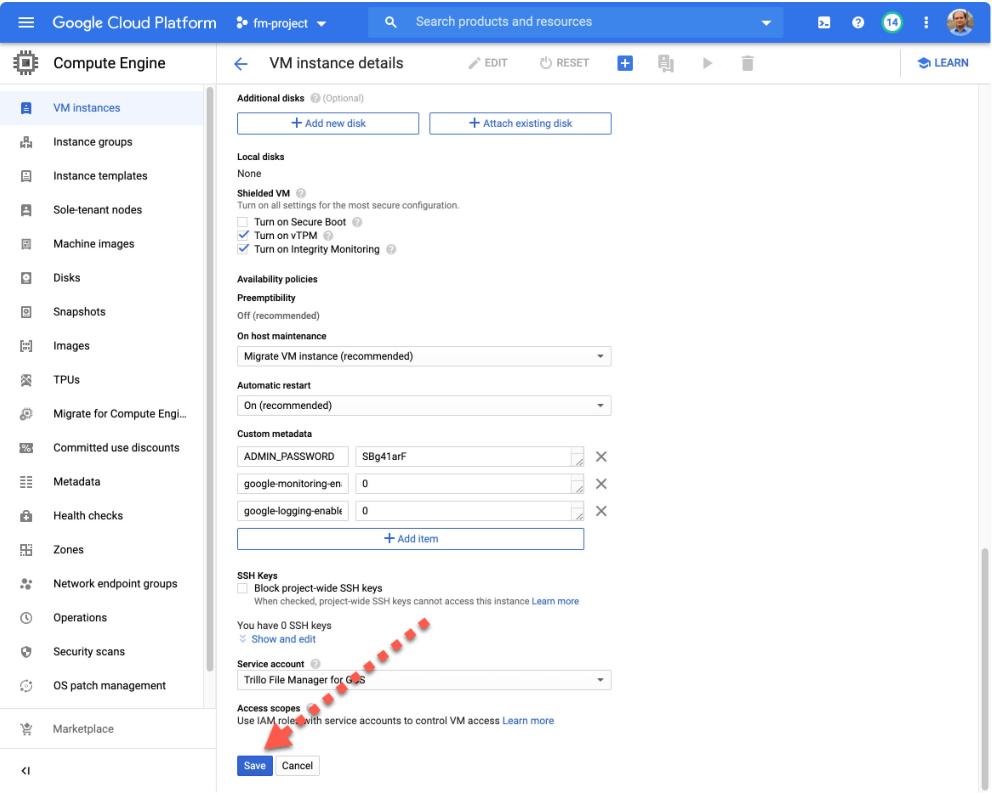
Save VM settings
Application Install
Start the File Manager VM
The virtual machine is stopped therefore start it.
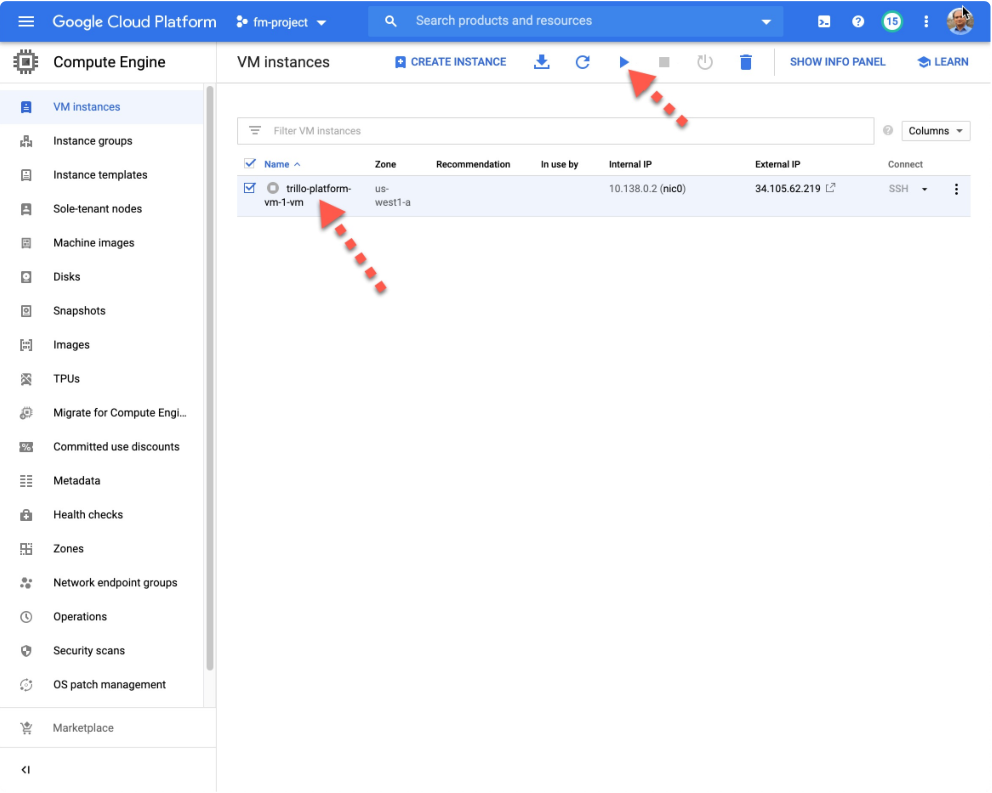
Bring up the Application Site
Once the vm started, waitfor 15 minutes to allow installation to complete then click the external IP address to bring up the Application startup page.
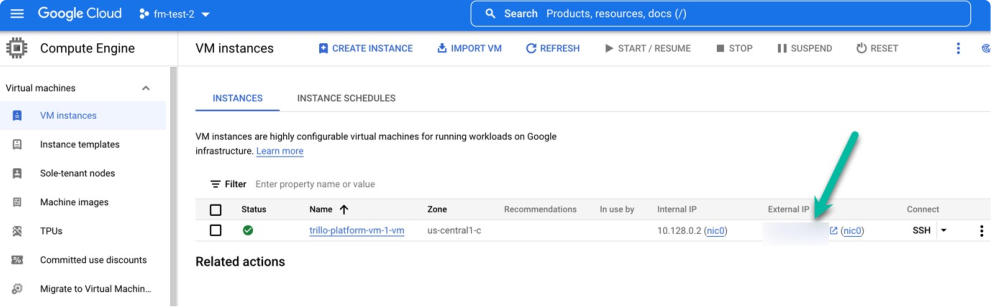
For the first time you will go through the following sequence.
All other users can use the file manager from this point on words. The password for the admin account is always different and unique for your installation. Your instance has a metadata field ADMIN_PASSWORD (as shown above) which can be used to enter the application for the admin user.
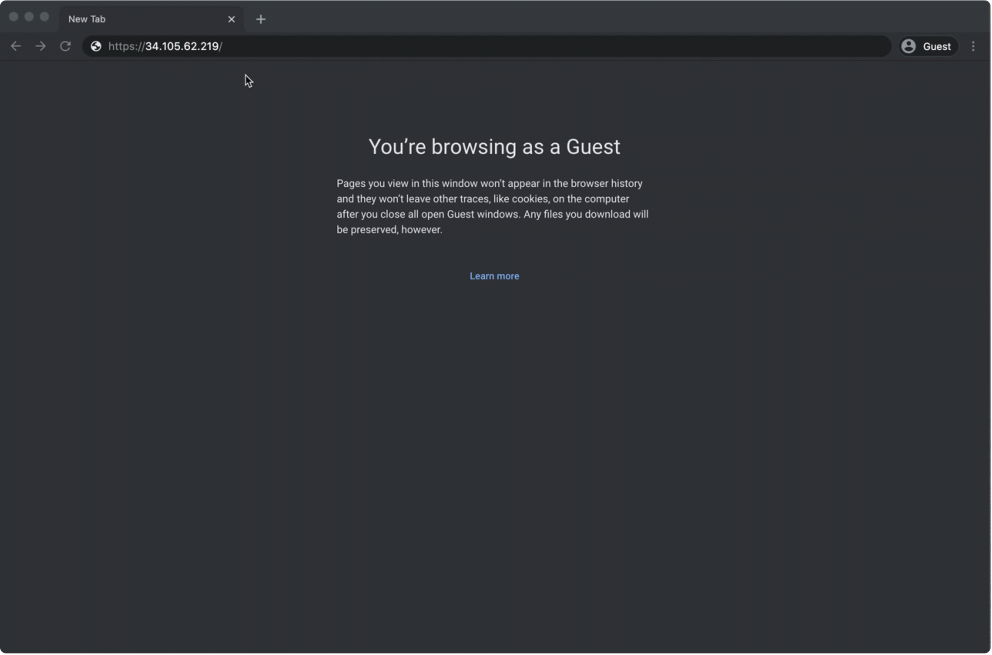
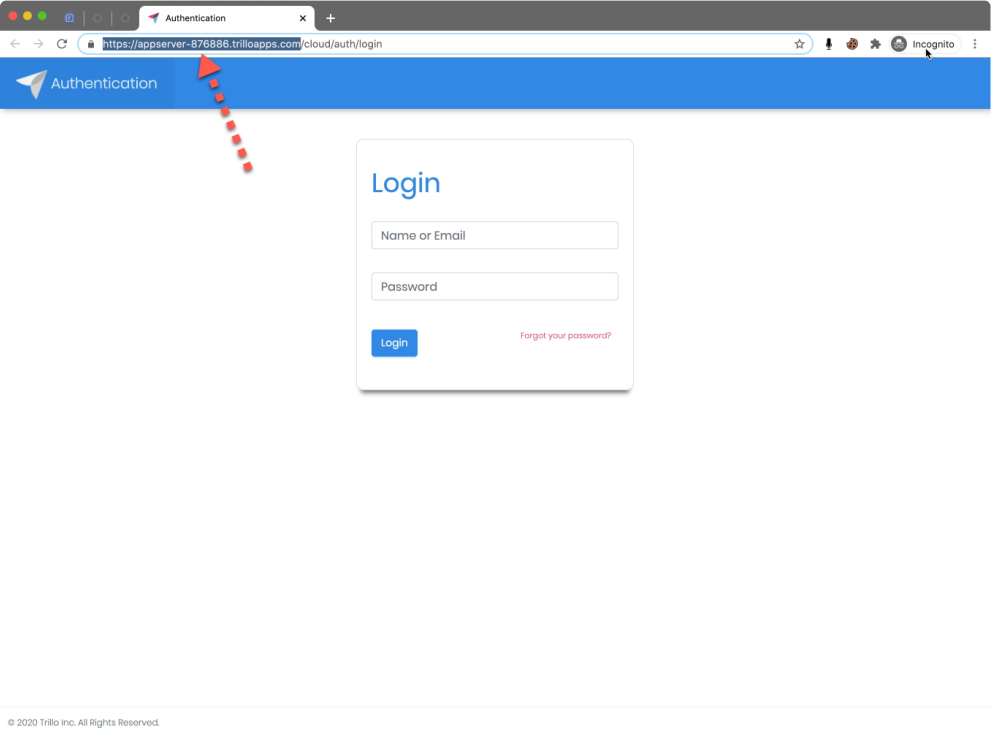
- Bookmark the file manager application url and share with the rest of team.
- Please note that the administrative account (admin) is not meant for normal file manager operations. Instead, it is used to create other users accounts.
Optional: SSH into VM
Become root user using sudo su and cd /opt/trillo
Runtail -f install-*.log command to inspect the install progress. The install file will be different for your case but there will be only one. Once it is reaches the line that says congratulation! server is running at ... then hit Control+C to break. You will get back to the prompt as shown below.
User Creation
Creating Users
The primary purpose of the default admin account is to create and manage regular user accounts for the file manager. It is crucial to avoid using the admin account for SFTP and file management tasks, as this can lead to security vulnerabilities and potential misconfigurations.
In the following video, the admin will guide you through creating a new user account. This step-by-step tutorial ensures you can set up and manage user accounts effectively, delegating appropriate permissions to maintain a secure and efficient file management system. By following these best practices, you can ensure that the administrative functions remain secure while allowing regular users to perform their tasks without unnecessary risks.
User creation.mp45MB
Download
Open
Download Open
Features Demo
Video highlighting Trillo File Managers features
Tutorials Link
Download
Open
saas trillo.mp4 Download Open 63MB
User Roles and Capabilities
- Built in roles and capabilities are listed below:
•Admin:
Can perform any role.
Responsible for user/group management.
Can add public ssh keys.
•Editor:
- Not applicable to fm (Workbench-related).
•User:
Can change their own password.
Can upload, delete, and read files via SFTP.
Can view and download files on the UI.
Can add public ssh keys.
•Users ftp:
Can only interact via SFTP.
Can upload, delete, and read files via SFTP.
Can not access the UI.
UserUI:
Can not only interact via UI.
Can upload, delete, and read files via UI.
Can not access the SFTP.
•Viewer:
Can only view files on the UI.
Can download files from the UI.
Can not upload or delete files.
Noteworthy:
The account with the name "admin" is the first account created and has the following roles and capabilities:
The administrator of user/group management only.The admin user can perform any role related to user and group management, but they do not have any other capabilities.
Full access to all gui settings.The admin user can view and change all of the settings in the user interface.
Can not upload, delete, read, and write files via SFTP.
Bulk User Accounts Creation
Purpose
This document outlines the process for creating multiple user accounts simultaneously, ideal for efficiently on boarding larger groups into your application.
Prerequisites
Administrative permissions within the user management system of your application.
A properly formatted csv (Comma-Separated values) file.
Required Fields
The CSV file must include the following columns with unique values for certain fields:
userId:A unique identifier for each user.
role:The role or permission level assigned to the user. See "Role types" below for details.
email:A unique and valid email address for each user.
password:A password of at least eight characters.
Role Types
The system supports three core user roles:
user:Standard user with basic access and permissions.
admin:Administrative user with elevated privileges, including the ability to manage other users.
viewer:Read-only user, able to view data but not make changes.
Optional Fields
first name:User's first name.
last name:User's last name.
company name:The company the user is associated with.
dept name:The department the user belongs to.
CSV File Format
userId,role,first name,last name,email,password,company name,dept name
user,user,usrname,one,user1@localhost.local domain,password xyz,company1,dept1 admin user,admin,usrname,two,admin user@localhost.local domain,password xyz,co mpany2,dept2
view user,viewer,usrname,three,view user@localhost.local domain,password xyz,com pany3,dept3
Instructions
1. Create the CSV File:
Use a spreadsheet program (e.g., Microsoft excel, or google sheets) ora text editor.
Ensure the first line contains the header names as shown above.
Populate subsequent lines with userdata, each line representing one user.
Make sure the 'userId' and 'email' fields contain unique values.
Adhere to the minimum password length of eight characters.
Save the file in csv format.
2. Import the CSV File:
Access the designated user management section of your application.
Locate the "Upload" button on the “Users” page.
Follow the application's prompts to upload your csv file.
3. Validation:
The system will check your csv file for proper formatting and validity.
If errors are found, carefully review and correct the issues in your csv file before re-uploading.
4. Account Creation:
- Once the file is validated, the system will create user accounts as specified.
- Welcome emails will be sent to all the users that are created.
Security Considerations
- Strong passwords:Encourage users to change their initial passwords to more secure, unique ones upon their first login. Consider implementing password complexity requirements if possible.
SFTP
Once a user account is created it can be used to transfer the files using the SFTP. The credential of user remain as defined for the UI. In addition, a user can add as many as public keys as needed for the password less authentication.
Once a user is created, the home and group-Folders are mapped on for the SFTP. The files and folders can only be transferred under these folders. Such an operation with FileZilla SFTP client is shown below.
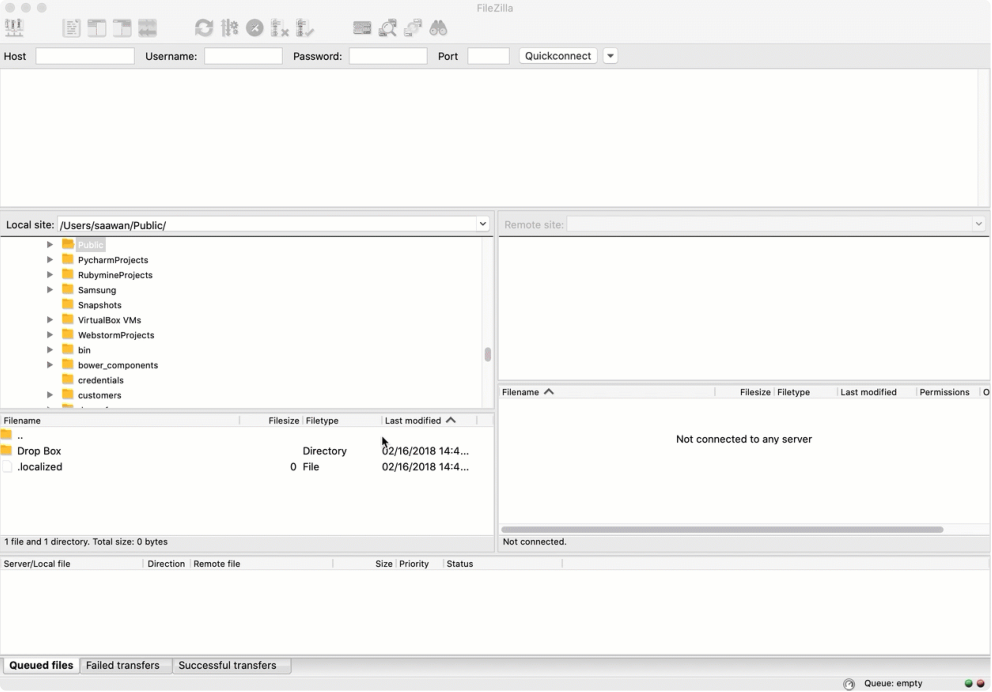
- When transferring files via the command-line one can use the commands similar to what are shown below.
SFTP -o identity file=~/.ssh/id_rsa saqib@apps-35-238-185-
249.trillo apps.com 2024 6387

#### Application Updates

The applications update is manual. You will need to SSH into the VM and run following commands in sequence. Once updated, you will have to clear browser cache so that new contents can be shown (Follow this link to reload application in the browser - https://fabric digital.co.nz/blog/how-to-hard-refresh-your-browser- - and clear cache )
sudo su
gcloud auth --quiet configure-docker
cd /opt/trillo
./update.py
#### Update SSH Config (if coming from old version)

###### The following steps are needed to be done only once (if missing)

1. On the VM, edit the following file (/etc/ssh/sshd_config) and change a line "Chroot directory %h" to "Chroot directory %h/gcs" (see below). finally, save and exit.

nano /etc/ssh/sshd_config
...
...
Chroot directory %h/gcs
...
...
2. Restart the ssh server using the command

/etc/init.d/ssh restart

#### Upgrade SFTP server for read-only users

- ssh into the vm.

- Create a new shell script “setup-SFTP-viewer.sh”

- Copy the value of bucket_Name from above and add to the script at the end of line#3 (below).

- Make it executable and run as sudo e.g., sudo ./setup-SFTP-viewer.sh

- Save the output of the script for troubleshooting (if needed).
!/usr/bin/env bash
set -x
BUCKET_NAME=
create read-only folder
mkdir /gcs-r
add a line to fstab
groupId=$(cut -d: -f3 https://docs.google.com/document/d/1YOI9sqOtn10MTUDvi28TT3nZGSoOG Uc klv jdk3iIok
FAQs
What are the capacity metrics of the File Manager
Here are the numbers for an optimal performance.
Storage capacity is not limited because it uses the google cloud storage bucket.
Maximum number of out-of-box users is 2K (scalable to 100K+ for enterprise deployments)
Maximum number of simultaneous UI sessions
50 for single vm based application.
100 fork uber net es based application (scalable as the cluster grows)
Maximum number of concurrent SFTP connections is 50 (Contact us to scale to the higher connections)
Is there any outside access that either you or any 3rd party retains to our data
The data resides exclusively inside your GCP project and no one can have access other than what you give inside the GCP console. Our privacy policy, EULA and TOC are publicly available.
https://www.trillo.io/WebSite/Toc
https://www.trillo.io/WebSite/Privacy
https://www.trillo.io/WebSite/EULA
After the evaluation period expires, can we make it production-ready
Yes, of course. All you need is to keep the subscription alive i.e. billing account should be active.
Where is the default initial admin password located
Your initial password is located on the compute engine meta-data settings. The - name of the meta data is ADMIN_PASSWORD.
What are the capabilities of the admin user
The admin is the super administrator of the application. The admin user does not have an SFTP account. The SFTP accounts belongs to the users which the admin creates
What is the default installation folder inside the Virtual machine
The installation folder is located at /opt/trillo
What is the significance of using a valid email address
The email of every individual user needs to be unique. You can specify any email address which is unique across your users. But if you would like this email to be used to recover a forgotten password, then it must very well be a valid mail address. Also, if you specify the correct email address at the time of account creation, then there is an invitation email sent to this user asking to join. They can then set their passwords. No other information is transmitted via email.
What is the default home folder name for individual users
It will always be "/Home" under which a user can create directories in files. Currently, it is not possible to change the default home directory of the user. It remains to be the same on the SFTP. If an inbound folder needs to be created, it should be created inside the home like ./Home/inbound
What is the concept of group folders
A group folder is essentially a shared drive where designated users can share files and folders. This group drive is mounted under individually selected users no - matter where they log in. The mounted folder can be found under ./Group Folders
A group folder cannot be deleted, unlike a general folder, because it is essentially a mounted drive.
Where can I see logs of the file transfers
Inside the application there is a menu item to check the logs. On the this page you will be able to see the transfers along with the timestamp. In case, you would like to - monitor and analyze such audit logs system wide then connect to the local mysql - server using the credentials provided in the docker compose.yaml located in the installation folder.
What about the compliance
- The application is built upon google cloud platform services which has built in ' compliance - GCP Compliance . The file manager application s security is built upon HIPAA and other recommendations.
How can I add the server in my own DNS
Yes, it is possible to transfer the file managers server name to your own DNS. Please contact us at support@trillo.io and have your DNS account ready. It will take a couple of hours to do the transfer which we will do with time and material (T&M).
Is there a different way to transfer files
The supported mode is to use either SFTP (no SSH/SCP) or WebUI. If you would like to transfer a large chunk of files then the best way to achieve is to use the upload utility (gsutil) provided by the Google cloud platform.
What is the format of specifying the ssh public key
Every SSH public key has three sections separated by white spaces. Please paste the complete key.
Sometimes a user created cannot login via SFTP
When SFTP VM runs that in GCP it may create GCP system wide SSH user - accounts automatically. if you are creating a user with user id which matches with - - auto created VM accounts then SFTP login will fail. All other non clashing SFTP will work fine.
Who is responsible for the software upgrades
Application binaries can only be upgraded by the DevOps of GCP project. Trillo has no backdoor with which the application binaries can be updated. The procedure of the upgrade is mentioned under the maintenance help page. However, Trillo can inquire about the license status and software version from the application if need be.
Where is the installation scripts of the application located
https://github.com/opentrillo/install-centos for VM
https://github.com/opentrillo/google-gke-deployer for Kubernetes
The system shell scripts are listed publically under following gcs bucket folder. These scripts are remotely run by File manager App server on the SFTP VM OS as a super-user.gs://trillo public/fm/ga/scripts
Is it possible to disable access via passwords for SFTP, ie, so you can only connect to SFTP using a key
Yes you can achieve this manually.
Is it possible to specify which bucket it should connect to
In our Ku bernet es Marketplace solution it is possible to specify your storage bucket. Only one storage bucket is required.
Are there any hard limits on file size, throughput (ie, MB/s), concurrent connections per user, maximum concurrent users, maximum users defined
That is so no such limit.
Can I access the mysql database directly to update / import / maintain users
Yes you can access it in our gke marketplace solution.
Do your charge scale with the instance size, or are they fixed
Our VM marketplace solution is fixed cost. For the scalable solution we recommend using ku bernet es marketplace app. The scalable solution is based on the number of containers running at any time.
is it possible to only Mount the home folder or the group folder via SFTP
yes it can be done globally only once since it impacts all the users that are mounted after making those changes. therefore plan ahead otherwise your previous user will not have the benefit of this global settings. this change can be done through the scripts that are located under the /gcs/system folder. for the details can be provided by writing email to us.
Releases
5.1.447
- UI - bug fixes and enhancements
Docker Containers
Backend: gcr.io/project-trillo rt/trillo-rt/trillo-data-service:5.1.447
Backend: gcr.io/project-trillo rt/trillo-rt:5.1.447
Front end: gcr.io/project-trillo rt/trillo-apps/saas/v1:5.1.447
5.1.393
Custom logo updates
Bug fixes
Docker Containers
gcr.io/project-trillo rt/trillo-rt/trillo-data-service:5.1.393
gcr.io/project-trillo rt/trillo-rt:5.1.393
5.1.128
Page link to reset the password in the trillo file manager welcome email.
Problem uploading logo from UI customization
Docker Containers
- gcr.io/project-trillo rt/trillo-rt/trillo-data-service:5.1.128
- gcr.io/project-trillo rt/trillo-rt:5.1.128
5.0.971
- Stability fixes.
Docker Containers
gcr.io/project-trillo rt/trillo-rt/trillo-data-service:5.0.971
gcr.io/project-trillo rt/trillo-rt:5.0.971
5.0.830
Bulk user import will create SFTP accounts along with UI access.
Other minor stability fixes.
Docker Containers
gcr.io/project-trillo rt/trillo-rt/trillo-data-service:5.0.830
gcr.io/project-trillo rt/trillo-rt:5.0.830
5.0.610
- Major bug fixes (Groups, Users & Files mgmt).
Docker Containers
gcr.io/project-trillo rt/trillo-rt/trillo-data-service:5.0.610
gcr.io/project-trillo rt/trillo-rt:5.0.610
5.0.63
Pubsub related enhancements (Note: Follow the maintenance guide if you have upgraded)
Other minor bugfixes
Docker Containers
gcr.io/project-trillo rt/trillo-rt/trillo-data-service:5.0.63
gcr.io/project-trillo rt/trillo-gke-tasker:5.0.63
gcr.io/project-trillo rt/trillo-rt:5.0.63
5.0.33
Security updates
Stability fixes
Other minor bugfixes
Docker Containers
gcr.io/project-trillo rt/trillo-rt/trillo-data-service:5.0.33
gcr.io/project-trillo rt/trillo-gke-tasker:5.0.33
gcr.io/project-trillo rt/trillo-rt:5.0.33
4.0.735
Logging (both the front end as well as the backend) enhancements
Bug fixes and minor enhancements
Docker Containers
gcr.io/project-trillo rt/trillo-rt/trillo-data-service:4.0.735
gcr.io/project-trillo rt/trillo-gke-tasker:4.0.735
gcr.io/project-trillo rt/trillo-rt:4.0.735
4.0.634
Data studio reports integration and enablement via the file manager
Bug fixes
Docker Containers
gcr.io/project-trillo rt/trillo-rt/trillo-data-service:4.0.634
gcr.io/project-trillo rt/trillo-gke-tasker:4.0.634
gcr.io/project-trillo rt/trillo-rt:4.0.634
4.0.499
Api security enhancements and robust penetration defense
Various miscellaneous optimizations
Bug fixes
Docker Containers
gcr.io/project-trillo rt/trillo-rt/trillo-data-service:4.0.499
gcr.io/project-trillo rt/trillo-gke-tasker:4.0.499
gcr.io/project-trillo rt/trillo-rt:4.0.499
4.0.258
Security vulnerabilities in the apache log4j2 version 2.15 (orbelow) are fixed as - - - -
described in CVE 2021 44228 and CVE 2021 45046 . Using the library version 2.17.1
Other miscellaneous bug fixes
4.0.204
Security vulnerabilities in the apache log4j 2 version 2.15 (orbelow) are fixed - - - -
as described in CVE 2021 44228 and CVE 2021 45046 . These -
vulnerabilities have been mitigated by adding Dlog4j2.format msg no lookups=true to the JVM args.
Other bug fixes
3.0.1567
BugFix: sometimes UI is not updated when a large number of files are added/updated in the background in the cloud storage bucket.
Other minor fixes and enhancements.
3.0.1122
Improved performance when directory trees are deep with thousands of files
Other misc bug fixes
3.0.1010
BugFix: The dates insides file manager are not showing the actual dates when the files were uploaded or modified.
Other bug fixes
3.0.945
Provisioned to make visible the home or group-Folders for SFTP users (check the maintenance guide).
Bug fixes
3.0.900
Allow read-only SFTP users.
Bug fixes
3.0.696
St ablity improvements
Bug fixes
Features