Remix this website

An illustrated interactive textbook

The Machine and the Maker

Basic computer skills are not a list of buttons. They are a set of durable ideas about input, state, storage, evidence, and clear human intention.

Working title: Basic Computer Skills for a Changing World

Chapter 01

What Is a Computer?
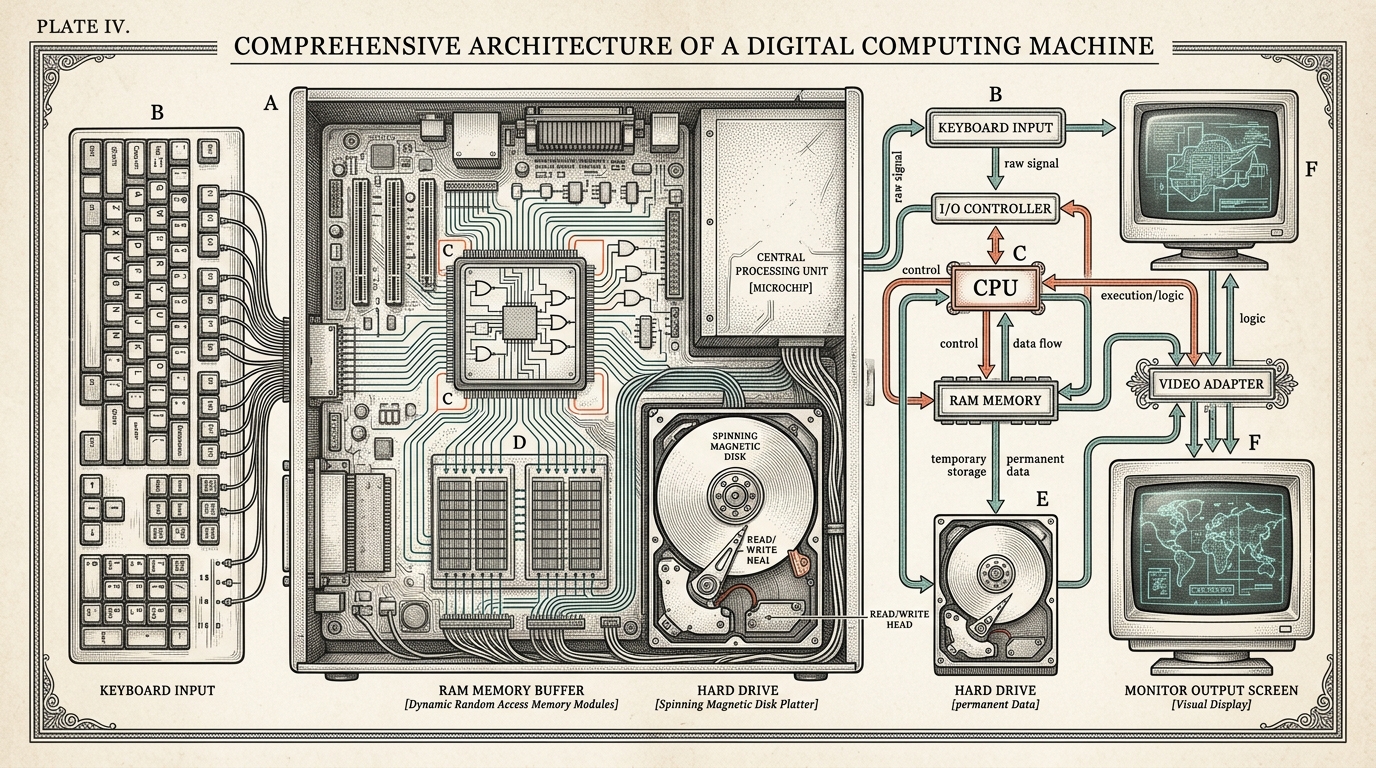
Editorial etching of a learner tracing information through a computer's input, process, output, and storage stages
Figure 1.1. An editorial etching of the input-process-output-storage loop | Conceptual explanatory plate

The question before the buttons

A computer can show a photograph, calculate a route, play a song, answer a message, or help you make a presentation. Those activities look unrelated. One involves images, another numbers, another sound, another language. Yet the machine is not changing into a different kind of creature each time. It is carrying out the same broad kind of work with different information.

A computer can show a photograph, calculate a route, play a song, answer a message, or help you make a presentation. Those activities look unrelated.

The first computer skill is therefore not learning the names of twenty buttons. It is learning to ask a better question: What is happening to the information?

The first computer skill is therefore not learning the names of twenty buttons. It is learning to ask a better question: What is happening to the information?

When you click a file, type a sentence, drag a picture, or ask an assistant to find something, you give the machine an input. The machine changes, sorts, compares, moves, or combines that input. It produces an output. Some output disappears when the task ends. Some becomes stored state: a file, a setting, a message, a saved game, or a new version of a document.

When you click a file, type a sentence, drag a picture, or ask an assistant to find something, you give the machine an input. The machine changes, sorts, compares, moves, or combines that input.

That loop is stable even when the brand, operating system, or application changes. The screen may look different. The buttons may move. The underlying problem remains: what did you intend, what did you give the machine, what did it do, and where did the result go?

That loop is stable even when the brand, operating system, or application changes. The screen may look different.

A computer is a system, not a box

People often say “computer” when they mean the object sitting on a desk. That is understandable, but incomplete. A laptop is a kind of physical package. A desktop PC is another package. A tablet, phone, game console, smart watch, and checkout terminal are other packages. The package matters because it changes the screen, keyboard, battery, and available sensors. It does not change the basic logic of the work.

People often say “computer” when they mean the object sitting on a desk. That is understandable, but incomplete.

A useful definition is this: a computer is a machine that follows instructions to transform information. The definition is deliberately plain. It does not tell you every detail about circuits or operating systems. It gives you a model that can be tested.

A useful definition is this: a computer is a machine that follows instructions to transform information. The definition is deliberately plain. It does not tell you every detail about circuits or operating systems.

Ask whether a device takes information in, follows rules, produces a result, and can keep information for later. A phone qualifies. A laptop qualifies. A calculator qualifies. A washing machine can qualify even though its interface is simple. A chair does not qualify merely because you can put a laptop on it. The chair is part of the setting, not the information-processing system.

Ask whether a device takes information in, follows rules, produces a result, and can keep information for later. A phone qualifies.

The word “computer” is less useful when it becomes a badge for a particular shape. A desktop computer is not more of a computer than a laptop. A phone is not a different species because its keyboard is made of glass. A device can be powerful or limited, general-purpose or specialized, connected or offline. Those are important differences, but they are questions about capability and design rather than membership in the category.

The word “computer” is less useful when it becomes a badge for a particular shape. A desktop computer is not more of a computer than a laptop.

The four-stage model

The simplest working model has four stages: input, process, output, and storage. The stages are not always separate boxes in time. A camera can take input, process it, show a preview, and store a file almost immediately. Still, the four words help you inspect what is happening.

The simplest working model has four stages: input, the work the computer does, output, and a place where information stays. The stages are not always separate boxes in time.

Input: giving the machine something to work with

Input is any information or signal the machine receives. A keyboard key is input. A mouse click is input. A tap, a spoken command, a photograph, a scanned barcode, and a measurement from a sensor are input. The machine cannot respond to an intention it has not received in some usable form.

Input is any information or signal the machine receives. A keyboard key is input.

This is where a beginner can get stuck. “I told it what I wanted” is not the same as “the machine received a clear input.” A click on the wrong window is still input. A misspelled search query is still input. A microphone that is muted receives no useful speech even though the speaker feels that they gave an instruction. When a computer behaves unexpectedly, inspect the input before blaming the whole system.

This is where a beginner can get stuck. “I told it what I wanted” is not the same as “the machine received a clear input.” A click on the wrong window is still input.

Process: changing the information

Processing is the work done according to instructions. The machine may compare two values, place words in order, draw a shape, compress a photograph, look up a record, or apply a rule to a signal. The process can be fast enough to feel invisible, but invisible does not mean magical.

Processing is the work done according to instructions. The machine may compare two values, place words in order, draw a shape, compress a photograph, look up a record, or apply a rule to a signal.

A program is a set of instructions for processing information. An application is a program or group of programs designed for a task, such as writing, drawing, browsing, or playing music. Software is the general name for instructions and the data they use. Hardware is the physical machinery that carries those instructions and data.

A program is a set of instructions for processing information. An application is a program or group of programs designed for a task, such as writing, drawing, browsing, or playing music.

These definitions overlap in ordinary speech. People say “I need a new computer” when they might need a larger screen, a faster network, more storage, or a different application. The model gives you better questions. Is the physical machine too slow? Is the instruction set missing a feature? Is the input unclear? Is the output being saved in the wrong place?

These definitions overlap in ordinary speech. People say “I need a new computer” when they might need a larger screen, a faster network, more a place where information stays, or a different application.

Output: what the machine gives back

Output is the result presented to a person or another machine. It can be visible text, a picture, sound, movement, a printed page, a changed file, or a message saying that an operation failed. An error message is output too. It may be inconvenient, but it is evidence about the process.

Output is the result presented to a person or another machine. It can be visible text, a picture, sound, movement, a printed page, a changed file, or a message saying that an operation failed.

Output is not always the final answer. A progress bar is an output that tells you something about an unfinished process. A highlighted word is output that shows which text is selected. A changed icon may be output that tells you a file has been synchronized. Learning to notice these signals makes a person less dependent on guessing.

Output is not always the final answer. A progress bar is an output that tells you something about an unfinished the work the computer does.

Storage: what survives the moment

Storage is information kept for later. A file on a drive, a photo in a phone's library, a password manager entry, browser history, and a saved preference are examples of stored state. Storage lets a later action begin with something that happened earlier.

a place where information stays is information kept for later. A file on a drive, a photo in a phone's library, a password manager entry, browser history, and a saved preference are examples of stored state.

People often say that a document is “in Word” or “in Google Docs.” That phrasing is convenient but can hide the important question: where is the document actually stored? The application may be displaying it, editing it, or synchronizing it. The document itself may be in a local folder, on a remote server, or in more than one place. Chapter 4 will make this distinction concrete.

People often say that a document is “in Word” or “in Google Docs.” That phrasing is convenient but can hide the important question: where is the document actually stored? The application may be displaying it, editing it, or synchronizing it.
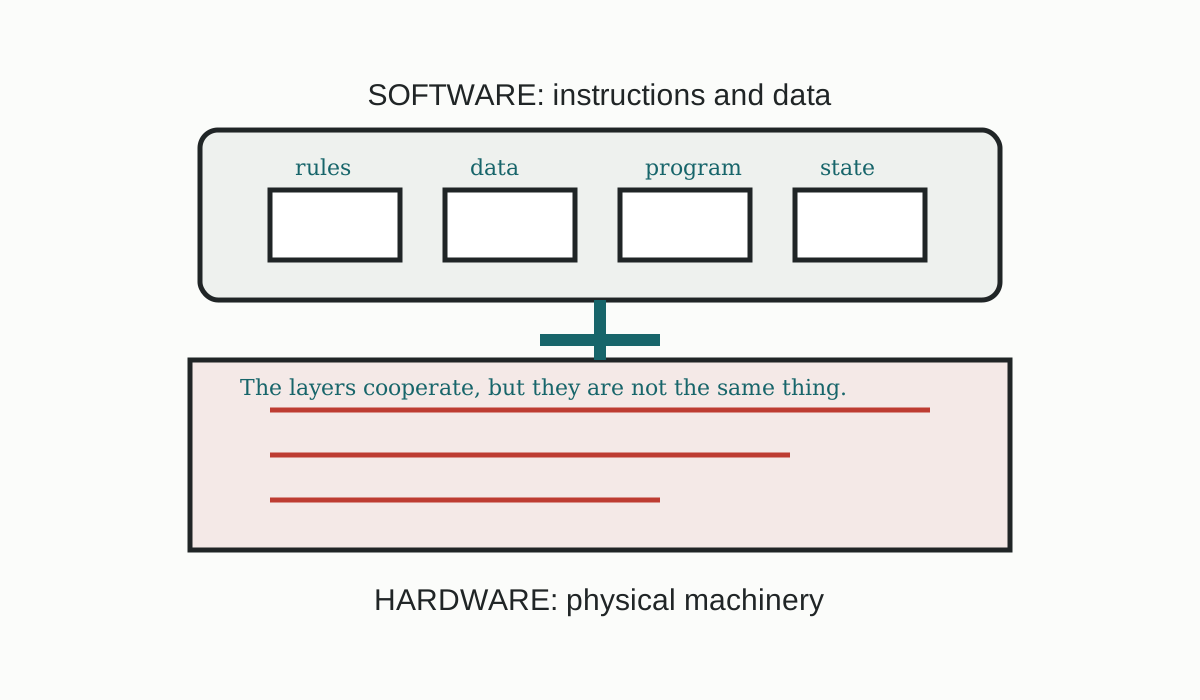
Editorial etching of hardware and software as cooperating layers
Figure 1.2. Physical components and instructions work together without being the same thing | Conceptual explanatory plate

A prediction before an explanation

Before reading further, make three predictions.

Before reading further, make three predictions.

1. You open a saved photograph and change its brightness, but you do not press Save. What is likely to survive when you close the photo editor? 2. You type a sentence into a search box and press Enter. Which part is input, and which part is output? 3. You click a file name once and then double-click it. Are those two actions producing the same kind of result?

1. You open a saved photograph and change its brightness, but you do not press Save.

Write your answers before checking them. The point is not to sound certain. The point is to expose the model you are currently using. A prediction gives you something that reality can confirm or correct.

Write your answers before checking them. The point is not to sound certain.

The first answer depends on the application. Some editors autosave; others do not. The important lesson is that “I changed it” and “the change is stored” are different claims. The second answer has more than one layer: the typed words and the Enter key are input; the results page is output; the search service may also store a record depending on its design and settings. The third answer depends on the operating system and interface, but the actions usually have different meanings: a single click selects or focuses, while a double-click often opens.

The first answer depends on the application. Some editors autosave; others do not.

The machine does not understand your intention directly. It interprets a signal according to the rules of the current interface. That is why focus matters. If the text field is active, typing goes there. If a file list is active, typing may jump to a file. If another application is active, your keystroke belongs to that application. The same physical key can create different outcomes because the surrounding state is different.

The machine does not understand your intention directly. It interprets a signal according to the rules of the current the part you use to control something.

The loop in action

Consider writing three words in a document.

Consider writing three words in a document.

Your intention is to write a sentence. Your fingers create keyboard input. The operating system receives the key signals and passes them to the active application. The application processes the signals as characters and displays them as output. The document now has a new state in memory. When you save, the application sends that state to storage. If you close and reopen the document, storage becomes input for a later process.

Your intention is to write a sentence. Your fingers create keyboard input.

Diagram 1.1. The structure summarizes the relationship described in the surrounding text.

Notice what this model does not say. It does not say that the screen is the document. The screen is a view of a current state. It does not say that pressing a key guarantees a character was stored. It does not say that a saved file is safe forever. It says that information moves through a chain, and each link can be inspected.

Notice what this model does not say. It does not say that the screen is the document.

A practical troubleshooting habit follows: describe the last known good state, the input you gave, the output you saw, and the state you expected. “It broke” is a feeling. “I selected the file, chose Save As, selected the Downloads folder, and now the new copy is not there” is evidence. The second description gives you a route back to the problem.

A practical troubleshooting habit follows: describe the last known good state, the input you gave, the output you saw, and the state you expected. “It broke” is a feeling.
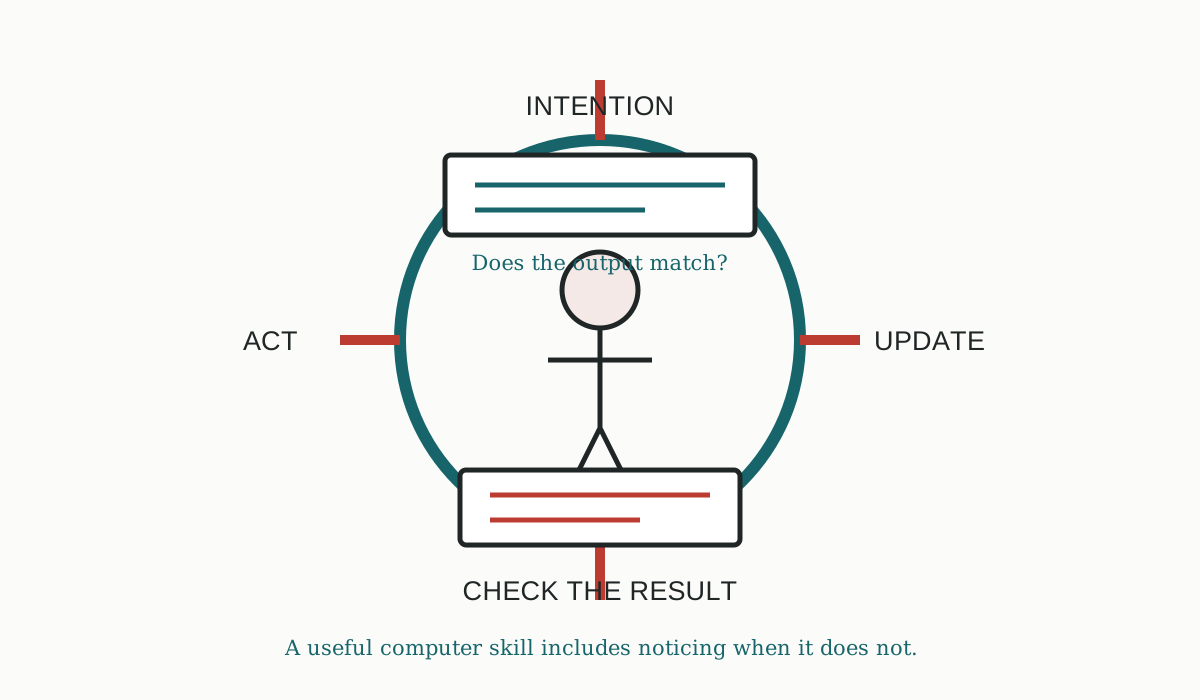
Editorial etching of a human checking a computer result against an intended outcome
Figure 1.3. The learner compares the result with the original intention and decides what to do next | Contextual reconstruction

The machine is not the author of the goal

A computer can execute an instruction without understanding why you wanted it. It can sort a list correctly even if the list should never have been sorted. It can produce a polished paragraph that misses your real point. It can give a confident answer to a question built from a false assumption. Speed does not create judgment.

A computer can execute an instruction without understanding why you wanted it. It can sort a list correctly even if the list should never have been sorted.

This division of labor matters more as software becomes more capable. A calculator can perform arithmetic. A spreadsheet can recompute a model. A search engine can retrieve pages. An AI system can generate a draft or suggest a route through a problem. In every case, a person still needs to define the task, inspect the result, and decide whether the output serves the goal.

This division of labor matters more as the instructions becomes more capable. A calculator can perform arithmetic.

The first computer skill is therefore also a writing skill. Name the file clearly. State what you expected. Describe the error in sequence. Ask a question that contains enough context for another person to test it. Clear language is not decoration around technical work. It is part of the interface between a human mind and a machine.

The first computer skill is therefore also a writing skill. Name the file clearly.

Practice: trace one real task

Choose a task you can perform safely on a computer. Examples include opening a document, finding a photograph, sending a message to yourself, or creating a folder. Do not choose a task that exposes someone else's private information.

Choose a task you can perform safely on a computer. Examples include opening a document, finding a photograph, sending a message to yourself, or creating a folder.

Before beginning, write your intention in one sentence. Then make a five-line trace:

Before beginning, write your intention in one sentence. Then make a five. line trace:

  • Input: What did you provide through the keyboard, mouse, touch screen, camera, or voice?
  • Process: What did the application or system do with it?
  • Output: What did you see, hear, or otherwise receive?
  • Storage: What, if anything, was kept for later?
  • Check: How did you verify that the result matched your intention?
  • If you cannot answer one line, do not fill the gap with a guess. Mark it as unknown and identify what observation would resolve it. That is already a computer skill: separating what you saw from what you assume.

    If you cannot answer one line, do not fill the gap with a guess. Mark it as unknown and identify what observation would resolve it.

    Explain it simply

    Explain the four-stage model aloud without using the words “magic,” “the computer just knows,” or “it is somewhere in the cloud.” Explain what happens when a person types a sentence, sees it appear, and saves it. Then explain why a phone, a laptop, and a desktop PC can all fit the same model even though they look different.

    Explain the four. stage model aloud without using the words “magic,” “the computer just knows,” or “it is somewhere in the cloud.” Explain what happens when a person types a sentence, sees it appear, and saves it. Then explain why a phone...

    A strong explanation should use ordinary words, name the learner's uncertainty, and include one example. It does not need to mention circuits or binary numbers yet. Those details can be useful later, but a name is not a mechanism. The goal here is to show that information enters, changes, appears, and may be kept.

    A strong explanation should use ordinary words, name the learner's uncertainty, and include one example. It does not need to mention circuits or binary numbers yet.

    Transfer: use the model somewhere new

    Apply the model to a device or service not discussed in this chapter. Choose a game console, a camera, a smart speaker, a printer, or a phone map. Identify one input, one process, one output, and one piece of stored state. Then identify one place where your intention could be misunderstood.

    Apply the model to a device or service not discussed in this chapter. Choose a game console, a camera, a smart speaker, a printer, or a phone map.

    For example, a camera receives light and button input, processes the signal into an image, shows a preview, and stores a photo. The photographer still has to check whether the image is the one they intended. The device can be excellent at processing and still fail to capture the right moment.

    For example, a camera receives light and button input, processes the signal into an image, shows a preview, and stores a photo. The photographer still has to check whether the image is the one they intended.

    Chapter check

    You have evidence for this chapter when you can:

    You have evidence for this chapter when you can:

  • explain computer, hardware, software, input, process, output, and storage in plain language;
  • trace a real task through the four-stage model;
  • distinguish a result shown on screen from a result stored for later;
  • describe an unexpected result using input, process, output, storage, and check;
  • apply the model to a new device without copying the laptop example.
  • If one of these is missing, repeat the practice with a smaller task. The goal is not to memorize four words. The goal is to make the machine's behavior inspectable.

    If one of these is missing, repeat the practice with a smaller task. The goal is not to memorize four words.

    Diagram 1.2. The structure summarizes the relationship described in the surrounding text.

    Spaced retrieval

    Before Chapter 2, answer these without looking back:

    Before Chapter 2, answer these without looking back:

    1. What are the four stages in the model? 2. Why is a file not the same thing as the application displaying it? 3. What is one example of output that is not a final answer? 4. What should a useful troubleshooting description include?

    1. What are the four stages in the model?

    Keep the answers short. If you cannot explain one, return to the exact paragraph or practice step that supports it. Retrieval is not a ceremony added after learning. It is how you discover whether the model is available when the page is no longer in front of you.

    Keep the answers short. If you cannot explain one, return to the exact paragraph or practice step that supports it.

    Coach observation

    A coach should watch for one specific signal: does the learner inspect the current state before clicking randomly? If the learner can name the input and output but cannot identify what was stored, the next move is not a longer lecture. Reopen a small file, make one change, and compare the visible state with the saved state.

    A coach should watch for one specific signal: does the learner inspect the current state before clicking randomly? If the learner can name the input and output but cannot identify what was stored, the next move is not a longer lecture.

    The evidence to record is the learner's trace and explanation, not a score invented from reading time. Practice, explanation, transfer, and retention are separate signals. This chapter supplies the first model that the rest of the book will reuse.

    The evidence to record is the learner's trace and explanation, not a score invented from reading time. Practice, explanation, using the idea somewhere new, and retention are separate signals.

    Interactive 1.1

    Trace the information

    Adjust the amount of input and processing to see how output and stored state change.

    Information moves through input, process, output, and storage. A clear result is not automatically a stored result; the learner must check the state.
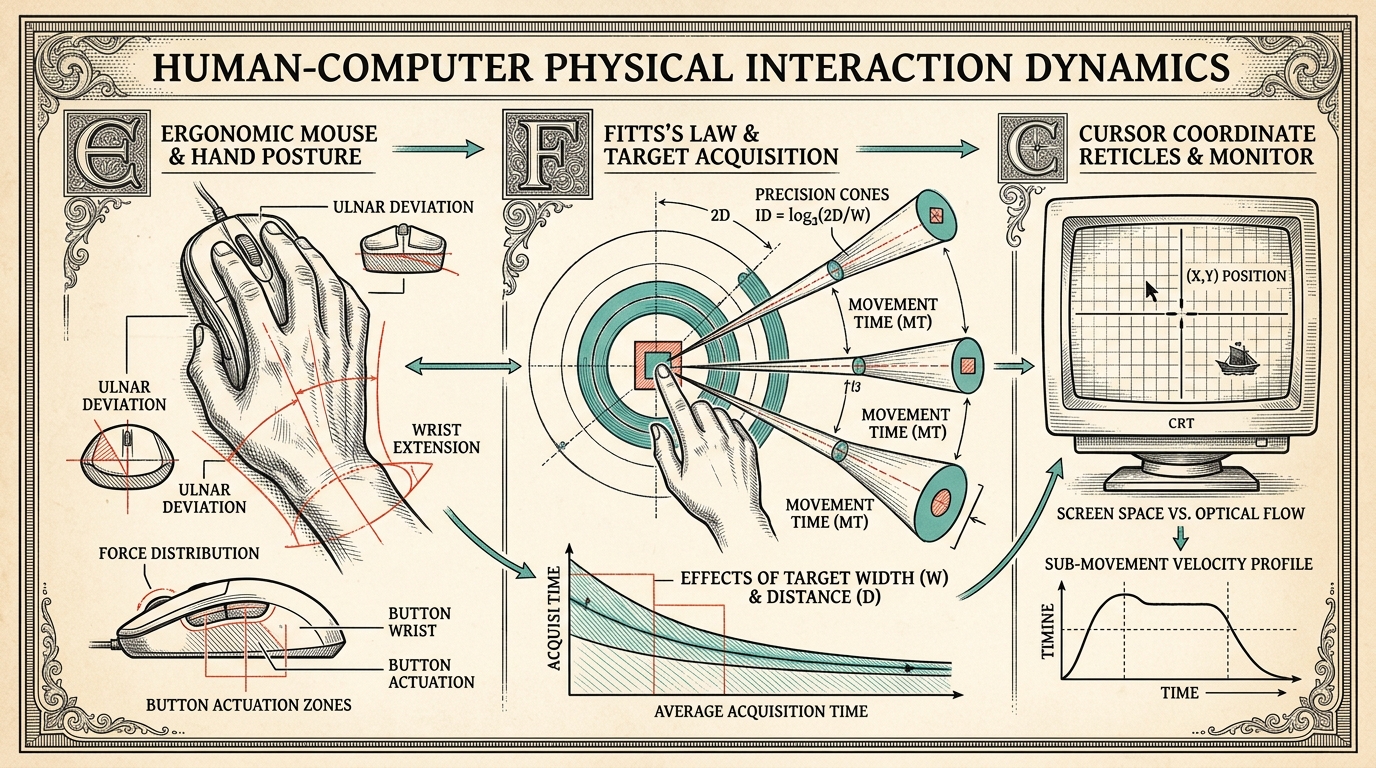
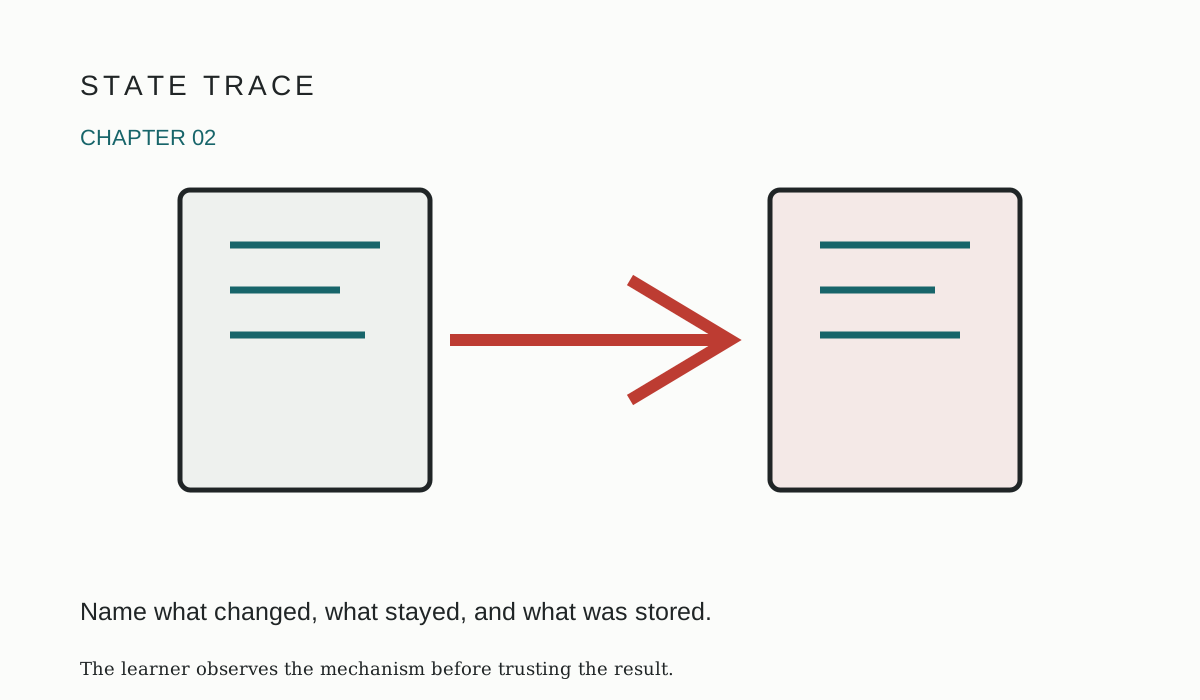
    Interactive 1.1. This model changes when the controls change.

    Chapter 02

    Hands On: Mouse, Keyboard, and the Body

    The question before the movement

    A computer can be perfectly healthy and still seem uncooperative when a person is learning to use it. The pointer slides past a button. A double-click becomes two single clicks. A sentence fills with repeated letters because a key was held too long. The learner may say, “I am bad at computers,” when the more useful description is, “My hand sent a signal different from the one I intended.”

    A computer can be perfectly healthy and still seem uncooperative when a person is learning to use it. The pointer slides past a button.

    This chapter treats the mouse, keyboard, and body as one control system. Your intention begins in your mind, becomes a physical movement, enters the computer as input, is processed by the operating system and application, appears as output, may be stored, and is verified against the goal. The screen is not judging your character. It is reporting what the system received.

    This chapter treats the mouse, keyboard, and body as one control system. Your intention begins in your mind, becomes a physical movement, enters the computer as input, is processed by the operating system and application, appears as output, may be stored, and...

    The governing sequence is:

    The governing sequence is:

    intention → input → process → output → storage → verification

    The sequence is stable even when the tool changes. A trackpad, touchscreen, stylus, ergonomic mouse, or on-screen keyboard is another input surface. Each has different physical behavior, but each still asks the same questions: What did you mean to do? What signal did your body send? What state did the computer interpret? What evidence shows the result?

    The sequence is stable even when the tool changes. A trackpad, touchscreen, stylus, ergonomic mouse, or on. screen keyboard is another input surface.

    By the end of the chapter, you should be able to control a pointer deliberately, type with a repeatable rhythm, describe errors as mismatches between intention and input, and choose a small adjustment instead of clicking randomly.

    By the end of the chapter, you should be able to control a pointer deliberately, type with a repeatable rhythm, describe errors as mismatches between intention and input, and choose a small adjustment instead of clicking randomly.

    Your body is part of the interface

    The body is not an inconvenient attachment to a computer skill. It is the first instrument in the input chain. Eyes locate a target. Attention chooses which target matters. The shoulder, elbow, wrist, hand, and fingers coordinate a movement. Pressure and release create a click or keystroke. The computer receives the resulting signal, not the private plan that preceded it.

    The body is not an inconvenient attachment to a computer skill. It is the first instrument in the input chain.

    That difference explains why a click can be both physically correct and functionally wrong. If you press the left mouse button while the pointer is over a file, the computer receives a click at that location. If your intention was to click a button in the window beside the file, the input was clear but aimed at the wrong target. If the pointer was in the right place but the button was pressed twice, the location may be right while the timing is wrong.

    That difference explains why a click can be both physically correct and functionally wrong. If you press the left mouse button while the pointer is over a file, the computer receives a click at that location.

    A useful learner habit is to separate three descriptions. First describe the intention: “I want to select this file.” Then describe the physical input: “I moved the pointer over the row and pressed once.” Finally describe the output: “The row became highlighted,” or “Nothing visibly changed.” This language keeps a small error from turning into a vague story about the whole computer being broken.

    A useful learner habit is to separate three descriptions. First describe the intention: “I want to select this file.” Then describe the physical input: “I moved the pointer over the row and pressed once.” Finally describe the output: “The row became highlighted,”...

    A comfortable starting position

    Sit or stand so that your shoulders can relax. Let the forearm rest lightly on the desk or arm support. Keep the wrist close to a neutral line rather than sharply bent upward or sideways. Hold the mouse gently enough that it can move, but firmly enough that you do not have to squeeze. Place the keyboard where your elbows can remain near your sides.

    Sit or stand so that your shoulders can relax. Let the forearm rest lightly on the desk or arm support.

    This is not a test of athletic form. It is a way to reduce unnecessary noise. When a hand is tense, movements become larger and less repeatable. When a screen is too far away, the eyes spend effort finding small targets. When the chair or desk forces an awkward angle, fatigue can make a simple task seem harder after five minutes than after one minute.

    This is not a test of athletic form. It is a way to reduce unnecessary noise.

    Comfort is also an accessibility strategy. Use a trackball, larger pointer, high-contrast pointer, sticky-key option, speech input, or alternate keyboard if that gives you better control. The goal is not to imitate a particular posture. The goal is to make intention and input reliably connected.

    Comfort is also an accessibility strategy. Use a trackball, larger pointer, high. contrast pointer, sticky. key option, speech input, or alternate keyboard if that gives you better control.

    Editorial diagram of a learner aligning eyes, hand, wrist, and pointer target before clicking
    Figure 2.1. A stable body position gives the learner a repeatable starting point for precise computer input

    The pointer is a position, not a finger

    A pointer is a movable marker on the screen. A mouse or trackpad does not usually move the pointer by matching the device's position to the screen's position. Instead, the computer interprets relative motion: move the device a little to the right, and the pointer moves some amount to the right; move farther or faster, and the pointer may travel farther.

    A pointer is a movable marker on the screen. A mouse or trackpad does not usually move the pointer by matching the device's position to the screen's position.

    This matters because your hand can stop while the pointer continues to be the object of attention. You are not trying to place a mouse on a button. You are trying to place the pointer's active tip on a target. A short movement followed by a visual check is often more accurate than one large movement based on memory.

    This matters because your hand can stop while the pointer continues to be the object of attention. You are not trying to place a mouse on a button.

    Pointer control has at least four parts: locate, approach, settle, and activate. Locate the target and identify its boundaries. Approach without rushing. Settle the pointer over the active region, usually the arrow tip rather than the center of the pointer graphic. Activate with the required click, press, or drag. If the output is not what you expected, stop and inspect before repeating the action.

    Pointer control has at least four parts: locate, approach, settle, and activate. Locate the target and identify its boundaries.

    Different targets have different tolerances. A large blank area is easy to hit. A small close button near another small button requires more precision. A link may change appearance when the pointer is over it, providing output before you click. That hover signal is useful evidence: it tells you where the interface believes the active target is.

    Different targets have different tolerances. A large blank area is easy to hit.

    Single click, double-click, right-click, and drag

    A single click often selects, focuses, or activates. The meaning depends on the current interface state. Clicking a file row may select it. Clicking inside a text field may place the insertion point. Clicking a button may activate an action immediately.

    A single click often selects, focuses, or activates. The meaning depends on the current the part you use to control something state.

    A double-click is two clicks delivered within a time window that the operating system treats as one gesture. It is not simply “click harder.” If the pointer moves between the two clicks, or if the pause is too long, the application may interpret two separate single clicks. Many systems let you adjust the double-click interval for accessibility. A slower interval is not a failure; it is a better match between the body and the interface.

    A double. click is two clicks delivered within a time window that the operating system treats as one gesture. It is not simply “click harder.” If the pointer moves between the two clicks, or if the pause is too long, the application...

    A right-click, or its equivalent on a trackpad, commonly opens a context menu. The menu is output: it reveals actions that are relevant to the selected object and current location. Read the menu before choosing. A context menu is not a universal list; it changes with selection and focus.

    A right. click, or its equivalent on a trackpad, commonly opens a context menu. The menu is output: it reveals actions that are relevant to the selected object and current location.

    Dragging combines pressing, holding, moving, and releasing. To drag a file, for example, you may move to the file, press and hold, move to the destination, and release. A drag can fail because the initial target was wrong, the hold was released early, the movement crossed an unintended target, or the destination did not accept the object. Treat a drag as a small sequence, not a magical movement.

    Dragging combines pressing, holding, moving, and releasing. To drag a file, for example, you may move to the file, press and hold, move to the destination, and release.

    Diagram 2.1. The structure summarizes the relationship described in the surrounding text.

    The diagram is a control loop, not a command list. It gives you a place to pause. If the hover signal does not match, there is no reason to click yet. If the output is unexpected, another click may create a second problem before the first one is understood.

    The diagram is a control loop, not a command list. It gives you a place to pause.

    The keyboard is a field of signals

    A keyboard appears to be a set of letters, but the computer receives more than letters. It receives key events, timing, combinations, modifier states, and sometimes repeat signals. The same physical key can produce different input depending on whether Shift, Control, Alt, or another modifier is active and which application has focus.

    A keyboard appears to be a set of letters, but the computer receives more than letters. It receives key events, timing, combinations, modifier states, and sometimes repeat signals.

    Pressing and releasing a key are separate physical events even if the result feels like one action. Holding a key may cause the operating system to repeat it. Pressing Shift while pressing a letter changes the character. Pressing a navigation key may move the insertion point instead of adding text. Pressing Tab may move focus to a new control. The visual result tells you how the active application interpreted the event.

    Pressing and releasing a key are separate physical events even if the result feels like one action. Holding a key may cause the operating system to repeat it.

    The most important keyboard idea for beginners is focus. Focus is the current destination for keyboard input. A text box with a blinking insertion point usually has focus. A selected button may show an outline. A file list may highlight a row. If focus is in the wrong place, every accurate keystroke can produce the wrong result.

    The most important keyboard idea for beginners is focus. Focus is the current destination for keyboard input.

    Before typing, look for a focus signal. Click once in the intended field if needed. Type a short test, such as one letter, and inspect where it appeared. If it is wrong, undo or delete the test before continuing. This tiny probe is safer than typing a whole paragraph and discovering that the words went into a search box, file list, or unrelated application.

    Before typing, look for a focus signal. Click once in the intended field if needed.

    Rhythm before speed

    Typing fluency is not the same as typing speed. Fluency means that a person can form intended text with enough accuracy, notice errors, and recover without losing the thread of the task. Speed that creates many corrections may be slower overall.

    Typing fluency is not the same as typing speed. Fluency means that a person can form intended text with enough accuracy, notice errors, and recover without losing the thread of the task.

    Practice in short phrases. Keep the eyes moving between the source and the typed output, but do not demand perfect touch typing on the first day. Notice which errors repeat. A repeated missing space may be a timing habit. A doubled letter may be a key held too long. A word that appears in the wrong place may be a focus error rather than a spelling error.

    Practice in short phrases. Keep the eyes moving between the source and the typed output, but do not demand perfect touch typing on the first day.

    Use the keyboard's visible structure. The raised marks on common home-row keys help the fingers return to a reference position without requiring constant visual checking. Modifier keys are not merely special letters; they change the interpretation of another key. Learn combinations as pairs or sequences: hold the modifier, press the action key, release. If a combination does not work, check whether the correct window has focus and whether the application uses that shortcut.

    Use the keyboard's visible structure. The raised marks on common home. row keys help the fingers return to a reference position without requiring constant visual checking.

    The keyboard also supports deliberate recovery. Backspace and Delete remove in different directions relative to the insertion point. Arrow keys move the insertion point or selection. Home and End may move within a line. Undo often reverses the last operation. These are not emergency decorations. They are part of a normal editing loop.

    The keyboard also supports deliberate recovery. Backspace and Delete remove in different directions relative to the insertion point.

    Editorial cross-section showing key press, operating-system event, focus target, and visible character
    Figure 2.2. A key press becomes useful only when focus and modifier state guide the event to the intended destination

    Prediction-error checkpoint: test the model

    Before trying the practice task, make predictions. Write down what you expect, then test one prediction at a time.

    Before trying the practice task, make predictions. Write down what you expect, then test one a careful guess at a time.

    1. A text box is active. You move the mouse over a file icon but do not click, then type a word. Where should the word appear? 2. The pointer is over a file. You click once, wait, and click again. Will the system necessarily open the file? 3. You press and hold the letter n for two seconds in a text editor. Will the output contain one n or possibly many? 4. You begin dragging an item but release the button before reaching the destination. What state should you expect?

    1. A text box is active.

    Now run the experiments in a safe, temporary document or practice folder. Compare output with prediction. A prediction error is useful because it reveals which hidden variable you forgot: focus, timing, repeat behavior, or the difference between a click and a drag.

    Now run the experiments in a safe, temporary document or practice folder. Compare output with a careful guess.

    The correction is not “memorize more buttons.” It is to add the missing state to your model. If typing went into the text box even while the pointer was over a file, you learned that pointer position and keyboard focus are different kinds of state. If two separate clicks did not open a file, you learned that double-click recognition depends on timing and target behavior. If holding a key produced repeated characters, you learned that duration can be part of the input.

    The correction is not “memorize more buttons.” It is to add the missing state to your model. If typing went into the text box even while the pointer was over a file, you learned that pointer position and keyboard focus are different...

    Hands-on practice: a control circuit in three rounds

    Open a plain text editor or a temporary document. Create a short phrase such as “input becomes visible output.” Do not use private material. Work in three rounds, and record your results.

    Open a plain text editor or a temporary document. Create a short phrase such as “input becomes visible output.” Do not use private material.

    Round one: locate and type. Click in the document, type the phrase slowly, and observe the insertion point. Before pressing Enter, point to a blank area, then return to the text. Ask yourself whether the pointer movement changed keyboard focus. Make a small edit with Backspace and confirm which character disappears. Your evidence is the phrase on screen and your description of where the insertion point was.

    Round one: locate and type. Click in the document, type the phrase slowly, and observe the insertion point. Before pressing Enter, point to a blank area, then return to the text.

    Round two: select and recover. Use the mouse to select one word, then type a replacement. If the replacement changes more text than expected, stop. Describe what was selected before trying again. Use Undo once and observe the result. The objective is not to avoid every mistake. The objective is to make the mistake visible and recover in a controlled way.

    Round two: select and recover. Use the mouse to select one word, then type a replacement. If the replacement changes more text than expected, stop.

    Round three: gesture variation. In a temporary folder, single-click an item, pause, double-click a different item if it is safe to open, and right-click one item to inspect its context menu. Do not choose Delete. If you can, drag a harmless practice file to another practice folder. After each gesture, write the intention, input, output, and whether a stored state changed.

    Round three: gesture variation. In a temporary folder, single. click an item, pause, double. click a different item if it is safe to open, and right. click one item to inspect its context menu. Do not choose Delete.

    Take a short rest between rounds. Fatigue is data about the fit between the task and the body. If your hand or eyes hurt, stop and adjust the environment or choose an alternate input method. No computer skill requires injury as proof of commitment.

    Take a short rest between rounds. Fatigue is data about the fit between the task and the body.

    Explanation check: teach the control loop

    Explain the following to another person or to a voice recorder without reading the chapter: “Why can a correct click still produce the wrong result?” A strong explanation should name the target, pointer position, focus, gesture timing, and visible feedback. Use one example from the practice task.

    Explain the following to another person or to a voice recorder without reading the chapter: “Why can a correct click still produce the wrong result?” A strong explanation should name the target, pointer position, focus, gesture timing, and visible feedback. Use one...

    Then explain why a keyboard is not just a typewriter. Include the idea that keys generate events interpreted in context, that modifiers change meaning, and that focus determines where the event goes. Avoid saying “the computer knows what I meant.” Replace it with a sequence: “I intended X; my hand sent Y; the system interpreted Y in state Z; the output showed Q.”

    Then explain why a keyboard is not just a typewriter. Include the idea that keys generate events interpreted in context, that modifiers change meaning, and that focus determines where the event goes.

    This is the Writing/Liberal Arts clarity lens at work: precise verbs make a technical account easier to test. “The mouse was weird” is a conclusion without evidence. “The pointer was on the file, but the row was not highlighted before I clicked” tells a helper what to inspect. This kind of language also reduces shame. It turns a personal-sounding failure into a sequence that can be improved.

    This is the Writing/Liberal Arts clarity lens at work: exact verbs make a technical account easier to test. “The mouse was weird” is a conclusion without evidence.

    The STEM mechanism lens asks you to vary one factor at a time. Keep the target constant and change the click timing. Keep the timing constant and change the focus. Keep the task constant and change the input device. When you know which change affected the output, you have stronger evidence than a general feeling that one method is better.

    The STEM how something works lens asks you to vary one factor at a time. Keep the target constant and change the click timing.

    Transfer: move the skill to another surface

    Choose a new input surface: a phone keyboard, trackpad, game controller, stylus, accessibility switch, or voice interface. Perform a small task such as entering a search phrase, selecting a photo, moving a cursor, or opening a settings panel. Apply the same trace: intention, input, process, output, storage, verification.

    Choose a new input surface: a phone keyboard, trackpad, game controller, stylus, accessibility switch, or voice the part you use to control something. Perform a small task such as entering a search phrase, selecting a photo, moving a cursor, or opening a...

    Notice what transfers and what does not. Focus still matters, but it may be represented by a highlighted field rather than a blinking cursor. Timing still matters, but a touch screen may interpret a long press instead of a double-click. Dragging still has a beginning, movement, and release, but the finger hides the target while it moves. A voice interface still receives an input signal and may mishear a word.

    Notice what transfers and what does not. Focus still matters, but it may be represented by a highlighted field rather than a blinking cursor.

    Your transfer evidence is a short comparison: “On the mouse, I used hover before clicking. On the trackpad, I used a light tap and watched for selection. The invariant was checking the output before continuing.” Do not merely report that both devices are different. Explain which underlying control idea stayed the same.

    Your using the idea somewhere new evidence is a short comparison: “On the mouse, I used hover before clicking. On the trackpad, I used a light tap and watched for selection.

    Practice, mastery, transfer, and retention are different

    Practice is the repeated attempt that builds control. In this chapter, practice includes pointing, clicking, typing, selecting, dragging, and recovering in a safe document or folder. Practice may contain errors; errors are expected material for adjustment.

    Practice is the repeated attempt that builds control. In this chapter, practice includes pointing, clicking, typing, selecting, dragging, and recovering in a safe document or folder.

    Mastery requires observable performance plus explanation. Evidence might be that you can place the pointer on a small target, type a short phrase with recoverable errors, identify focus, and describe why an unexpected output occurred. Reading the chapter or completing the interactive is not mastery by itself.

    Mastery requires observable performance plus explanation. Evidence might be that you can place the pointer on a small target, type a short phrase with recoverable errors, identify focus, and describe why an unexpected output occurred.

    Transfer is applying the same model on a new surface or in a new application. A learner who can use a mouse in a text editor but cannot explain what changes on a phone has practice evidence but incomplete transfer evidence.

    using the idea somewhere new is applying the same model on a new surface or in a new application. A learner who can use a mouse in a text editor but cannot explain what changes on a phone has practice evidence but...

    Retention is being able to retrieve the model later, after attention has moved to another topic. You will revisit input, focus, and verification in the next chapter when an operation changes clipboard and selection state. Remembering the words is less important than retrieving the sequence when a pasted result surprises you.

    Retention is being able to retrieve the model later, after attention has moved to another topic. You will revisit input, focus, and verification in the next chapter when an operation changes clipboard and selection state.

    Spaced retrieval

    Without looking back, answer these questions in a few sentences each:

    Without looking back, answer these questions in a few sentences each:

    1. What is the difference between pointer position and keyboard focus? 2. Why can a double-click fail even when both clicks land near the same object? 3. What visible signal can you inspect before activating a small target? 4. How does a key held down differ from a key pressed and released quickly? 5. Where does verification fit in the intention → input → process → output → storage → verification spine?

    1. What is the difference between pointer position and keyboard focus?

    After answering, check your work with the practice trace. If you remember a word but cannot give an example, repeat one small experiment. Retrieval is a test of access, not a demand for perfect recitation.

    After answering, check your work with the practice trace. If you remember a word but cannot give an example, repeat one small experiment.

    Coach observation and observable evidence

    A coach should watch whether the learner pauses to inspect the target and feedback before adding another action. Observe the process, not the learner's personality. Does the learner identify focus? Does the learner release a drag deliberately? Does the learner describe what appeared instead of saying only that it failed? Does the learner choose a safer retry, such as a short probe or Undo, instead of escalating speed?

    A coach should watch whether the learner pauses to inspect the target and feedback before adding another action. Observe the the work the computer does, not the learner's personality.

    Record observable evidence in concrete language: “The learner selected the intended word, replaced it, used Undo, and explained that the insertion point was inside the word.” Avoid labels such as “good with computers” or “careless.” Those labels do not identify the next experiment.

    Record observable evidence in concrete language: “The learner selected the intended word, replaced it, used Undo, and explained that the insertion point was inside the word.” Avoid labels such as “good with computers” or “careless.” Those labels do not identify the next...

    Retry rule: if the output is unexpected, stop, name the intended target, inspect pointer and focus, and change only one variable on the next attempt. If physical discomfort appears, stop the task and change the setup or input method. Repeat until the learner can produce the result twice and explain the main source of error. If the learner can perform but cannot explain, return to a smaller example; if the learner can explain but cannot perform, reduce target size, speed, or gesture complexity.

    Retry rule: if the output is unexpected, stop, name the intended target, inspect pointer and focus, and change only one variable on the next attempt. If physical discomfort appears, stop the task and change the setup or input method.

    Chapter check

    You have evidence for this chapter when you can control a pointer and keyboard in a safe task, state where focus is, distinguish single click from double-click and drag, recover from a small error, and explain the result using the invariant spine. You should be able to say what changed in the body, what signal entered the computer, what the system displayed, and whether any stored state changed.

    You have evidence for this chapter when you can control a pointer and keyboard in a safe task, state where focus is, distinguish single click from double. click and drag, recover from a small error, and explain the result using the an...

    The aim is not fast hands. It is a trustworthy connection between intention and evidence. Once that connection is stronger, the computer becomes less mysterious because every gesture can be inspected as an input to a process.

    The aim is not fast hands. It is a trustworthy connection between intention and evidence.

    Editorial reconstruction of a learner comparing intended movement with pointer feedback and saved practice result
    Figure 2.3. Verification closes the body-to-computer loop by comparing intention, visible feedback, and stored result
    Diagram 2.2. The structure summarizes the relationship described in the surrounding text.

    The second diagram emphasizes that body mechanics are not separate from computing. They are the first stage of a larger system. The system becomes more reliable when you make hidden state—focus, timing, selection, and storage—visible in your explanation.

    The second diagram emphasizes that body mechanics are not separate from computing. They are the first stage of a larger system.

    Interactive 2.1

    Pointer control trainer

    Move toward targets, choose a gesture, and inspect how accuracy, timing, and focus affect the result.

    Pointer control improves when the learner locates a target, settles, checks hover or focus feedback, activates once, and verifies the output before trying another action.

    Interactive 2.1. This model changes when the controls change.

    Chapter 03

    Copy, Cut, Paste: The State Machine

    The question before the shortcut

    A learner copies a sentence, clicks somewhere else, and pastes. The sentence appears—but perhaps in the wrong document, the wrong field, or twice. Another learner cuts a file, changes their mind, and cannot find it. A third presses a familiar shortcut and sees nothing happen. These moments often feel random because the visible page shows only the latest result, not the hidden state that made the result possible.

    A learner copies a sentence, clicks somewhere else, and pastes. The sentence appears. but perhaps in the wrong document, the wrong field, or twice.

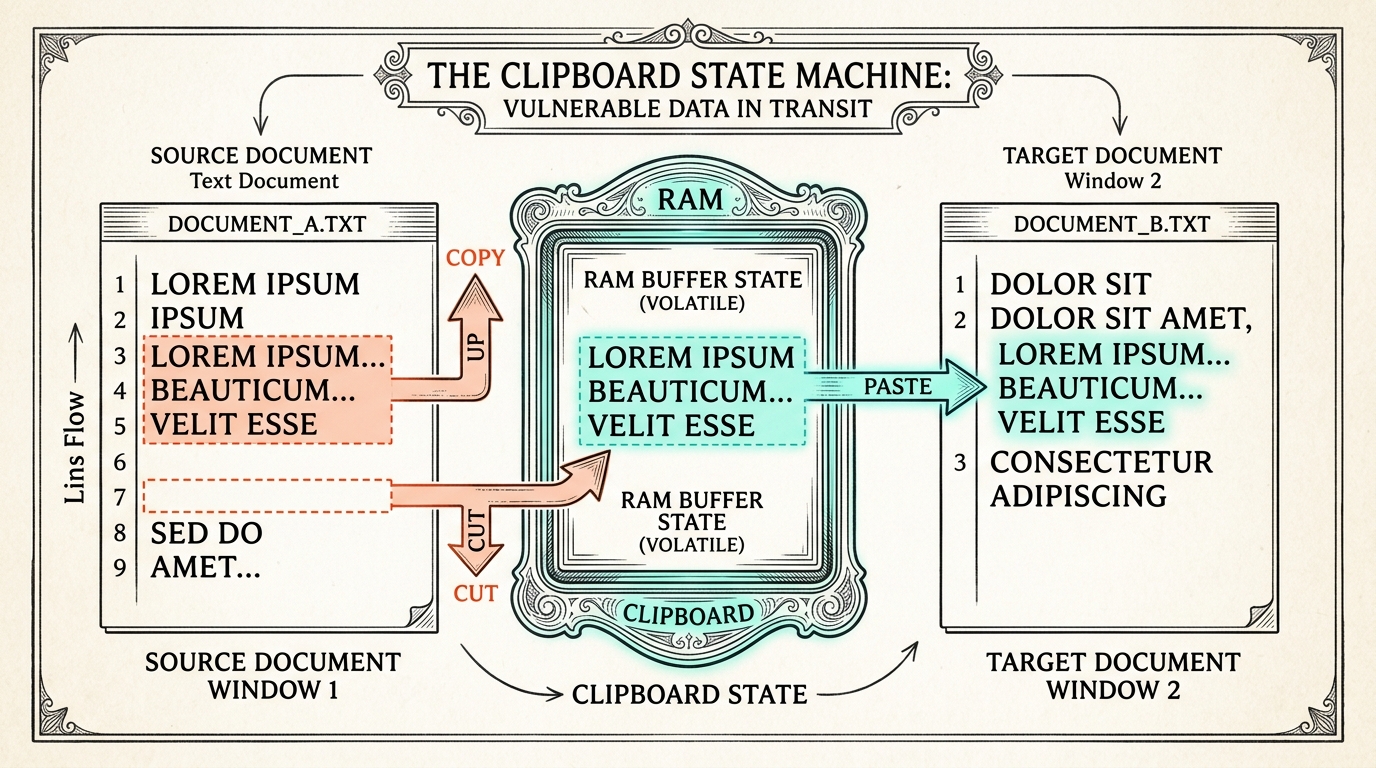
    Copy, cut, paste, selection, focus, and undo become easier when treated as a small state machine. A state machine is a model of a system that can be in one condition, receive an input, and move to another condition. The computer is not merely “doing copy.” It is updating a set of states: what is selected, which application has focus, what the clipboard holds, and where a paste could go.

    Copy, cut, paste, selection, focus, and undo become easier when treated as a small state machine. A state machine is a model of a system that can be in one condition, receive an input, and move to another condition.

    The invariant spine remains:

    The an idea that stays useful spine remains:

    intention → input → process → output → storage → verification

    For this chapter, add two important questions between input and output: What is selected? and Where is the focus? The clipboard is a temporary storage location for copied or cut information. It is not the same thing as the source document, the destination document, or a permanent saved file.

    For this chapter, add two important questions between input and output: What is selected? and Where is the focus? The clipboard is a temporary a place where information stays location for copied or cut information. It is not the same thing as...

    By the end, you should be able to predict what a copy, cut, paste, and undo operation will do; explain why a paste can be wrong even when the shortcut is correct; and recover by inspecting source, clipboard, destination, selection, and saved state.

    By the end, you should be able to predict what a copy, cut, paste, and undo operation will do; explain why a paste can be wrong even when the shortcut is correct; and recover by inspecting source, clipboard, destination, selection, and saved...

    Copy does not move the original

    When you copy text, an image, or a file, the system usually creates a clipboard representation of the selected item while leaving the source unchanged. The source still exists. The clipboard now contains a temporary version or reference that another operation may use. A later paste asks the active application to insert or place that clipboard content at the current destination.

    When you copy text, an image, or a file, the system usually creates a clipboard representation of the selected item while leaving the source unchanged. The source still exists.

    This means “copy” has at least three locations to track: the source, the clipboard, and the destination. The source may be a paragraph in a document. The clipboard may hold text in a format the application understands. The destination may be another paragraph, a message field, or a folder. If any of these are not what you intended, the result may be surprising even though the copy command succeeded.

    This means “copy” has at least three locations to track: the source, the clipboard, and the destination. The source may be a paragraph in a document.

    Clipboard content is usually temporary state. It can be replaced by the next copy or cut. It may disappear when the computer restarts, when a security policy clears it, or when an application manages its own internal clipboard. Some systems support clipboard history, which makes the temporary store more visible, but history still is not a substitute for saving a document.

    Clipboard content is usually temporary state. It can be replaced by the next copy or cut.

    A copied file is also not automatically a backup. If you paste a file into a new folder, you may create a second stored object, but you still need to verify that it is complete, named correctly, and in the location you intended. A paste that looks successful on screen can still leave you with the wrong version or a duplicate with an altered name.

    A copied file is also not automatically a backup. If you paste a file into a new folder, you may create a second stored object, but you still need to verify that it is complete, named correctly, and in the location you...

    Cut is a two-stage promise

    Cut usually means “prepare this selected item to be moved.” In many applications, the source looks dimmed or marked after cutting, while the item remains recoverable until the cut is completed or canceled. Pasting then places the item in a destination and may remove it from the original location. The exact timing differs by application, especially for files and cloud services, so inspect the visible signal and test with harmless material.

    Cut usually means “prepare this selected item to be moved.” In many applications, the source looks dimmed or marked after cutting, while the item remains recoverable until the cut is completed or canceled. Pasting then places the item in a destination and...

    The key idea is that cut is not the same as delete. Delete asks the system to remove or move an item to a recovery location. Cut prepares a selected item for relocation. If you cut something and then copy something else, the clipboard state may change. If you close an application before pasting, the cut state may be canceled or handled differently. The learner should not rely on a dramatic visual effect alone; the reliable question is where the item is now and what action can recover it.

    The key idea is that cut is not the same as delete. Delete asks the system to remove or move an item to a recovery location.

    For text, cut often removes the selected text immediately from the source view and places it on the clipboard. Undo can restore the text if the operation is still in the undo history. For files, cut may leave the file visible with a changed appearance until paste. In both cases, the operation involves a selection and a temporary destination state.

    For text, cut often removes the selected text immediately from the source view and places it on the clipboard. Undo can restore the text if the operation is still in the undo history.

    Selection and focus are not the same

    Selection answers: Which object or range is marked for an operation? Focus answers: Which control or application will receive the next input? They often interact but are not identical.

    Selection answers: Which object or range is marked for an operation? Focus answers: Which control or application will receive the next input? They often interact but are not identical.

    A word can be selected in a document while a different text field has focus. If you press a shortcut, the system or application may act on the focused control rather than the visible selection you were thinking about. A file row can remain highlighted while a dialog box receives keyboard input. A browser page can show selected text while the address bar has focus.

    A word can be selected in a document while a different text field has focus. If you press a shortcut, the system or application may act on the focused control rather than the visible selection you were thinking about.

    Before copying, inspect the selection. Is the entire sentence selected, or only one word? Is a hidden trailing space included? For an image, are you selecting the image object or selecting text around its caption? Before pasting, inspect focus. Is the insertion point in the intended document? Is the destination folder open and active? Is a permission prompt or dialog waiting for input?

    Before copying, inspect the selection. Is the entire sentence selected, or only one word?

    The common shortcuts are useful because they are compact signals, not because they are magical incantations. A shortcut still depends on state. The same key combination may mean different things in different applications. If nothing changes, do not immediately press it repeatedly. Check whether the intended object is selected and whether the intended destination has focus.

    The common shortcuts are useful because they are compact signals, not because they are magical incantations. A shortcut still depends on state.

    Editorial cutaway of source selection, clipboard state, and destination focus connected by a visible path
    Figure 3.1. Copy and paste connect three inspectable states: what is selected, what the clipboard holds, and where the destination is focused

    A state-machine model

    Imagine four variables on a small control panel:

    Imagine four variables on a small control panel:

  • Source: the original item or range.
  • Selection: the part of the source currently marked.
  • Clipboard: temporary content prepared by copy or cut.
  • Destination focus: the place that will receive a paste.
  • There is also an operation mode: idle, copied, or cut. An action changes one or more variables. Selecting a word changes selection but not the clipboard. Copying changes clipboard and mode but leaves source unchanged. Cutting changes clipboard and mode and may mark or remove the source. Clicking a destination changes focus. Pasting uses the clipboard and focus to produce output. Saving converts the changed working state into stored state.

    There is also an operation mode: idle, copied, or cut. An action changes one or more variables.

    Diagram 3.1. The structure summarizes the relationship described in the surrounding text.

    The state diagram is deliberately modest. Real applications contain more states, including permissions, version conflicts, formats, and network synchronization. The simplified model is useful because it catches the most common beginner error: believing that a command contains all the information needed to determine its result.

    The state diagram is deliberately modest. Real applications contain more states, including permissions, version conflicts, formats, and network synchronization.

    A command is interpreted in context. “Paste” does not mean “put the last thing I remember somewhere.” It means “ask the focused destination to use the current clipboard state according to its rules.” If the clipboard contains an image and the destination accepts only plain text, the output may be a file name, nothing, or a warning. If the destination has no focus, the paste may appear to do nothing.

    A command is interpreted in context. “Paste” does not mean “put the last thing I remember somewhere.” It means “ask the focused destination to use the current clipboard state according to its rules.” If the clipboard contains an image and the destination...

    Prediction-error checkpoint: commit before the reveal

    Use a blank text document and a harmless practice folder. Before testing, predict each result.

    Use a blank text document and a harmless practice folder. Before testing, predict each result.

    1. Type BLUE in one document, select it, copy it, type GREEN after it, and paste. What text should appear, and where should the original BLUE remain? 2. Select GREEN, cut it, click in a second document, paste, and save only the second document. Which stored object has changed, and what remains unsaved? 3. Copy the word ONE, click a different text field, copy TWO from somewhere else, return to the first field, and paste. Which word should appear? 4. Select a sentence, copy it, place the insertion point in a destination, paste twice, and then press Undo once. How many inserted copies should remain, assuming the application records each paste separately?

    1. Type BLUE in one document, select it, copy it, type GREEN after it, and paste.

    Test the predictions one at a time. If a result differs, name the missing state. Perhaps the second copy replaced the clipboard. Perhaps the destination was not focused. Perhaps the application grouped two operations into one undo step. The correction should be a model update grounded in output, not a guess about luck.

    Test the predictions one at a time. If a result differs, name the missing state.

    Paste is a request, not a guarantee

    Pasting asks the destination to accept clipboard content. Text editors usually accept text. Image editors may accept image data. File managers may accept files or folders. A form field may accept only certain characters or a limited format. The system may convert the clipboard representation as it crosses application boundaries.

    Pasting asks the destination to accept clipboard content. Text editors usually accept text.

    This is why copying from a richly formatted document into a plain text field can remove fonts, colors, links, or spacing. The information was not necessarily lost from the source. The destination chose a representation it could use. Some applications offer “paste as plain text” or “paste without formatting.” That option makes the process explicit: same general content, different output format.

    This is why copying from a richly formatted document into a plain text field can remove fonts, colors, links, or spacing. The information was not necessarily lost from the source.

    A paste can also produce an output that is visually correct but operationally wrong. A copied link may look like the right words but point to the wrong address. A copied number may include a hidden space or a currency symbol. A pasted file may be a shortcut or alias rather than the original file. Verification means inspecting the result at the level that matters for the task.

    A paste can also produce an output that is visually correct but operationally wrong. A copied link may look like the right words but point to the wrong address.

    If you are pasting a sentence into a message, read the sentence. If you are pasting a file into a folder, check its name, location, size or type where appropriate, and ability to reopen. If you are pasting a URL, inspect the destination address before trusting it. Output is evidence, not a promise.

    If you are pasting a sentence into a message, read the sentence. If you are pasting a file into a folder, check its name, location, size or type where appropriate, and ability to reopen.

    Editorial sequence showing paste as a destination request that may transform text, images, or files to fit the receiving application
    Figure 3.2. The destination interprets clipboard content through its own accepted formats, so visible output must be checked

    Undo and redo are state histories

    Undo is often taught as a panic button, but it is better understood as a controlled move through a history of states. An application may record a sequence of operations and offer a way to reverse the most recent one. Redo may move forward again. The history can be limited, grouped, cleared by closing a file, or divided across applications.

    Undo is often taught as a panic button, but it is better understood as a controlled move through a history of states. An application may record a sequence of operations and offer a way to reverse the most recent one.

    Undo is not universal. If you copy text and then paste it into another application, undo in the destination may remove the paste while undo in the source may do something else. If you delete a file, the operating system's recovery location may be a different mechanism from the editor's undo history. If a cloud service synchronizes a change, version history may offer recovery even after local undo is no longer available.

    Undo is not universal. If you copy text and then paste it into another application, undo in the destination may remove the paste while undo in the source may do something else.

    Use Undo with an observation. Ask: What was the last operation I believe I made? What output should disappear or return? After undoing, inspect the state. If the result is not what you expected, stop; repeated undo commands can move farther back than intended.
    Use Undo with an observation. Ask: What was the last operation I believe I made?

    A helpful recovery sentence is: “Before the unexpected paste, the destination contained X and the insertion point was Y. After one paste, it contained Z. One undo should remove the new insertion.” This sentence makes the operation testable and protects you from pressing undo without knowing what state you want.

    A helpful recovery sentence is: “Before the unexpected paste, the destination contained X and the insertion point was Y. After one paste, it contained Z.

    Diagram 3.2. The structure summarizes the relationship described in the surrounding text.

    This diagram joins operation state to the larger invariant spine. Copy and cut alter temporary storage; paste produces working output; save decides whether that output becomes durable storage; verification closes the loop.

    This diagram joins operation state to the larger an idea that stays useful spine. Copy and cut alter temporary a place where information stays; paste produces working output; save decides whether that output becomes durable a place where information stays; verification closes...

    Hands-on practice: the three-location lab

    Create a practice folder with two temporary text documents, source.txt and destination.txt. If your system uses another format, choose an equivalent plain document. Put three short lines in the source: one about a color, one about a tool, and one about a place. Save the source before you begin.

    Create a practice folder with two temporary text documents, source.txt and destination.txt. If your system uses another format, choose an equivalent plain document.

    Lab A: copy without changing the source. Select one line, copy it, click in the destination, and paste. Inspect both documents. Record which source state changed, what the clipboard temporarily held, where focus was when you pasted, and whether the destination was saved. Close and reopen the destination to verify storage.

    Lab A: copy without changing the source. Select one line, copy it, click in the destination, and paste. Inspect both documents.

    Lab B: paste twice and undo once. Copy a different line. Paste it twice in the destination, with the insertion point placed deliberately before the first paste and at the end before the second. After checking the output, undo once. Do not guess what undo did; read the document and state your result. If the application groups operations differently, record that behavior as evidence.

    Lab B: paste twice and undo once. Copy a different line. Paste it twice in the destination, with the insertion point placed deliberately before the first paste and at the end before the second.

    Lab C: cut and recover. Select the third line in the source and cut it. Pause and inspect the source. Focus the destination and paste. Save both files. Reopen them. If the line is missing from the source and present in the destination, explain why this is a move rather than a copy. If the system behaves differently, document the actual sequence and test with an even smaller item.

    Lab C: cut and recover. Select the third line in the source and cut it. Pause and inspect the source.

    Lab D: format boundary. Copy a sentence from a rich document or web page into the plain destination. Compare the visible result with the source. Which properties survived? Try a plain-text paste if available. Your evidence is not that formatting is good or bad; it is that the destination accepted a particular representation.

    Lab D: format boundary. Copy a sentence from a rich document or web page into the plain destination. Compare the visible result with the source.

    Keep the lab safe. Do not cut or delete original photographs, system folders, shared work, or private messages. Use temporary material whose loss would not matter.

    Keep the lab safe. Do not cut or delete original photographs, system folders, shared work, or private messages.

    Explanation check: build the state story

    Explain, in your own words, why this sentence is incomplete: “I copied the file, so it is now in the other folder.” A complete explanation should name the source, clipboard, focused destination, paste output, and verification of saved location. State whether “copy” alone changed durable storage.

    Explain, in your own words, why this sentence is incomplete: “I copied the file, so it is now in the other folder.” A complete explanation should name the source, clipboard, focused destination, paste output, and verification of saved location. State whether “copy”...

    Next, draw four boxes labeled Source, Selection, Clipboard, and Destination Focus. Describe one action that changes each box. Then add a fifth box labeled Saved State. Explain why clipboard state can exist without a saved file and why a pasted result can exist in a working document without surviving after the document closes.

    Next, draw four boxes labeled Source, Selection, Clipboard, and Destination Focus. Describe one action that changes each box.

    The clarity lens asks you to tell the sequence in the order a helper could observe it. The mechanism lens asks you to vary one state at a time. If a pasted result is wrong, first keep the clipboard constant and change focus. Then keep focus constant and copy a different source. This method turns a confusing task into a small experiment.

    The clarity lens asks you to tell the sequence in the order a helper could observe it. The how something works lens asks you to vary one state at a time.

    Avoid the phrase “it pasted somewhere.” Name the destination. Avoid the phrase “it disappeared.” Say whether the source changed, whether the clipboard still holds content, whether the destination contains a copy, and whether the change was saved. Technical vocabulary is useful when it makes state visible rather than when it makes the explanation sound advanced.

    Avoid the phrase “it pasted somewhere.” Name the destination. Avoid the phrase “it disappeared.” Say whether the source changed, whether the clipboard still holds content, whether the destination contains a copy, and whether the change was saved.

    Transfer: apply the state machine beyond text

    Choose one new context: moving a photo into an album, copying a file between folders, duplicating a slide, copying a spreadsheet cell, reusing a link in a message, or moving an object in a drawing application. Trace the same states even if the interface uses icons instead of words.

    Choose one new context: moving a photo into an album, copying a file between folders, duplicating a slide, copying a spreadsheet cell, reusing a link in a message, or moving an object in a drawing application. Trace the same states even if...

    For a photo album, selection may be a check mark, the clipboard may be invisible, and paste may appear as “Add to album.” For a file manager, cut may show a dimmed file and paste may trigger a permission or duplicate-name dialog. For a spreadsheet, selection includes cells and the destination may interpret formatting, formulas, or values differently.

    For a photo album, selection may be a check mark, the clipboard may be invisible, and paste may appear as “Add to album.” For a file manager, cut may show a dimmed file and paste may trigger a permission or duplicate. name...

    Your transfer explanation should identify what remains invariant and what changes. The invariant is not a particular shortcut. It is the relationship between selected source, temporary state, focused destination, produced output, durable storage, and verification. If you can explain that relationship in a new app, you are showing transfer rather than memorized button use.

    Your using the idea somewhere new explanation should identify what remains an idea that stays useful and what changes. The an idea that stays useful is not a particular shortcut.

    Practice, mastery, transfer, and retention

    Practice is the safe repetition of selecting, copying, cutting, pasting, undoing, and saving. It includes small mistakes and deliberate observations. The three-location lab is practice because it gives you repeated contact with the states.

    Practice is the safe repetition of selecting, copying, cutting, pasting, undoing, and saving. It includes small mistakes and deliberate observations.

    Mastery is observable performance plus explanation. Evidence includes predicting the result of a sequence, identifying the current selection and focus, completing a copy or move without losing the source unexpectedly, and recovering with a single appropriate undo or version step. Completing a shortcut drill is not mastery if you cannot state which object changed.

    Mastery is observable performance plus explanation. Evidence includes predicting the result of a sequence, identifying the current selection and focus, completing a copy or move without losing the source unexpectedly, and recovering with a single appropriate undo or version step.

    Transfer means applying the state model to a different object, application, or device. A learner who can move text but cannot reason about a photo album has local practice evidence and needs a new transfer attempt.

    using the idea somewhere new means applying the state model to a different object, application, or device. A learner who can move text but cannot reason about a photo album has local practice evidence and needs a new using the idea somewhere...

    Retention means retrieving the model later. Chapter 4 will ask where a saved file lives; the clipboard is a useful contrast because it is temporary storage. Chapter 5 will add operating-system processes and memory, which are further examples of state that can be active without being a permanent file.

    Retention means retrieving the model later. Chapter 4 will ask where a saved file lives; the clipboard is a useful contrast because it is temporary a place where information stays.

    Spaced retrieval

    Close the chapter and answer from memory:

    Close the chapter and answer from memory:

    1. What is the difference between copy and cut? 2. Why can a correct paste command produce the wrong result? 3. How are selection and focus different? 4. Why is the clipboard not the same as a saved file? 5. What should you inspect before pressing Undo repeatedly? 6. Give one example of output that looks correct but still requires verification.

    1. What is the difference between copy and cut?

    Return to the three-location lab only after writing your answers. If you can remember the labels but cannot reconstruct an event, perform one miniature experiment with a single word. Retrieval becomes durable when you attach the model to an observable sequence.

    Return to the three. location lab only after writing your answers. If you can remember the labels but cannot reconstruct an event, perform one miniature experiment with a single word.

    Coach observation and observable evidence

    A coach should observe whether the learner can pause between operation stages. Watch for the learner selecting before copying, focusing before pasting, and verifying the source and destination after a move. Notice whether the learner names a temporary clipboard state separately from a saved file.

    A coach should observe whether the learner can pause between operation stages. Watch for the learner selecting before copying, focusing before pasting, and verifying the source and destination after a move.

    Record evidence as an action and explanation: “The learner copied BLUE, focused the destination, pasted once, verified that the source still contained BLUE, and saved the destination.” If the learner presses Paste repeatedly because nothing was visible, record the missing observation: perhaps the focus signal or accepted format was unclear.

    Record evidence as an action and explanation: “The learner copied BLUE, focused the destination, pasted once, verified that the source still contained BLUE, and saved the destination.” If the learner presses Paste repeatedly because nothing was visible, record the missing observation: perhaps...

    Retry rule: after an unexpected result, do not repeat the entire sequence. Stop at the last known good state, inspect selection, clipboard, focus, and destination, then change one variable. If the source changed unexpectedly, use Undo or the application's recovery mechanism once and inspect. If the learner cannot identify the last known good state, restart with one word in a disposable document. Advancement requires two successful sequences and an explanation of which state changed; otherwise the next attempt is still practice, not a mastery claim.

    Retry rule: after an unexpected result, do not repeat the entire sequence. Stop at the last known good state, inspect selection, clipboard, focus, and destination, then change one variable.

    Chapter check

    You have evidence for this chapter when you can draw or describe the source–selection–clipboard–destination relationship, predict a short sequence before performing it, use copy and cut safely, paste into a deliberately focused destination, distinguish temporary from durable state, and recover from a mismatch. The important skill is not memorizing a shortcut. It is seeing that every operation is interpreted inside a state.

    You have evidence for this chapter when you can draw or describe the source. selection. clipboard. destination relationship, predict a short sequence before performing it, use copy and cut safely, paste into a deliberately focused destination, distinguish temporary from durable state, and...

    Editorial reconstruction of a learner verifying source, clipboard action, destination result, and saved document after a move
    Figure 3.3. Verification compares the original source and the destination after a temporary clipboard operation

    The next chapter extends this model from temporary clipboard state to durable file and folder state. When you learn where things live, “paste” will become one step in a larger question: where is the resulting object stored, under what name, and how can you retrieve it later?

    The next chapter extends this model from temporary clipboard state to durable file and folder state. When you learn where things live, “paste” will become one step in a larger question: where is the resulting object stored, under what name, and how...

    Interactive 3.1

    Clipboard state machine

    Choose a source, operation, focus target, and paste action to predict which states change and what must be verified.

    Copy leaves the source while updating temporary clipboard state. Cut prepares a move. Paste uses the current clipboard and focused destination; the visible result must be checked and saved if it should persist.

    Interactive 3.1. This model changes when the controls change.

    Chapter 04

    Where Things Live: Files, Folders, and Save

    The question before the Save button

    A document is open on the screen. You make a change, close the window, and later discover that the change is missing. Or you save a file and then cannot find it. A download appears in one folder, a copy in another, and a cloud service shows a third version. The computer did not necessarily lose your work. You may be looking at a different state, location, name, or version than the one you intended.

    A document is open on the screen. You make a change, close the window, and later discover that the change is missing.

    This chapter asks a plain question: Where did the saved file actually go? To answer it, we need to separate the document you are viewing, the working state in memory, the file path that names a location, and the durable storage that can be retrieved later.

    This chapter asks a plain question: Where did the saved file actually go? To answer it, we need to separate the document you are viewing, the working state in memory, the file path that names a location, and the durable a place...

    The invariant spine is:

    The an idea that stays useful spine is:

    intention → input → process → output → storage → verification

    Files and folders make the storage part visible. A folder is a container or organizing view. A file is a named unit of stored information. A path is a description of how to locate the file through a hierarchy. Save is an operation that transfers a working state into a stored representation. Save As usually asks for a new name or location and may create a new file rather than replacing the old one.

    Files and folders make the a place where information stays part visible. A folder is a container or organizing view.

    By the end, you should be able to create a small folder tree, name files so another person can locate them, distinguish Save from Save As, retrieve a file by path or search, and verify that the reopened file contains the intended version.

    By the end, you should be able to create a small folder tree, name files so another person can locate them, distinguish Save from Save As, retrieve a file by path or search, and verify that the reopened file contains the intended...

    The screen is a view, not a place

    When an application displays a document, the document is being represented in a window. The window is a view of a working state. That state may have been loaded from a local file, downloaded from a server, synchronized from cloud storage, or created without a file at all.

    When an application displays a document, the document is being represented in a window. The window is a view of a working state.

    The window can show a change before the change is stored. Many applications mark unsaved work with a dot, a star, a changed title, a disabled Save button, or an autosave indicator. These signals vary, so treat them as evidence to inspect rather than as universal rules. If you are unsure, make a harmless change, use Save, close, and reopen the document. The reopen test is stronger than confidence.

    The window can show a change before the change is stored. Many applications mark unsaved work with a dot, a star, a changed title, a disabled Save button, or an autosave indicator.

    A file may also have several names in different contexts. The visible title bar can omit an extension or shorten a path. A cloud service can display a document title while storing an internal identifier. A file manager can show a friendly name while hiding whether an item is a shortcut, a folder, or a synchronized placeholder. Ask for the full identity when it matters: name, type, location, and version.

    A file may also have several names in different contexts. The visible title bar can omit an extension or shorten a path.

    This is why a person can honestly say “I saved it” and still be unable to find the work. The claim may mean that they pressed a button, not that they verified a retrievable file in the intended folder. Saving is an action. Retrieval is evidence.

    This is why a person can honestly say “I saved it” and still be unable to find the work. The claim may mean that they pressed a button, not that they verified a retrievable file in the intended folder.

    Editorial map of a document window connected to working memory, a file path, and durable storage
    Figure 4.1. The document window is a view of working state; Save connects that state to a named location in durable storage

    Files, folders, names, and extensions

    A file is stored information with a name and often a type indicated by an extension. A text document might end in .txt, a word-processing file in .docx, an image in .png or .jpg, and a portable document in .pdf. The extension helps the operating system and applications decide how to handle the file, but it is not a guarantee that the contents are healthy or appropriate.

    A file is stored information with a name and often a type indicated by an extension. A text document might end in .txt, a word. processing file in .docx, an image in .png or .jpg, and a portable document in .pdf.

    A folder is a container used to organize files and other folders. The folder itself may have stored metadata, but the beginner's useful model is a named place in a tree. A folder can contain a file with the same visible name as a file in another folder because the full path is different. Projects/Science/report.txt and Projects/History/report.txt are different identities even though the final name matches.

    A folder is a container used to organize files and other folders. The folder itself may have stored metadata, but the beginner's useful model is a named place in a tree.

    A path names the route through the tree. On one system it may look like C:\Users\Name\Documents\Projects\report.docx; on another it may use /Users/name/Documents/Projects/report.docx. A web service may show a breadcrumb such as Drive > School > Science > report. The punctuation changes, but the structural idea is stable: start at a known location, move through containers, and arrive at a named object.

    A path names the route through the tree. On one system it may look like C:\Users\Name\Documents\Projects\report.docx; on another it may use /Users/name/Documents/Projects/report.docx.

    Names are part of a retrieval system. final.docx tells you less than 2026-08-01_robotics-observations.docx. A good name states enough context for your future self or a collaborator to distinguish versions without opening every file. Use a consistent pattern such as date, project, topic, and version when appropriate. Avoid characters your system rejects, and do not use names like newnewfinalreallyfinal that record confusion rather than meaning.

    Names are part of a retrieval system. final.docx tells you less than 2026. 08. 01_robotics. observations.docx.

    An extension should not be changed casually. Renaming report.txt to report.docx does not convert the contents into a word-processing document. It changes the label the system may use to choose an application. If you need a different format, use Export, Save As, or Convert so the application creates the appropriate representation.

    An extension should not be changed casually. Renaming report.txt to report.docx does not convert the contents into a word. processing document.

    A file tree is a reasoning model

    Most storage systems can be drawn as a tree. One root or starting area contains folders. Folders contain subfolders and files. A file has one location in the tree at a time, although shortcuts, aliases, synchronization, and links can make it appear in more than one view.

    Most a place where information stays systems can be drawn as a tree. One root or starting area contains folders.

    A tree helps answer four questions: Where am I now? What is inside this location? What path leads to the item? What changed when I moved, renamed, or saved it? Without the tree, a learner may rely on recent-file menus or search results without knowing the underlying location.

    A tree helps answer four questions: Where am I now? What is inside this location?

    A file tree also makes duplication visible. If you copy a file into another folder, the tree now contains two objects. If you use Save As with a new name, you may create another branch of the work. This can be useful for versions, but it can also create uncertainty if the names do not explain their relationship.

    A file tree also makes duplication visible. If you copy a file into another folder, the tree now contains two objects.

    Diagram 4.1. The structure summarizes the relationship described in the surrounding text.

    The dotted relation in the diagram is a question, not a claim. Two files may have similar names but different contents. To establish their relationship, compare dates, versions, or contents. A filename is a clue; reopening is a test.

    The dotted relation in the diagram is a question, not a claim. Two files may have similar names but different contents.

    Save and Save As are different intentions

    Save usually means “write the current working state back to the file associated with this document.” If the document has never been named, Save may open a naming dialog because the system needs a location and name. After the first save, later Save operations usually update that file.

    Save usually means “write the current working state back to the file associated with this document.” If the document has never been named, Save may open a naming dialog because the system needs a location and name. After the first save, later...

    Save As usually means “create or choose a stored representation under a specified name, location, or format.” It can preserve the old file while creating a new version. Some applications use Save a Copy, Duplicate, Export, or Download for related operations. Read the dialog and inspect the destination instead of assuming the labels behave identically everywhere.

    Save As usually means “create or choose a stored representation under a specified name, location, or format.” It can preserve the old file while creating a new version. Some applications use Save a Copy, Duplicate, Export, or Download for related operations.

    Before selecting Save, state your intention. If you want the current file to contain the newest changes, Save may be right. If you want to preserve the old version and create a new branch, Save As may be right. If you need a PDF for sharing while keeping an editable source, Export or Save As may create the correct second representation.

    Before selecting Save, state your intention. If you want the current file to contain the newest changes, Save may be right.

    A Save As dialog often contains more state than is obvious: current folder, file name, file type, overwrite warning, cloud or local location, and sometimes an option to include or exclude additional content. Read the path or breadcrumb. If the location is wrong, navigate before confirming. If a file with the same name exists, stop and decide whether replacement is actually intended.

    A Save As dialog often contains more state than is obvious: current folder, file name, file type, overwrite warning, cloud or local location, and sometimes an option to include or exclude additional content. Read the path or breadcrumb.

    Editorial comparison of Save updating an existing file versus Save As creating a named branch in a folder tree
    Figure 4.2. Save updates an established file; Save As can preserve the original while creating a new named location or format

    Prediction-error checkpoint: where will it be?

    Before running these experiments, write your prediction and name the expected path.

    Before running these experiments, write your a careful guess and name the expected path.

    1. Create a folder called practice-storage inside a known Documents location. Create a text file inside it and save it as first-note.txt. Close the editor. Where should the file appear when you open the folder? 2. Open the file, add a second line, choose Save As, and name the new file second-note.txt in the same folder. Which file should contain the second line? 3. Save a copy as a PDF or another available format. What is the relationship between the editable file and the exported file? 4. Rename first-note.txt to first-note-renamed.txt. Does the content change? Does the path change? What does a recent-files list show? 5. Move second-note.txt to a subfolder. Which part of its identity changed, and how will you retrieve it?

    1. Create a folder called practice. a place where information stays inside a known Documents location.

    Perform the experiments slowly and use disposable material. After each one, inspect the folder and reopen the relevant file. If the result differs from your prediction, record whether the unexpected variable was location, name, type, overwrite behavior, synchronization, or an application-specific workflow.

    Perform the experiments slowly and use disposable material. After each one, inspect the folder and reopen the relevant file.

    The most important prediction error is believing that pressing Save proves a location. It proves only that an operation was requested and perhaps completed. Verification requires finding the object and reopening it.

    The most important a careful guess error is believing that pressing Save proves a location. It proves only that an operation was requested and perhaps completed.

    Storage, synchronization, and versions

    Local storage and cloud storage can both hold files, but they expose different timing and recovery behavior. A local file may be available without a network connection. A synchronized file may show a cloud icon, a check mark, a pending status, or a conflict warning. A document can appear in an application while its newest version is still uploading or while another device has made a competing change.

    Local a place where information stays and cloud a place where information stays can both hold files, but they expose different timing and recovery behavior. A local file may be available without a network connection.

    Do not treat the word “cloud” as a location you no longer need to understand. Ask which service, account, folder, and version are involved. A cloud folder is still organized by names and paths, even if the physical storage is on remote machines. The invariant spine remains: an intention leads to input, the service processes it, output appears, storage is updated, and verification checks the result.

    Do not treat the word “cloud” as a location you no longer need to understand. Ask which service, account, folder, and version are involved.

    Version history can be a powerful recovery tool. It may let you restore an earlier state when a current file has been overwritten. But version history is not identical to a local backup. It may depend on account access, retention rules, synchronization, or the service remaining available. Use clear names and deliberate folders even when version history exists.

    Version history can be a powerful recovery tool. It may let you restore an earlier state when a current file has been overwritten.

    A backup is another stored copy designed for recovery. A duplicate in the same folder is not a reliable backup if one mistake can remove both. This chapter does not require a full backup plan, but it does require the distinction: Save updates a working file; a backup strategy protects against loss across locations or systems.

    A backup is another stored copy designed for recovery. A duplicate in the same folder is not a reliable backup if one mistake can remove both.

    Hands-on practice: build, save, locate, recover

    Create a small practice project with this tree:

    Create a small practice project with this tree:

    computer-practice/
    ├── drafts/
    ├── exports/
    └── archive/

    Use a file manager to create the folders. In drafts, create a document named mouse-notes_v1 in the native editable format. Write a short paragraph describing one thing you learned about pointer control. Save it. Close it and reopen it from the folder, not from the recent-files list. Confirm that the paragraph is present.

    Use a file manager to create the folders. In drafts, create a document named mouse. notes_v1 in the native editable format.

    Next, use Save As to create mouse-notes_v2 in the same drafts folder. Add a sentence that says how you corrected an input error. Save and close. Reopen both files separately. Compare their contents and write down which version contains which sentence.

    Next, use Save As to create mouse. notes_v2 in the same drafts folder. Add a sentence that says how you corrected an input error.

    Export or Save As a PDF into exports. Open the exported file and compare it with the editable document. Identify one property that is preserved and one property that may not be editable in the PDF. If the PDF is not available, create another format your application supports and explain the difference.

    Export or Save As a PDF into exports. Open the exported file and compare it with the editable document.

    Finally, move mouse-notes_v1 into archive. Navigate away from the project and retrieve it by following the path from computer-practice to archive. Rename it with a date or version label that explains its role. Close and reopen it again. Your practice is complete only when you can locate the file without relying on memory of where you clicked.

    Finally, move mouse. notes_v1 into archive. Navigate away from the project and retrieve it by following the path from computer. practice to archive.

    Do not use private schoolwork, financial records, or family documents for this task. The point is to create observable storage state without risking important information.

    Do not use private schoolwork, financial records, or family documents for this task. The point is to create observable a place where information stays state without risking important information.

    Explanation check: tell the file's story

    Explain this sequence in plain language: “I edited a document, pressed Save As, changed the file type, and now I cannot find the original.” Your explanation should ask where the original was stored, whether the new representation was exported, which folder was active in the dialog, and whether the original was replaced or preserved. Do not begin by claiming the file vanished.

    Explain this sequence in plain language: “I edited a document, pressed Save As, changed the file type, and now I cannot find the original.” Your explanation should ask where the original was stored, whether the new representation was exported, which folder was...

    Draw a path from intention to verification for the practice project. Include the name of the working document, the folder path, the Save or Save As decision, the output you saw, the file you reopened, and the evidence that it was the expected version.

    Draw a path from intention to verification for the practice project. Include the name of the working document, the folder path, the Save or Save As decision, the output you saw, the file you reopened, and the evidence that it was the...

    The mechanism lens asks you to test one storage variable at a time: keep the name fixed and change the folder; keep the folder fixed and change the name; keep both fixed and change the format. The clarity lens asks you to narrate the result so another person can reproduce it. A strong help request might say, “I used Save As from drafts, selected PDF, and the dialog showed exports; I then reopened mouse-notes_v2.docx and found the new sentence there, but no PDF appears in exports.” That statement creates a search plan.

    The how something works lens asks you to test one a place where information stays variable at a time: keep the name fixed and change the folder; keep the folder fixed and change the name; keep both fixed and change the format....

    Transfer: use the model in a new storage system

    Apply the file-tree model to a phone photo library, a shared drive, a classroom learning platform, an email attachment, or a notes application. Identify the item name, container, path or breadcrumb, working state, save or upload action, and verification step.

    Apply the file. tree model to a phone photo library, a shared drive, a classroom learning platform, an email attachment, or a notes application. Identify the item name, container, path or breadcrumb, working state, save or upload action, and verification step.

    For an email attachment, the message may display a file without creating a local copy. Downloading it is a storage action that asks for a destination. For a phone photo library, an album may be an organizing view rather than a second physical file. For a shared drive, a folder may be shared with permissions that affect whether Save or upload succeeds. For a note application, autosave may be frequent, but retrieval still depends on account, notebook, title, and search.

    For an email attachment, the message may display a file without creating a local copy. Downloading it is a a place where information stays action that asks for a destination.

    Your transfer evidence should include one difference and one invariant. The difference might be “the service autosaves instead of showing a Save button.” The invariant might be “I still verified by closing the view, reopening from the named container, and checking the content.”

    Your using the idea somewhere new evidence should include one difference and one an idea that stays useful. The difference might be “the service autosaves instead of showing a Save button.” The an idea that stays useful might be “I still verified...

    Practice, mastery, transfer, and retention

    Practice is creating folders, naming files, saving, using Save As, exporting, moving, renaming, and reopening disposable work. It is a controlled environment for learning how storage behaves.

    Practice is creating folders, naming files, saving, using Save As, exporting, moving, renaming, and reopening disposable work. It is a controlled environment for learning how a place where information stays behaves.

    Mastery requires observable retrieval plus explanation. Evidence includes creating the requested tree, saving a file under a clear name, locating it by path, distinguishing the original from a Save As version, and recovering a moved or renamed file. Pressing Save without finding the file is not mastery.

    Mastery requires observable retrieval plus explanation. Evidence includes creating the requested tree, saving a file under a clear name, locating it by path, distinguishing the original from a Save As version, and recovering a moved or renamed file.

    Transfer is applying the storage model to a new service, device, or format. A learner who can use a local folder but cannot explain a shared drive's breadcrumb or synchronization status needs another transfer task.

    using the idea somewhere new is applying the a place where information stays model to a new service, device, or format. A learner who can use a local folder but cannot explain a shared drive's breadcrumb or synchronization status needs another using...

    Retention means retrieving the distinction between working state, temporary state, and durable storage later. Chapter 5 will add operating-system processes and memory, which helps explain why an open application can hold changes before a file is saved.

    Retention means retrieving the distinction between working state, temporary state, and durable a place where information stays later. Chapter 5 will add operating. system processes and memory, which helps explain why an open application can hold changes before a file is saved.

    Spaced retrieval

    Answer without reopening the chapter:

    Answer without reopening the chapter:

    1. What is the difference between a file, a folder, and a path? 2. What usually distinguishes Save from Save As? 3. Why does changing a file extension not necessarily convert the file? 4. What evidence proves that a saved change is retrievable? 5. How can a cloud file still require a path, account, and verification? 6. Why is a recent-files list weaker evidence than reopening from the intended folder?

    1. What is the difference between a file, a folder, and a path?

    If an answer is vague, perform a one-word Save As experiment and draw the two resulting paths. The goal is to make storage a map you can use, not a place you must hope to remember.

    If an answer is vague, perform a one. word Save As experiment and draw the two resulting paths. The goal is to make a place where information stays a map you can use, not a place you must hope to remember.

    Coach observation and observable evidence

    A coach should watch whether the learner states a location before saving and reopens from that location afterward. Observe whether the learner reads the Save As dialog, notices the file type, checks overwrite warnings, and distinguishes a displayed title from a full path.

    A coach should watch whether the learner states a location before saving and reopens from that location afterward. Observe whether the learner reads the Save As dialog, notices the file type, checks overwrite warnings, and distinguishes a displayed title from a full...

    Record evidence such as: “The learner created computer-practice/drafts, saved mouse-notes_v1, reopened it from the folder, used Save As for v2, and identified which sentence belonged to each version.” Do not record “understands files” without the observable sequence.

    Record evidence such as: “The learner created computer. practice/drafts, saved mouse. notes_v1, reopened it from the folder, used Save As for v2, and identified which sentence belonged to each version.” Do not record “understands files” without the observable sequence.

    Retry rule: if a file cannot be found, stop creating more copies. Return to the last known location, search by an exact distinctive name, inspect recent locations only as clues, and check whether the item is a file, folder, shortcut, or synchronized placeholder. If the path is unknown, recreate the task with a disposable file and write the path before saving. A mastery attempt requires successful save, close, locate, reopen, and explain; otherwise label the attempt as practice and repeat with a smaller tree.

    Retry rule: if a file cannot be found, stop creating more copies. Return to the last known location, search by an exact distinctive name, inspect recent locations only as clues, and check whether the item is a file, folder, shortcut, or synchronized...

    Chapter check

    You have evidence for this chapter when you can build and read a file tree, name a file for retrieval, explain Save and Save As, locate a stored result after closing the application, and distinguish a working document from a durable file. You should be able to describe an unexpected storage result using intention, input, process, output, storage, and verification.

    You have evidence for this chapter when you can build and read a file tree, name a file for retrieval, explain Save and Save As, locate a stored result after closing the application, and distinguish a working document from a durable file....

    Editorial reconstruction of a learner tracing a saved document from a window to a folder, path, and reopened version
    Figure 4.3. The learner verifies storage by following the path, reopening the file, and comparing the retrieved version with the intention

    The practical rule is simple: never let the Save button be the last observation. Make retrieval part of the task. A file is not safely understood until you can say what it is called, where it lives, how it was created, and how you checked that it opens with the expected state.

    The practical rule is simple: never let the Save button be the last observation. Make retrieval part of the task.

    Diagram 4.2. The structure summarizes the relationship described in the surrounding text.

    The flow shows why storage requires verification after the application is closed. The path and content together establish the durable result.

    The flow shows why a place where information stays requires verification after the application is closed. The path and content together establish the durable result.

    Interactive 4.1

    File-tree sandbox

    Create folders, choose Save or Save As, move a file, and trace the path needed to retrieve the stored result.

    A stored result is verified by naming the file, identifying its folder or path, closing the working view, reopening from that location, and comparing the retrieved content with the intention.

    Interactive 4.1. This model changes when the controls change.

    Chapter 05

    The Operating System

    The question beneath the windows

    When you open a document, play music, connect a printer, move a window, or switch between applications, something is coordinating the work. You may notice the application you chose, but the operating system is also active: receiving input, deciding which program gets attention, managing memory, locating files, communicating with hardware, and reporting errors.

    When you open a document, play music, connect a printer, move a window, or switch between applications, something is coordinating the work. You may notice the application you chose, but the operating system is also active: receiving input, deciding which program gets...

    The operating system is not the same thing as the desktop picture or the application window. It is a layer of software that manages the computer's resources and provides common services to applications and people. Windows, macOS, Linux, Android, and iOS differ in design and vocabulary, but they all solve related coordination problems.

    The operating system is not the same thing as the desktop picture or the application window. It is a layer of the instructions that manages the computer's resources and provides common services to applications and people.

    The invariant spine remains:

    The an idea that stays useful spine remains:

    intention → input → process → output → storage → verification

    In this chapter, the operating system becomes the coordinator inside the process stage. It receives input, routes it to the focused application, schedules work, allocates memory, communicates with hardware through drivers, and helps applications read or write storage. The system does not replace your intention. It turns signals and requests into managed activity, then presents output you must inspect.

    In this chapter, the operating system becomes the coordinator inside the the work the computer does stage. It receives input, routes it to the focused application, schedules work, allocates memory, communicates with the physical parts through drivers, and helps applications read or...

    By the end, you should be able to explain the difference between an application and the operating system, describe a process and memory in plain language, interpret basic signs of a slow system, and use observation before deciding what to close, save, restart, or troubleshoot.

    By the end, you should be able to explain the difference between an application and the operating system, describe a the work the computer does and memory in plain language, interpret basic signs of a slow system, and use observation before deciding...

    A layer between intention and machinery

    A computer contains physical components: processor, memory, storage, display, keyboard, network adapter, speakers, camera, and other devices. It also contains applications that perform user-facing tasks. The operating system provides a shared layer between these parts.

    A computer contains physical components: processor, memory, a place where information stays, display, keyboard, network adapter, speakers, camera, and other devices. It also contains applications that perform user. facing tasks.

    Without such a layer, every application would need to know the detailed electrical and timing rules of every keyboard, display, drive, and printer. The operating system gives programs common ways to request services. An application can ask to open a file, display a window, send sound, or receive keyboard input without controlling every circuit directly.

    Without such a layer, every application would need to know the detailed electrical and timing rules of every keyboard, display, drive, and printer. The operating system gives programs common ways to request services.

    This abstraction is useful but not magical. A request can fail because the file is missing, the application lacks permission, the device is disconnected, memory is under pressure, the network is unavailable, or the application has a defect. When an error appears, treat it as output from a process. Ask what was requested, which layer may have rejected it, and what evidence would distinguish the possibilities.

    This abstraction is useful but not magical. A request can fail because the file is missing, the application lacks permission, the device is disconnected, memory is under pressure, the network is unavailable, or the application has a defect.

    An operating system also establishes rules for identity and access. It may decide which user can read a file, which application can use a camera, or whether a program can install a system-wide change. These rules are part of coordination, not merely obstacles. A prompt asking for permission is a state signal. Read it before approving.

    An operating system also establishes rules for identity and access. It may decide which user can read a file, which application can use a camera, or whether a program can install a system. wide change.

    Editorial layered cutaway of person, application, operating system, hardware, and stored data
    Figure 5.1. The operating system coordinates applications, hardware, input, output, and storage without becoming identical to any one layer

    Applications, processes, and windows

    An application is software designed for a task: writing, browsing, drawing, communicating, or playing media. A process is a running instance of a program, with its own active state and resource needs. One application may create several processes. A background service may run without a visible window. A window is a visual interface into a process or group of processes, not the process itself.

    An application is the instructions designed for a task: writing, browsing, drawing, communicating, or playing media. A the work the computer does is a running instance of a program, with its own active state and resource needs.

    This distinction helps explain common situations. Closing a window may close one view while leaving a background process active. A browser can have many tabs inside one process or several processes for isolation and reliability. A document editor can have a visible window while an autosave or synchronization process works in the background.

    This distinction helps explain common situations. Closing a window may close one view while leaving a background the work the computer does active.

    The operating system schedules processes so the processor can work on many activities in a sequence that feels simultaneous. The processor is extremely fast, but it still has finite capacity. If many processes demand attention, each may receive less time. Some work can be paused, delayed, or moved to another processor core. The exact scheduling rules are complex, but the practical model is simple: running work competes for shared resources.

    The operating system schedules processes so the processor can work on many activities in a sequence that feels simultaneous. The processor is extremely fast, but it still has finite capacity.

    A process can be in different conditions: running, waiting for input, sleeping, blocked on a file or network response, or not responding to expected messages. A program that appears frozen may be doing heavy work, waiting for a device, or genuinely stuck. The screen alone may not tell you which. The operating system's task or process viewer provides additional output, such as CPU use, memory use, network activity, and process status.

    A the work the computer does can be in different conditions: running, waiting for input, sleeping, blocked on a file or network response, or not responding to expected messages. A program that appears frozen may be doing heavy work, waiting for a...

    Memory is active workspace

    Memory, often called RAM, is a fast working area for information the processor and applications need immediately. When you open a document, portions of the application and document are loaded into active memory. When you edit, the working state may change in memory before it is written to a file.

    Memory, often called RAM, is a fast working area for information the processor and applications need immediately. When you open a document, portions of the application and document are loaded into active memory.

    Memory is not the same as storage. Storage is designed to keep information when power is off. Memory is designed for active work and is usually cleared when the computer loses power. The operating system manages which processes receive memory and may move less active data to another storage-backed area when available memory is limited.

    Memory is not the same as a place where information stays. a place where information stays is designed to keep information when power is off.

    This distinction explains why an unsaved document can contain valuable changes even though no new file version exists. It also explains why a computer can become slow when too many applications, tabs, or large media tasks are active. The system may spend more time moving data around than doing the work you notice.

    This distinction explains why an unsaved document can contain valuable changes even though no new file version exists. It also explains why a computer can become slow when too many applications, tabs, or large media tasks are active.

    Memory pressure is not a moral judgment about how many tabs you opened. It is a resource condition. Close or pause what you do not need, but save first when the content matters. If an application stops responding, do not immediately force it closed if the system may still be processing or if unsaved work could be recovered. Inspect the activity signal, wait a reasonable interval, and choose recovery based on evidence.

    Memory pressure is not a moral judgment about how many tabs you opened. It is a resource condition.

    Devices need interpreters too

    A driver is software that helps the operating system communicate with a particular hardware device. The keyboard sends signals, but the operating system needs a compatible way to interpret them. A printer, graphics adapter, audio interface, and network device likewise require coordination rules.

    A driver is the instructions that helps the operating system communicate with a particular the physical parts device. The keyboard sends signals, but the operating system needs a compatible way to interpret them.

    When a device behaves strangely, the application may not be the only suspect. A printer job can fail because the document application produced the wrong output, the operating system's print queue is stuck, the driver is unavailable, the printer is offline, or the paper path is blocked. The same intention—print this page—crosses several layers.

    When a device behaves strangely, the application may not be the only suspect. A printer job can fail because the document application produced the wrong output, the operating system's print queue is stuck, the driver is unavailable, the printer is offline, or...

    A good diagnostic trace names the last known good signal at each layer. Did the application show a print preview? Did the operating system show a queued job? Did the printer receive it? Did an error appear? Each observation narrows the problem without assigning blame too early.

    A good diagnostic trace names the last known good signal at each layer. Did the application show a print preview?

    The operating system also converts between different representations. It may translate a pointer movement into a screen position, a file request into storage operations, or an audio stream into speaker output. The conversion is normally invisible because invisibility is the point of a useful abstraction. When it fails, inspect the boundaries.

    The operating system also converts between different representations. It may translate a pointer movement into a screen position, a file request into a place where information stays operations, or an audio stream into speaker output.

    Prediction-error checkpoint: what is really running?

    Before opening a system activity viewer, make predictions.

    Before opening a system activity viewer, make predictions.

    1. If you open a document, type a change, and do not save, where is the newest change most likely to exist: the original file, active memory, the clipboard, or nowhere? 2. If you close a window but a notification still appears from that application, what might still be running? 3. If a computer becomes slow after opening many large browser tabs, which shared resource might be under pressure? 4. If a printer application shows “sent” but the printer does nothing, which additional layer should you inspect? 5. If the screen stops changing for a few seconds while a large file opens, does that prove the program is permanently frozen?

    1. If you open a document, type a change, and do not save, where is the newest change most likely to exist: the original file, active memory, the clipboard, or nowhere?

    Now test the predictions with safe tasks. Use a small document, observe the task or process viewer if available, and avoid ending processes you do not recognize. The goal is not to memorize resource percentages. It is to compare a visible output with a layered model.

    Now test the predictions with safe tasks. Use a small document, observe the task or the work the computer does viewer if available, and avoid ending processes you do not recognize.

    The most important correction is that “closed” has multiple meanings. A window can close while a process continues. A process can be running while waiting. A document can be open in memory while its file remains unchanged. A system can display an application while the actual work is occurring in a background service.

    The most important correction is that “closed” has multiple meanings. A window can close while a the work the computer does continues.

    A process theater model

    Imagine a small theater. Your intention is the director's request. The operating system is the stage manager. Applications are actors with scripts and props. Memory is backstage workspace. The processor is the limited stage time. Storage is the archive where durable copies can be placed. Windows are scenes visible to the audience. Devices are crew members who move sound, light, and objects in and out.

    Imagine a small theater. Your intention is the director's request.

    The metaphor is useful only if it leads to precise questions. Which actor has the microphone? Which scene has focus? Is the prop in memory or in the archive? Is an actor waiting for a crew member? Is the stage crowded? What output tells us the requested scene completed?

    The metaphor is useful only if it leads to exact questions. Which actor has the microphone?

    Diagram 5.1. The structure summarizes the relationship described in the surrounding text.

    The diagram is not saying that every system has exactly these boxes. It shows the coordination question: applications request resources; the operating system routes and schedules; output returns through windows or devices; storage persists selected state.

    The diagram is not saying that every system has exactly these boxes. It shows the coordination question: applications request resources; the operating system routes and schedules; output returns through windows or devices; a place where information stays persists selected state.

    Focus is an operating-system decision in context

    Chapter 2 introduced focus as the destination for keyboard input. The operating system helps maintain that focus across windows and controls. When you click a window, the system may bring it forward and route future keyboard events there. When a dialog opens, focus may move to the dialog even if the original window remains visible behind it.

    Chapter 2 introduced focus as the destination for keyboard input. The operating system helps maintain that focus across windows and controls.

    This explains a common error: typing into the wrong place after switching applications. The hand performed the intended key presses, but the system's focus state differed from the learner's assumption. The output is an opportunity to update the model. Look for a title-bar change, cursor, outline, highlight, or dialog prompt before continuing.

    This explains a common error: typing into the wrong place after switching applications. The hand performed the intended key presses, but the system's focus state differed from the learner's assumption.

    Keyboard navigation can make focus more visible. Pressing Tab may move through controls. Arrow keys may move through a list. Enter may activate a focused button. Escape may close a dialog or cancel an operation. The exact behavior varies, but the mechanism is consistent: input is interpreted against the current focus and application state.

    Keyboard navigation can make focus more visible. Pressing Tab may move through controls.

    Permissions, errors, and responsible control

    The operating system controls access to resources because unrestricted access would make mistakes and malicious actions more damaging. A program asking to use a camera, alter a protected folder, or install software is asking for a permission decision. Read the request and decide whether the application and task justify it.

    The operating system controls access to resources because unrestricted access would make mistakes and malicious actions more damaging. A program asking to use a camera, alter a protected folder, or install the instructions is asking for a permission decision.

    A permission error is output, not proof that the entire computer is broken. The file may be owned by another account. The folder may be read-only. The application may not have been granted access. A network drive may be disconnected. The correct response is to identify the resource and the requested operation, then choose a safe next test.

    A permission error is output, not proof that the entire computer is broken. The file may be owned by another account.

    Do not solve every slow or blocked task by forcing a shutdown. Save what you can, close the affected application normally if possible, wait for evidence of progress, and use the operating system's recovery tools when necessary. If you must force close a program, acknowledge the possible loss of unsaved working state and record what happened for the next attempt.

    Do not solve every slow or blocked task by forcing a shutdown. Save what you can, close the affected application normally if possible, wait for evidence of progress, and use the operating system's recovery tools when necessary.

    The clarity lens matters here because system help requests need sequence. “My computer is broken” is difficult to act on. “The editor window stopped responding after I chose Export; the process viewer shows high activity; the original document was saved two minutes earlier; I have not force-closed it” gives another person a safe decision point.

    The clarity lens matters here because system help requests need sequence. “My computer is broken” is difficult to act on.

    Hands-on practice: inspect without disrupting

    Choose a time when no important work is open. Save and close personal documents. Open a small text editor, a file manager, and a browser with one harmless page. Observe the windows and the system's process or task viewer.

    Choose a time when no important work is open. Save and close personal documents.

    Round one: map visible work. List the applications you intentionally opened. For each, identify the window, the task it is performing, and one likely stored object. Do not assume that every process name is an application you recognize. Use the viewer's grouping, publisher, or system description when available.

    Round one: map visible work. List the applications you intentionally opened. For each, identify the window, the task it is performing, and one likely stored object.

    Round two: change one load. Open a second harmless document or a small local image. Observe whether memory, processor, or disk activity changes. Close the extra document and observe again. The purpose is not to produce a dramatic number. It is to connect an input change to system output.

    Round two: change one load. Open a second harmless document or a small local image. Observe whether memory, processor, or disk activity changes.

    Round three: focus test. Place the editor and file manager side by side. Click one, type a single safe character, and inspect the result. Undo or delete it. Click the other, use a keyboard navigation command, and observe which control responds. Describe how the operating system's focus state routed the input.

    Round three: focus test. Place the editor and file manager side by side. Click one, type a single safe character, and inspect the result.

    Round four: storage boundary. Make a small edit, observe the changed document, save it, and then close and reopen it. Identify which state existed in active memory before Save and which state was verified from storage after reopening.

    Round four: a place where information stays boundary. Make a small edit, observe the changed document, save it, and then close and reopen it. Identify which state existed in active memory before Save and which state was verified from a place where...

    Do not end processes simply to see what happens. This is an observation lab, not a demolition experiment. If the system viewer reports a process you do not understand, leave it alone and ask a knowledgeable coach before changing it.

    Do not end processes simply to see what happens. This is an observation lab, not a demolition experiment.

    A troubleshooting model for a slow system

    Start with the last known good state. What was responsive? What changed immediately before the slowdown? Did you open a large file, connect a device, install software, start a video call, or open many applications?

    Start with the last known good state. What was responsive?

    Then describe output. Is the pointer moving? Are menus responding? Is one window frozen while others work? Is the system showing a progress indicator? Is there a notification or error? Different outputs suggest different hypotheses.

    Then describe output. Is the pointer moving?

    Next inspect one layer. If one application is unresponsive but the rest of the desktop works, the application process may be the narrow problem. If all windows lag and memory or processor activity is high, shared resources may be under pressure. If a file operation waits, storage or network services may be involved. If input is ignored everywhere, focus, device connection, or system-level responsiveness may matter.

    Next inspect one layer. If one application is unresponsive but the rest of the desktop works, the application the work the computer does may be the narrow problem.

    Choose the least destructive test: wait briefly while observing, save, close an unneeded application, disconnect a nonessential device, retry a small operation, or restart normally if the system is stable enough. Record what changed. A troubleshooting action is an experiment; it becomes useful when you know what result would support or weaken your hypothesis.

    Choose the least destructive test: wait briefly while observing, save, close an unneeded application, disconnect a nonessential device, retry a small operation, or restart normally if the system is stable enough. Record what changed.

    Diagram 5.2. The structure summarizes the relationship described in the surrounding text.

    The model preserves the distinction between an observation and a conclusion. “High memory use” is evidence. “Memory is the only cause” is a hypothesis that needs testing.

    The model preserves the distinction between an observation and a conclusion. “High memory use” is evidence.

    Explanation check: teach the operating system

    Explain the operating system to a beginner in three minutes. Use a concrete example such as opening a saved document, typing a sentence, printing it, and saving a new version. Name the application, process, focus, memory, device communication, output, and storage. Avoid describing the operating system as a mysterious “middleman” without saying what it coordinates.

    Explain the operating system to a beginner in three minutes. Use a concrete example such as opening a saved document, typing a sentence, printing it, and saving a new version.

    Then answer: Why is an application window not the same thing as the application process? Include a background task or a second window as an example. Explain why closing a window may not end all work and why a process viewer can show useful evidence.

    Then answer: Why is an application window not the same thing as the application the work the computer does? Include a background task or a second window as an example.

    The mechanism lens asks you to make a prediction and vary one load or focus condition at a time. The clarity lens asks you to tell the story in order, with observable verbs: opened, received, scheduled, displayed, saved, waited, closed, reopened. This language lets a coach distinguish a focus problem from a resource problem without blaming the learner or the machine.

    The how something works lens asks you to make a a careful guess and vary one load or focus condition at a time. The clarity lens asks you to tell the story in order, with observable verbs: opened, received, scheduled, displayed, saved...

    A strong explanation also admits uncertainty. Say, “The editor may be waiting for storage or may be stuck; the next safe test is to observe the activity indicator and check whether other windows respond.” Do not claim certainty from one symptom.

    A strong explanation also admits uncertainty. Say, “The editor may be waiting for a place where information stays or may be stuck; the next safe test is to observe the activity indicator and check whether other windows respond.” Do not claim certainty...

    Transfer: read another system's coordination layer

    Choose a different device or operating environment: a phone, tablet, game console, Chromebook, or shared computer. Identify the equivalent of applications, running processes, active memory, storage, permissions, and system-level settings. The names may change. A phone may show recent apps rather than a desktop taskbar. A tablet may hide process details. A game console may present storage management and network status in a settings area.

    Choose a different device or operating environment: a phone, tablet, game console, Chromebook, or shared computer. Identify the equivalent of applications, running processes, active memory, a place where information stays, permissions, and system. level settings.

    Perform one small task and trace intention, input, process, output, storage, and verification. For example, download a harmless image, locate it in the device's file or photo system, and reopen it. Ask which system layer handled the download, where the result was stored, and how you verified it.

    Perform one small task and trace intention, input, the work the computer does, output, a place where information stays, and verification. For example, download a harmless image, locate it in the device's file or photo system, and reopen it.

    Your transfer evidence should mention one visible difference and one invariant. “The phone does not show a traditional window, but an application still receives focus-like attention and requests storage through the operating system.” That statement shows conceptual transfer rather than a desktop vocabulary quiz.

    Your using the idea somewhere new evidence should mention one visible difference and one an idea that stays useful. “The phone does not show a traditional window, but an application still receives focus. like attention and requests a place where information stays...

    Practice, mastery, transfer, and retention

    Practice is opening, switching, saving, observing processes, testing focus, and reading system output in low-risk conditions. Practice builds a vocabulary for what the operating system is coordinating.

    Practice is opening, switching, saving, observing processes, testing focus, and reading system output in low. risk conditions. Practice builds a vocabulary for what the operating system is coordinating.

    Mastery requires observable diagnosis plus explanation. Evidence includes identifying whether a problem affects one application or the whole system, preserving work before disruption, using a reversible test, and explaining the role of process, memory, focus, storage, and device communication. Reading a definition of an operating system is not mastery.

    Mastery requires observable diagnosis plus explanation. Evidence includes identifying whether a problem affects one application or the whole system, preserving work before disruption, using a reversible test, and explaining the role of the work the computer does, memory, focus, a place where...

    Transfer is applying the coordination model on another device or operating environment. A learner who can name Windows components but cannot reason about a phone's app and storage behavior needs further transfer practice.

    using the idea somewhere new is applying the coordination model on another device or operating environment. A learner who can name Windows components but cannot reason about a phone's app and a place where information stays behavior needs further using the idea...

    Retention is retrieving the model when a later task feels mysterious. In Chapter 6, a browser will add requests, responses, URLs, and network state. The operating system still routes input, manages processes, and helps store browser data. The new layer does not erase the old invariant.

    Retention is retrieving the model when a later task feels mysterious. In Chapter 6, a browser will add requests, responses, URLs, and network state.

    Spaced retrieval

    Answer without looking back:

    Answer without looking back:

    1. What is the difference between an application, a process, and a window? 2. Why is memory not the same as storage? 3. What does focus determine? 4. What might a process viewer reveal that a window cannot? 5. How should you respond when a system seems slow but the cause is uncertain? 6. Give one example of an operating-system permission decision.

    1. What is the difference between an application, a the work the computer does, and a window?

    For each answer, include one concrete observation. If you cannot, repeat the hands-on practice with a smaller task. Retrieval is stronger when the concept is tied to a signal you can see.

    For each answer, include one concrete observation. If you cannot, repeat the hands. on practice with a smaller task.

    Coach observation and observable evidence

    A coach should observe whether the learner distinguishes layers and chooses reversible actions. Watch for the learner saving before closing or restarting, checking whether one window or every window is affected, reading permission prompts, and stating what evidence would change the next step.

    A coach should observe whether the learner distinguishes layers and chooses reversible actions. Watch for the learner saving before closing or restarting, checking whether one window or every window is affected, reading permission prompts, and stating what evidence would change the next...

    Record evidence such as: “The learner noticed that the editor was slow while the file manager remained responsive, saved the document, checked the process viewer, waited while activity continued, and explained why force-closing was not the first move.” Avoid recording “understands the OS” without an observable performance.

    Record evidence such as: “The learner noticed that the editor was slow while the file manager remained responsive, saved the document, checked the the work the computer does viewer, waited while activity continued, and explained why force. closing was not the first...

    Retry rule: if the learner cannot identify the affected layer, return to a small, saved document and reproduce one symptom safely. If the system is slow, do not stack random fixes. State the last known good state, observe one signal, make one reversible change, and verify. If the learner force-closes without checking saved state, repeat the task with disposable work and make preservation the first criterion. Advancement requires a correct diagnosis or a well-supported hypothesis plus a safe next test; a lucky restart is not mastery.

    Retry rule: if the learner cannot identify the affected layer, return to a small, saved document and reproduce one symptom safely. If the system is slow, do not stack random fixes.

    Chapter check

    You have evidence for this chapter when you can explain the operating system as a coordinator, distinguish a window from a process and memory from storage, identify focus and permission signals, inspect a slow-system symptom without guessing, and preserve and verify work through a system-level change.

    You have evidence for this chapter when you can explain the operating system as a coordinator, distinguish a window from a the work the computer does and memory from a place where information stays, identify focus and permission signals, inspect a slow....

    Editorial reconstruction of a learner observing process activity, focus, memory, device output, and saved state
    Figure 5.2. The learner reads system signals across processes, resources, devices, and storage before choosing a safe action

    The practical habit is to treat the operating system as visible through evidence. A taskbar, notification, permission prompt, activity meter, progress indicator, or file path is part of the system's conversation with you. Read those signals, make the smallest safe test, and verify the result.

    The practical habit is to treat the operating system as visible through evidence. A taskbar, notification, permission prompt, activity meter, progress indicator, or file path is part of the system's conversation with you.

    Diagram 5.3. The structure summarizes the relationship described in the surrounding text.

    The operating system is not a separate topic from basic computer skills. It is the coordination layer that makes input, processing, output, and storage work across many applications. When you can describe the layer, you gain a durable method for learning unfamiliar interfaces.

    The operating system is not a separate topic from basic computer skills. It is the coordination layer that makes input, processing, output, and a place where information stays work across many applications.

    Editorial reconstruction of the operating system as a stage manager coordinating application windows, hardware crew, and an archive
    Figure 5.3. A stage-manager model makes process scheduling, resource sharing, device communication, and storage easier to inspect

    Interactive 5.1

    Process theater

    Arrange application processes, memory, focus, device work, and storage to explain why a task is responsive, waiting, or slow.

    The operating system routes input, schedules processes, allocates memory, communicates with devices, and helps store results. A slow or blocked task should be diagnosed from observed signals, not guessed from one symptom.

    Interactive 5.1. This model changes when the controls change.

    Chapter 06

    The Web: URLs, Links, and Hypertext

    The question before the address bar

    A browser window can make the web feel like one enormous place. You type a few words, click a blue phrase, watch a page load, and move through articles, maps, videos, and forms. Yet a browser is not wandering through a physical room. It is asking for information using names, rules, and stored state.

    A browser window can make the web feel like one enormous place. You type a few words, click a blue phrase, watch a page load, and move through articles, maps, videos, and forms.

    The essential question for this chapter is: What are you asking for when you type a URL or follow a link?

    The essential question for this chapter is: What are you asking for when you type a URL or follow a link?

    A URL, or Uniform Resource Locator, is an address-like instruction for locating a resource. A link is a prepared route to such a resource. Hypertext is text connected to other text or media so that a reader can choose a path. These ideas are more durable than the appearance of any one browser. Buttons, colors, and menus change; the relationship between intention, input, process, output, storage, and verification remains.

    A URL, or Uniform Resource Locator, is an address. like instruction for locating a resource. A link is a prepared route to such a resource.

    By the end of the chapter, you should be able to read the important parts of a URL, explain what a browser does before a page appears, distinguish a link from the page it points to, describe browser state, construct a safe example link, and verify that the page you reached is the page you intended. You will also practice explaining a route in words another person could follow.

    By the end of the chapter, you should be able to read the important parts of a URL, explain what a browser does before a page appears, distinguish a link from the page it points to, describe browser state, construct a safe...

    Editorial etching of a learner reading a URL as a sequence of meaningful parts rather than as an unbroken string
    Figure 6.1. A URL can be read as a route with separate jobs for protocol, host, path, and optional query information | Mechanism plate

    A small story about two addresses

    Imagine that a friend sends you two messages. The first says, “Meet me at the library.” The second says, “Meet me at the library, west entrance, second floor, room 204, at three o’clock.” Both messages point toward the same general place, but the second gives a more precise route. A URL often works in a similar way. It can name a service, a particular host, a path inside that host, and extra instructions for the request.

    Imagine that a friend sends you two messages. The first says, “Meet me at the library.” The second says, “Meet me at the library, west entrance, second floor, room 204, at three o’clock.” Both messages point toward the same general place, but...

    The name is not the object. A street address is not the building; it is information used to locate the building. A URL is not the web page itself; it is a structured piece of text that helps a browser request a resource. This distinction matters when a page moves, a link breaks, or a shortened link hides its destination.

    The name is not the object. A street address is not the building; it is information used to locate the building.

    The browser is a tool that turns your request into network activity, receives a response, interprets the response, and displays a view. If the network is unavailable, the browser may still show stored history, a downloaded file, or a cached copy. That output is useful, but it may not be a fresh response from the original service. Verification asks which kind of result you are looking at.

    The browser is a tool that turns your request into network activity, receives a response, interprets the response, and displays a view. If the network is unavailable, the browser may still show stored history, a downloaded file, or a cached copy.

    Vocabulary in ordinary language

  • Browser: An application that requests, receives, and displays web resources.
  • Web: A networked system of linked resources that people access through many kinds of software.
  • URL: Structured text that identifies where or how to request a resource.
  • Protocol or scheme: The opening part, such as https, that tells software which communication rules to use.
  • Host or domain: The named service or computer that receives the request, such as example.org.
  • Path: The part after the host that points toward a resource or route within that service.
  • Query: Optional key-value information after ?, often used to describe a search, filter, or request setting.
  • Fragment: The part after #, often used to jump to a location within an already delivered page.
  • Hypertext: Text whose references connect a reader to another resource or location.
  • Link: A user-facing control that carries a destination or action.
  • Request: A message asking a service for a resource or operation.
  • Response: The service's reply, which may contain a page, data, an image, or an error.
  • Browser state: Information the browser keeps about tabs, history, cookies, permissions, cached data, and current page position.
  • Learning the terms is useful only if they help you predict behavior. The mechanism lens in this chapter asks: what input becomes a request, what process creates a response, and what state changes along the way? The clarity lens asks: can you describe the route so another person can inspect it, repeat it, and notice where a wrong turn occurred? Good web literacy requires both.

    Learning the terms is useful only if they help you predict behavior. The how something works lens in this chapter asks: what input becomes a request, what the work the computer does creates a response, and what state changes along the way?

    Prediction-error checkpoint: read before the reveal

    Before reading the explanation, make a prediction for each case. Write what you think will happen and why.

    Before reading the explanation, make a a careful guess for each case. Write what you think will happen and why.

    1. You type https://example.org/guide#start. Which part tells the browser the communication method? Which part is most likely to help the browser jump within a page after the page arrives? 2. You click a link whose visible words say “School calendar,” but the address bar shows a different organization after loading. Is the visible wording enough to prove where you are? 3. You press Back, then Forward, then refresh. Which actions are likely to use browser history, and which action requests the current address again? 4. You open a page that looks correct while offline. What evidence would you need before claiming that the page is current?

    1. You type https://example.org/guide#start.

    Do not reward yourself for a confident guess. The useful result is the difference between your prediction and what the browser actually does. If your prediction is wrong, name the mistaken rule you were using. That prediction-error habit will make later troubleshooting faster because you will revise a model instead of defending an assumption.

    Do not reward yourself for a confident guess. The useful result is the difference between your a careful guess and what the browser actually does.

    The route inside a URL

    Consider this illustrative URL:

    Consider this illustrative URL:

    https://learn.example.org:443/units/web/links?level=beginner&mode=print#practice

    https://learn.example.org:443/units/web/links?level=beginner&mode=print#practice

    Read it from left to right. The scheme is https. It indicates a secure HTTP-style request in ordinary browser use. The host is learn.example.org. The :443 is an explicit port, a numbered doorway that many secure web services use by default, so it is often hidden in ordinary URLs. The path is /units/web/links, which gives the service a route toward a resource. The query begins after ? and contains settings such as level=beginner and mode=print. The fragment begins after # and names a location or target within the delivered resource.

    Read it from left to right. The scheme is https.

    The parts work together, but none of them should be treated as a magical label. A path may be meaningful to a human or may be an opaque identifier. A query may change the result, filter a list, or be ignored by a particular service. A fragment usually does not ask the server for a new resource; it helps the browser locate a place in the response it already has. The only dependable way to know is to observe the service's behavior and inspect the address and page content.

    The parts work together, but none of them should be treated as a magical label. A path may be meaningful to a human or may be an opaque identifier.

    A URL can be absolute, with enough information to stand alone, or relative, with a path interpreted in relation to the current page. When a page contains a link like ../images/map.svg, the browser combines that route with the current document's location. This is one reason a link may work on one page but not another: its meaning depends on context.

    A URL can be absolute, with enough information to stand alone, or relative, with a path interpreted in relation to the current page. When a page contains a link like ../images/map.svg, the browser combines that route with the current document's location.

    A link can also represent an action rather than a simple page visit. It may open a file, begin a download, submit a form, start an email draft, or change a setting. The words on the link should tell you what kind of action to expect. If they do not, pause and inspect before activating it.

    A link can also represent an action rather than a simple page visit. It may open a file, begin a download, submit a form, start an email draft, or change a setting.

    Diagram 6.1. The structure summarizes the relationship described in the surrounding text.

    Diagram description: This diagram shows the URL route as a loop. A person begins with an intention, provides a URL or link, and the browser converts that input into a request. The response becomes visible output, but verification and browser state complete the loop.

    Diagram description: This diagram shows the URL route as a loop. A person begins with an intention, provides a URL or link, and the browser converts that input into a request.

    What happens between Enter and the page

    When you press Enter in the address bar, several processes may occur. The browser recognizes the text as an address, search phrase, local file reference, or another kind of input. If it is an address, the browser prepares a request according to the scheme. The computer then uses network settings to find a route to the host. A service receives the request and sends a response, or an intermediary such as a cache may answer. The browser interprets the response and builds a page view.

    When you press Enter in the address bar, several processes may occur. The browser recognizes the text as an address, search phrase, local file reference, or another kind of input.

    This sequence is not perfectly linear. A page may request additional styles, scripts, images, fonts, or data after the first response arrives. It may also redirect the browser to another URL. A loading spinner is output that signals incomplete process. A certificate warning is output that signals a problem requiring attention. A page that renders without a warning is not automatically trustworthy; it is merely a page that loaded under the browser's current checks.

    This sequence is not perfectly linear. A page may request additional styles, scripts, images, fonts, or data after the first response arrives.

    The browser's work is easier to reason about when you separate the requested resource from the current view. A tab has a current address, a visible document, a scroll position, a history trail, and possibly permissions or session information. Clicking a link changes some of these states. Opening a new tab changes the navigation context while preserving the original tab. Refreshing asks for the current route again, though caching rules may affect what is fetched. Back and Forward move through the tab's history rather than asking a human memory what they meant.

    The browser's work is easier to reason about when you separate the requested resource from the current view. A tab has a current address, a visible document, a scroll position, a history trail, and possibly permissions or session information.

    The mechanism lens therefore treats a web visit as an observable system. Input is the typed address, click, key press, or permission choice. Process includes URL parsing, routing, request handling, response interpretation, and rendering. Output includes the address bar, title, page content, status messages, and errors. Storage includes history, cached resources, cookies, bookmarks, downloaded files, and sometimes data kept by the service. Verification compares the result with the original intention.

    The how something works lens therefore treats a web visit as an observable system. Input is the typed address, click, key press, or permission choice.

    Hypertext is a map made of choices

    Printed text often asks a reader to move in a mostly fixed order: page one, then page two. Hypertext gives the reader multiple possible routes. A definition can link to an example. An example can link to a source. A source can link to a related method. This structure is powerful because the reader can follow a question as it changes.

    Printed text often asks a reader to move in a mostly fixed order: page one, then page two. Hypertext gives the reader multiple possible routes.

    It is also risky. A link can be visually prominent without being intellectually important. A page can invite endless clicking without helping you remember why you began. Strong reading on the web requires a destination intention: “I am looking for the publication date,” “I need the instructions for resetting this setting,” or “I want a primary source for this claim.” The intention gives each link a job.

    It is also risky. A link can be visually prominent without being intellectually important.

    A link's wording is part of its meaning. “Download the blank form” is clearer than “click here.” “Open the accessibility statement” tells the reader what will happen. Clear link text reduces navigation errors because it lets a person predict the output before the click. This is a writing skill as much as a technical one. When you create a document later, you will use the same principle to make a handoff understandable.

    A link's wording is part of its meaning. “Download the blank form” is clearer than “click here.” “Open the accessibility statement” tells the reader what will happen.

    Hypertext also changes how evidence is preserved. A sentence copied from a page without its URL, title, date, or surrounding context may be hard to verify. A responsible note records the source route and what was actually observed. If a link is long or unstable, save the page title, organization, access date, and a short description of the relevant section. A link is a route to evidence, not evidence by itself.

    Hypertext also changes how evidence is preserved. A sentence copied from a page without its URL, title, date, or surrounding context may be hard to verify.

    Editorial etching of a hypertext reader choosing among linked destinations while keeping a clear purpose
    Figure 6.2. Hypertext creates branching routes; a reader keeps the original question visible while choosing the next link | Reading and navigation plate

    Browser state: the page is not the whole story

    Suppose a page asks you to sign in. You type a username, receive a code, and then see content that was not visible before. The visible page changed, but so did stored and session state. A cookie or token may tell the service that this browser has an active session. A permission may allow notifications or location access. A bookmark may store a route for later. A download creates a local file whose path may not match the web address.

    Suppose a page asks you to sign in. You type a username, receive a code, and then see content that was not visible before.

    Browser state can help and can confuse. Autocomplete may fill an old address. A cached page may show a familiar layout even when the current service has changed. A shared computer may contain another person's signed-in session. A private window changes some local storage behavior but does not make a person invisible to every network or service. These are not reasons to panic; they are reasons to ask what state is active before making a sensitive choice.

    Browser state can help and can confuse. Autocomplete may fill an old address.

    Use three checks when the result seems surprising. First, inspect the current address and the page title. Second, inspect the account or session indicator without exposing private information. Third, repeat the route in a fresh tab or a safe alternate context and compare the output. The aim is not to erase all state. It is to identify which state contributed to the result.

    Use three checks when the result seems surprising. First, inspect the current address and the page title.

    Hands-on practice: route, inspect, and reconstruct

    Choose a safe public page, such as a library guide, a school information page, or a documentation page. Do not use a page that requires someone else's account. Work through these steps:

    Choose a safe public page, such as a library guide, a school information page, or a documentation page. Do not use a page that requires someone else's account.

    1. State your intention. Write one sentence beginning, “I want to find…” 2. Capture the input. Copy the URL or record the link text you chose. Do not copy passwords or private tokens. 3. Predict the output. Before opening the route, write the title, organization, and kind of information you expect. 4. Open the route. Use the link or type the address. Notice redirects, loading messages, and any permission request. 5. Inspect the result. Record the final host, page title, one heading, and the location or topic you found. 6. Separate state. Note whether the result depended on a tab, sign-in, bookmark, history suggestion, downloaded file, or other browser state. 7. Verify. Compare the result with your intention. If it is wrong, return to the last known good state and identify the first unexpected output. 8. Reconstruct. Explain the route in ordinary words so a classmate could repeat it without seeing your screen.

    1. State your intention. Write one sentence beginning, “I want to find…” 2.

    Practice is successful when you can perform the sequence with a safe page and produce an inspectable route record. The record is more valuable than speed. If you cannot identify the final host or the page's purpose, repeat with a simpler page.

    Practice is successful when you can perform the sequence with a safe page and produce an inspectable route record. The record is more valuable than speed.

    Explain it simply: the Feynman check

    Close the page and explain, aloud or in writing, what happens when a person clicks a link. Use these five ideas: intention, input, process, output, and storage. Then explain why the link is not the same thing as the page. Include one example of browser state that could change what the person sees.

    Close the page and explain, aloud or in writing, what happens when a person clicks a link. Use these five ideas: intention, input, the work the computer does, output, and a place where information stays.

    A clear explanation might say: “My intention was to read the library's borrowing rules. The link was input. The browser used its address to request a resource, received a response, and displayed a page. The title and host were output that I checked. The browser may store the visit in history, while the library service may keep its own session information. The link pointed to the page; it was not the page itself.”

    A clear explanation might say: “My intention was to read the library's borrowing rules. The link was input.

    If your explanation says only “the internet finds it,” revise it. Name at least one action the browser performs and one observation that supports your claim. If you cannot explain redirects or fragments, choose one of those and test it on a harmless page.

    If your explanation says only “the internet finds it,” revise it. Name at least one action the browser performs and one observation that supports your claim.

    Interactive model: construct a route

    Use the route model to vary the scheme, host, path, and optional query or fragment. Before changing a control, predict which visible part of the route will change and what kind of request or navigation it represents. The static fallback is still a valid explanation if the interactive is unavailable.

    Use the route model to vary the scheme, host, path, and optional query or fragment. Before changing a control, predict which visible part of the route will change and what kind of request or navigation it represents.

    Interactive 6.1

    Construct and inspect a web route

    Change parts of a URL and observe which portion identifies the communication method, host, resource path, query, or in-page destination.

    Read a URL from left to right: scheme tells the request rules, host names the service, path identifies a route within it, query may add request settings, and fragment may identify a place within the delivered page. Always verify the final host, title, and content against your intention.

    Interactive 6.1. This model changes when the controls change.

    Transfer task: move the model to a new surface

    Apply the route model to one of these situations: a QR code printed on a poster, a shared document link, a video link with a time marker, a map link with a destination, or a local file path. Identify the visible input, the destination or route, the process that interprets it, the output, and the storage or session state that may remain.

    Apply the route model to one of these situations: a QR code printed on a poster, a shared document link, a video link with a time marker, a map link with a destination, or a local file path. Identify the visible input...

    Then create a clarity improvement. Rewrite one vague link label such as “more” or “click here” into a label that predicts the destination. Explain how your wording reduces a wrong turn. This is transfer because the task is not merely to recognize URL parts in a textbook example; it is to use the same invariant to design or inspect a new route.

    Then create a clarity improvement. Rewrite one vague link label such as “more” or “click here” into a label that predicts the destination.

    Practice, mastery, transfer, and retention are different

  • Practice means you can inspect a safe URL and record the route with guidance.
  • Mastery evidence means you can independently read or construct an appropriate route, predict a result, verify the final host and content, and explain a browser-state factor.
  • Transfer means you can apply the model to a QR code, document share, video timestamp, local file, or clearly labeled link rather than repeating this chapter's exact example.
  • Retention means you can retrieve the intention → input → process → output → storage → verification spine later, without reopening the chapter.
  • Completing the reading or moving every interactive control is not mastery by itself. Mastery requires observable performance plus an explanation that survives a small variation.

    Completing the reading or moving every interactive control is not mastery by itself. Mastery requires observable performance plus an explanation that survives a small variation.

    Spaced retrieval

    Before beginning Chapter 7, answer these from memory, then check your work:

    Before beginning Chapter 7, answer these from memory, then check your work:

    1. What is the difference between a URL, a link, and a web page? 2. Name four useful parts of a URL and give each a job. 3. What is one example of output that tells you a process is incomplete or unsafe? 4. How can browser state change what appears without changing your original intention? 5. State the invariant spine in order and apply it to opening a public guide.

    1. What is the difference between a URL, a link, and a web page?

    Two days later, retrieve the answer to question 2 without looking. One week later, inspect a new link and explain which evidence would tell you that it led to the intended organization. If retrieval fails, use a smaller prompt rather than rereading the whole chapter.

    Two days later, retrieve the answer to question 2 without looking. One week later, inspect a new link and explain which evidence would tell you that it led to the intended organization.

    Coach observation and observable evidence

    A coach should watch for whether the learner pauses before clicking and states a destination intention. The important observable signals are: the learner distinguishes link text from destination, reads the final address after a redirect, identifies at least one browser-state factor, and describes a wrong turn using input, process, output, storage, and verification rather than saying only “the link was weird.”

    A coach should watch for whether the learner pauses before clicking and states a destination intention. The important observable signals are: the learner distinguishes link text from destination, reads the final address after a redirect, identifies at least one browser. state factor...

    Record the route trace, the learner's plain-language explanation, and the result of the transfer task. Do not infer skill from page time, confidence, or a completed interactive. If the learner clicks without inspecting, the retry rule is: choose a short, safe URL, predict the host and page purpose, open it, and verify only those two features. If the learner can inspect a route but cannot explain browser state, repeat the same page once in a fresh tab and once after returning with Back. If the learner's explanation remains vague, ask them to draw the route and label each arrow.

    Record the route trace, the learner's plain. language explanation, and the result of the using the idea somewhere new task. Do not infer skill from page time, confidence, or a completed interactive.

    Chapter check

    You have a strong chapter record when you can read a URL, explain how a browser turns it into a request and view, follow hypertext without losing your purpose, inspect browser state, and communicate the route clearly to another person. The web is not a mysterious place outside the computer model. It is another setting in which a human intention becomes input, a system performs a process, a result appears, some state is stored, and a person verifies whether the result is fit for the goal.

    You have a strong chapter record when you can read a URL, explain how a browser turns it into a request and view, follow hypertext without losing your purpose, inspect browser state, and communicate the route clearly to another person. The web...

    Editorial etching of a learner comparing an intended destination with the final page, address, and stored browser state
    Figure 6.3. Verification closes the web route: the learner compares intention, final address, page content, and browser state before proceeding | Verification plate
    Diagram 6.2. The structure summarizes the relationship described in the surrounding text.

    Diagram description: This decision diagram gives a verification route after a page appears. It checks the final host first, then page meaning, then browser state. Each mismatch produces a smaller retry rather than random clicking.

    Diagram description: This decision diagram gives a verification route after a page appears. It checks the final host first, then page meaning, then browser state.

    Chapter 07

    Search: Asking the Machine Well

    A search box is small, but the question you place inside it can be large. You may be trying to learn what a word means, compare two products, find a primary source, repair a device, locate a form, or decide whether a claim is trustworthy. The same search engine can return very different results because it responds not only to the words you type but also to the assumptions, context, ranking systems, and sources connected to those words.

    A search box is small, but the question you place inside it can be large. You may be trying to learn what a word means, compare two products, find a primary source, repair a device, locate a form, or decide whether a...

    The essential question for this chapter is: Why does search sometimes answer another question?

    The essential question for this chapter is: Why does search sometimes answer another question?

    Search is not a mind reader. It is a system that receives a query, processes terms and signals, retrieves possible matches, ranks them, and presents an output. Your job is to make the intended question observable, inspect what the machine returned, and revise the query when the results reveal a mismatch. This is the same stable spine used throughout the book: intention → input → process → output → storage → verification.

    Search is not a mind reader. It is a system that receives a query, processes terms and signals, retrieves possible matches, ranks them, and presents an output.

    By the end, you should be able to turn a vague need into a focused query, predict how changing a term will change the result set, distinguish search output from evidence, compare sources using visible clues, and explain why a high-ranked result is not automatically the best answer. You will practice search as a loop of question design, result inspection, and revision rather than as a single lucky guess.

    By the end, you should be able to turn a vague need into a focused query, predict how changing a term will change the result set, distinguish search output from evidence, compare sources using visible clues, and explain why a high. ranked...

    Editorial etching of a learner turning a broad need into a precise search query with visible constraints
    Figure 7.1. A useful query makes the learner's intended question more visible by adding precise terms, context, and boundaries | Query-design plate

    A search story: the wrong answer to a reasonable question

    Suppose you type “jaguar speed” because you need the running speed of the animal. The results may include an automobile, a sports team, a conservation organization, and several kinds of big cats. Your words were not foolish. They were incomplete for the purpose you had in mind.

    Suppose you type “jaguar speed” because you need the running speed of the animal. The results may include an automobile, a sports team, a conservation organization, and several kinds of big cats.

    The machine cannot safely assume which jaguar you mean. It may use common meanings, your region, past activity, language, freshness, popularity, and other signals. A result page is therefore a set of possibilities arranged by a ranking process. It is not a single neutral answer delivered from a shelf.

    The machine cannot safely assume which jaguar you mean. It may use common meanings, your region, past activity, language, freshness, popularity, and other signals.

    Search becomes more reliable when you name the object, task, context, and desired evidence. “Jaguar animal top running speed scientific source” gives the system more signals and gives you a standard for judging the output. The added terms do not guarantee truth. They improve the chance that the retrieved set is relevant to your intention.

    Search becomes more reliable when you name the object, task, context, and desired evidence. “Jaguar animal top running speed scientific source” gives the system more signals and gives you a standard for judging the output.

    The clarity lens in this chapter treats a query as a compressed explanation of a need. If the query is unclear, the search page has to guess. The mechanism lens treats it as an input to a retrieval-and-ranking system. Both lenses lead to the same practical move: expose the hidden question before blaming the results.

    The clarity lens in this chapter treats a query as a compressed explanation of a need. If the query is unclear, the search page has to guess.

    Vocabulary in ordinary language

  • Query: The words, symbols, or other input sent to a search system.
  • Intent: The goal behind the query, such as learn, compare, locate, verify, or act.
  • Retrieval: Finding candidate pages, records, images, or documents that may match.
  • Ranking: Ordering candidates using signals such as text match, relevance estimates, freshness, links, location, and other system-specific factors.
  • Snippet: A short preview selected from a result, not the whole source.
  • Source: The page, organization, person, dataset, or document that provides information.
  • Evidence: An observable basis for a claim, such as a method, date, quotation, data table, or official record.
  • Scope: The boundaries of a search, including place, time, audience, file type, domain, or language.
  • Operator: A search instruction such as quotation marks, a minus sign, or a domain filter, when supported.
  • Confirmation bias: The tendency to favor information that agrees with an existing belief.
  • Search history or personalization: Stored or inferred information that may affect suggestions or results.
  • These words help you separate three claims that are often confused: “the system showed this,” “this source says this,” and “this claim is supported.” A search page proves only that a ranking system displayed a result. You must open the source and inspect it before treating the content as evidence.

    These words help you separate three claims that are often confused: “the system showed this,” “this source says this,” and “this claim is supported.” A search page proves only that a ranking system displayed a result. You must open the source and...

    Prediction-error checkpoint

    Make a prediction before reading the model. For each pair, decide which query is more likely to produce useful results for the stated task, and explain why.

    Make a a careful guess before reading the model. For each pair, decide which query is more likely to produce useful results for the stated task, and explain why.

    1. Task: find the official deadline for a local library's summer reading registration.

    1. Task: find the official deadline for a local library's summer reading registration.

  • A: summer reading
  • B: official summer reading registration deadline [library name] 2026
  • 2. Task: understand how a bicycle derailleur moves the chain.

    2. Task: understand how a bicycle derailleur moves the chain.

  • A: bike problem
  • B: bicycle derailleur mechanism explanation diagram
  • 3. Task: check whether a health claim is supported by a government or university source.

    3. Task: check whether a health claim is supported by a government or university source.

  • A: is this true
  • B: claim phrase exact wording site:.gov OR site:.edu evidence
  • 4. Task: find a PDF form rather than an opinion article.

    4. Task: find a PDF form rather than an opinion article.

  • A: application form
  • B: application form filetype:pdf [organization]
  • Your predictions may need a qualification. Operators are not universal, and a domain ending does not guarantee that every page is accurate. The point is to predict how the added context changes retrieval, then inspect the output. If a more detailed query produces no useful results, that is not failure; it is evidence about the wording or the available index.

    Your predictions may need a qualification. Operators are not universal, and a domain ending does not guarantee that every page is accurate.

    The search mechanism: from intention to result page

    Start with intention, not with words. “I need to know” is not specific enough. Ask what kind of action the information should support. Are you trying to define, locate, compare, learn a process, verify a claim, or make a decision? The action changes the terms you need.

    Start with intention, not with words. “I need to know” is not specific enough.

    Next choose input. Use the core subject, a precise feature, a place or audience, a time boundary, and an evidence or format requirement when those details matter. A query for a current bus schedule needs a location and date. A query for a historical law needs a year and jurisdiction. A query for a repair procedure needs the model and symptom. A query for a concept needs the concept and a useful explanatory frame.

    Next choose input. Use the core subject, a exact feature, a place or audience, a time boundary, and an evidence or format requirement when those details matter.

    The search system processes your query through several steps that are mostly hidden. It may normalize spelling, recognize related terms, retrieve candidates from an index, apply filters, estimate relevance, and rank results. It may also use context from language, location, device, or previous interactions. The exact algorithm is not something a learner can see directly, but the outputs can be inspected. Compare the first page for two controlled query variations. Notice which terms appear in titles and snippets, which sources dominate, and which constraints disappear.

    The search system processes your query through several steps that are mostly hidden. It may normalize spelling, recognize related terms, retrieve candidates from an index, apply filters, estimate relevance, and rank results.

    The result page is output. It includes links, titles, snippets, images, maps, answer boxes, advertisements, or other modules. A quick answer box may be useful for orientation, but it is not automatically a source you can cite. A sponsored result may be relevant but is placed partly because of a commercial relationship. A snippet may omit a qualification that appears lower on the page. Treat every result as an invitation to inspect, not as a verdict.

    The result page is output. It includes links, titles, snippets, images, maps, answer boxes, advertisements, or other modules.

    Search systems may store queries, clicks, and other activity according to their settings and policies. Your own browser may store history, suggestions, or downloaded results. Storage can improve convenience, but it can also influence future outputs or expose sensitive interests on a shared device. When searching about private matters, learn the service's controls and avoid entering unnecessary personal details. Privacy is part of the search process because the input may become stored state.

    Search systems may store queries, clicks, and other activity according to their settings and policies. Your own browser may store history, suggestions, or downloaded results.

    Diagram 7.1. The structure summarizes the relationship described in the surrounding text.

    Diagram description: This loop shows search as an iterative system. A person turns an intention into a query, receives ranked output, opens a source, checks whether it answers the intended question, and either revises the query or records the evidence and its limits.

    Diagram description: This loop shows search as an iterative system. A person turns an intention into a query, receives ranked output, opens a source, checks whether it answers the intended question, and either revises the query or records the evidence and its...

    Query design: reveal the silent question

    A useful query often contains five parts, though not every search needs all five:

    A useful query often contains five parts, though not every search needs all five:

    1. Object: What person, place, concept, product, event, or claim is involved? 2. Task: Define, explain, compare, locate, troubleshoot, verify, or create a list? 3. Context: What audience, model, jurisdiction, course, or situation matters? 4. Boundary: Which date, region, file type, language, or site should be included or excluded? 5. Evidence request: Do you need an official page, a study, a primary document, a method, a quotation, or a source with a date?

    1. Object: What person, place, concept, product, event, or claim is involved?

    For example, “photosynthesis” names an object but not a task. “photosynthesis simple explanation for middle school diagram” reveals the audience and desired form. “photosynthesis rate experiment primary source light intensity plants” narrows toward a different need. The words do not make one query universally superior; they make the intended task more visible.

    For example, “photosynthesis” names an object but not a task. “photosynthesis simple explanation for middle school diagram” reveals the audience and desired form.

    Quotation marks can sometimes search an exact phrase. A minus sign can exclude an unwanted term. A site or file-type filter can constrain the source format. These tools are useful when you understand the limitation. If an operator produces an empty or strangely narrow result set, remove one constraint and compare. Do not pile on symbols as a substitute for thinking.

    Quotation marks can sometimes search an exact phrase. A minus sign can exclude an unwanted term.

    Query variation is an experiment. Change one important term at a time when possible. If you change five terms, you may find a better result but not know which change helped. Record the original query, the revised query, and the result difference. This simple note turns searching into a method that can be explained and repeated.

    Query variation is an experiment. Change one important term at a time when possible.

    Search output is not evidence yet

    A result's position is an output of ranking, not a certificate of truth. A page may rank because it matches common words, has many links, is recent, is personalized for your context, or serves a commercial goal. A lower-ranked page may contain the best primary evidence for your particular question.

    A result's position is an output of ranking, not a certificate of truth. A page may rank because it matches common words, has many links, is recent, is personalized for your context, or serves a commercial goal.

    Use a source inspection routine. First, identify who published or maintains the page. Second, locate the date of publication or update, and note whether the date refers to the content you need. Third, inspect the claim in context rather than relying on the snippet. Fourth, look for method, references, data, quotations, or links to primary material. Fifth, compare the claim with at least one independent source when the decision matters.

    Use a source inspection routine. First, identify who published or maintains the page.

    The word “official” also needs examination. An official organization may publish a page that explains policy, but a search result using the organization's name may be an impersonation, commentary, or advertisement. Check the domain, page title, contact information, and whether the page is linked from the organization's known site. A familiar logo is not enough.

    The word “official” also needs examination. An official organization may publish a page that explains policy, but a search result using the organization's name may be an impersonation, commentary, or advertisement.

    For time-sensitive questions, record the access date and the page's update date. For contested questions, record what the source supports and what it does not. A careful note might say, “The department's page lists the current deadline as May 30; it does not explain whether late applications are accepted.” This is stronger than “The deadline is May 30” because it preserves the boundary of the evidence.

    For time. sensitive questions, record the access date and the page's update date. For contested questions, record what the source supports and what it does not.

    Editorial etching of a learner comparing two sources by author, date, method, claim, and limits rather than by rank alone
    Figure 7.2. Source comparison turns a search result into inspectable evidence by checking origin, date, method, and claim boundaries | Evidence plate

    A practical source-comparison lab

    Choose a harmless question whose answer can be checked, such as “What is the recommended recycling rule for cardboard in my town?” or “What year was a public building opened?” Run one broad query and one focused query. Open two results that appear relevant.

    Choose a harmless question whose answer can be checked, such as “What is the recommended recycling rule for cardboard in my town?” or “What year was a public building opened?” Run one broad query and one focused query. Open two results that...

    Create a comparison table with these headings: source name, publisher, date, exact claim, evidence or method, purpose, missing context, and confidence with reason. Confidence is not a feeling score. It is a brief explanation of what you observed and what remains uncertain.

    Create a comparison table with these headings: source name, publisher, date, exact claim, evidence or method, purpose, missing context, and confidence with reason. Confidence is not a feeling score.

    If two sources disagree, do not immediately average them. Ask whether they use different dates, definitions, jurisdictions, or measurements. A city page may describe current local policy while a national article describes a general rule. A museum label may provide a concise date while an archival record reveals uncertainty. Search helped you find the disagreement; reasoning must explain it.

    If two sources disagree, do not immediately average them. Ask whether they use different dates, definitions, jurisdictions, or measurements.

    Hands-on practice: the three-query ladder

    Select a question you genuinely want to answer but that does not require private or high-stakes information. Write the question in a full sentence before opening a search engine.

    Select a question you genuinely want to answer but that does not require private or high. stakes information. Write the question in a full sentence before opening a search engine.

    1. Broad query. Use only the central object and task. Predict the kinds of results you will see. 2. Focused query. Add context, audience, place, date, or format. Predict what will disappear and what will appear. 3. Evidence query. Add a source requirement such as official, primary source, study, method, dataset, or a known domain. Predict how source types will change. 4. Inspect. Open at least two sources. Record the title, publisher, date, exact claim, and one limitation. 5. Revise. If your sources do not answer the full question, change one term and explain why. 6. Verify. Compare the final answer to your original intention. State what you know, what supports it, and what remains unknown.

    1. Broad query. Use only the central object and task.

    Practice is complete when you can show the three queries and explain the effect of the changed terms. If the search result page tempts you to accept the first answer, pause and write the source inspection fields before continuing.

    Practice is complete when you can show the three queries and explain the effect of the changed terms. If the search result page tempts you to accept the first answer, pause and write the source inspection fields before continuing.

    Explain it simply: the Feynman check

    Without looking at this chapter, explain why a search engine can return a reasonable-looking answer to the wrong question. Your explanation must include intention, query input, retrieval, ranking, output, and verification. Then give one example of a query that became better when you added context.

    Without looking at this chapter, explain why a search engine can return a reasonable. looking answer to the wrong question. Your explanation must include intention, query input, retrieval, ranking, output, and verification.

    Avoid saying “the machine does not understand anything.” A search system may recognize language patterns and relationships very effectively. The practical point is narrower: its interpretation is based on available signals, and those signals may not capture your full intention. A strong explanation names both the system's capability and its boundary.

    Avoid saying “the machine does not understand anything.” A search system may recognize language patterns and relationships very effectively. The practical point is narrower: its interpretation is based on available signals, and those signals may not capture your full intention.

    If another person cannot tell how you decided that a source was useful, add your inspection rule. For example: “I trusted this page for the policy date because it is maintained by the responsible office, shows an update date, and states the jurisdiction. I did not use it to answer the historical question because it did not provide a source for the older claim.”

    If another person cannot tell how you decided that a source was useful, add your inspection rule. For example: “I trusted this page for the policy date because it is maintained by the responsible office, shows an update date, and states the...

    Interactive model: query variation and evidence

    Use the query model to alter the task, context, and evidence requirement. Before each variation, predict how retrieval and source mix will change. The goal is not to reward a particular phrase; it is to make the relationship between intention, input, output, and verification visible.

    Use the query model to alter the task, context, and evidence requirement. Before each variation, predict how retrieval and source mix will change.

    Interactive 7.1

    Test a query and inspect its evidence

    Compare broad, focused, and evidence-seeking query forms while tracking how task, context, and source requirements change the result set.

    A search query is an input shaped by intention. Add task, context, and evidence requirements one at a time, inspect how the results change, open the sources, and verify the claim rather than treating ranking as proof.

    Interactive 7.1. This model changes when the controls change.

    Transfer task: search in a new setting

    Apply the method to a new surface: a library catalog, a school database, an app store, an internal help center, or a video platform. These systems may search a smaller collection, but the invariant remains. State the intention, choose input, notice how retrieval and ranking work, inspect the output, identify stored history or filters, and verify the result.

    Apply the method to a new surface: a library catalog, a school database, an app store, an internal help center, or a video platform. These systems may search a smaller collection, but the an idea that stays useful remains.

    Then teach the method to a partner using a question they did not prepare. Ask them to name the task before they type. If their query is vague, do not rewrite it for them. Ask one question that exposes missing context. Record whether the partner can explain why the revised query better fits the intention. That is evidence of transfer because the learner is helping someone else construct a query rather than only operating a familiar search page.

    Then teach the method to a partner using a question they did not prepare. Ask them to name the task before they type.

    Practice, mastery, transfer, and retention are different

  • Practice means you can run a three-query ladder with a worksheet and identify visible differences in results.
  • Mastery evidence means you can independently formulate a query for a stated task, inspect at least two sources, defend a source choice with observable reasons, and state a limitation.
  • Transfer means you can use the same intention → input → process → output → storage → verification model in a library catalog, app store, internal database, or video search rather than a general web search.
  • Retention means you can retrieve the query-design and source-inspection routine later, explain it without notes, and use it on a fresh question.
  • Reading a page, seeing a promising snippet, or getting a fast answer is not mastery. Mastery is a performance claim supported by an artifact: queries, source notes, explanation, and a revised answer.

    Reading a page, seeing a promising snippet, or getting a fast answer is not mastery. Mastery is a performance claim supported by an artifact: queries, source notes, explanation, and a revised answer.

    Spaced retrieval

    Before Chapter 8, answer these questions from memory:

    Before Chapter 8, answer these questions from memory:

    1. What is the silent question behind a query, and why should you name it? 2. Why is search ranking not the same as evidence? 3. Name three source-inspection clues and explain what each can reveal. 4. What is the purpose of changing one query term at a time? 5. Apply the invariant spine to finding an official form: identify intention, input, process, output, storage, and verification.

    1. What is the silent question behind a query, and why should you name it?

    Return to the same question two days later and write a new query without looking at the original. A week later, compare the two query records. If you cannot remember the source-inspection routine, use the headings publisher, date, claim, evidence, purpose, and limitation as retrieval cues.

    Return to the same question two days later and write a new query without looking at the original. A week later, compare the two query records.

    Coach observation and observable evidence

    A coach should look for a learner who states the task before typing and who treats the first result as a candidate, not a conclusion. Observable evidence includes a full-sentence intention, three query variants, notes from two opened sources, an explanation of one query change, and a final claim bounded by what the sources actually support.

    A coach should look for a learner who states the task before typing and who treats the first result as a candidate, not a conclusion. Observable evidence includes a full. sentence intention, three query variants, notes from two opened sources, an explanation...

    Do not diagnose a learner from a single poor query. Watch the revision loop. A learner may begin broadly and still demonstrate strong growth if they can inspect the mismatch, add useful context, and justify the revision. The coach can ask, “What did the results make you think the machine heard?” That question turns a vague disappointment into a model of the input and process.

    Do not diagnose a learner from a single poor query. Watch the revision loop.

    The retry rule is specific. If the learner's query is too broad, add only one missing task or context term and compare. If the learner chooses a source by rank or appearance alone, require a source card with publisher, date, exact claim, method or evidence, and limitation. If the learner cannot state a limitation, choose a shorter source and underline the sentence that supports the claim. Retry until the learner can explain both why a source helps and where it stops helping.

    The retry rule is specific. If the learner's query is too broad, add only one missing task or context term and compare.

    Chapter check

    A strong chapter record shows that the learner can ask the machine a visible question, test query variations, inspect sources, and communicate a defensible answer with boundaries. Search is not a contest to produce the most results. It is a disciplined conversation between a human intention and a retrieval system. The human supplies purpose and judgment; the machine supplies speed and candidate pathways; verification keeps the output connected to reality.

    A strong chapter record shows that the learner can ask the machine a visible question, test query variations, inspect sources, and communicate a defensible answer with boundaries. Search is not a contest to produce the most results.

    Editorial etching of a learner recording a supported claim, source, uncertainty, and next search step
    Figure 7.3. Good searching ends with a bounded claim and a next step for uncertainty, not with a result count | Communication and verification plate
    Diagram 7.2. The structure summarizes the relationship described in the surrounding text.

    Diagram description: This source-evaluation decision path checks relevance, publisher and date, direct support, purpose, and context before a learner records a claim. Weak results trigger a narrower claim, a stronger source, or a controlled query revision.

    Diagram description: This source. evaluation decision path checks relevance, publisher and date, direct support, purpose, and context before a learner records a claim. Weak results trigger a narrower claim, a stronger source, or a controlled query revision.

    Chapter 08

    Making Documents: Office, Drive, and the Cloud

    The question behind a document

    A document can begin as a blank page, a voice note, a shared template, or a form opened from a message. It may move between a laptop and a phone, be edited by several people, become a PDF, and return as a printed page. Because the screen changes so quickly, people often say, “It is in the document,” or “It is in the cloud,” as if the location and the work were the same thing.

    A document can begin as a blank page, a voice note, a shared template, or a form opened from a message. It may move between a laptop and a phone, be edited by several people, become a PDF, and return as a...

    The essential question for this chapter is: Where does work live, and how do you hand it to someone?

    The essential question for this chapter is: Where does work live, and how do you hand it to someone?

    A document is not only words arranged on a screen. It is an artifact with content, structure, format, ownership, location, versions, permissions, and an intended audience. Office applications, browser editors, and cloud drives are practice surfaces for managing that artifact. Their buttons differ, but the stable spine still applies: intention → input → process → output → storage → verification.

    A document is not only words arranged on a screen. It is an artifact with content, structure, format, ownership, location, versions, permissions, and an intended audience.

    By the end, you should be able to create a document with a clear purpose, use headings and styles to make its structure visible, save it deliberately, distinguish local storage from synchronized cloud storage, share a suitable version with the correct permission, recover an earlier version, and export an artifact for a reader who may not use your application. You will also learn to describe the handoff so another person can find, open, understand, and verify the intended result.

    By the end, you should be able to create a document with a clear purpose, use headings and styles to make its structure visible, save it deliberately, distinguish local a place where information stays from synchronized cloud a place where information stays...

    Editorial etching of a document moving from intention through drafting, structure, storage, sharing, and verification
    Figure 8.1. A document is an artifact that moves through creation, structure, storage, handoff, and verification | Document lifecycle plate

    A story about two copies

    A student creates a report on a laptop. The file appears in an office application, so the student assumes it is safe. The next day, the student opens the assignment folder and cannot find the report. A second copy may be in Downloads. A third may be in a synchronized drive. An autosaved draft may be attached to an application account. The report looked like one thing on screen, but several states and locations were involved.

    A student creates a report on a laptop. The file appears in an office application, so the student assumes it is safe.

    A second student shares a document with a coach. The coach can open it but cannot edit. The student says, “I shared it,” and the coach says, “I cannot help.” The action succeeded technically but failed as a handoff because the permission did not match the purpose. A good handoff is not merely a link; it is a verified route to an artifact with the right access, format, and context.

    A second student shares a document with a coach. The coach can open it but cannot edit.

    These stories are not unusual mistakes. They reveal hidden distinctions: visible state versus stored state, application view versus file location, synchronization versus backup, and access versus understanding. Learning to name those distinctions gives you control without requiring you to memorize every vendor's interface.

    These stories are not unusual mistakes. They reveal hidden distinctions: visible state versus stored state, application view versus file location, synchronization versus backup, and access versus understanding.

    Vocabulary in ordinary language

  • Document: An organized artifact made for reading, editing, submitting, presenting, or recording information.
  • Application: Software used to create or edit an artifact, such as a word processor or presentation editor.
  • Format: The rules used to represent and preserve an artifact, such as DOCX, ODT, or PDF.
  • Local storage: Data kept on a device or drive you can access directly through that device.
  • Cloud storage: Data kept on remote systems reached through a network, often with account-based access.
  • Synchronization: A process that tries to keep versions in more than one location aligned.
  • Version: A distinguishable state of an artifact at a particular point in its history.
  • Permission: A rule that determines who may view, comment, edit, copy, or share.
  • Export: Creating a copy in another format or representation, often for delivery.
  • Template: A prepared structure that guides content and formatting.
  • Style: A named set of formatting rules, such as a heading level, that gives structure as well as appearance.
  • Metadata: Information about an artifact, such as author, date, location, or revision details.
  • Handoff: The deliberate transfer of an artifact and enough information for another person to use it.
  • The mechanism lens asks what state changes when you type, format, save, sync, share, or export. The clarity lens asks what a reader or collaborator needs in order to understand the document's purpose, sequence, and limits. A document that looks polished but cannot be found, opened, or interpreted is not finished.

    The how something works lens asks what state changes when you type, format, save, sync, share, or export. The clarity lens asks what a reader or collaborator needs in order to understand the document's purpose, sequence, and limits.

    Prediction-error checkpoint

    Before reading the explanation, make a prediction for each case.

    Before reading the explanation, make a a careful guess for each case.

    1. You type a paragraph and see it on the screen, but the device loses power before you save. What state is certain, and what state is uncertain? 2. A file appears inside a cloud-drive folder on your laptop. Does that prove that a second copy exists on the remote service and is current? 3. You share a document with “view” permission and ask a partner to correct its grammar. Will the partner necessarily be able to make the correction in your document? 4. You export a document to PDF. If you edit the original later, will the already-exported PDF automatically contain the edit? 5. A document has beautiful large text but no headings or meaningful order. Is it structurally clear to a screen reader or a person scanning for one section?

    1. You type a paragraph and see it on the screen, but the device loses power before you save.

    Write your predictions and the evidence that could test each one. The purpose is not to guess the vendor's behavior. It is to notice which claims require observation: save location, sync status, permission, export relationship, and document structure. A wrong prediction is useful when you can replace it with a rule grounded in a test.

    Write your predictions and the evidence that could test each one. The purpose is not to guess the vendor's behavior.

    The document as a system

    Begin with intention. Who is the audience? What should they be able to know or do after reading? What evidence, instructions, decision, or story should the document carry? A filename such as final2_reallyfinal.docx does not communicate enough. A name such as 2026-08-library-event-plan.docx carries date, subject, and type. Clear naming is part of the document's interface.

    Begin with intention. Who is the audience?

    Input includes typed words, pasted material, images, tables, comments, voice transcription, and formatting choices. Pasting is not neutral: it can bring unwanted fonts, hidden links, or copied claims. Images require alt text when they carry meaning. Tables require headings and an understandable reading order. A document's structure is created by both content and operations.

    Input includes typed words, pasted material, images, tables, comments, voice transcription, and formatting choices. Pasting is not neutral: it can bring unwanted fonts, hidden links, or copied claims.

    Processing includes text layout, spell checking, style application, pagination, formula calculation, and collaboration rules. An office application may keep an in-memory version while you work. An online editor may send changes to a remote service. A synchronization client may compare local and remote states and decide how to combine them. These processes can be rapid and mostly invisible, so deliberate checks matter.

    Processing includes text layout, spell checking, style application, pagination, formula calculation, and collaboration rules. An office application may keep an in. memory version while you work.

    Output includes visible text, page breaks, comments, notifications, status indicators, a shared link, or an exported file. A green “saved” indicator is output that gives evidence about one part of storage, but it does not prove that the document has the right name or permission. A PDF preview is output that helps you inspect the delivered representation, but it does not prove that every hidden structure survived export.

    Output includes visible text, page breaks, comments, notifications, status indicators, a shared link, or an exported file. A green “saved” indicator is output that gives evidence about one part of a place where information stays, but it does not prove that the...

    Storage includes the working state in memory, a local file, a remote cloud copy, version history, temporary files, and exported copies. Synchronization is coordination, not immortality. A synchronized deletion may remove the item in more than one place. Version history may help recover a state, but only if the service keeps it and the account remains available. A backup is a separate recovery strategy, not merely the presence of a cloud icon.

    a place where information stays includes the working state in memory, a local file, a remote cloud copy, version history, temporary files, and exported copies. Synchronization is coordination, not immortality.

    Verification compares the artifact with the intention. Open the saved file from its actual location. Check the filename and format. Inspect headings, links, images, page breaks, and permissions. Ask a second person to open a shared copy in the way your intended audience will. Verification is part of authorship because a document communicates through the reader's experience, not through the maker's memory of creating it.

    Verification compares the artifact with the intention. Open the saved file from its actual location.

    Diagram 8.1. The structure summarizes the relationship described in the surrounding text.

    Diagram description: This lifecycle diagram follows a document from audience and purpose through drafting, processing, visible output, storage, handoff, and recipient verification. A mismatch sends the maker back to revision, recovery, or permission changes.

    Diagram description: This lifecycle diagram follows a document from audience and purpose through drafting, processing, visible output, a place where information stays, handoff, and recipient verification. A mismatch sends the maker back to revision, recovery, or permission changes.

    Structure is meaning, not decoration

    A document's visual appearance can suggest structure, but appearance alone is fragile. A large bold line may look like a heading while remaining ordinary paragraph text in the document's internal structure. A reader who uses a navigation pane, outline view, or assistive technology may not receive the intended map.

    A document's visual appearance can suggest structure, but appearance alone is fragile. A large bold line may look like a heading while remaining ordinary paragraph text in the document's internal structure.

    Use heading levels in order. A title names the document. A level-one heading names a major section. A level-two heading names a subsection inside it. Do not choose a heading level only because its font looks attractive. Use styles so that structure, navigation, and appearance stay connected.

    Use heading levels in order. A title names the document.

    Paragraphs should usually carry one main move. A reader should be able to tell whether a paragraph introduces a question, explains a mechanism, gives an example, or states a consequence. Lists are useful when the items are genuinely parallel. Tables are useful when a reader needs to compare fields. A page full of mixed formatting asks the reader to reconstruct the architecture; a well-structured document makes the architecture visible.

    Paragraphs should usually carry one main move. A reader should be able to tell whether a paragraph introduces a question, explains a how something works, gives an example, or states a consequence.

    The clarity lens also asks for usable handoff language. If a document contains an instruction, name the action, the object, and the expected result. “Submit the form by Friday at 5 p.m. through the class portal” is more useful than “Do this soon.” If a section records uncertainty, say what is known, what is not known, and what would resolve the gap. Clear writing and clear document operations reinforce each other.

    The clarity lens also asks for usable handoff language. If a document contains an instruction, name the action, the object, and the expected result.

    Local, cloud, synchronization, and version history

    A local file has a path on a device or attached drive. You can often inspect that path through a file manager. A cloud file has a remote location controlled by a service and reached through an account or link. A synchronized folder can make remote files appear as if they are local, but the icon and status indicator may reveal whether the file is downloaded, pending, or available only online.

    A local file has a path on a device or attached drive. You can often inspect that path through a file manager.

    Do not treat “in the cloud” as a single condition. Ask: Which account owns it? Which service stores it? Is it available offline? When was it last synchronized? Who can access it? What happens if the account changes? How can an earlier version be recovered? These questions transform a vague promise into a testable storage model.

    Do not treat “in the cloud” as a single condition. Ask: Which account owns it?

    Version history is a timeline of artifact states. It can reveal who changed something, when a change occurred, and whether a prior state can be restored. A filename such as essay-final.docx is not a version system; it is only a label. Meaningful labels can still help, especially when exporting or submitting, but they should complement version history rather than replace it.

    Version history is a timeline of artifact states. It can reveal who changed something, when a change occurred, and whether a prior state can be restored.

    Conflicts occur when two states change independently and a synchronization system cannot safely merge them. The solution is not to click the first choice. Compare the versions, identify the intended changes, preserve a copy if needed, and make one deliberate resolution. A conflict message is output that provides evidence about the process. It is a request to inspect state.

    Conflicts occur when two states change independently and a synchronization system cannot safely merge them. The solution is not to click the first choice.

    Editorial etching of local and cloud copies connected by synchronization, with version history available for recovery
    Figure 8.2. Synchronization connects locations but version history and verification are still needed to recover or trust a document | Storage and recovery plate

    Hands-on practice: make and hand off a small document

    Create a one-page guide for a real but low-risk task, such as explaining how to borrow a library book, prepare a simple snack, or find a school resource. Use an application you can access safely. Do not include private information.

    Create a one. page guide for a real but low. risk task, such as explaining how to borrow a library book, prepare a simple snack, or find a school resource. Use an application you can access safely.

    1. Set the intention. Write the audience, purpose, and one sentence describing the desired result. 2. Plan the structure. Choose a title, two or three headings, an introduction, ordered steps, and a short verification section. 3. Draft. Enter the content. Use heading styles, meaningful link text, and alt text for any informative image. 4. Save deliberately. Choose a clear filename and known location. Record whether the first stored copy is local, cloud-based, or synchronized. 5. Inspect state. Close or move away from the application, then reopen the file from its actual location. Check that the latest intended change remains. 6. Create a version. Make one controlled change, note the version or revision time, and identify how you would recover the earlier state. 7. Prepare a handoff. Share a copy or link with the least access needed for the purpose. State whether the recipient should view, comment, or edit. 8. Export. Create a PDF if the recipient needs a stable reading copy. Open the PDF and compare title, headings, links, images, and page breaks with the original. 9. Verify as the recipient. Use a separate account, safe preview, or a partner's device when possible. Record what worked and what caused friction.

    1. Set the intention. Write the audience, purpose, and one sentence describing the desired result.

    Practice is complete when the artifact can be found, opened, understood, and checked by another person. If you cannot tell where the file lives or what permission it has, stop and resolve that state before polishing the page.

    Practice is complete when the artifact can be found, opened, understood, and checked by another person. If you cannot tell where the file lives or what permission it has, stop and resolve that state before polishing the page.

    Explain it simply: the Feynman check

    Explain the difference among an application, a document, a local file, a cloud copy, a synchronized folder, a version, and an exported PDF. Use one concrete story. Then explain the invariant spine: your intention becomes input, the application processes it, output appears, state is stored, and verification tests whether the handoff worked.

    Explain the difference among an application, a document, a local file, a cloud copy, a synchronized folder, a version, and an exported PDF. Use one concrete story.

    A strong explanation should correct two common shortcuts. First, “the document is in the app” confuses the view with the stored artifact. Second, “the cloud is a backup” confuses remote storage or synchronization with an independent recovery plan. An application may display a document, a service may store a copy, and an export may create a separate file. Name which claim your evidence supports.

    A strong explanation should correct two common shortcuts. First, “the document is in the app” confuses the view with the stored artifact.

    Ask a partner to interrupt whenever you use a vague word such as “there,” “saved,” or “shared.” Replace it with a location, account, status, permission, filename, version, or verification step. This is not pedantry. Precise language gives the next person a way to test the state.
    Ask a partner to interrupt whenever you use a vague word such as “there,” “saved,” or “shared.” Replace it with a location, account, status, permission, filename, version, or verification step. This is not pedantry.

    Interactive model: document version and handoff

    Use the timeline to vary editing, saving, sharing, and export states. Before each change, predict which version a recipient will see and which permission they will have. A static fallback preserves the core model when no interactive runtime is available.

    Use the timeline to vary editing, saving, sharing, and export states. Before each change, predict which version a recipient will see and which permission they will have.

    Interactive 8.1

    Follow a document through versions and handoff

    Observe how editing, saving, synchronization, permissions, and export create different artifact states for maker and recipient.

    A document has content, structure, location, version, permission, and format. Verify the saved state from its actual location, choose the least access needed for the handoff, and inspect any exported copy as the recipient would.

    Interactive 8.1. This model changes when the controls change.

    Transfer task: use the model outside a word processor

    Apply the document model to a slide deck, spreadsheet, shared whiteboard, online form, or photo album. Identify the audience and purpose, the input and processing steps, the visible output, where the artifact is stored, which versions or permissions exist, and how you would verify the handoff. Then identify one risk that is specific to that surface: a formula recalculation, a missing font, a hidden comment, a cropped image, a broken link, or a permission inherited from a folder.

    Apply the document model to a slide deck, spreadsheet, shared whiteboard, online form, or photo album. Identify the audience and purpose, the input and processing steps, the visible output, where the artifact is stored, which versions or permissions exist, and how you...

    Next, create a short handoff note for someone who did not watch you work. Include the artifact name, where to open it, what access is needed, which version is intended, what the recipient should check, and how to report a problem. This is transfer because the learner must design a usable route for a new artifact, not repeat a word-processing checklist.

    Next, create a short handoff note for someone who did not watch you work. Include the artifact name, where to open it, what access is needed, which version is intended, what the recipient should check, and how to report a problem.

    Recovery practice: break one safe state and repair it

    Use a copy of your practice document. Make one harmless change, save it as a new version, and then remove or alter one part in a way that can be safely undone. Do not destroy an important personal file. Ask three questions: What was the last known good state? Which stored state contains it? What evidence will prove recovery worked?

    Use a copy of your practice document. Make one harmless change, save it as a new version, and then remove or alter one part in a way that can be safely undone.

    Recover the earlier version or replace the altered copy. Then compare the restored document with the intention and note what the system did not preserve, such as a comment, a permission, or a recent unsaved change. Recovery is not a performance of button memory. It is a controlled test of storage, version, and verification.

    Recover the earlier version or replace the altered copy. Then compare the restored document with the intention and note what the system did not preserve, such as a comment, a permission, or a recent unsaved change.

    Practice, mastery, transfer, and retention are different

  • Practice means you can create, structure, save, and reopen a small document by following a checklist.
  • Mastery evidence means you can independently produce an audience-appropriate artifact, locate its stored state, choose a suitable permission, recover or identify a prior version, and verify an export or handoff with a recipient.
  • Transfer means you can apply the same model to a slide deck, spreadsheet, whiteboard, form, or media collection and anticipate a surface-specific risk.
  • Retention means you can retrieve the distinction between visible output, stored state, synchronized state, version history, and exported copy after time has passed.
  • A polished page is not proof of mastery. Nor is a successful share link. Mastery requires that the artifact be usable by the intended recipient and that the maker can explain where the state lives and how it was verified.

    A polished page is not proof of mastery. Nor is a successful share link.

    Spaced retrieval

    Before Chapter 9, answer these questions from memory:

    Before Chapter 9, answer these questions from memory:

    1. Why is an application view not the same thing as a stored document? 2. What is the difference between synchronization and an independent backup? 3. How do permissions affect a handoff? 4. Why can an exported PDF become a separate version rather than a live mirror of the original? 5. Use intention → input → process → output → storage → verification to describe reopening a saved document.

    1. Why is an application view not the same thing as a stored document?

    Two days later, ask a partner to name a document's location, version, permission, and format without looking at the screen. One week later, open a file you have not touched recently and reconstruct its state history. If you cannot, create a shorter timeline with only draft, saved copy, shared copy, and exported copy.

    Two days later, ask a partner to name a document's location, version, permission, and format without looking at the screen. One week later, open a file you have not touched recently and reconstruct its state history.

    Coach observation and observable evidence

    A coach should observe whether the learner verifies storage and access instead of assuming that a visible document is safe. Useful evidence includes the document itself, a structure plan, a recorded path or account context, a version or recovery note, a permission decision, an exported copy, and a recipient report.

    A coach should observe whether the learner verifies a place where information stays and access instead of assuming that a visible document is safe. Useful evidence includes the document itself, a structure plan, a recorded path or account context, a version or...

    Watch for two different problems. A learner may create clear content but lose track of the file state. Or the learner may manage locations and versions but produce a document whose audience cannot follow the sequence. The next coaching question should match the missing evidence: “Where is the copy you just edited?” or “What should the reader do first?”
    Watch for two different problems. A learner may create clear content but lose track of the file state.
    The retry rule is concrete. If the document cannot be found, make a tiny test file with a unique name, save it to a known location, close the application, and reopen it from that location. If the recipient cannot access the handoff, change only the permission, then retest without changing the content. If the exported copy differs, compare one heading, one link, and one page break before exporting again. If the document is visually attractive but structurally unclear, rebuild one section with heading styles and ask a partner to find it using the outline or navigation view.

    The retry rule is concrete. If the document cannot be found, make a tiny test file with a unique name, save it to a known location, close the application, and reopen it from that location.

    Chapter check

    A strong chapter record shows a document that has a clear purpose, visible structure, known storage state, deliberate version and permission choices, and a verified handoff. Making documents is not merely typing and decorating. It is coordinating meaning across people, software, locations, and time. When you can name the artifact's intention, input, process, output, storage, and verification, Office applications and cloud drives become understandable practice surfaces rather than mysterious containers.

    A strong chapter record shows a document that has a clear purpose, visible structure, known a place where information stays state, deliberate version and permission choices, and a verified handoff. Making documents is not merely typing and decorating.

    Editorial etching of a recipient opening an exported or shared document and checking its purpose, permissions, version, and structure
    Figure 8.3. A handoff is complete only when the recipient can open, interpret, and use the intended document version | Handoff plate
    Diagram 8.2. The structure summarizes the relationship described in the surrounding text.

    Diagram description: This recovery and handoff decision diagram begins with a recipient problem. It checks opening, version, and usability in order, sending each failure to a small test and retry rather than an unfocused rebuild.

    Diagram description: This recovery and handoff decision diagram begins with a recipient problem. It checks opening, version, and usability in order, sending each failure to a small test and retry rather than an unfocused rebuild.

    Chapter 09

    Troubleshooting: The Detective Loop

    The question before the fix

    When a computer does something unexpected, many people begin by trying random buttons. They close windows, restart, click the same control again, or search a vague phrase such as “computer broken.” Sometimes the random action works. That success can be dangerous because it teaches the wrong lesson: that computers are mysterious and repair is a matter of luck.

    When a computer does something unexpected, many people begin by trying random buttons. They close windows, restart, click the same control again, or search a vague phrase such as “computer broken.” Sometimes the random action works.

    This chapter replaces luck with a repeatable investigation. The essential question is: Can you read what the machine is telling you well enough to test one explanation at a time? Troubleshooting is not a special talent reserved for technicians. It is the ordinary work of observing a result, describing a gap between intention and outcome, proposing a cause, testing it safely, and updating the plan.

    This chapter replaces luck with a repeatable investigation. The essential question is: Can you read what the machine is telling you well enough to test one explanation at a time? Troubleshooting is not a special talent reserved for technicians.

    The stable spine from earlier chapters remains visible throughout: intention → input → process → output → storage → verification. A fault can enter at any link. Your job is not to guess the most dramatic cause. Your job is to locate the first link at which the observed chain differs from the intended chain.

    The stable spine from earlier chapters remains visible throughout: intention → input → the work the computer does → output → a place where information stays → verification. A fault can enter at any link.

    Editorial etching of a learner collecting clues from a frozen application without clicking randomly
    Figure 9.1. A troubleshooting investigation begins by preserving clues and describing the last known good state.

    A broken result is evidence, not an insult

    Suppose you intend to print a one-page assignment. You select Print, but no page comes out. “The printer is broken” is a conclusion, not an observation. A better report separates what you know from what you think: the document was visible; the Print command was selected; a dialog appeared; the selected printer was “Office Printer”; the dialog showed “Paused”; no page was produced. Each detail narrows the search.

    Suppose you intend to print a one. page assignment. You select Print, but no page comes out.

    Troubleshooting becomes easier when you treat the computer like a system that leaves traces. A button may become disabled. A status line may change. A warning may identify a missing permission. A file may have a new time stamp even when its window looks unchanged. The machine is not necessarily explaining itself in a friendly sentence, but it is often producing output that distinguishes one hypothesis from another.

    Troubleshooting becomes easier when you treat the computer like a system that leaves traces. A button may become disabled.

    The mechanism lens asks, “What state changed, and what rule would produce that change?” The clarity lens asks, “Can another person reconstruct the event from my description?” Use both. A technically precise but confusing report wastes time. A beautifully worded story without observations gives a helper nothing to test.

    The how something works lens asks, “What state changed, and what rule would produce that change?” The clarity lens asks, “Can another person reconstruct the event from my description?” Use both. A technically exact but confusing report wastes time.

    Vocabulary in ordinary language

    A symptom is the visible or audible result that concerns you: a blank page, an error message, a missing file, a slow response, or a sign-in loop. A symptom is not yet a cause.

    A symptom is the visible or audible result that concerns you: a blank page, an error message, a missing file, a slow response, or a sign. in loop. A symptom is not yet a cause.

    A state is the current condition of the system: which window is active, which file is open, whether a device is connected, whether a document is saved, and what permissions or settings apply. State explains why the same input can produce different outputs at different moments.

    A state is the current condition of the system: which window is active, which file is open, whether a device is connected, whether a document is saved, and what permissions or settings apply. State explains why the same input can produce different...

    A hypothesis is a proposed explanation that could be tested. “The printer is out of paper” is a hypothesis. “The printer is cursed” is not useful unless you can define an observation that would distinguish it from other causes.

    A an idea we can test is a proposed explanation that could be tested. “The printer is out of paper” is a an idea we can test.

    A test is a controlled action or observation designed to support or weaken a hypothesis. Checking the printer display is a test. Printing a small, harmless test page may be a test. Repeating the whole assignment without changing anything is usually not.

    A test is a controlled action or observation designed to support or weaken a an idea we can test. Checking the printer display is a test.

    A workaround is a safe alternate route that allows the intention to continue while the root cause remains unresolved. Saving a document as a PDF when a particular printer is unavailable can be a workaround. It does not prove the printer is repaired.

    A workaround is a safe alternate route that allows the intention to continue while the root cause remains unresolved. Saving a document as a PDF when a particular printer is unavailable can be a workaround.

    A root cause is the underlying condition that explains the failure in the relevant system. Sometimes you can find it. Sometimes the responsible conclusion is narrower: “The failure occurs after the file reaches the print dialog, but we have not isolated why.” Honest uncertainty is better than invented certainty.

    A root cause is the underlying condition that explains the failure in the relevant system. Sometimes you can find it.

    Before reading the investigation sequence, make a prediction. You are editing a document. You press Save, close the window, and later cannot find the new version. Which link is most likely broken first?

    Before reading the investigation sequence, make a a careful guess. You are editing a document.

    A. Intention: you never wanted to save.

    A. Intention: you never wanted to save.

    B. Input: the Save command was not actually received or the wrong document was active.

    B. Input: the Save command was not actually received or the wrong document was active.

    C. Process: the application failed while writing the file.

    C. the work the computer does: the application failed while writing the file.

    D. Output: the save may have succeeded, but the confirmation or file location was misunderstood.

    D. Output: the save may have succeeded, but the confirmation or file location was misunderstood.

    E. Storage: the file exists, but it is in another folder, has another name, or has not synchronized.

    E. a place where information stays: the file exists, but it is in another folder, has another name, or has not synchronized.

    Write one choice and one reason before continuing. The important prediction error is not choosing the “wrong” letter. It is treating a visible symptom—“I cannot find the file”—as proof about a hidden cause. Several links can produce the same symptom. The investigation must therefore gather evidence in order.

    Write one choice and one reason before continuing. The important a careful guess error is not choosing the “wrong” letter.

    A useful first pass asks: What was the last state I can prove? What exact input did I provide? What output appeared immediately afterward? What state was expected to survive? What verification did I perform? If you cannot prove a step, label it as an assumption.

    A useful first pass asks: What was the last state I can prove? What exact input did I provide?

    The detective loop

    The detective loop has seven moves: stabilize, describe, divide, predict, test, interpret, and record. The moves are a rhythm, not a rigid ceremony. A serious safety risk may require stopping immediately; a minor display problem may need only two observations. What matters is that each move reduces guesswork.

    The detective loop has seven moves: stabilize, describe, divide, predict, test, interpret, and record. The moves are a rhythm, not a rigid ceremony.

    1. Stabilize the scene

    First prevent unnecessary damage. Stop clicking if the system is repeating an action, sending duplicate messages, deleting items, or showing a security warning. Disconnect from a suspicious page if appropriate, but do not destroy evidence by clearing every message or deleting the suspicious file before recording what happened. If unsaved work is visible, pause before closing the application. If the computer is hot, smoking, or making a sharp electrical smell, stop using it and ask an adult or qualified technician for help; software troubleshooting is not a substitute for physical safety.

    First prevent unnecessary damage. Stop clicking if the system is repeating an action, sending duplicate messages, deleting items, or showing a security warning.

    Stabilizing means protecting the intention and the stored state. Write down the document name, take a screenshot when safe, note the time, and preserve the exact error wording. Do not paraphrase “Access denied” as “it just froze.” The difference may determine the next test.

    Stabilizing means protecting the intention and the stored state. Write down the document name, take a screenshot when safe, note the time, and preserve the exact error wording.

    2. Describe the gap

    State the intended output and the observed output in one sentence each. “I intended to save a copy in the Projects folder.” “After I selected Save As, the window returned to the document, but the copy is not visible in Projects.” This pair is more useful than “Save does not work.”

    State the intended output and the observed output in one sentence each. “I intended to save a copy in the Projects folder.” “After I selected Save As, the window returned to the document, but the copy is not visible in Projects.” This...

    Include the surface where the event occurred: a browser, file manager, document editor, terminal, or another application. Include what changed immediately before the symptom. Troubleshooting is a story with a before, a trigger, and an after. Clear sequence is a technical tool.

    Include the surface where the event occurred: a browser, file manager, document editor, terminal, or another application. Include what changed immediately before the symptom.

    3. Divide the system

    Break the chain into smaller boundaries. For a missing saved file, ask whether the document changed on screen, whether the application reported a successful save, whether a file appeared in the target folder, and whether reopening that file preserves the change. For a network problem, ask whether the device is powered, whether it is connected to a network, whether a website can be reached, whether one site or many sites fail, and whether the account is signed in.

    Break the chain into smaller boundaries. For a missing saved file, ask whether the document changed on screen, whether the application reported a successful save, whether a file appeared in the target folder, and whether reopening that file preserves the change.

    A boundary is valuable because it tells you where to look next. If several websites fail but a local document opens, the problem is not equally likely to be the document application and the network path. If another person can print to the same printer, the printer itself may still be involved, but your device, queue, or permission becomes more plausible.

    A boundary is valuable because it tells you where to look next. If several websites fail but a local document opens, the problem is not equally likely to be the document application and the network path.

    Diagram 9.1. The structure summarizes the relationship described in the surrounding text.

    Diagram 9.1 — The first broken link: divide an unexpected result by the invariant spine rather than by guesswork.

    Diagram 9.1. The first broken link: divide an unexpected result by the an idea that stays useful spine rather than by guesswork.

    Accessible description: The diagram moves from intention to input, process, output, and storage. At each stage, a missing result sends the learner to a targeted inspection, and successful storage ends with verification.

    Accessible description: The diagram moves from intention to input, the work the computer does, output, and a place where information stays. At each stage, a missing result sends the learner to a targeted inspection, and successful a place where information stays ends...

    4. Predict before testing

    A test is stronger when you write down what you expect it to show. If you think the wrong folder is the cause, predict: “The file will be present in the folder selected in the Save As dialog, and its modified time will be recent.” If the file is not there, that hypothesis weakens. If it is there, the original problem was location or naming, not necessarily saving.

    A test is stronger when you write down what you expect it to show. If you think the wrong folder is the cause, predict: “The file will be present in the folder selected in the Save As dialog, and its modified time...

    This prediction creates a fair comparison between an idea and an observation. Without it, people often reinterpret any result as confirmation. A test that produces an unexpected result is not wasted. It is a prediction error that updates your model.

    This a careful guess creates a fair comparison between an idea and an observation. Without it, people often reinterpret any result as confirmation.

    5. Test one safe variable

    Change one relevant thing at a time. If a page will not load, record the address and error, then try a second known site. Do not simultaneously change the network, browser, account, and device if you want to know which change mattered. If you must take a broad recovery action, record what you changed first.

    Change one relevant thing at a time. If a page will not load, record the address and error, then try a second known site.

    Choose reversible tests before destructive ones. Check a cable before replacing settings. Open a duplicate copy before editing the original. Use a harmless sample file before experimenting with an important one. Ask for permission before changing another person's account, shared folder, or device configuration.

    Choose reversible tests before destructive ones. Check a cable before replacing settings.

    6. Interpret the output

    Read the result literally before explaining it. A gray button may mean a required selection is missing. “Read-only” may explain why typing appears to work but cannot be stored. “Waiting for network” differs from “incorrect password.” A terminal exit code, a browser status message, or a file timestamp can be output just as much as a large red warning.

    Read the result literally before explaining it. A gray button may mean a required selection is missing.

    Interpretation does not mean believing every message blindly. A message is evidence produced by one layer of a system. It may be incomplete or poorly translated. Compare it with another observation. If the application says “saved” but reopening the file loses the change, the visible confirmation is not sufficient verification.

    Interpretation does not mean believing every message blindly. A message is evidence produced by one layer of a system.

    7. Record the next action

    Write what you learned, what remains unknown, and the next smallest test. A short log prevents circular troubleshooting and makes handoff possible. For example: “The same document saves successfully to Desktop. The original Projects folder is synchronized and currently read-only. Next test: inspect folder permissions or ask the owner for edit access. Do not overwrite the original.”

    Write what you learned, what remains unknown, and the next smallest test. A short log prevents circular troubleshooting and makes handoff possible.

    A useful help request includes device or application, intended action, exact steps, exact message, last known good state, what you already tested, and what changed. Remove private data, passwords, access codes, and unnecessary personal details before sharing it.

    A useful help request includes device or application, intended action, exact steps, exact message, last known good state, what you already tested, and what changed. Remove private data, passwords, access codes, and unnecessary personal details before sharing it.

    Editorial etching of a branching troubleshooting map with observations at each boundary
    Figure 9.2. A good test divides a problem into boundaries so that each observation rules possibilities in or out.

    Hands-on practice: the harmless fault lab

    Choose a small task whose failure will not harm important work. Create a text file named detective-practice.txt in a practice folder. Type one sentence, save it, and verify that reopening preserves the sentence. Then create a controlled fault by attempting to open a second copy while the first is renamed, or by selecting a clearly different folder when using Save As. Do not use confidential information.

    Choose a small task whose failure will not harm important work. Create a text file named detective. practice.txt in a practice folder.

    Make a prediction before each action. After the unexpected result, complete this evidence table in your own words:

    Make a a careful guess before each action. After the unexpected result, complete this evidence table in your own words:

    | Field | Your observation | |---|---| | Intention | What did I want to happen? | | Last known good state | What can I prove worked? | | Input | What exact action did I give the system? | | Output | What appeared, changed, or failed? | | Storage | What state survived, and where? | | Hypothesis | What cause could explain the gap? | | Test | What one safe observation will distinguish causes? | | Result | What did the test show? | | Next step | What will I do or ask next? |

    | Field | Your observation | |. . . |. . . | | Intention | What did I want to happen? | | Last known good state | What can I prove worked?

    The practice is complete when you can identify a first broken link and name one fact that would change your next action. Repeating the task until it feels familiar is practice. It is not automatically mastery.

    The practice is complete when you can identify a first broken link and name one fact that would change your next action. Repeating the task until it feels familiar is practice.

    Explain it simply: the Feynman check

    Explain the detective loop aloud to a person who believes troubleshooting means “restart until it works.” Use a cooking or bicycle example if it helps, but return to the computer terms. Your explanation should answer four questions: Why is a symptom not a cause? Why should you test one variable at a time? Why is an error message output? Why should you record the last known good state?

    Explain the detective loop aloud to a person who believes troubleshooting means “restart until it works.” Use a cooking or bicycle example if it helps, but return to the computer terms. Your explanation should answer four questions: Why is a symptom not...

    Then explain one real fault without using “the computer was weird.” A strong explanation sounds like this: “My intention was to save a copy. The active document received the Save As input, and the process completed without an error. The output returned to the editor, but the storage check showed the copy in Downloads rather than Projects. I will verify the location before changing permissions.”

    Then explain one real fault without using “the computer was weird.” A strong explanation sounds like this: “My intention was to save a copy. The active document received the Save As input, and the the work the computer does completed without an...

    If your explanation skips the input, process, output, storage, or verification, return to the table and add the missing link. The aim is not to perform a perfect technical diagnosis. The aim is to make your reasoning inspectable by another human.

    If your explanation skips the input, the work the computer does, output, a place where information stays, or verification, return to the table and add the missing link. The aim is not to perform a perfect technical diagnosis.

    Transfer task: write an evidence-based help request

    Find a low-stakes problem on a different surface from your practice: a browser page that does not load, a document that will not export, a file that appears duplicated, or a peripheral that is not recognized. Do not intentionally create a security incident. Investigate only as far as you can safely observe.

    Find a low. stakes problem on a different surface from your practice: a browser page that does not load, a document that will not export, a file that appears duplicated, or a peripheral that is not recognized. Do not intentionally create a...

    Write a help request of 100–150 words. Include the intended result, device and application, last known good state, numbered steps, exact output, tests already attempted, and one precise question. Before sharing it, remove names, addresses, passwords, access tokens, private messages, and unrelated screenshots. Ask whether the reader could reproduce the event from your report. If not, revise for sequence and evidence rather than adding emotion.

    Write a help request of 100. 150 words. Include the intended result, device and application, last known good state, numbered steps, exact output, tests already attempted, and one exact question.

    This is transfer because the surface changed while the invariant stayed the same. Mastery is not saying the loop from memory. It is using the loop to produce a useful report on a new problem.

    This is using the idea somewhere new because the surface changed while the an idea that stays useful stayed the same. Mastery is not saying the loop from memory.

    Practice, mastery, transfer, and retention are different

    Practice is a bounded attempt: you trace a harmless task, make a prediction, and test one variable. Practice may include hints and retries.

    Practice is a bounded attempt: you trace a harmless task, make a a careful guess, and test one variable. Practice may include hints and retries.

    Mastery evidence is observable performance plus explanation. For this chapter, it means you can preserve a safe state, identify a symptom, locate a likely boundary, propose a testable hypothesis, run a reversible test, and explain what the result changed in your model. A completed reading page or a correct multiple-choice guess is not mastery evidence.

    Mastery evidence is observable performance plus explanation. For this chapter, it means you can preserve a safe state, identify a symptom, locate a likely boundary, propose a testable an idea we can test, run a reversible test, and explain what the result...

    Transfer is using the same reasoning on a different application, device, or failure type. The help request is transfer because it requires a new surface and audience.

    using the idea somewhere new is using the same reasoning on a different application, device, or failure type. The help request is using the idea somewhere new because it requires a new surface and audience.

    Retention is retrieving the method later without the chapter open. A learner who solved a print problem yesterday may still need a short retrieval prompt next week. Retention is measured by what can be recalled and applied after a delay, not by how familiar the page feels today.

    Retention is retrieving the method later without the chapter open. A learner who solved a print problem yesterday may still need a short retrieval prompt next week.

    Retry rule and observable evidence

    Use this retry rule: If you cannot name the last known good state, the exact output, and one safe test, stop changing settings. Reconstruct the trace with a smaller harmless example or ask for help. If a test produces a new symptom, record it before trying another test. If the task risks data loss, account exposure, electrical harm, or changing a shared system, stop and escalate.

    Use this retry rule: If you cannot name the last known good state, the exact output, and one safe test, stop changing settings. Reconstruct the trace with a smaller harmless example or ask for help. If a test produces a new symptom...

    Observable evidence for a coach includes a dated trace, a screenshot or exact message with private details removed, the learner's prediction, the test result, and the learner's explanation of what changed. The coach should not diagnose the learner or grade confidence. Watch for whether the learner reads output, protects stored state, and chooses a reversible test instead of clicking randomly.

    Observable evidence for a coach includes a dated trace, a screenshot or exact message with private details removed, the learner's a careful guess, the test result, and the learner's explanation of what changed. The coach should not diagnose the learner or grade...

    A coach observation note might say: “The learner first described the visible symptom, then located the active folder and found the file in a different path. They revised the hypothesis after the first test. They still need a prompt to distinguish a workaround from a root-cause fix.” That note describes behavior that can be observed and retried.

    A coach observation note might say: “The learner first described the visible symptom, then located the active folder and found the file in a different path. They revised the an idea we can test after the first test.

    Editorial etching of a learner handing a concise, privacy-safe troubleshooting report to a coach
    Figure 9.3. A clear help request turns private confusion into shared evidence without exposing secrets.
    Diagram 9.2. The structure summarizes the relationship described in the surrounding text.

    Diagram 9.2 — The detective loop turns a prediction error into the next test instead of a reason to click randomly.

    Diagram 9.2. The detective loop turns a a careful guess error into the next test instead of a reason to click randomly.

    Accessible description: A symptom is stabilized and described, a hypothesis is chosen, a result is predicted, and a reversible test either supports the hypothesis or sends the learner back to revise it.

    Accessible description: A symptom is stabilized and described, a an idea we can test is chosen, a result is predicted, and a reversible test either supports the an idea we can test or sends the learner back to revise it.

    Spaced retrieval

    Close the book and answer these prompts from memory:

    Close the book and answer these prompts from memory:

    1. Name the six links in the stable spine. 2. What is the difference between a symptom and a hypothesis? 3. Why should a safe test be reversible when possible? 4. What belongs in the last known good state? 5. How can an error message be useful output even when it does not solve the problem?

    1. Name the six links in the stable spine.

    After a delay, use the method on one tiny event from your normal computer use. Write only the intention, output, and next test. Then compare your note with the full loop. If you cannot retrieve the sequence, practice with the harmless fault lab again; do not pretend familiarity is retention.

    After a delay, use the method on one tiny event from your normal computer use. Write only the intention, output, and next test.

    Interactive investigation

    Interactive 9.1

    Find the first broken link

    Explore a simulated missing-file report by selecting the boundary you want to inspect, predicting the evidence, and comparing the result with your hypothesis.

    A missing file is a symptom, not a diagnosis. Record the last known good state, inspect input, process, output, storage, and verification in order, and choose a reversible test before changing settings.

    Interactive 9.1. This model changes when the controls change.

    Closing the loop

    Troubleshooting is a form of respectful attention. The machine may be fast, but it is not obligated to make its state obvious. The learner supplies the missing discipline: preserve clues, name the intended result, read the output, test a hypothesis, and verify what survived. The same habit prepares you for safety in the next chapter. A suspicious message is also an unexpected output. The question will be not “How do I panic?” but “What evidence should I inspect before I provide input?”

    Troubleshooting is a form of respectful attention. The machine may be fast, but it is not obligated to make its state obvious.

    Chapter 10

    Safety: Passwords, Phishing, and Privacy

    The question before the warning

    Digital safety advice is often presented as a pile of alarms: do not click, do not share, do not reuse, do not trust. Warnings matter, but a long list can fail at the exact moment a learner needs judgment. A message may look ordinary. A website may use familiar colors. A request may sound urgent and arrive from someone you know. Safety becomes more reliable when you can inspect the situation as a system.

    Digital safety advice is often presented as a pile of alarms: do not click, do not share, do not reuse, do not trust. Warnings matter, but a long list can fail at the exact moment a learner needs judgment.

    The essential question is: Who is asking for what, through which channel, and what evidence would justify giving it to them? A password, photograph, location, school record, payment detail, or recovery code is not merely a string of data. It is an input that can change another system's state. Before providing it, you need to know the intended recipient, the route, the purpose, and the consequences if the input is misdirected.

    The essential question is: Who is asking for what, through which channel, and what evidence would justify giving it to them? A password, photograph, location, school record, payment detail, or recovery code is not merely a string of data. It is an...

    The stable spine remains: intention → input → process → output → storage → verification. In safety work, the intention may be signing in or sharing a file. The input may be a password or a click. The process may be authentication, tracking, or data collection. The output may be access granted, a warning, or a request for more information. Storage includes account records, browser history, cookies, messages, and copies made by other people. Verification asks whether the result is the one you intended and whether the path was trustworthy.

    The stable spine remains: intention → input → the work the computer does → output → a place where information stays → verification. In safety work, the intention may be signing in or sharing a file.

    Editorial etching of a learner inspecting a message through a shield-shaped threat model
    Figure 10.1. A safety decision compares the request, the channel, the evidence, and the possible consequence before the learner provides input.

    Safety is a verification habit

    A safe person is not someone who recognizes every scam from appearance. A safe person slows down when a request has a high consequence, verifies through an independent route, and uses the smallest amount of information necessary. This is a reasoning skill, not a personality trait.

    A safe person is not someone who recognizes every scam from appearance. A safe person slows down when a request has a high consequence, verifies through an independent route, and uses the smallest amount of information necessary.

    The mechanism lens asks what an attacker or data collector can do with a piece of input. If a password is reused, one stolen password can unlock more than one account. If a recovery code is shared, a second factor can become an invitation rather than a barrier. If a browser stores a tracking identifier, a site may recognize the same device across visits. The clarity lens asks whether the request is precise, whether urgency is being used to suppress questions, and whether the learner can explain the decision to another person without revealing the secret itself.

    The how something works lens asks what an attacker or data collector can do with a piece of input. If a password is reused, one stolen password can unlock more than one account.

    Vocabulary in ordinary language

    An account is a named identity and set of permissions in a service. It may be a personal email, school portal, game, cloud drive, or device profile.

    An account is a named identity and set of permissions in a service. It may be a personal email, school portal, game, cloud drive, or device profile.

    A password is a secret used to prove that a person knows a credential. It is not a complete identity, and it is not safe merely because it looks complicated.

    A password is a secret used to prove that a person knows a credential. It is not a complete identity, and it is not safe merely because it looks complicated.

    A passphrase is a longer secret made from several words or another memorable structure. Length makes guessing harder; uniqueness prevents one leak from becoming many break-ins.

    A passphrase is a longer secret made from several words or another memorable structure. Length makes guessing harder; uniqueness prevents one leak from becoming many break. ins.

    Multi-factor authentication or two-step verification uses more than one kind of proof, such as a password plus an authenticator approval, security key, or one-time code. The second factor helps, but a person can still be tricked into approving a fraudulent sign-in.

    Multi. factor authentication or two. step verification uses more than one kind of proof, such as a password plus an authenticator approval, security key, or one. time code. The second factor helps, but a person can still be tricked into approving a...

    Phishing is an attempt to make a person reveal information, open a harmful link, install something, or send money by pretending to be a trusted person or service. The message can arrive by email, text, social media, a game chat, or a phone call.

    Phishing is an attempt to make a person reveal information, open a harmful link, install something, or send money by pretending to be a trusted person or service. The message can arrive by email, text, social media, a game chat, or a...

    A threat model is a short description of what needs protection, from whom, through which route, and what damage would matter. It is not a prediction that an attack will happen. It is a way to choose sensible precautions.

    A threat model is a short description of what needs protection, from whom, through which route, and what damage would matter. It is not a a careful guess that an attack will happen.

    Privacy is control over information about a person and the circumstances in which it is collected, used, stored, and shared. Privacy is not the same as having something to hide. It is the ability to decide who gets which information and why.

    Privacy is control over information about a person and the circumstances in which it is collected, used, stored, and shared. Privacy is not the same as having something to hide.

    A recovery method is a backup way to regain account access, such as a recovery email, phone number, printed recovery code, or trusted contact. Recovery details deserve protection because they can control the account even when the main password is unknown.

    A recovery method is a backup way to regain account access, such as a recovery email, phone number, printed recovery code, or trusted contact. Recovery details deserve protection because they can control the account even when the main password is unknown.

    Prediction-error checkpoint: what should you do first?

    Imagine receiving a message that says: “Your account will be closed in ten minutes. Confirm your password at this link or lose your files.” The sender name looks familiar, the logo is present, and the button is bright red. Which first action is safest?

    Imagine receiving a message that says: “Your account will be closed in ten minutes. Confirm your password at this link or lose your files.” The sender name looks familiar, the logo is present, and the button is bright red.

    A. Click the link quickly, because the warning is urgent.

    A. Click the link quickly, because the warning is urgent.

    B. Reply to the message and ask whether it is real.

    B. Reply to the message and ask whether it is real.

    C. Open the service through a bookmark or typed address you already trust, then inspect the account there.

    C. Open the service through a bookmark or typed address you already trust, then inspect the account there.

    D. Forward the message to friends so they can vote on it.

    D. Forward the message to friends so they can vote on it.

    Write your prediction and the evidence that would change your mind. The likely best first move is independent verification through a route you choose, not a route supplied by the requester. This does not prove the message is fraudulent; it prevents the message from controlling the test. If the account has a real notice, it should usually be visible through the service's normal app or website. If it is not, the urgency claim weakens.

    Write your a careful guess and the evidence that would change your mind. The likely best first move is independent verification through a route you choose, not a route supplied by the requester.

    Notice the prediction error many people make: they treat familiar appearance as evidence of trustworthy origin. Logos, names, and polished language are outputs that can be copied. A trustworthy decision needs a chain of evidence, not a single visual clue.

    Notice the a careful guess error many people make: they treat familiar appearance as evidence of trustworthy origin. Logos, names, and polished language are outputs that can be copied.

    Build a small threat model

    Start with the asset. What would you protect? It might be an account, a private conversation, a project folder, a device, a payment method, a child's location, or a recovery code. Name the asset specifically. “My data” is too broad to guide action; “my school account and the documents inside it” is more useful.

    Start with the asset. What would you protect?

    Next name the actor or event that could cause harm. Possibilities include a random scammer, a malicious browser extension, a lost phone, a curious roommate, an accidental public share, a compromised service, or a person impersonating a teacher. The model is not meant to make you suspicious of everyone. It is meant to match protection to a plausible route.

    Next name the actor or event that could cause harm. Possibilities include a random scammer, a malicious browser extension, a lost phone, a curious roommate, an accidental public share, a compromised service, or a person impersonating a teacher.

    Then name the channel. Did the request arrive by a link, text message, direct message, shared document, phone call, QR code, pop-up, or face-to-face conversation? A legitimate request through one channel may be suspicious through another. A school may announce a deadline in its portal, but a surprise request for a password by direct message deserves independent verification.

    Then name the channel. Did the request arrive by a link, text message, direct message, shared document, phone call, QR code, pop. up, or face. to. face conversation?

    Finally, name the consequence and the smallest useful protection. If a public post reveals a home address, the risk is different from a leaked game preference. If an account controls financial information, unique credentials and multi-factor authentication matter more than a generic reminder to “be careful.” If a document only needs review, share view access rather than edit access.

    Finally, name the consequence and the smallest useful protection. If a public post reveals a home address, the risk is different from a leaked game preference.

    Diagram 10.1. The structure summarizes the relationship described in the surrounding text.

    Diagram 10.1 — A threat model turns a vague warning into a sequence of questions about asset, route, consequence, evidence, and minimum input.

    Diagram 10.1. A threat model turns a vague warning into a sequence of questions about asset, route, consequence, evidence, and minimum input.

    Accessible description: The learner begins with a request, identifies what could be harmed and how the request arrived, checks for independent evidence, limits the input, and verifies the resulting state. Missing evidence leads to pausing and safe reporting.

    Accessible description: The learner begins with a request, identifies what could be harmed and how the request arrived, checks for independent evidence, limits the input, and verifies the resulting state. Missing evidence leads to pausing and safe reporting.

    A threat model also prevents overreaction. You do not need to treat every newsletter as a national emergency. You do need to recognize that a request for a password, one-time code, or remote-control access has a high consequence and requires a high standard of verification.

    A threat model also prevents overreaction. You do not need to treat every newsletter as a national emergency.

    Passwords are about uniqueness and recovery

    A strong password practice has three parts: unique secrets, a safe way to remember or store them, and a recovery plan. Reusing one password is convenient because it reduces memory work, but it joins accounts into a single failure chain. If one service is breached or a password is guessed, an attacker can try the same credential elsewhere.

    A strong password practice has three parts: unique secrets, a safe way to remember or store them, and a recovery plan. Reusing one password is convenient because it reduces memory work, but it joins accounts into a single failure chain.

    A password manager can generate and store unique passwords. The manager's main password becomes especially important: make it long, unique, and protected by multi-factor authentication when available. If a password manager is not available, use distinct long passphrases for important accounts and keep a written recovery plan in a physically safe place. Do not place passwords in a public note, an unprotected shared document, or a message thread that many people can search.

    A password manager can generate and store unique passwords. The manager's main password becomes especially important: make it long, unique, and protected by multi. factor authentication when available.

    Do not turn personal facts into secrets. A birthday, pet name, school, team, or favorite show can be easy to guess or discover. Adding a number or punctuation mark to the same fact does not create much independence. A passphrase can be memorable without being a biography.

    Do not turn personal facts into secrets. A birthday, pet name, school, team, or favorite show can be easy to guess or discover.

    Multi-factor authentication changes the process by requiring another proof. An authenticator app or hardware security key is generally more resistant to simple message interception than a code sent by text, though every method has trade-offs. Treat an unexpected approval prompt as an alarm. If you did not start a sign-in, deny it and change the password through the service's trusted route. Never read a one-time code to a caller who claims to be helping you “stop a hacker.” The code is an input that can complete the attacker's process.

    Multi. factor authentication changes the the work the computer does by requiring another proof. An authenticator app or the physical parts security key is generally more resistant to simple message interception than a code sent by text, though every method has trade....

    Recovery deserves the same care as login. Check which email addresses, phone numbers, devices, and sessions can restore access. Remove old recovery methods you no longer control. Save recovery codes where they are protected but available when needed. A security plan that locks you out permanently is not complete.

    Recovery deserves the same care as login. Check which email addresses, phone numbers, devices, and sessions can restore access.

    Recognize phishing by behavior, not decoration

    Phishing often combines several pressure signals: urgency, secrecy, authority, reward, fear, unusual payment, or a request for a credential. One signal does not prove fraud. Together they suggest that the requester wants you to skip normal verification.

    Phishing often combines several pressure signals: urgency, secrecy, authority, reward, fear, unusual payment, or a request for a credential. One signal does not prove fraud.

    Inspect the actual destination of a link without opening it when your device permits. A displayed label can differ from the address it leads to. Look for misspellings, extra words, unexpected domains, misleading subdomains, and shortened addresses that hide the destination. But remember that a familiar address alone does not prove the entire page is safe; a legitimate service can be compromised, and a real account can send a harmful message after takeover.

    Inspect the actual destination of a link without opening it when your device permits. A displayed label can differ from the address it leads to.

    Use a separate route. Open the official app, type the known address yourself, or contact the organization using a phone number or address from a statement or trusted directory—not from the suspicious message. Ask a person in the organization whether the request is expected, but do not reply through the suspicious channel if that would confirm your address or expose more information.

    Use a separate route. Open the official app, type the known address yourself, or contact the organization using a phone number or address from a statement or trusted directory. not from the suspicious message.

    When reporting a suspicious message, preserve the evidence without forwarding it to a large group. Use the service's report function, tell a trusted adult, or contact the organization's security channel. If you already clicked, do not hide the event. Disconnect if needed, close the page, change the exposed credential through a trusted route, review active sessions, and ask for help. Fast honest reporting gives you more recovery options.

    When reporting a suspicious message, preserve the evidence without forwarding it to a large group. Use the service's report function, tell a trusted adult, or contact the organization's security channel.

    Editorial etching of two message routes, one direct and one independently verified
    Figure 10.2. Independent verification changes the route of a safety decision so the suspicious requester cannot define the test.
    Editorial etching of a password manager, authenticator, and recovery plan connected by protected paths
    Figure 10.3. Unique credentials, a second factor, and protected recovery methods reduce the chance that one exposed input opens every account.

    Privacy is a chain of choices

    Privacy is not one setting labeled “private.” It is a chain that begins with collection and continues through use, storage, access, sharing, retention, and deletion. A photo may reveal a face, location, school logo, device model, or time. A document may contain revision history or hidden comments. A browser may remember searches and sign-ins. A free service may be paid for with attention, profiling, or data about behavior.

    Privacy is not one setting labeled “private.” It is a chain that begins with collection and continues through use, a place where information stays, access, sharing, retention, and deletion. A photo may reveal a face, location, school logo, device model, or time.

    Before sharing, ask four plain questions: What is being collected? Why is it needed? Who can see it? How long might it remain available? If you cannot answer, reduce the amount shared or ask for an explanation. “Public” and “private” are not the only choices. A file may be visible to a named person, a group, anyone with a link, or anyone on the internet. Choose the narrowest audience that supports the intention.

    Before sharing, ask four plain questions: What is being collected? Why is it needed?

    Separate identity from exposure. A learner may need to prove enrollment without publishing a full student record. A form may need a month and year rather than a complete birth date. A screenshot may need a crop or blur before being used in a help request. Redaction is part of clear communication: remove secrets and irrelevant personal details while preserving the evidence needed to explain the event.

    Separate identity from exposure. A learner may need to prove enrollment without publishing a full student record.

    Review permissions after the action, not only before it. Check whether a shared document is view-only or editable, whether an app still has location access, whether a browser session remains open on a public computer, and whether a social post is searchable. Verification is the final stage of safe input. You are checking the stored state and audience, not merely celebrating that the button responded.

    Review permissions after the action, not only before it. Check whether a shared document is view. only or editable, whether an app still has location access, whether a browser session remains open on a public computer, and whether a social post is...

    Diagram 10.2. The structure summarizes the relationship described in the surrounding text.

    Diagram 10.2 — Privacy is a lifecycle: collection, purpose, access, storage, sharing, retention, and verification affect one another.

    Diagram 10.2. Privacy is a lifecycle: collection, purpose, access, a place where information stays, sharing, retention, and verification affect one another.

    Accessible description: Information moves through a repeating lifecycle. Each step limits or changes exposure, and verification checks whether the actual audience and stored state match the intention.

    Accessible description: Information moves through a repeating lifecycle. Each step limits or changes exposure, and verification checks whether the actual audience and stored state match the intention.

    Hands-on practice: a safe account and message audit

    Use a practice account or a real account only with permission. Do not write a password, code, or private message into your notes. First list three assets that matter to you and one plausible route by which each could be exposed. Then inspect one account's security page without changing anything. Identify whether multi-factor authentication is available, which recovery methods are current, and where active sessions can be reviewed.

    Use a practice account or a real account only with permission. Do not write a password, code, or private message into your notes.

    Next, use a clearly labeled training message or a public example supplied by a teacher. Do not click unknown links. Mark the request, claimed sender, channel, urgency, requested input, visible destination, independent verification route, and possible consequence. Write what you would do before giving any information. Finally, inspect one sharing setting on a harmless file and verify the actual audience.

    Next, use a clearly labeled training message or a public example supplied by a teacher. Do not click unknown links.

    Your practice artifact is a threat-model card with no secrets: asset, actor or event, channel, consequence, evidence needed, minimum safe action, and verification step. Practice means completing this audit with prompts. Mastery requires explaining why each action protects a specific asset.

    Your practice artifact is a threat. model card with no secrets: asset, actor or event, channel, consequence, evidence needed, minimum safe action, and verification step. Practice means completing this audit with prompts.

    Explain it simply: the Feynman check

    Explain to a younger learner why a password can be strong but still unsafe to reuse. Use a house-key analogy only if you make the limits clear: the problem is not simply that one key is weak; it is that the same key opens many doors. Explain why two-factor authentication helps but does not make every message trustworthy. Explain why an unexpected approval request should be denied rather than accepted “just in case.”

    Explain to a younger learner why a password can be strong but still unsafe to reuse. Use a house. key analogy only if you make the limits clear: the problem is not simply that one key is weak; it is that the...

    Then explain privacy without saying “I have nothing to hide.” Describe privacy as control over who receives information, for what purpose, and for how long. Give one example of reducing data while preserving the task, such as sharing a cropped screenshot or giving view access instead of edit access.

    Then explain privacy without saying “I have nothing to hide.” Describe privacy as control over who receives information, for what purpose, and for how long. Give one example of reducing data while preserving the task, such as sharing a cropped screenshot or...

    If your explanation depends on recognizing a logo or trusting a person's name, revise it. The goal is to name the behavior and the evidence that can be checked.

    If your explanation depends on recognizing a logo or trusting a person's name, revise it. The goal is to name the behavior and the evidence that can be checked.

    Transfer task: design a safety decision for a new context

    Choose a context you did not use in practice: a game account, a family group chat, a school form, a shared drive, a delivery text, or a smart-device app. Create a one-page decision guide for a real but generic request. The guide must tell a reader when to pause, how to verify independently, what minimum information is needed, how to refuse or report, and how to verify the resulting state.

    Choose a context you did not use in practice: a game account, a family group chat, a school form, a shared drive, a delivery text, or a smart. device app. Create a one. page decision guide for a real but generic request.

    Do not include real names, account identifiers, screenshots with personal information, passwords, or recovery codes. Ask a coach to act as the requester and present a plausible message. Your job is not to win an argument. Your job is to state the verification route clearly and preserve the relationship without accepting unsafe input.

    Do not include real names, account identifiers, screenshots with personal information, passwords, or recovery codes. Ask a coach to act as the requester and present a plausible message.

    Practice, mastery, transfer, and retention are different

    Practice is an audit, prediction, or classification of a safe example. Hints are allowed, and the learner may consult the vocabulary.

    Practice is an audit, a careful guess, or classification of a safe example. Hints are allowed, and the learner may consult the vocabulary.

    Mastery evidence is the ability to build a threat model, distinguish decoration from evidence, choose independent verification, protect credentials and recovery methods, limit data to the minimum needed, and verify the resulting account or sharing state. It includes an explanation of the mechanism.

    Mastery evidence is the ability to build a threat model, distinguish decoration from evidence, choose independent verification, protect credentials and recovery methods, limit data to the minimum needed, and verify the resulting account or sharing state. It includes an explanation of the...

    Transfer is applying the same reasoning in a new context, such as moving from an email example to a game account or shared drive. A new logo should not require a new safety philosophy.

    using the idea somewhere new is applying the same reasoning in a new context, such as moving from an email example to a game account or shared drive. A new logo should not require a new safety philosophy.

    Retention is retrieving the pause–verify–limit–check sequence after a delay and using it when a message feels urgent. Reading the safety rules once is not retention, and identifying a fake example in a calm classroom is not proof that the habit will appear under pressure.

    Retention is retrieving the pause. verify. limit. check sequence after a delay and using it when a message feels urgent. Reading the safety rules once is not retention, and identifying a fake example in a calm classroom is not proof that the...

    Retry rule and coach observation

    Use this retry rule: If a request asks for a password, one-time code, recovery method, money, remote access, or unusual personal detail and you cannot name an independent verification route, provide no input yet. Pause, preserve the message, and ask a trusted person or organization through a known channel. If you already provided information, report honestly and begin recovery; shame is not a security control.

    Use this retry rule: **If a request asks for a password, one. time code, recovery method, money, remote access, or unusual personal detail and you cannot name an independent verification route, provide no input yet. Pause, preserve the message, and ask a...

    Observable evidence includes a completed threat-model card, a redacted message analysis, a unique-password or manager plan described without secrets, a verified sharing setting, and an explanation of why the chosen route is independent. A coach should observe whether the learner slows down when consequence is high, refuses to let the requester define the test, and checks the stored state after sharing.

    Observable evidence includes a completed threat. model card, a redacted message analysis, a unique. password or manager plan described without secrets, a verified sharing setting, and an explanation of why the chosen route is independent. A coach should observe whether the learner...

    A coach note might say: “The learner recognized urgency but initially trusted the logo. After prompting, they opened the service through a bookmark, found no corresponding notice, and chose not to enter credentials. They can explain independent verification; next practice should cover recovery settings.” This is evidence of a next learning move, not a diagnosis.

    A coach note might say: “The learner recognized urgency but initially trusted the logo. After prompting, they opened the service through a bookmark, found no corresponding notice, and chose not to enter credentials.

    Spaced retrieval

    Without looking back, answer: What are the asset, actor, channel, consequence, evidence, and minimum action in a threat model? Why is an unexpected multi-factor prompt an output worth investigating? What is the difference between a displayed sharing label and verified stored audience? When should you use a separate route instead of replying?

    Without looking back, answer: What are the asset, actor, channel, consequence, evidence, and minimum action in a threat model? Why is an unexpected multi. factor prompt an output worth investigating?

    One week later, inspect a harmless notification and write only three lines: pause signal, independent verification route, and final verification. If you cannot retrieve those lines, rehearse the decision guide with a trusted coach. Retention is built by returning to the model before a real emergency asks you to use it.

    One week later, inspect a harmless notification and write only three lines: pause signal, independent verification route, and final verification. If you cannot retrieve those lines, rehearse the decision guide with a trusted coach.

    Interactive safety lab

    Interactive 10.1

    Pause, verify, limit, check

    Evaluate simulated requests by identifying the protected asset, the channel, the consequence, the evidence needed, and the minimum safe input.

    When consequence is high, do not let the requester control the test. Pause, verify through a known independent route, provide the minimum necessary input, and check the resulting account or sharing state.

    Interactive 10.1. This model changes when the controls change.

    Closing the loop

    Digital safety is the practice of making hidden consequences visible before an input changes the system. A password is not merely text; a click is not merely motion; a share button is not merely a button. Each can create stored state, permissions, and future options. Use the detective habit from Chapter 9: preserve clues, ask what you intended, read the output, test a hypothesis, and verify what survived. Then ask the next chapter's question: what changes when the interface is made mostly of words?

    Digital safety is the practice of making hidden consequences visible before an input changes the system. A password is not merely text; a click is not merely motion; a share button is not merely a button.

    Chapter 11

    Talking to Machines: Text, Terminal, and AI

    The question before the command

    A graphical interface gives you buttons, menus, icons, and visible fields. A text interface gives you words. That change can feel like a jump from ordinary conversation into a secret language, but the underlying work is familiar. You still form an intention, provide input, watch a process, inspect output, store a result, and verify it. The difference is that text makes the instruction, context, and response more explicit.

    A graphical the part you use to control something gives you buttons, menus, icons, and visible fields. A text the part you use to control something gives you words.

    The essential question is: How can you turn a human goal into a precise instruction, test the result, and revise the instruction when the machine is wrong? A terminal command and an AI prompt are not the same kind of tool, but both reward clear language and careful verification. A command interpreter follows defined syntax. An AI system generates a likely response from patterns and context. Neither one can read an unstated intention.

    The essential question is: How can you turn a human goal into a exact instruction, test the result, and revise the instruction when the machine is wrong? A terminal command and an AI prompt are not the same kind of tool, but...

    The stable spine is our guide: intention → input → process → output → storage → verification. In a terminal, your typed command is input, the shell and program process it, text and exit status are output, and files or configuration may become storage. In an AI interaction, your instruction and supplied context are input, the model generates output, a document or chat transcript may store the result, and you verify whether the result is accurate, safe, and useful.

    The stable spine is our guide: intention → input → the work the computer does → output → a place where information stays → verification. In a terminal, your typed command is input, the shell and program the work the computer does...

    Editorial etching of a learner translating a goal into a precise text instruction and checking the resulting output
    Figure 11.1. Text interfaces become manageable when intention, exact input, process, output, storage, and verification are kept distinct.

    Text is an interface, not a spell

    When a person types “make this better,” another person may ask, “Better in what way?” A computer program has the same problem, but it may respond with an error, a surprising default, or a confident-looking guess. Clear instructions name the object, operation, constraints, destination, and success condition.

    When a person types “make this better,” another person may ask, “Better in what way?” A computer program has the same problem, but it may respond with an error, a surprising default, or a confident. looking guess. Clear instructions name the object...

    The mechanism lens asks what rule the interpreter or model applies to the text. The clarity lens asks whether the instruction gives a reader enough context to act without guessing. Use both in sequence. First make the desired operation testable; then make the wording readable and auditable.

    The how something works lens asks what rule the interpreter or model applies to the text. The clarity lens asks whether the instruction gives a reader enough context to act without guessing.

    Vocabulary in ordinary language

    A text interface is a system controlled or described primarily through written symbols. A command line, a search box, a configuration file, and a chat prompt can all be text interfaces, although they follow different rules.

    A text the part you use to control something is a system controlled or described primarily through written symbols. A command line, a search box, a configuration file, and a chat prompt can all be text interfaces, although they follow different rules.

    A terminal is a program that lets you interact with an operating system or another text-based environment. The terminal itself displays text; a shell interprets commands and connects them to programs.

    A terminal is a program that lets you interact with an operating system or another text. based environment. The terminal itself displays text; a shell interprets commands and connects them to programs.

    A command is an instruction with a name and possible options or arguments. The meaning depends on the shell, operating system, current folder, permissions, and program version.

    A command is an instruction with a name and possible options or arguments. The meaning depends on the shell, operating system, current folder, permissions, and program version.

    An argument supplies a value to a command, such as a file name or search term. An option changes how a command behaves, often using a dash or another defined marker. Do not assume that an option from one command or operating system works in another.

    An argument supplies a value to a command, such as a file name or search term. An option changes how a command behaves, often using a dash or another defined marker.

    A path describes where a file or folder is located. A relative path starts from the current folder. An absolute path starts from a root or drive location. Spaces and special characters may require quoting or escaping.

    A path describes where a file or folder is located. A relative path starts from the current folder.

    Standard output is the normal text a program prints. Standard error is a separate channel commonly used for warnings and errors. Both are output, but a screen may display them together.

    Standard output is the normal text a program prints. Standard error is a separate channel commonly used for warnings and errors.

    An exit status is a signal from a program about whether it completed as expected. A zero status often means success, and a nonzero status often means some problem, but the exact meaning belongs to the program.

    An exit status is a signal from a program about whether it completed as expected. A zero status often means success, and a nonzero status often means some problem, but the exact meaning belongs to the program.

    A prompt for an AI is an instruction and context supplied to a generative model. It is not a guarantee that the model will follow the request accurately.

    A prompt for an AI is an instruction and context supplied to a generative model. It is not a guarantee that the model will follow the request accurately.

    A claim is a statement that can be checked. AI output becomes useful when its claims are connected to sources, calculations, tests, or files that you can inspect.

    A claim is a statement that can be checked. AI output becomes useful when its claims are connected to sources, calculations, tests, or files that you can inspect.

    Prediction-error checkpoint: which output counts as success?

    Imagine you ask a terminal to list files in a practice folder. The command prints nothing and returns to the prompt. What can you conclude?

    Imagine you ask a terminal to list files in a practice folder. The command prints nothing and returns to the prompt.

    A. The folder is empty.

    A. The folder is empty.

    B. The command failed.

    B. The command failed.

    C. The command may have succeeded with no matching files, or the output may be hidden or redirected; inspect the status and context.

    C. The command may have succeeded with no matching files, or the output may be hidden or redirected; inspect the status and context.

    D. The computer deleted the files.

    D. The computer deleted the files.

    Write your prediction and the next observation you would make. The key correction is that empty visible output is not a complete diagnosis. You need the current path, the command's exit status, options that filter results, and a known test file or harmless comparison. In a text interface, silence is still a result, but it is ambiguous until verified.

    Write your a careful guess and the next observation you would make. The key correction is that empty visible output is not a complete diagnosis.

    Now make a second prediction. You ask an AI system to summarize a document and it produces smooth paragraphs with a citation that you cannot locate. Is fluent writing evidence that the citation is real? No. Fluency is output quality in one dimension, not verification of the claim. The process that produced the words can be probabilistic and can fill gaps with plausible material.

    Now make a second a careful guess. You ask an AI system to summarize a document and it produces smooth paragraphs with a citation that you cannot locate.

    The terminal: exactness with visible boundaries

    A terminal becomes less intimidating when you imagine the current folder as a stage. The prompt tells you that the shell is ready. Your command names an operation. The current directory supplies context. The program returns output and an exit status. A command that works in one folder may fail in another because a relative path points somewhere else.

    A terminal becomes less intimidating when you imagine the current folder as a stage. The prompt tells you that the shell is ready.

    Before typing, state the intention in ordinary language: “I want to list only the text files in my practice folder without changing anything.” Then translate it into the command syntax for the environment you are actually using. Check the current directory. Use a harmless listing or help option before using a command that writes, moves, deletes, or changes settings. If you do not understand a command, do not run it on important files.

    Before typing, state the intention in ordinary language: “I want to list only the text files in my practice folder without changing anything.” Then translate it into the command syntax for the environment you are actually using. Check the current directory.

    Treat punctuation as part of the instruction. A space may separate arguments. Quotation marks may keep a file name together. A wildcard may match many items. A pipe may send one program's output into another. A redirection symbol may replace or append to a file. These operators are not decorative. They change the process and the storage state.

    Treat punctuation as part of the instruction. A space may separate arguments.

    For example, if a file is named Science Notes.txt, an unquoted path containing a space may be interpreted as two arguments. Quoting the path tells the shell that the words belong together. The exact quoting rules differ among shells, so use the documentation for the environment in front of you. Copying a command from an unrelated tutorial without checking its shell, current folder, and side effects is not a reliable method.

    For example, if a file is named Science Notes.txt, an unquoted path containing a space may be interpreted as two arguments. Quoting the path tells the shell that the words belong together.

    A safe terminal routine is: inspect, preview, act, verify. Inspect the current location and the names involved. Preview what a command would affect when a preview is available. Act on a practice folder or a copy. Verify by listing, reopening, comparing, or checking a timestamp. For destructive operations, stop and ask for help unless you have explicit permission and a tested recovery plan.

    A safe terminal routine is: inspect, preview, act, verify. Inspect the current location and the names involved.

    Diagram 11.1. The structure summarizes the relationship described in the surrounding text.

    Diagram 11.1 — A terminal command is a tested translation from intention, not a string copied without context.

    Diagram 11.1. A terminal command is a tested translation from intention, not a string copied without context.

    Accessible description: The learner writes a plain-language goal, translates it into syntax, inspects context, runs a safe sample, reads output and status, and either verifies success or revises one part.

    Accessible description: The learner writes a plain. language goal, translates it into syntax, inspects context, runs a safe sample, reads output and status, and either verifies success or revises one part.

    Output, errors, and status

    Do not treat a terminal error as a personal failure. It is output from a program that can reveal a mismatch. “No such file” points toward the path or current folder. “Permission denied” points toward access or ownership. “Command not found” points toward the command name, installation, or environment. The wording may still be incomplete, but it gives you a boundary to inspect.

    Do not treat a terminal error as a personal failure. It is output from a program that can reveal a mismatch.

    An exit status adds information that may not be visible in a short message. A command can print useful-looking text and still report a failure. A command can print nothing and report success. When you are learning, run a tiny test where you know what the status should be, and record both visible output and status if the environment exposes it.

    An exit status adds information that may not be visible in a short message. A command can print useful. looking text and still report a failure.

    Storage is especially important. A command that prints a result has not necessarily saved it. A command that changes a file may not display the changed content. A pipeline may create a new file, overwrite an existing one, or redirect output away from the screen. Always name the expected stored state and verify it separately.

    a place where information stays is especially important. A command that prints a result has not necessarily saved it.

    AI: a fast collaborator that can be wrong

    Generative AI systems produce text, code, images, summaries, and plans by predicting likely continuations from patterns. They can help translate a goal into candidate steps, create practice variations, explain a term in simpler language, or suggest questions to ask. They can also make false claims, omit constraints, misread context, invent citations, produce unsafe code, or sound certain when the evidence is weak.

    Generative AI systems produce text, code, images, summaries, and plans by predicting likely continuations from patterns. They can help translate a goal into candidate steps, create practice variations, explain a term in simpler language, or suggest questions to ask.

    The safest role for AI in this chapter is a collaborator whose work is inspectable. Give it a bounded task. State the audience, source material, constraints, output format, and success condition. Ask it to identify assumptions and uncertainties. Then verify the result with the original document, a known calculation, a controlled test, or a trustworthy source. Do not send passwords, private messages, recovery codes, or personal information merely to obtain a better answer.

    The safest role for AI in this chapter is a collaborator whose work is inspectable. Give it a bounded task.

    A good prompt is not necessarily long. It is specific about the intention and the evidence. “Summarize this public paragraph in five bullet points, preserve uncertainty, quote no more than one sentence, and mark any claim that is not supported by the paragraph” is more testable than “Explain this.” The prompt creates an expectation, not proof. If the output violates the format, the model did not satisfy the instruction; revise or do the work another way.

    A good prompt is not necessarily long. It is specific about the intention and the evidence.

    Use AI to generate alternatives, not to replace judgment. Ask for three possible explanations for an error and then test each. Ask for a checklist to inspect a terminal command, but do not run a command that changes files until you understand it. Ask the model to critique your explanation, then compare the critique with the mechanism and evidence.

    Use AI to generate alternatives, not to replace judgment. Ask for three possible explanations for an error and then test each.

    Editorial etching of a split screen showing a terminal's deterministic response beside an AI response awaiting verification
    Figure 11.2. A command interpreter and a generative model both produce text, but their output requires different kinds of testing and trust.
    Editorial etching of a learner comparing an AI claim with a source document and a small test result
    Figure 11.3. AI output becomes useful when its claims are traced to evidence and tested on a small, safe example.

    Testing AI output like a claim

    Start with provenance: What source or input did the answer use? If the model was given no source, it may be relying on learned patterns rather than the current facts you need. Ask it to quote the relevant passage or identify the file and line where a claim comes from. Then inspect that source yourself.

    Start with provenance: What source or input did the answer use? If the model was given no source, it may be relying on learned patterns rather than the current facts you need.

    Check internal consistency. Do the dates, quantities, names, and steps agree with one another? Does the proposed command match the stated operating system and path? Does the answer claim to have run a test that it could not actually run? A model can describe an action as if it happened when it only suggested one. Require a distinction between “I observed” and “I recommend.”

    Check internal consistency. Do the dates, quantities, names, and steps agree with one another?

    Run a small falsification test. If the model says a command creates a file, use a temporary folder and inspect the result. If it gives arithmetic, calculate independently. If it summarizes a policy, compare each important claim with the policy text. If it writes code, test edge cases and review what the code can access. A response that survives a test becomes more useful; it does not become infallible.

    Run a small falsification test. If the model says a command creates a file, use a temporary folder and inspect the result.

    Revise one variable at a time. If an AI answer is too broad, add a constraint about audience. If it is inaccurate, provide the relevant source and ask it to mark uncertainty. If it is too complex, request a numbered procedure with a checkpoint after each step. This is the same detective loop from Chapter 9: symptom, hypothesis, test, observation, revision.

    Revise one variable at a time. If an AI answer is too broad, add a constraint about audience.

    Diagram 11.2. The structure summarizes the relationship described in the surrounding text.

    Diagram 11.2 — Trust in an AI response is earned claim by claim through source comparison and safe testing.

    Diagram 11.2. Trust in an AI response is earned claim by claim through source comparison and safe testing.

    Accessible description: The learner turns an AI response into checkable claims, traces sources, compares evidence, tests a small example, and either uses the bounded result or revises and discards the failed claim.

    Accessible description: The learner turns an AI response into checkable claims, traces sources, compares evidence, tests a small example, and either uses the bounded result or revises and discards the failed claim.

    Hands-on practice: the instruction-testing lab

    Create a practice folder containing three harmless text files with different names and short contents. First write the goal in plain language: “I want to identify which files contain a chosen word without changing any file.” Identify the expected output, the expected stored state, and the evidence that would show no file was changed. Translate the goal into a command for your environment only after checking the shell and current path. If you are not ready to run a command, use a documented preview or ask a coach to supervise. Never copy a destructive command into a real project folder as a learning experiment.

    Create a practice folder containing three harmless text files with different names and short contents. First write the goal in plain language: “I want to identify which files contain a chosen word without changing any file.” Identify the expected output, the expected...

    Record the command exactly, the output, the exit status if available, and the verification result. Then ask an AI system for a second possible method using only the synthetic filenames and public, non-sensitive context. Compare the two methods. Which assumes a different shell? Which could overwrite a file? Which has a clearer success condition? Test the safest candidate on the practice folder and inspect the stored state.

    Record the command exactly, the output, the exit status if available, and the verification result. Then ask an AI system for a second possible method using only the synthetic filenames and public, non. sensitive context.

    The artifact is not the command alone. It is a small instruction card: intention, syntax, context, predicted output, actual output, stored-state check, and revision. This preserves the distinction between a plausible instruction and a verified procedure.

    The artifact is not the command alone. It is a small instruction card: intention, syntax, context, predicted output, actual output, stored. state check, and revision.

    Explain it simply: the Feynman check

    Explain the difference between a terminal and an AI system to a learner who says, “They both answer in text, so they are the same.” A strong explanation states that a shell interprets defined commands in a current context, while a generative model produces a likely response that can include unsupported claims. Neither can infer an unstated intention, and both require verification.

    Explain the difference between a terminal and an AI system to a learner who says, “They both answer in text, so they are the same.” A strong explanation states that a shell interprets defined commands in a current context, while a generative...

    Then explain why an AI answer that says “I checked the file” must not be treated as evidence unless you can inspect the actual file or tool record. Explain why a command returning no visible output does not automatically mean failure. Use one example from your practice card and point to the exact observation that supports your conclusion.

    Then explain why an AI answer that says “I checked the file” must not be treated as evidence unless you can inspect the actual file or tool record. Explain why a command returning no visible output does not automatically mean failure.

    If your explanation depends only on “AI is bad” or “terminals are scary,” revise it. The goal is to distinguish mechanisms and choose tests.

    If your explanation depends only on “AI is bad” or “terminals are scary,” revise it. The goal is to distinguish mechanisms and choose tests.

    Transfer task: make a safe instruction for a new audience

    Choose a different surface: a spreadsheet filter, a file-renaming task, a search query, a browser setting, or an AI-assisted outline. Write a short procedure for someone who has not seen your screen. Include the intention, starting state, exact input, expected output, stored-state consequence, verification, and a retry rule. Add one sentence naming what the procedure must not change.

    Choose a different surface: a spreadsheet filter, a file. renaming task, a search query, a browser setting, or an AI. assisted outline. Write a short procedure for someone who has not seen your screen.

    Ask a coach or classmate to follow the procedure without oral hints. Observe where they pause or make a different assumption. Revise the wording so the procedure is clearer, not merely longer. If AI helps you draft it, compare the draft with the actual interface and mark every step you tested yourself. Transfer is demonstrated when the instruction works on a new surface and a new reader can explain what success means.

    Ask a coach or classmate to follow the procedure without oral hints. Observe where they pause or make a different assumption.

    Practice, mastery, transfer, and retention are different

    Practice is writing and testing a bounded instruction on a harmless sample, with prompts and supervision allowed.

    Practice is writing and testing a bounded instruction on a harmless sample, with prompts and supervision allowed.

    Mastery evidence is observable performance plus explanation: you can state the intention, identify context, predict output, distinguish standard output from stored state, read an error or status, test a safe sample, and verify the result. You can also identify an unsupported AI claim instead of accepting fluent language as proof.

    Mastery evidence is observable performance plus explanation: you can state the intention, identify context, predict output, distinguish standard output from stored state, read an error or status, test a safe sample, and verify the result. You can also identify an unsupported AI...

    Transfer is producing a clear, safe instruction for a different application or audience and revising it after another person follows it. It shows that you learned the structure rather than memorizing one command.

    using the idea somewhere new is producing a clear, safe instruction for a different application or audience and revising it after another person follows it. It shows that you learned the structure rather than memorizing one command.

    Retention is retrieving the instruction-testing sequence after a delay: goal, context, exact input, prediction, output, stored state, verification. A chat transcript or a command copied successfully once is not retention.

    Retention is retrieving the instruction. testing sequence after a delay: goal, context, exact input, a careful guess, output, stored state, verification. A chat transcript or a command copied successfully once is not retention.

    Retry rule and coach observation

    Use this retry rule: If you cannot state what a command or AI suggestion will change, do not run or publish it. Move to a practice folder, reduce the scope, ask for an explanation of each part, or request supervised help. If output is fluent but a claim lacks a source or test, mark it unverified rather than filling the gap with confidence.

    Use this retry rule: If you cannot state what a command or AI suggestion will change, do not run or publish it. Move to a practice folder, reduce the scope, ask for an explanation of each part, or request supervised help. If...

    Observable evidence includes the instruction card, the practice folder before and after, a comparison between predicted and actual output, a record of one revision, and the learner's explanation of why the test was safe. A coach should observe whether the learner checks context before syntax, treats output as evidence rather than authority, protects private input, and verifies storage separately.

    Observable evidence includes the instruction card, the practice folder before and after, a comparison between predicted and actual output, a record of one revision, and the learner's explanation of why the test was safe. A coach should observe whether the learner checks...

    A coach note might say: “The learner identified that the command depended on the current folder and tested it on synthetic files. The AI suggestion used an option from a different shell; the learner caught the mismatch by reading the documentation. They need another retrieval opportunity to distinguish a suggested action from an observed result.”

    A coach note might say: “The learner identified that the command depended on the current folder and tested it on synthetic files. The AI suggestion used an option from a different shell; the learner caught the mismatch by reading the documentation.

    Spaced retrieval

    Without looking back, answer: What are the six links in the stable spine? What does a current path change? Why can visible output fail to prove storage? What makes an AI claim checkable? What is one safe way to test a proposed command?

    Without looking back, answer: What are the six links in the stable spine? What does a current path change?

    After several days, write a new instruction for a tiny task without using a template. Before acting, underline the intention, circle the predicted output, and draw a box around the verification step. If one is missing, that is useful evidence about what to rehearse next.

    After several days, write a new instruction for a tiny task without using a template. Before acting, underline the intention, circle the predicted output, and draw a box around the verification step.

    Interactive instruction-testing lab

    Interactive 11.1

    Write, test, revise

    Compare a terminal-style instruction with an AI-generated suggestion, inspect assumptions, predict output, and choose a safe verification step.

    Translate intention into precise text, state the context and success condition, predict the output, test on a safe sample, and verify storage or claims independently.

    Interactive 11.1. This model changes when the controls change.

    Closing the loop

    Text interfaces reward a habit that applies everywhere: make the hidden assumptions visible. A terminal command should expose its path, options, and side effects. An AI request should expose its source, audience, constraints, and uncertainty. The text is only the input. The learning happens when you compare intention with output, inspect what was stored, and revise the instruction. The final chapter will ask you to combine those habits into something you make, explain, test, and improve.

    Text interfaces reward a habit that applies everywhere: make the hidden assumptions visible. A terminal command should expose its path, options, and side effects.

    Chapter 12

    The Maker’s Capstone

    The question before the showcase

    A maker is not someone who never makes mistakes. A maker is someone who turns an intention into an artifact, observes what happens, and improves the artifact for a real audience. The capstone is therefore not a decorative final project or a quiz about computer vocabulary. It is a compact demonstration that you can use the stable ideas of this book together.

    A maker is not someone who never makes mistakes. A maker is someone who turns an intention into an artifact, observes what happens, and improves the artifact for a real audience.

    The essential question is: What will you make, explain, verify, and improve so that another person can use it? Your artifact might be a short guide, a small data story, a family technology plan, a classroom resource, a cleaned-up folder system, a photo essay, a simple webpage, a documented workflow, or another approved project. It must be safe, bounded, and useful to an identified audience. The subject can be personal or creative, but the process should make computer behavior visible.

    The essential question is: What will you make, explain, verify, and improve so that another person can use it? Your artifact might be a short guide, a small data story, a family technology plan, a classroom resource, a cleaned. up folder system...

    The stable spine is the capstone's backbone: intention → input → process → output → storage → verification. You will define an intention, gather or create inputs, process them with tools, produce an output, store versions in a known location, and verify the result against a success condition. Troubleshooting, safety, text interfaces, and AI can support the work, but none of them can replace your judgment.

    The stable spine is the capstone's backbone: intention → input → the work the computer does → output → a place where information stays → verification. You will define an intention, gather or create inputs, the work the computer does them with...

    Editorial etching of a learner assembling a project from files, notes, tools, tests, and audience feedback
    Figure 12.1. A capstone connects intention, materials, process, output, storage, verification, and reflection into one visible making cycle.

    A capstone is a claim with evidence

    When you present a project, you are making claims: “This guide helps a beginner,” “These files are organized,” “This chart represents the data,” “This process can be repeated,” or “This document is safe to share.” A polished appearance is not enough to support those claims. The artifact needs evidence that another person can inspect.

    When you present a project, you are making claims: “This guide helps a beginner,” “These files are organized,” “This chart represents the data,” “This the work the computer does can be repeated,” or “This document is safe to share.” A polished appearance...

    The mechanism lens asks how the artifact works and what evidence would show that it works. The clarity lens asks who the audience is, what they need to understand, and whether the artifact's structure guides them without hidden assumptions. Use both during planning. A technically clever project that nobody can use is incomplete. A clear explanation that describes a process the artifact does not perform is also incomplete.

    The how something works lens asks how the artifact works and what evidence would show that it works. The clarity lens asks who the audience is, what they need to understand, and whether the artifact's structure guides them without hidden assumptions.

    Vocabulary in ordinary language

    A capstone is an integrated project that demonstrates several skills in a meaningful context. It is small enough to complete and large enough to require decisions.

    A capstone is an integrated project that demonstrates several skills in a meaningful context. It is small enough to complete and large enough to require decisions.

    An audience is the person or group who will use, inspect, or learn from the artifact. Naming the audience changes vocabulary, examples, privacy choices, and the definition of success.

    An audience is the person or group who will use, inspect, or learn from the artifact. Naming the audience changes vocabulary, examples, privacy choices, and the definition of success.

    A specification is a short description of what the project must do, what it must contain, and what it must not do. A specification protects the project from growing beyond its time and resources.

    A specification is a short description of what the project must do, what it must contain, and what it must not do. A specification protects the project from growing beyond its time and resources.

    A prototype is an early, testable version. It is not an embarrassment or a failed final. It is a way to discover problems while change is inexpensive.

    A prototype is an early, testable version. It is not an embarrassment or a failed final.

    A constraint is a boundary such as time, file type, audience, device, privacy, or available materials. Constraints make choices visible.

    A constraint is a boundary such as time, file type, audience, device, privacy, or available materials. Constraints make choices visible.

    A version is a stored state of the work at a particular point. Versions allow you to compare, recover, and explain what changed.

    A version is a stored state of the work at a particular point. Versions allow you to compare, recover, and explain what changed.

    A rubric is a set of observable criteria for judging work. A useful rubric describes evidence rather than taste alone.

    A rubric is a set of observable criteria for judging work. A useful rubric describes evidence rather than taste alone.

    A reflection is an explanation of decisions, predictions, errors, changes, and next steps. It is not a claim that every choice was perfect.

    A reflection is an explanation of decisions, predictions, errors, changes, and next steps. It is not a claim that every choice was perfect.

    Prediction-error checkpoint: what should you build first?

    Suppose your project idea is “make a digital guide that helps a new student find important school resources.” Which first move gives you the strongest foundation?

    Suppose your project idea is “make a digital guide that helps a new student find important school resources.” Which first move gives you the strongest foundation?

    A. Choose colors and a title so the guide looks professional.

    A. Choose colors and a title so the guide looks professional.

    B. Collect every link you can find and organize it later.

    B. Collect every link you can find and organize it later.

    C. Ask what the student needs to accomplish, define a small success condition, and test the first route with one learner or coach.

    C. Ask what the student needs to accomplish, define a small success condition, and test the first route with one learner or coach.

    D. Ask an AI system to write the complete guide before deciding the audience.

    D. Ask an AI system to write the complete guide before deciding the audience.

    Write your prediction and a reason. A strong capstone begins with intention and audience, not decoration or volume. The prediction error to notice is that activity can feel like progress even when the project has no testable purpose. “Make a guide” is a topic. “Help a new student locate the attendance form and verify the official route in under three minutes” is a specification.

    Write your a careful guess and a reason. A strong capstone begins with intention and audience, not decoration or volume.

    A second prediction: if your prototype fails a test, is the correct response to hide the failure before the showcase? No. The failure is evidence about the current design. Repair the artifact, record the change, and explain what you learned. A maker's credibility grows when the process is honest and the final result is verified.

    A second a careful guess: if your prototype fails a test, is the correct response to hide the failure before the showcase? No.

    Choose a bounded intention

    Begin with a sentence that contains a verb, an audience, and a useful result: “I will create a one-page, privacy-safe setup guide that helps an older beginner save and reopen a document.” “I will build a small folder system that lets a student locate three project versions without guessing.” “I will make a source-based explainer that helps a family recognize a suspicious account message without sharing personal data.”

    Begin with a sentence that contains a verb, an audience, and a useful result: “I will create a one. page, privacy. safe setup guide that helps an older beginner save and reopen a document.” “I will build a small folder system that...

    Then define the non-goals. A guide does not need to teach every computer skill. A data story does not need every available data point. A capstone that includes everything usually proves that no decision was made. State what your project will not attempt, what tools it will use, and what resources are permitted.

    Then define the non. goals. A guide does not need to teach every computer skill.

    Specify the success condition in observable language. “Looks good” is too vague. “A new reader can complete the task using only the guide, and can explain where the result was stored” is testable. “The shared file exposes no private names or credentials and the audience is view-only” is testable. “The terminal procedure leaves the practice folder unchanged except for the named output file” is testable.

    Specify the success condition in observable language. “Looks good” is too vague.

    Make an evidence map before you make the artifact. For each claim, name the observation, test, or record that would support it. If you cannot name evidence, narrow the claim.

    Make an evidence map before you make the artifact. For each claim, name the observation, test, or record that would support it.

    Diagram 12.1. The structure summarizes the relationship described in the surrounding text.

    Diagram 12.1 — A capstone moves from audience need to prototype, evidence, revision, and a safe handoff.

    Diagram 12.1. A capstone moves from audience need to prototype, evidence, revision, and a safe handoff.

    Accessible description: The learner defines an audience need, writes a bounded specification, plans inputs and storage, builds a prototype, tests observable criteria, revises if evidence is weak, and packages the verified result with reflection.

    Accessible description: The learner defines an audience need, writes a bounded specification, plans inputs and a place where information stays, builds a prototype, tests observable criteria, revises if evidence is weak, and packages the verified result with reflection.

    Plan the storage before the polish

    Create a project folder with a clear name and a simple structure. For example, use folders named source, working, exports, and evidence. Use generic or synthetic data unless the project genuinely requires personal information and you have permission. Keep an untouched copy of important source material. Do not store passwords, recovery codes, private messages, or identifying student records in the capstone folder.

    Create a project folder with a clear name and a simple structure. For example, use folders named source, working, exports, and evidence.

    Choose a version method. You might save numbered copies, use a version-control tool under supervision, or maintain a dated change log. The method matters less than being able to answer: Which version did you test? What changed after feedback? Can you reopen the previous state if the new change creates a problem?

    Choose a version method. You might save numbered copies, use a version. control tool under supervision, or maintain a dated change log.

    Storage is part of the design, not an afterthought. A beautiful output that cannot be found, reopened, or attributed to a known source is fragile. Verify the path, file type, naming, permissions, and backup or export state. If you share the project, use the narrowest audience that supports the review. Test the link from a separate account or ask a coach to verify the audience without exposing private information.

    a place where information stays is part of the design, not an afterthought. A beautiful output that cannot be found, reopened, or attributed to a known source is fragile.

    Build in layers

    The first layer is the smallest working prototype. It should include the essential path from input to output, even if the visual design is plain. If you are making a guide, write the steps and test them. If you are making a chart, use a small data sample and check one calculation by hand. If you are making a folder system, create the folders and perform a retrieval task. If you are making a text or AI-supported workflow, specify the source, instruction, output format, and verification method.

    The first layer is the smallest working prototype. It should include the essential path from input to output, even if the visual design is plain.

    The second layer improves clarity. Add headings, labels, examples, captions, or explanatory notes that help the audience predict what to do next. Use the writing lens operationally: sequence the artifact as a journey with a beginning, a decision point, and a clear ending. Put important terms in ordinary language before relying on abbreviations. Replace “click here” with a meaningful action label when the format allows it.

    The second layer improves clarity. Add headings, labels, examples, captions, or explanatory notes that help the audience predict what to do next.

    The third layer checks mechanism and accessibility. Confirm that links go where expected, files open on the target device, diagrams have descriptions, controls can be used with a keyboard, and colors are not the only way to communicate a difference. Provide a static explanation for an interactive or visual component. If an AI system contributed a draft, verify the claims and disclose the role in your process according to the project rules.

    The third layer checks how something works and accessibility. Confirm that links go where expected, files open on the target device, diagrams have descriptions, controls can be used with a keyboard, and colors are not the only way to communicate a difference.

    The fourth layer is packaging. Include a README or handoff note that states the purpose, audience, contents, how to use the artifact, known limits, source or input boundaries, and contact or next-step information that is safe to share. Packaging is not bureaucracy. It helps another person recover your intention.

    The fourth layer is packaging. Include a README or handoff note that states the purpose, audience, contents, how to use the artifact, known limits, source or input boundaries, and contact or next. step information that is safe to share.

    Editorial etching of a prototype passing through observe, revise, verify, and package stages
    Figure 12.2. A prototype becomes dependable through small tests and revisions rather than a single final push.

    Test with a real task

    A capstone test asks a person or a controlled procedure to perform the intended task. Give the tester the artifact and the minimum context promised by the specification. Do not guide every click. Observe where they hesitate, what they misunderstand, and what they do that the project did not anticipate.

    A capstone test asks a person or a controlled procedure to perform the intended task. Give the tester the artifact and the minimum context promised by the specification.

    Before testing, make a prediction: “The tester will find the starting point without asking where to begin,” or “The exported file will reopen with the same headings and images.” Record the prediction. During the test, record observable behavior, not an evaluation of the person's intelligence. “The tester opened the file but could not identify which version was current” is useful. “The tester was confused” is less precise unless you name what happened.

    Before testing, make a a careful guess: “The tester will find the starting point without asking where to begin,” or “The exported file will reopen with the same headings and images.” Record the a careful guess. During the test, record observable behavior...

    Test one change at a time when possible. If the instructions fail, revise the sequence before changing the visual style. If the file opens incorrectly, test the export settings before rewriting the entire project. If the audience does not trust a claim, strengthen the source note or narrow the claim. The detective loop applies: stabilize, describe, divide, predict, test, interpret, record.

    Test one change at a time when possible. If the instructions fail, revise the sequence before changing the visual style.

    The output of a test may be a working artifact, a screen recording with permission, a checklist, a comparison table, or a short observer note. Protect privacy. Use synthetic examples, crop screenshots, remove account details, and ask permission before recording a person's voice, face, or work.

    The output of a test may be a working artifact, a screen recording with permission, a checklist, a comparison table, or a short observer note. Protect privacy.

    Diagram 12.2. The structure summarizes the relationship described in the surrounding text.

    Diagram 12.2 — Evidence turns a capstone claim into a repeatable test and a defensible revision decision.

    Diagram 12.2. Evidence turns a capstone claim into a repeatable test and a defensible revision decision.

    Accessible description: A maker converts a claim into a success criterion, predicts the result, observes an audience member performing the task, compares the evidence, and either records the verified version or selects one revision.

    Accessible description: A maker converts a claim into a success criterion, predicts the result, observes an audience member performing the task, compares the evidence, and either records the verified version or selects one revision.

    Hands-on practice: the capstone build cycle

    Choose one of these project frames or propose an equivalent with a coach:

    Choose one of these project frames or propose an equivalent with a coach:

  • a beginner's guide to one safe computer task;
  • a source-based explainer with a small visual or table;
  • a file and version organization system for a real school or hobby project;
  • a privacy-safe family technology checklist;
  • a documented text-interface workflow using only a practice folder;
  • a small creative artifact with a clear audience and handoff note.
  • Write a one-page project brief containing the audience, intention, non-goals, inputs, process, output, storage plan, success criteria, safety boundaries, and test plan. Build a rough prototype in one focused session. Save it as Version 0 or another clear name. Test one essential task. Record the prediction, observed evidence, error or surprise, revision, and new version.

    Write a one. page project brief containing the audience, intention, non. goals, inputs, the work the computer does, output, a place where information stays plan, success criteria, safety boundaries, and test plan. Build a rough prototype in one focused session.

    Then perform a handoff test. Give the artifact to a coach or peer and ask them to use it without your live explanation. Collect one specific observation and one question. Revise the artifact once. Verify the final file, links, permissions, and storage path. Keep both the final artifact and the evidence note.

    Then perform a handoff test. Give the artifact to a coach or peer and ask them to use it without your live explanation.

    This practice is deliberately smaller than a professional product. The goal is to experience the complete loop from intention through verification, not to produce a giant portfolio.

    This practice is deliberately smaller than a professional product. The goal is to experience the complete loop from intention through verification, not to produce a giant portfolio.

    Explain it simply: the Feynman check

    Explain your project to a person who has never seen it in three minutes. Start with the audience's need, not the tools you used. State what the artifact does, what it does not do, where its inputs came from, how you tested it, and what changed after the test. Show one piece of evidence without exposing private information.

    Explain your project to a person who has never seen it in three minutes. Start with the audience's need, not the tools you used.

    Then answer these questions without looking at your project brief: Where is the current version stored? What is the first input a user provides? What process transforms it? What output should appear? What state should survive? How did you verify the result? What would make you stop and revise rather than share it?

    Then answer these questions without looking at your project brief: Where is the current version stored? What is the first input a user provides?

    A strong explanation includes one uncertainty or limitation. “This guide covers the browser version we tested; another version may label the control differently.” “The chart shows the sample data and should not be used to predict a whole population.” Honest scope is part of technical clarity.

    A strong explanation includes one uncertainty or limitation. “This guide covers the browser version we tested; another version may label the control differently.” “The chart shows the sample data and should not be used to predict a whole population.” Honest scope is...

    Transfer task: move the invariant to a new surface

    After finishing your capstone, choose a new device, application, or audience. Do not rebuild the entire project. Instead, write a transfer brief explaining what stays stable and what changes. If the original was a desktop guide, describe how the task would differ on a phone. If the original used a terminal, describe a graphical alternative. If the original served a peer, adapt one instruction for an older beginner or a younger learner.

    After finishing your capstone, choose a new device, application, or audience. Do not rebuild the entire project.

    Identify at least one new risk, one new input, one process difference, one output difference, and one storage or privacy concern. Predict which part of the artifact will fail first. Then test one small adaptation. The transfer is successful when you can explain both the invariant and the surface-specific change.

    Identify at least one new risk, one new input, one the work the computer does difference, one output difference, and one a place where information stays or privacy concern. Predict which part of the artifact will fail first.

    Practice, mastery, transfer, and retention are different

    Practice is completing the build cycle with a bounded brief, prototype, test, and revision. Prompts, templates, and coach questions are allowed.

    Practice is completing the build cycle with a bounded brief, prototype, test, and revision. Prompts, templates, and coach questions are allowed.

    Mastery evidence is a working artifact plus a traceable explanation. You can state the audience need, define success, protect inputs and stored state, build a prototype, observe a test, revise one design choice, verify the final result, and explain limitations. The artifact must work for its stated purpose; polish alone is not mastery.

    Mastery evidence is a working artifact plus a traceable explanation. You can state the audience need, define success, protect inputs and stored state, build a prototype, observe a test, revise one design choice, verify the final result, and explain limitations.

    Transfer is adapting the invariant to a new surface or audience and testing one change rather than merely presenting the original project again.

    using the idea somewhere new is adapting the an idea that stays useful to a new surface or audience and testing one change rather than merely presenting the original project again.

    Retention is retrieving the whole making cycle after a delay and applying it to a fresh small intention. A showcase completed with heavy assistance may show participation, but it does not by itself show independent retention.

    Retention is retrieving the whole making cycle after a delay and applying it to a fresh small intention. A showcase completed with heavy assistance may show participation, but it does not by itself show independent retention.

    Retry rule, rubric, and observable evidence

    Use this retry rule: If the artifact cannot be opened, its audience is unclear, its essential task cannot be observed, or you cannot show where the current version is stored, do not polish or publish it yet. Restore the smallest working path, retest with synthetic data, and record the revision. If the risk involves privacy, credentials, money, or a shared system, stop and ask for review before continuing.

    Use this retry rule: **If the artifact cannot be opened, its audience is unclear, its essential task cannot be observed, or you cannot show where the current version is stored, do not polish or publish it yet. Restore the smallest working path...

    A compact rubric can use four evidence categories:

    A compact rubric can use four evidence categories:

  • Purpose: The audience and intention are specific; non-goals and safety boundaries are visible.
  • Mechanism: The artifact's input, process, output, storage, and verification can be explained and inspected.
  • Use: A tester can perform the essential task or the maker can identify exactly where the prototype fails.
  • Reflection: The maker records a prediction, evidence, revision, limitation, and transfer possibility.
  • A coach should observe the process, not only the final display. Look for a named audience, a saved version before testing, a prediction before the test, a change based on evidence, and a safe handoff. A useful note might say: “The learner narrowed the project after recognizing that the original audience was too broad. The prototype opened successfully, but the tester could not find the current version. The learner changed the naming and folder structure, reran the task, and explained why the change addressed the observed problem.”

    A coach should observe the the work the computer does, not only the final display. Look for a named audience, a saved version before testing, a a careful guess before the test, a change based on evidence, and a safe handoff.

    The evidence packet should contain the project brief, final artifact path, one earlier version or change log, test observation, learner explanation, transfer brief, and privacy check. Do not include secrets or identifying information that the project does not need.

    The evidence packet should contain the project brief, final artifact path, one earlier version or change log, test observation, learner explanation, using the idea somewhere new brief, and privacy check. Do not include secrets or identifying information that the project does not...

    Editorial etching of a maker presenting a verified artifact with its evidence packet and next-step note
    Figure 12.3. A capstone is handed off with the artifact, evidence of testing, a clear limitation, and a next step for future work.

    Spaced retrieval and final reflection

    Close the book and write the stable spine from memory. Then apply it to your capstone in six short sentences: My intention was… My input was… The process… The output… The stored state… I verified it by…

    Close the book and write the stable spine from memory. Then apply it to your capstone in six short sentences: My intention was… My input was… The the work the computer does… The output… The stored state… I verified it by…

    Next answer: What did you predict before testing? What surprised you? Which revision was caused by evidence rather than taste? What would you transfer to another device or audience? What should a future maker retain, change, or question?

    Next answer: What did you predict before testing? What surprised you?

    Return to these prompts after a delay, preferably when the artifact is no longer on your screen. If you cannot retrieve the chain, use a blank sheet and reconstruct the project from its evidence packet. Retention is the ability to reopen the model mentally and apply it to the next task, not the feeling that the final showcase went well.

    Return to these prompts after a delay, preferably when the artifact is no longer on your screen. If you cannot retrieve the chain, use a blank sheet and reconstruct the project from its evidence packet.

    Interactive capstone workspace

    Interactive 12.1

    Build, test, explain, transfer

    Assemble a capstone evidence packet by connecting an audience need to a specification, prototype, test observation, revision, safe handoff, and transfer brief.

    A capstone is supported by a bounded intention, a named audience, a working prototype, a prediction before testing, observable evidence, a revision, verified storage and sharing, and a transfer explanation. A polished file alone is not proof.

    Interactive 12.1. This model changes when the controls change.

    Closing the loop

    A computer skill becomes durable when it travels. You can use a different device, a different application, a different file type, or a different audience and still ask the same questions: What is my intention? What input did I provide? What process should occur? What output should appear? What state should survive? How will I verify it?

    A computer skill becomes durable when it travels. You can use a different device, a different application, a different file type, or a different audience and still ask the same questions: What is my intention?

    Your capstone is not the end of computer learning. It is evidence that you can begin a new cycle with less guessing. Make something bounded. Protect the people and information involved. Let tests change your mind. Explain the result so another person can use it. Store the work where it can be found. Then choose the next intention and begin again.

    Your capstone is not the end of computer learning. It is evidence that you can begin a new cycle with less guessing.