
Plan, review and run every campaign.
From one workspace.
AI Campaign Advisor turns your Shopify catalog and the seasonal calendar into ready-to-review campaign plans. Pick an occasion, set the goal, schedule and language, choose the exact product images, and approve the plan. Nothing is published until you say so.
Plan a campaign
from start to finish.
A narrated walkthrough recorded in the ShopiVision AI Studio app. See every campaign at a glance, start one from a seasonal template or from scratch, set the goal and schedule, and follow the posts as they are created for your review.
Every campaign, its status and next step.
In one view.
See your whole campaign portfolio at a glance, start the next occasion in one click, and pick up any campaign exactly where it stands.
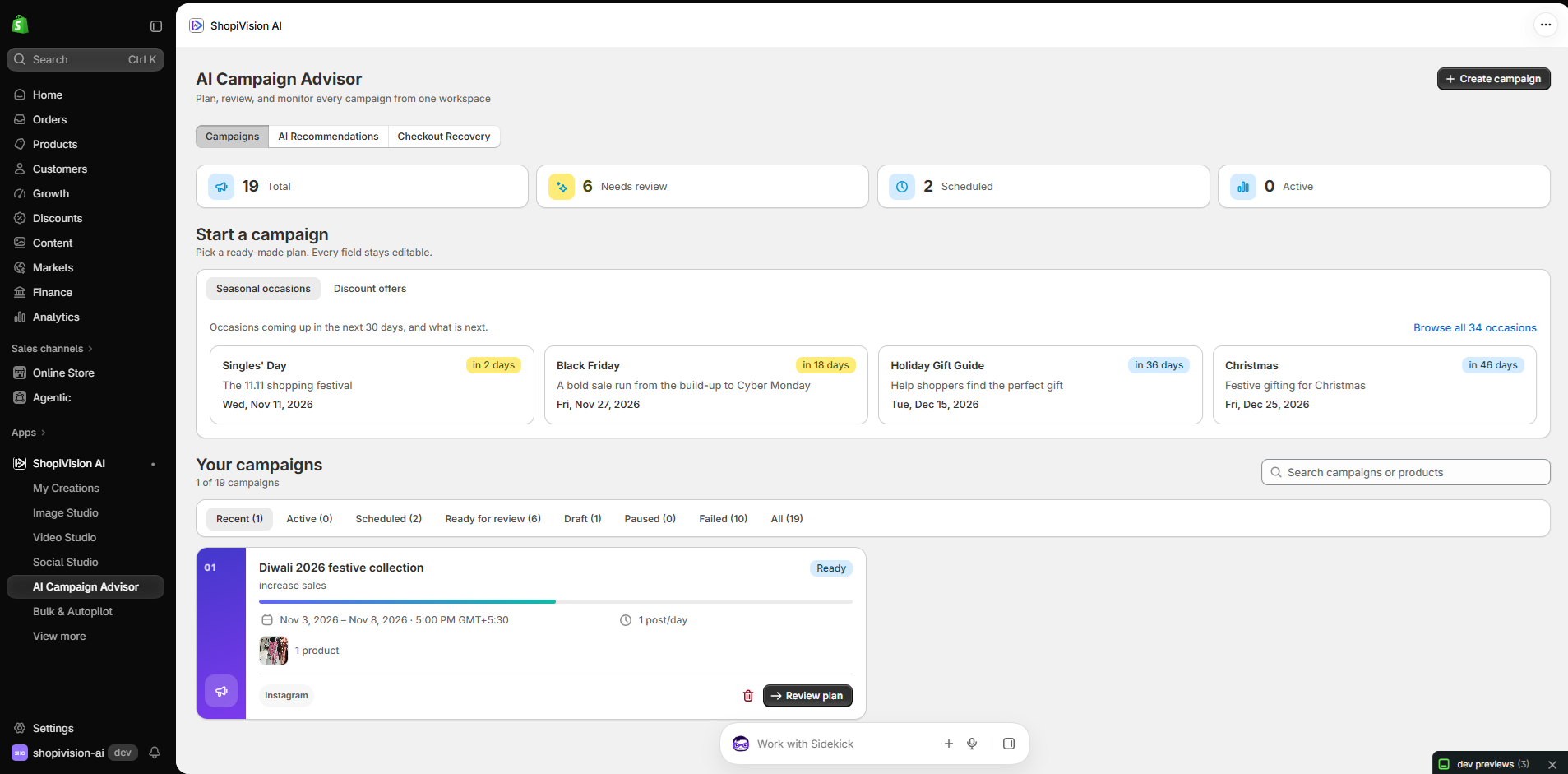
Each campaign card shows its goal, dates, posting time and timezone, posting rhythm, products, channels and progress, with the next action one click away: Open, Review plan or Edit draft.
Know what to promote, when and how.
Based on your own store.
AI Recommendations turns your catalog and the seasonal calendar into a prioritised list of campaigns worth running. Every suggestion comes with its dates, plan size, credit estimate and the reason behind it, and nothing is created until you choose to plan it.
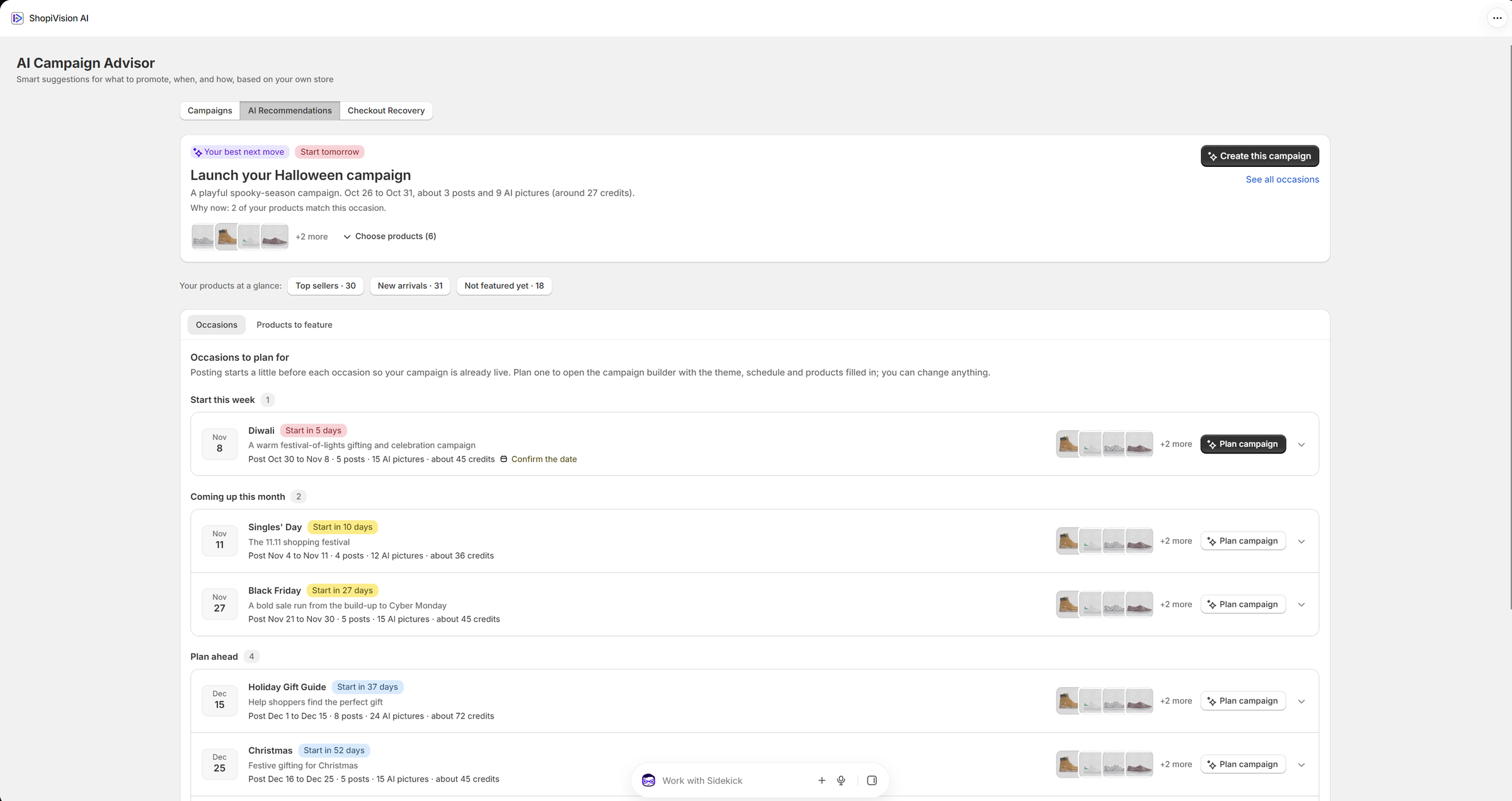
One clear recommendation, up front.
The most urgent opportunity sits at the top, ready to create in one click.
- A complete plan, not just an ideaFor example, “Launch your Halloween campaign”: the posting window, number of posts and AI pictures, and an estimated credit cost, with a “why now” that shows how many of your products match.
- Your products at a glanceSee how many top sellers, new arrivals and not-yet-featured products you have to work with.
- Occasions by urgencyUpcoming occasions are grouped into Start this week, Coming up this month and Plan ahead, each with a countdown, plan size and credits. Posting starts a little before each occasion, so your campaign is already live when shoppers are looking.
- Dates you can trustOccasions on lunar or regional calendars, such as Diwali, ask you to confirm the date for your region.

See the plan. Pick the products.
Open any occasion to see exactly what it would involve before you commit.
- The plan in numbersPosting window, cadence, plan size and estimated cost, plus the suggested goal and audience.
- A reason for every productEach suggested product is labelled with why it was picked, such as top seller in a collection or newly added. When nothing matches the occasion by name or category, the Advisor says so and offers your strongest sellers and newest arrivals instead.
- You make the callUntick any product, add or change products, select all or clear, up to 10 per campaign.
- Plan in one click“Plan campaign” opens the campaign builder with the theme, schedule and your chosen products filled in. You can still change anything.
- Or ask Shopify SidekickAsk Sidekick “What should I promote this week?” or “Create a Diwali campaign with the products in my Diwali category”. It shares the Advisor’s picks, then opens the campaign builder filled in for you to check. See what you can ask.
Open to everyone to browse, including the free trial. Creating a campaign needs a paid plan. Recommendations are based on your products, collections and stock, and what you have already made. They do not read your orders.
Always in season.
Never starting from zero.
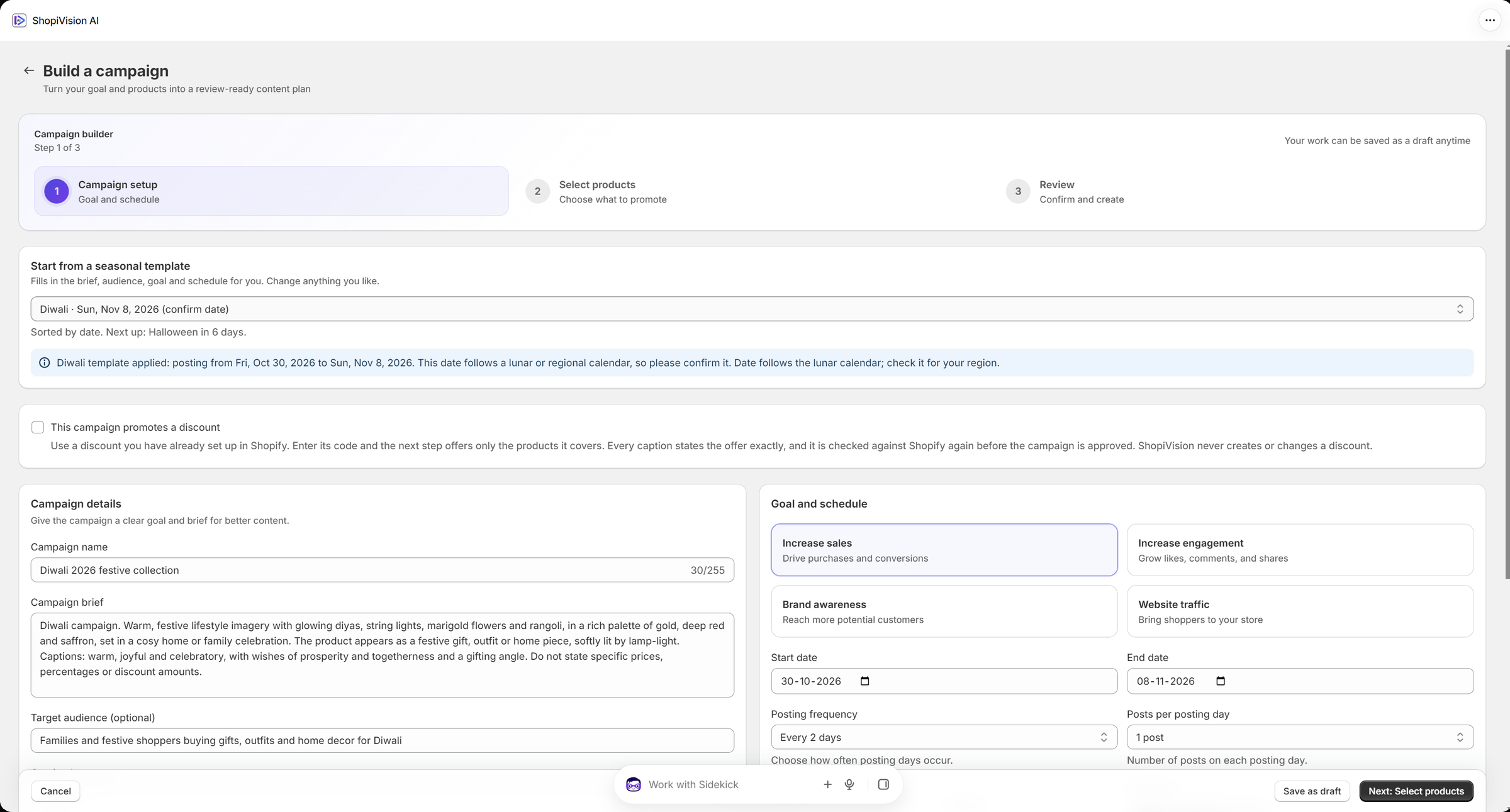
Choose an occasion and the template fills in a creative brief, target audience, goal, posting window and rhythm. Pick Diwali, for example, and posting is set to run in the lead-up to the festival. Every field stays editable.
Templates are sorted by date, so the next occasion is always first. For lunar or regional calendars, the app asks you to confirm the date for your region. Templates never invent prices or discounts.
From brief to campaign plan.
In three guided steps.
A structured builder takes every campaign through the same steps, so plans are complete, consistent and ready to generate. Your work can be saved as a draft at any point.
Set the direction.
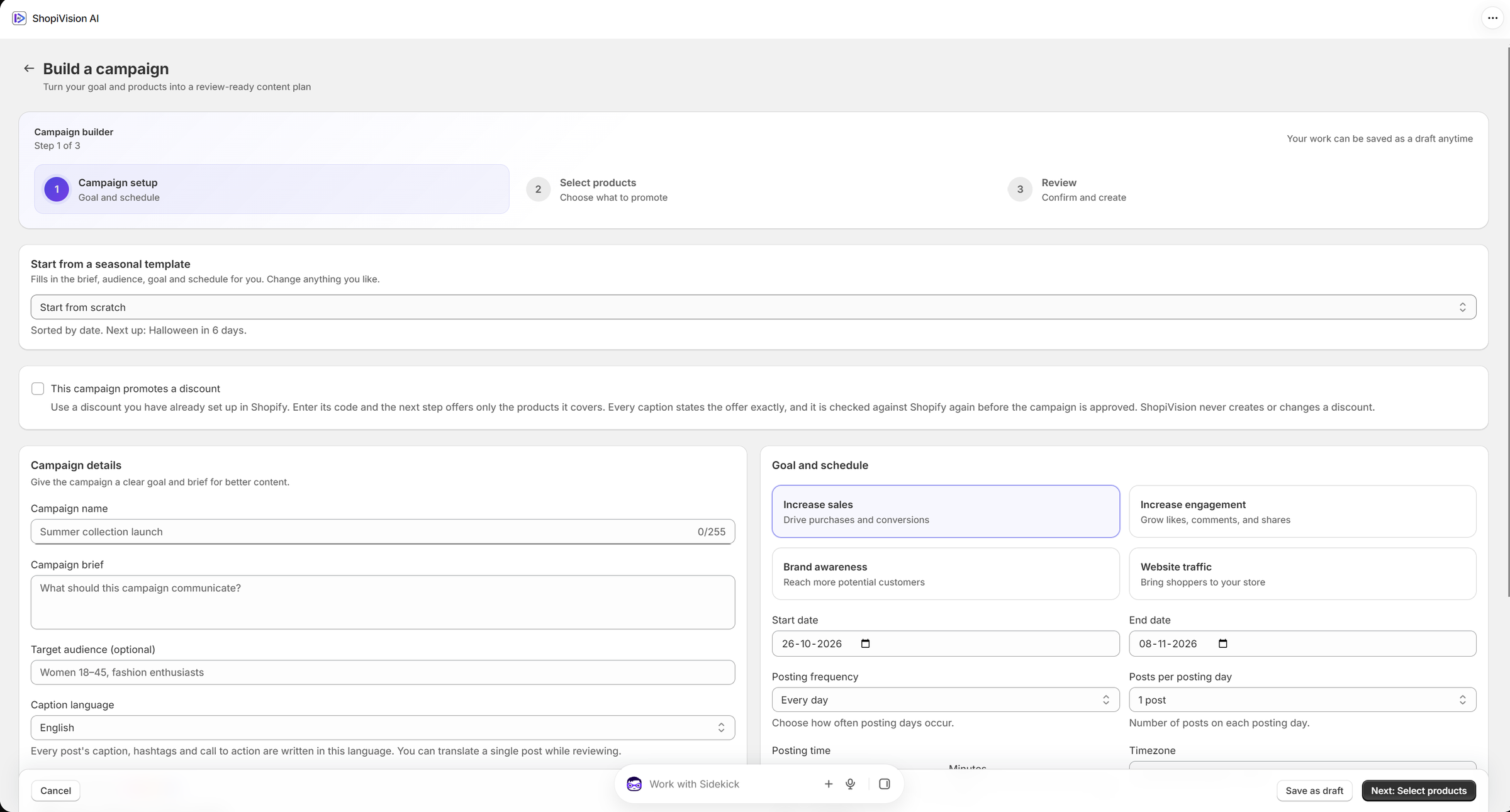
Name the campaign, write the brief and describe the audience, or start from a seasonal template and adjust it.
- A clear goalIncrease sales, increase engagement, build brand awareness or drive website traffic.
- A precise scheduleStart and end dates, posting frequency, posts per posting day, posting time and timezone.
- One language, 19 to choose fromEvery post’s caption, hashtags and call to action are written in the language you pick. You can still translate a single post while reviewing.
- Real Shopify offersTick “This campaign promotes a discount” and enter a code you already run. Only the products it covers are offered, every caption states the offer exactly, and it is checked against Shopify again before approval. ShopiVision AI Studio never creates or changes a discount.
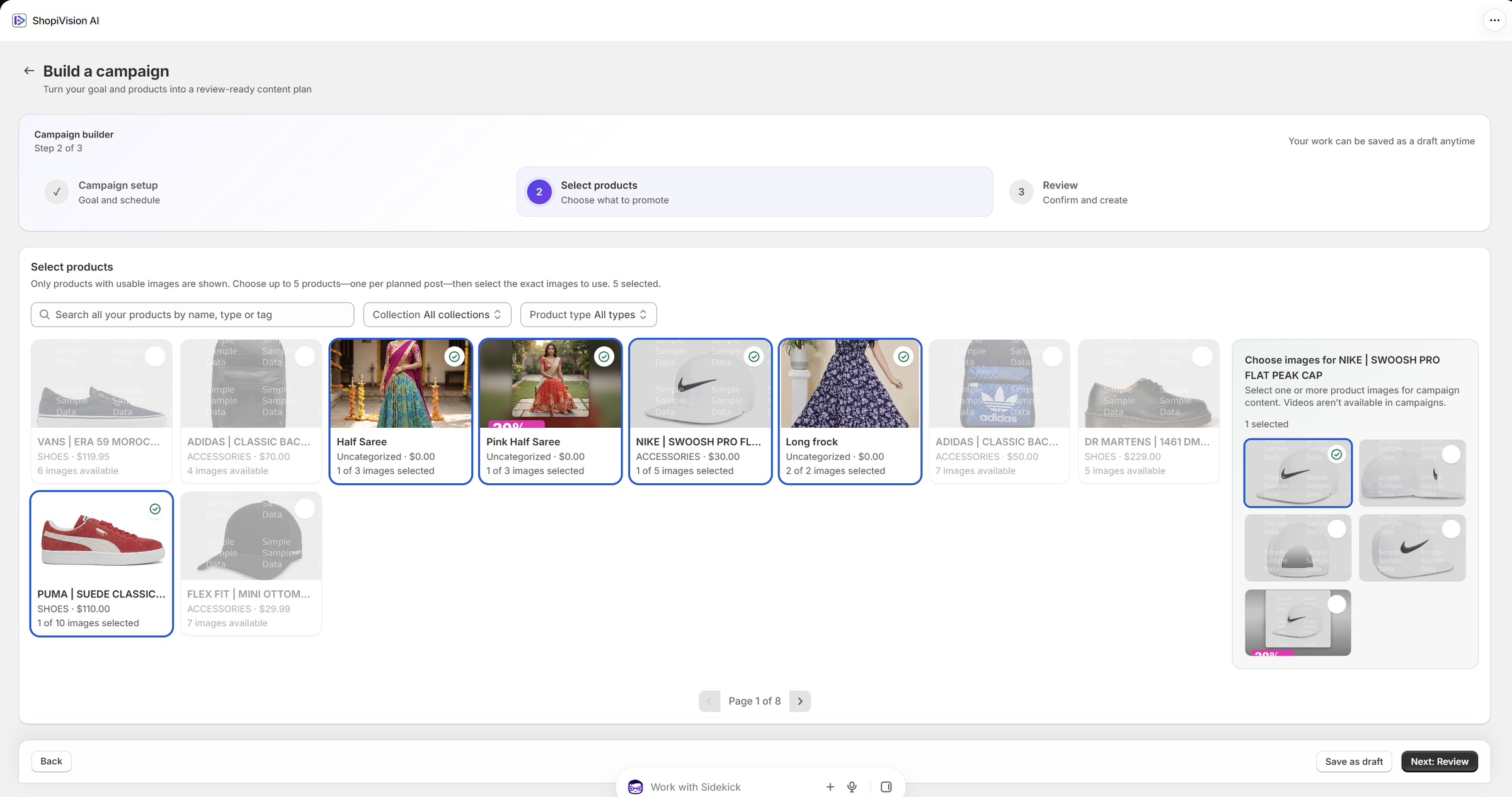
Choose what to promote.
Pick products straight from your Shopify catalog, then choose the exact images each post should use.
- Built for large catalogsSearch by name, type or tag, filter by collection and product type, and page through your catalog quickly.
- One product per planned postThe number of products follows your schedule, so the plan and the products always line up.
- Exact images, not guessesOnly products with usable images are shown. Select one or more pictures per product, and the builder keeps them with your plan.
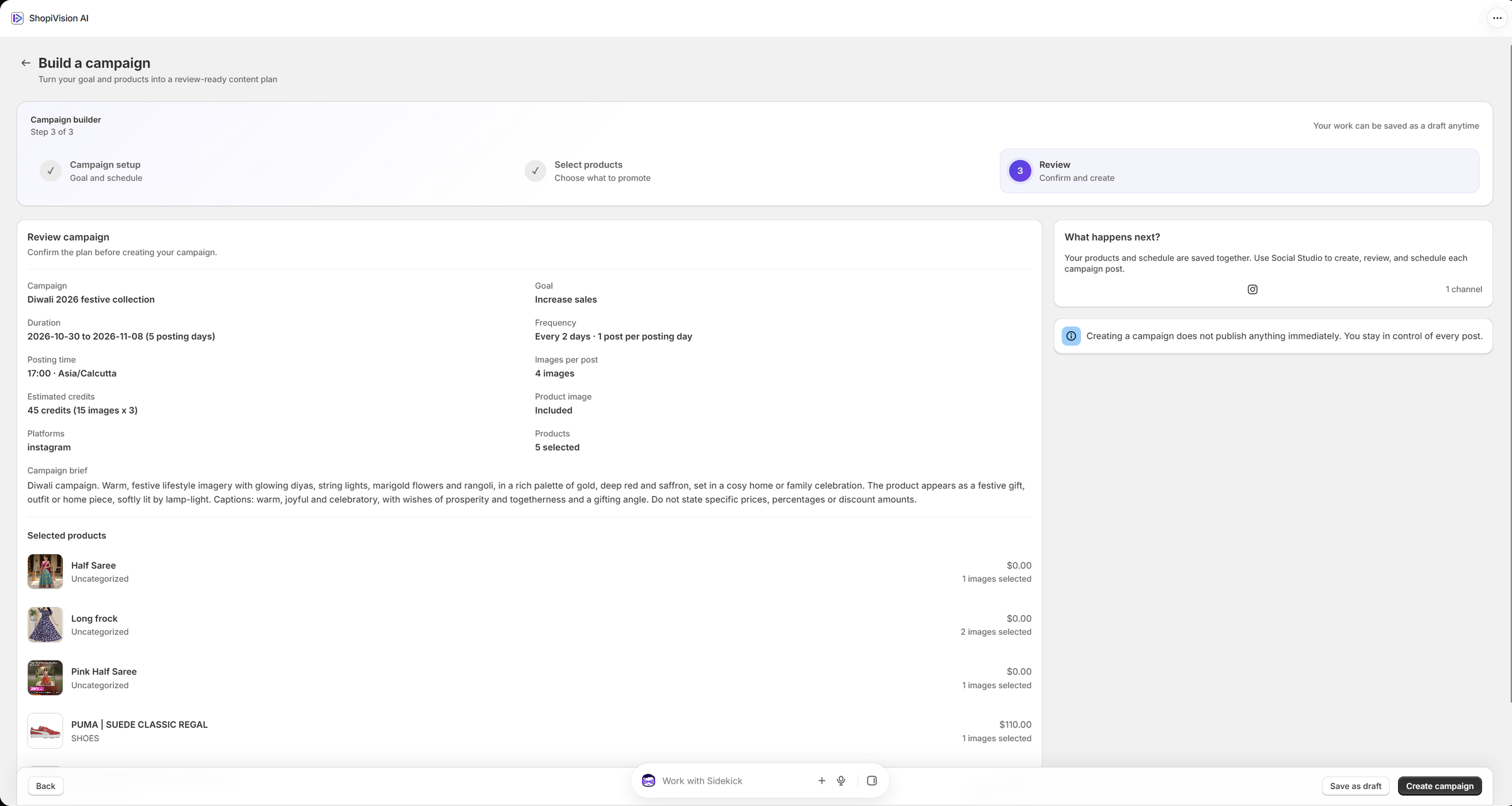
Confirm every detail.
See the complete plan on one screen before anything is created, including what it will cost.
Creating the campaign saves the plan. Its posts are then generated and opened for review, and nothing is published until you approve the campaign.
Credits are shown up front. A typical template campaign uses about 45 credits, for example 15 images at 3 credits each.
Nothing goes live
until you approve it.
Once a campaign is created, every post is generated and opened in a dedicated review workspace. You check, edit and translate each post, then confirm the campaign. Only then is it scheduled.
Draft
The plan is saved. Edit it any time.
Generate
Images, captions, hashtags and calls to action are created for every post.
Review
You check, edit, translate and approve each post.
Scheduled
Approved posts wait for their time slot.
Active
Posts publish automatically on schedule. Pause at any time.
Completed
The campaign window closes. Results stay in Social Insights.
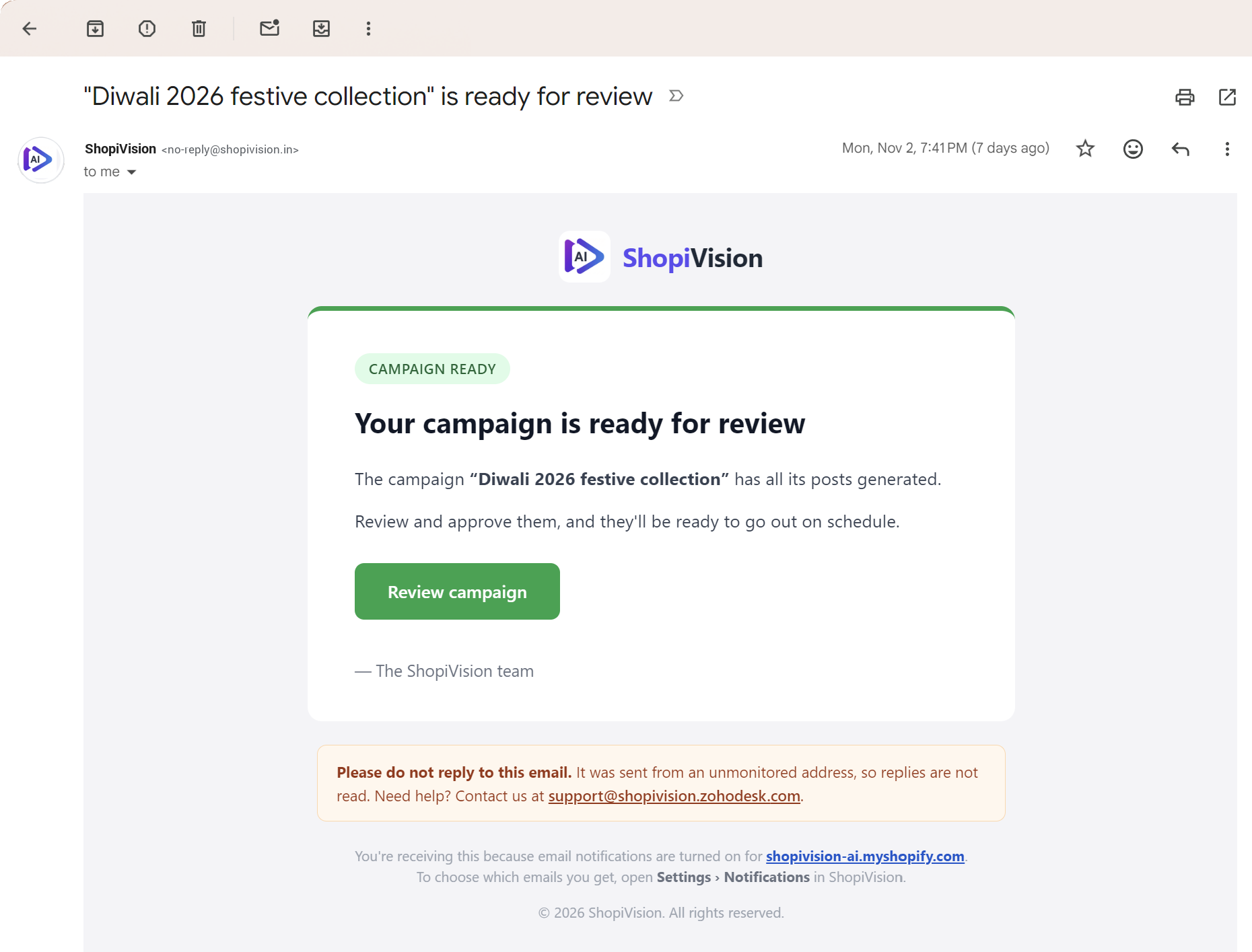
Told when it’s time to review.
Generating every post in a campaign takes a while. You don’t have to wait in the app: when all its posts are ready, an email tells you.
- Named in the subjectThe campaign’s name is in the subject line, so you can tell your Diwali campaign from your Black Friday one at a glance.
- Still waiting for youNothing has been scheduled. The posts go out only after you review and approve them.
- One click back into the appReview campaign opens ShopiVision AI Studio, where the dashboard lists the campaign under Needs your attention.
- For you and your teamTurn on Campaign ready for review in Settings → Notifications and add up to 5 addresses. More about notifications.
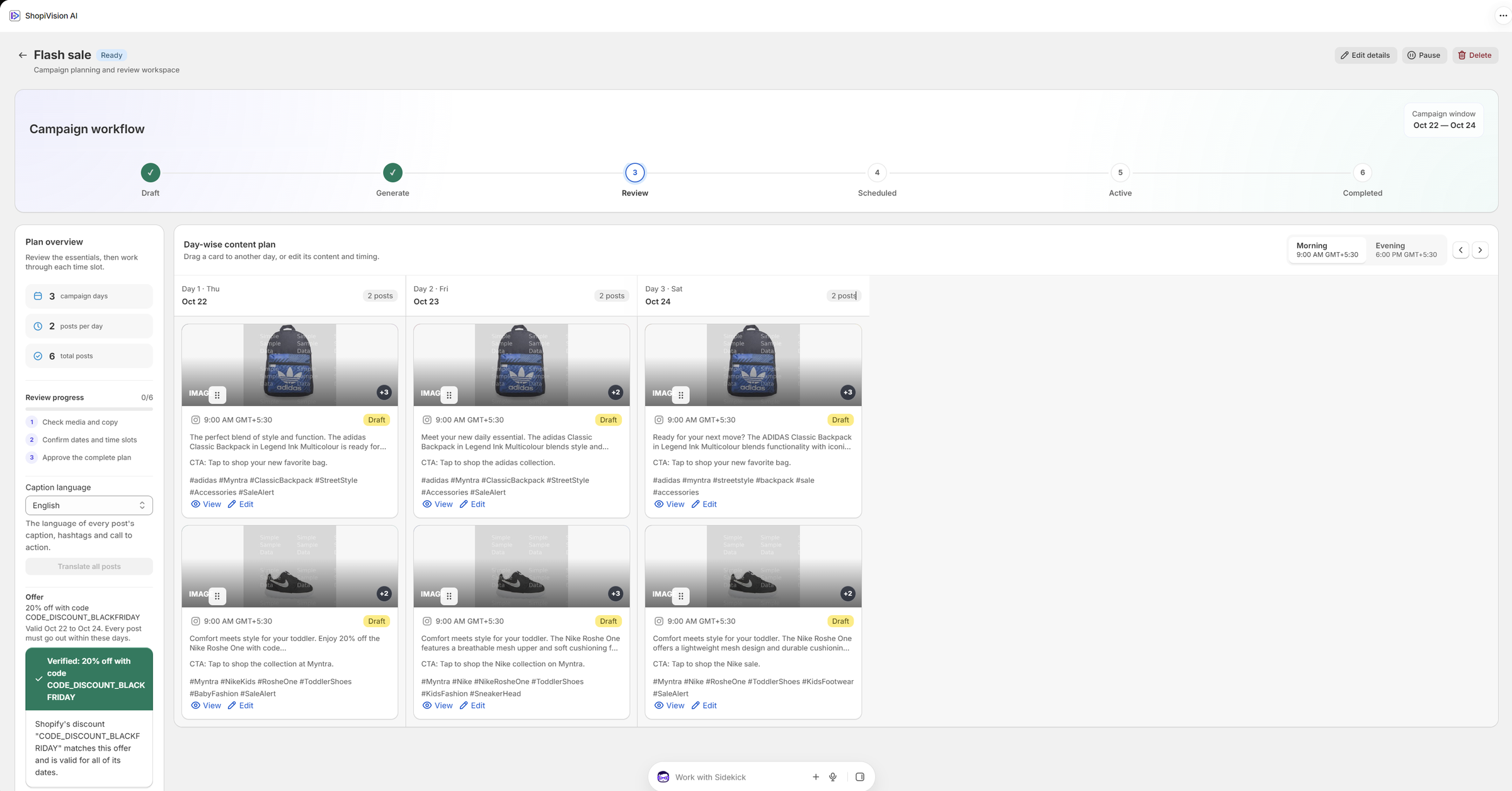
Every post, day by day.
See the whole campaign as a day-wise content plan, with each post in its morning or evening time slot.
- A plan you can rearrangeDrag a post to another day, or open it to change its content and timing. The plan overview keeps campaign days, posts per day and total posts in view.
- A guided reviewProgress is tracked post by post through three checks: media and copy, dates and time slots, then the complete plan.
- Translate the whole campaignChange the campaign’s caption language and translate every post in one step.
- Offers verified liveThe Shopify discount is checked against the campaign dates, with notes such as minimum quantities so shoppers are not surprised. Check again at any time.
Fine-tune every word.
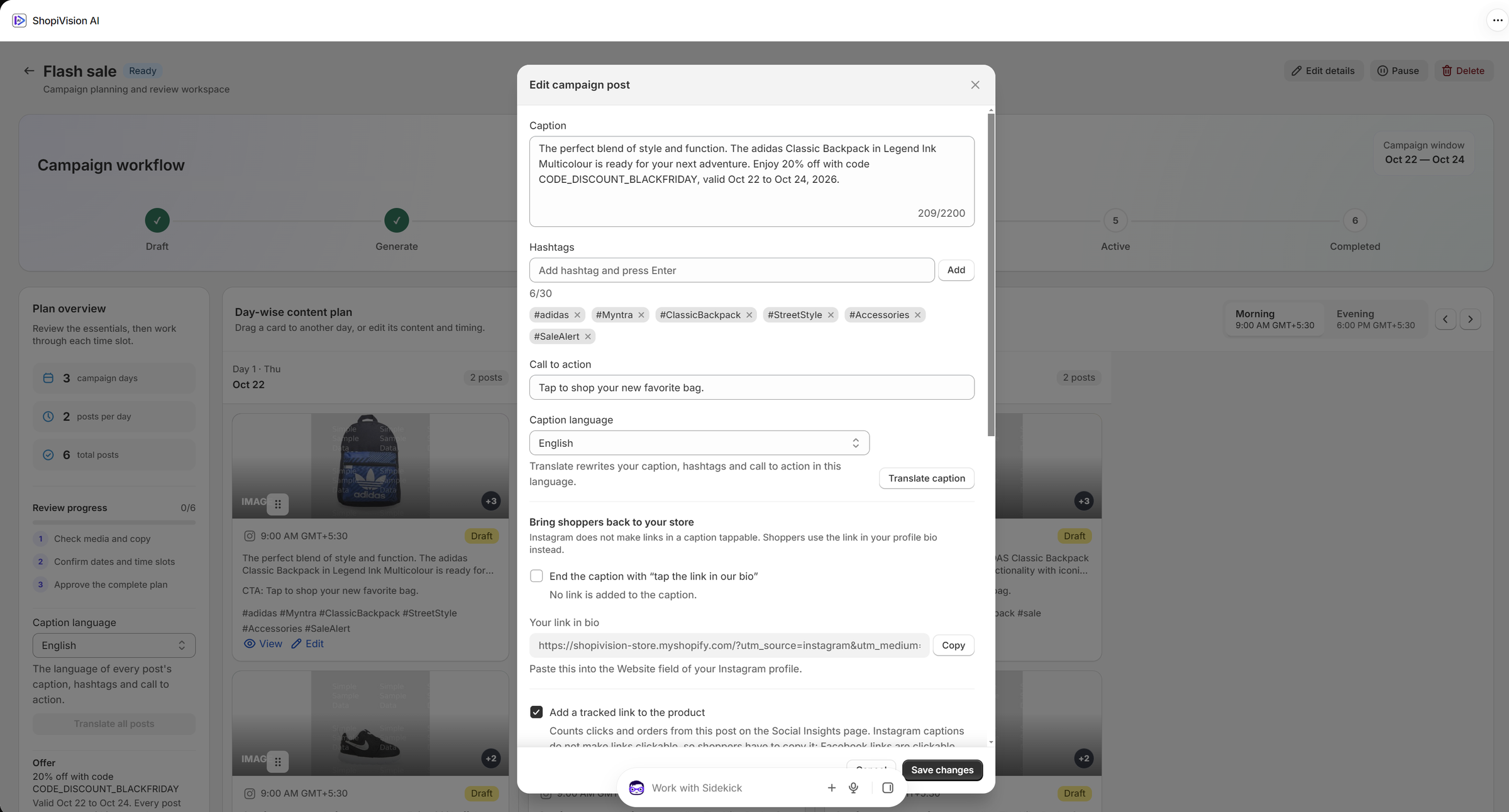
Open any post to refine it before approval. Changes stay with the campaign.
- Caption, hashtags and call to actionEdit the caption with a live character count, add or remove hashtags up to the platform limit, and rewrite the call to action.
- Translate a single postPick a language for one post and its caption, hashtags and call to action are rewritten in it.
- Links that work on InstagramEnd the caption with “tap the link in our bio” and copy a ready-made link for your profile, or add a tracked product link that counts clicks and orders in Social Insights.
One deliberate approval.
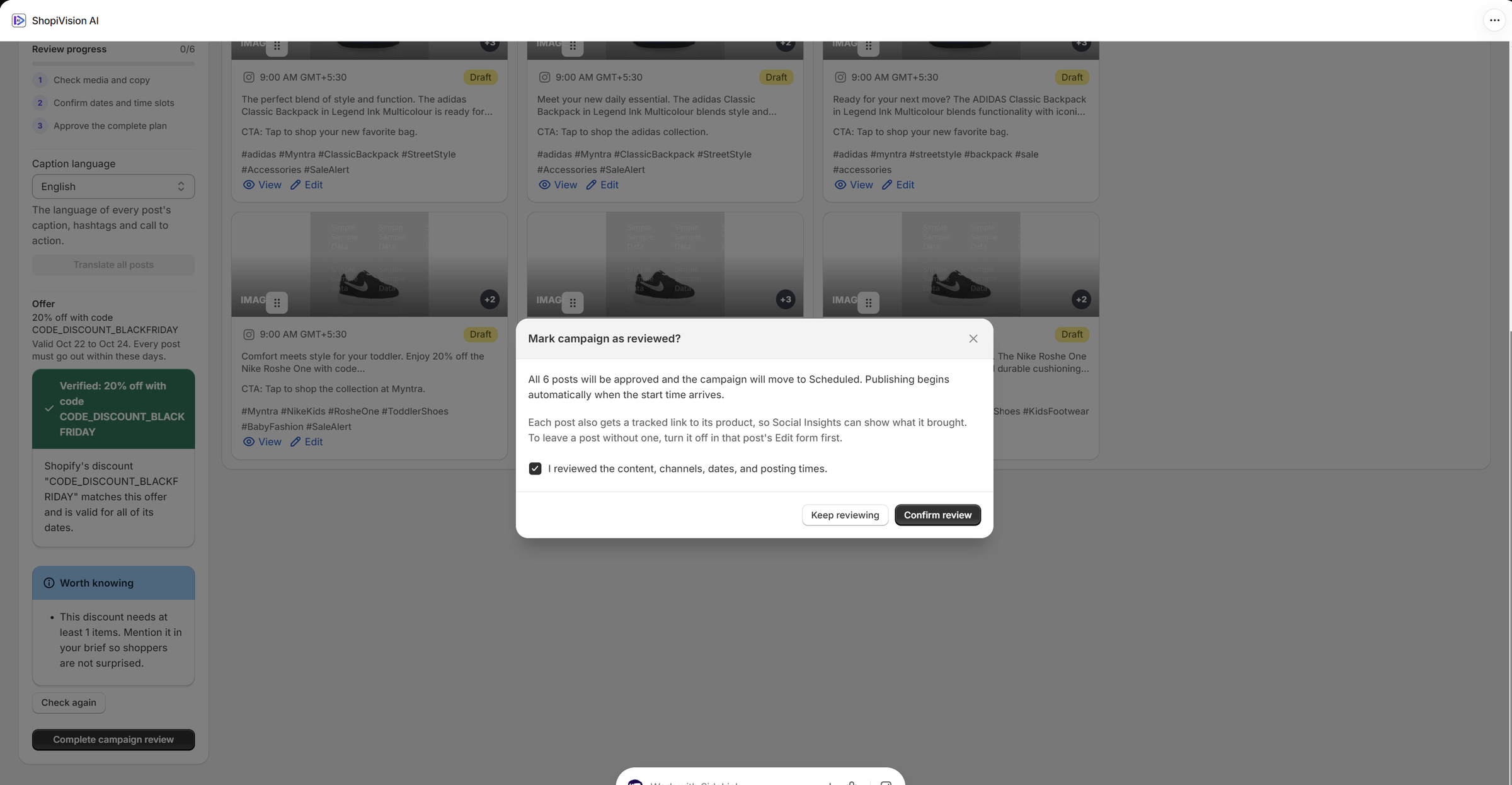
When the review is complete, you confirm the campaign yourself. That is the only way it can start.
Each post also gets a tracked link to its product, so Social Insights can show what it brought. To leave a post without one, turn it off in that post first. Need to stop? Pause the campaign or edit its details at any time.
Automation where it helps.
Approval where it matters.
Does creating a campaign publish anything?
No. Creating a campaign saves the plan. Its posts are generated and opened in the review workspace, and the campaign is only scheduled after you mark it as reviewed and confirm.
When does a campaign start publishing?
Only after you confirm the review. All posts are approved together, the campaign moves to Scheduled, and publishing begins automatically when the start time arrives. You can pause it at any time.
Can I edit posts before they go live?
Yes. In the review workspace you can drag posts to another day, change their timing, and edit each caption, hashtags and call to action. You can also translate one post or the whole campaign.
Can a campaign run in a language other than English?
Yes. Choose one of 19 caption languages when you set up the campaign, and every post’s caption, hashtags and call to action are written in it. You can also translate a single post while reviewing.
How do discount campaigns work?
Enter a discount code you already run in Shopify. Only the products it covers are offered, captions state the offer exactly, and it is checked against Shopify again before you approve. ShopiVision AI Studio never creates or changes a discount.
How many credits does a campaign use?
The review step shows an estimate before you create anything. A typical template campaign uses about 45 credits, for example 15 images at 3 credits each.
Which plans include AI Campaign Advisor?
Anyone can browse recommendations and templates, including on the free trial. Creating campaigns needs a paid plan, and every paid plan includes it.
Your next campaign,
planned in minutes.
Start your 14-day free trial and let AI Campaign Advisor
show you what to run next.
Create more.
Sell more. Know why.
Start your 14-day free trial and turn your catalog
into content that earns its place.