
Creative
Image generation ready and Video generation ready when your AI creations are finished, and Generation failed when one could not be made. No credits are used on a failed attempt.
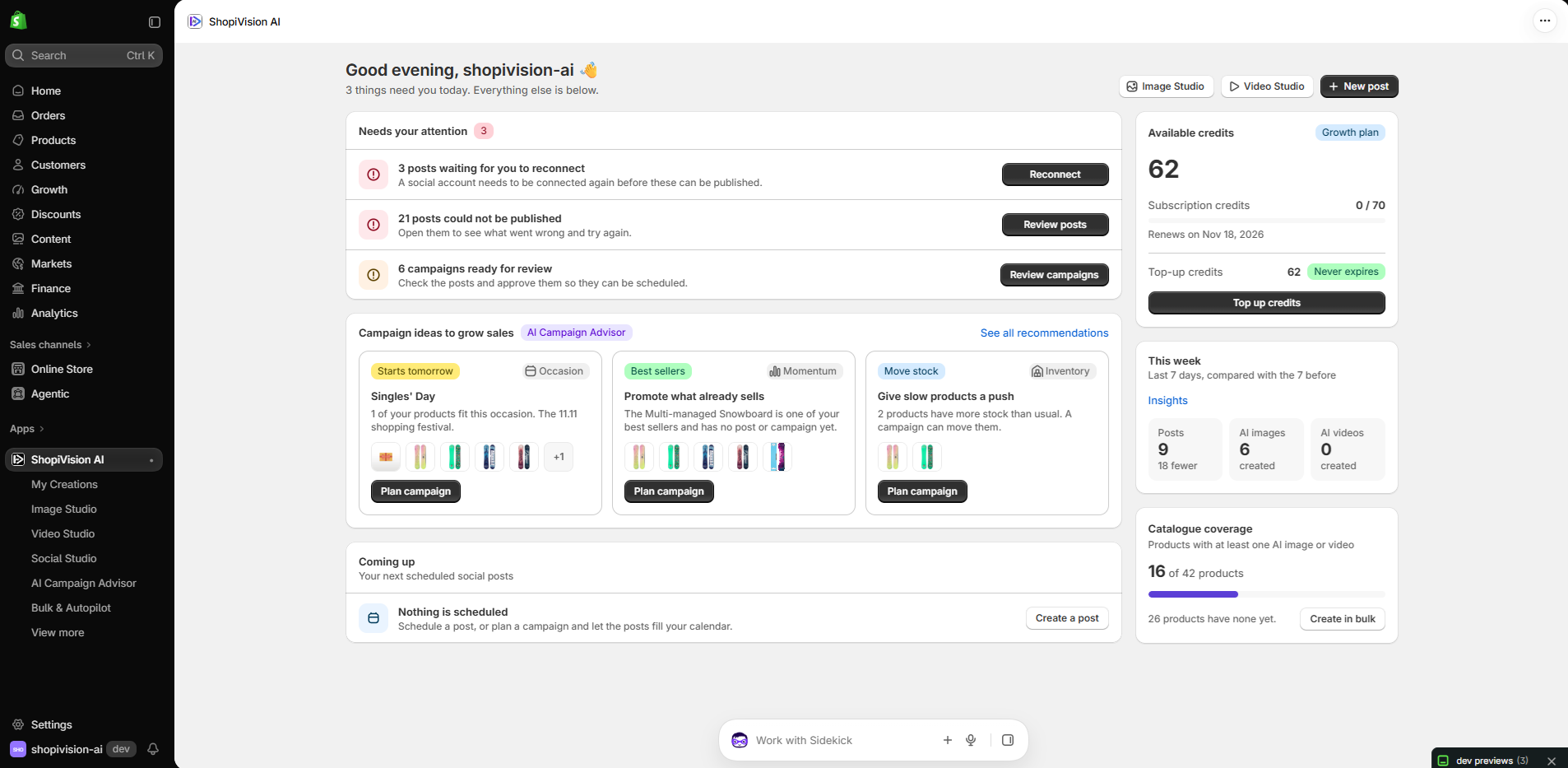
Start every day with your store at a glance, connect your social accounts, choose the alerts your team receives, and reach our support team without leaving Shopify.
A narrated walkthrough recorded in the ShopiVision AI Studio app. Your credits, what needs your attention, campaign ideas, what is coming up and how this week compares with the last.
One screen brings together your credits, anything that needs action, work in progress, upcoming posts, campaign ideas and this week’s results, so you can see where things stand in seconds and act in one click.
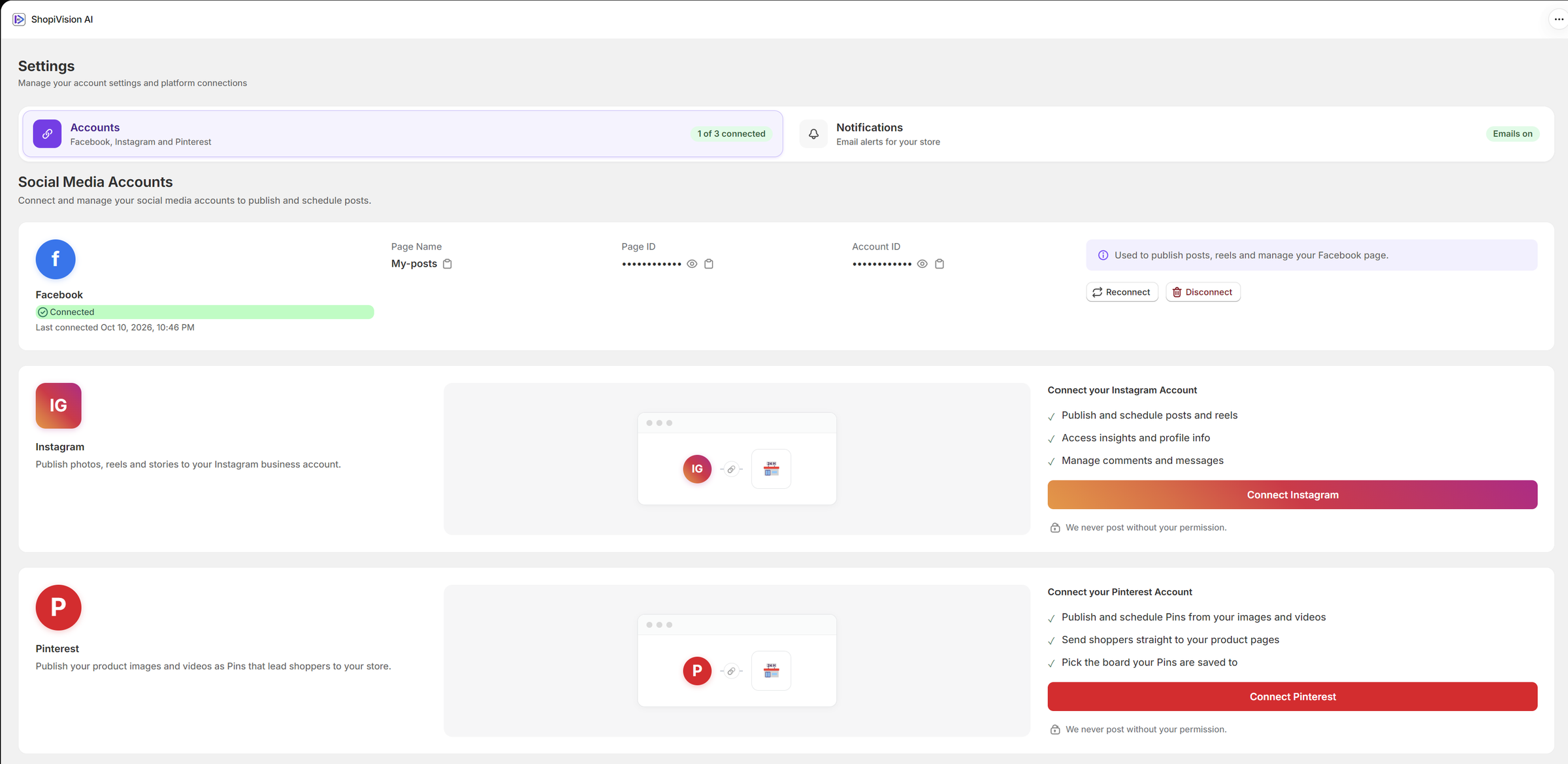
Settings brings together the two things that keep ShopiVision AI Studio running smoothly for your store: the social accounts it publishes to, and the email alerts that tell you when something is ready or needs your attention. Each tab shows its status at a glance, so you know where things stand before you open it.
Link Facebook, Instagram and Pinterest so your images, videos and campaigns can be scheduled and published from the app.
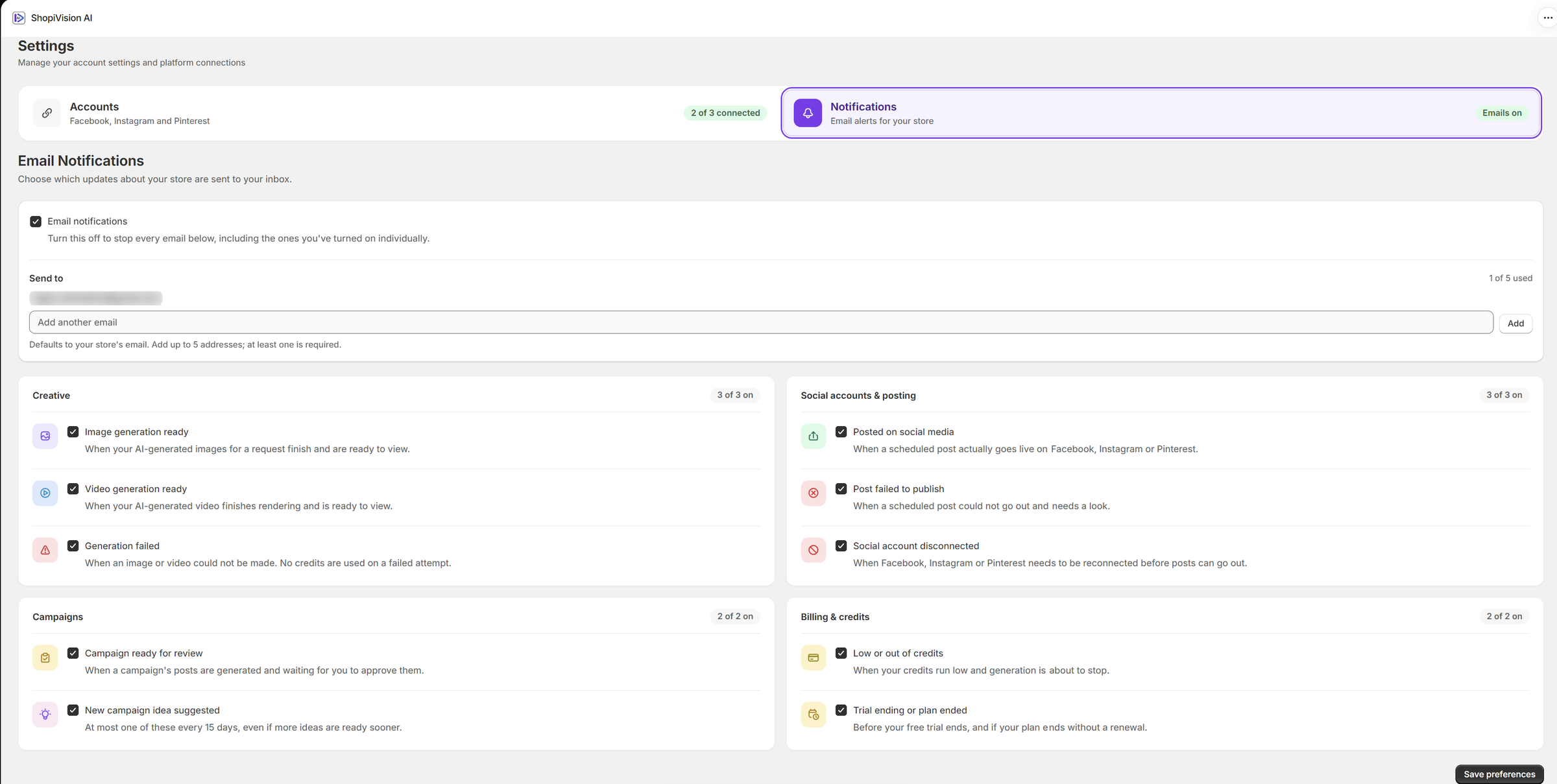
ShopiVision AI Studio tells you when something you started is finished or needs you: in the app while you work, and by email when you are away. You choose what you hear about and who hears it.
Image generation ready and Video generation ready when your AI creations are finished, and Generation failed when one could not be made. No credits are used on a failed attempt.
Posted on social media when a scheduled post goes live, Post failed to publish when one needs a look, and Social account disconnected when a platform must be reconnected before posts can go out.
Campaign ready for review when posts are waiting for your approval, New campaign idea suggested, Low or out of credits before generation stops, and Trial ending or plan ended.
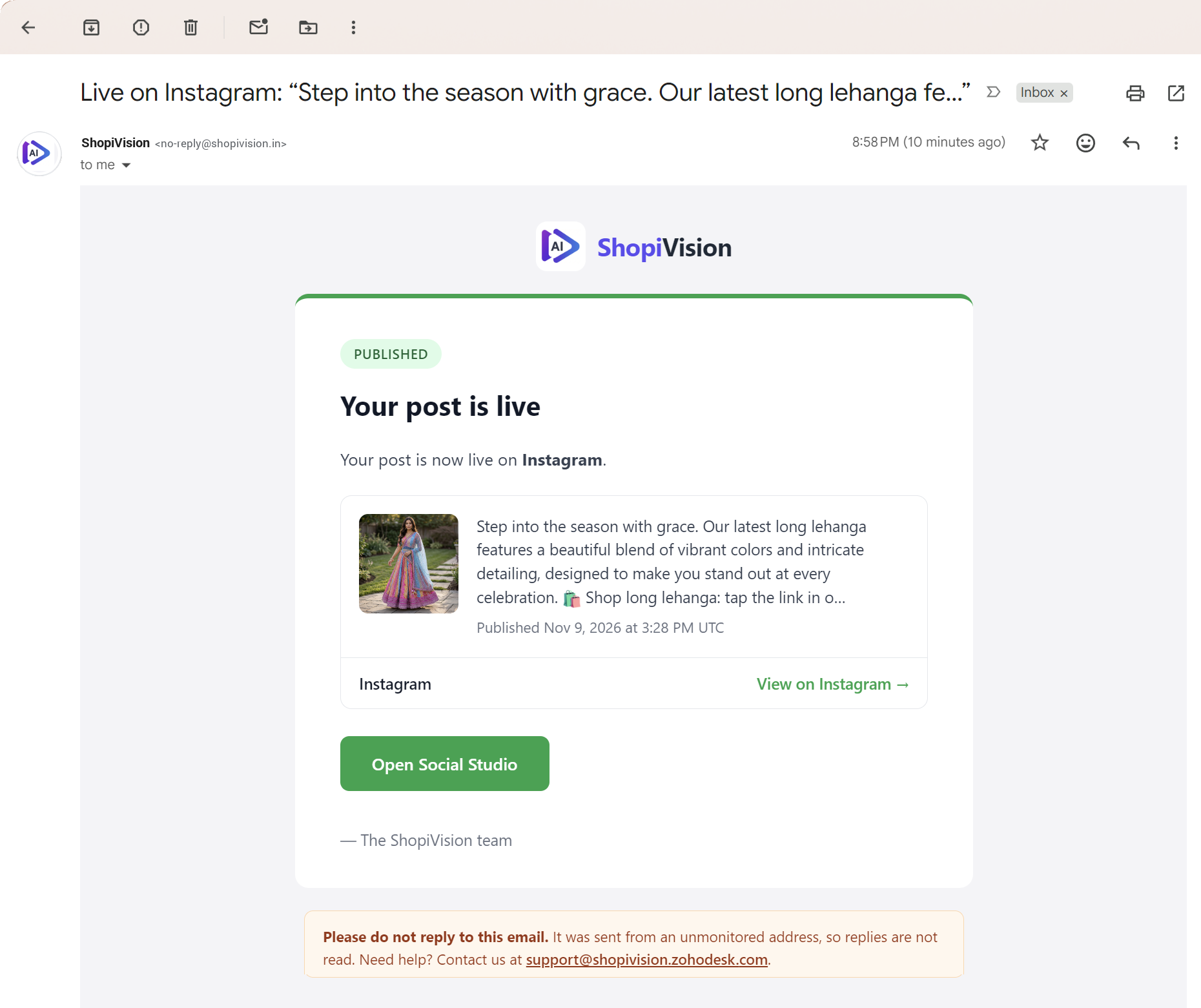
Each email tells you what happened, shows what it is about, and has one button to take you to the right place in the app.
When a post goes live, for example, the email shows the image, the start of the caption and when it was published, links to the live post on each platform, and opens Social Studio in one click. The footer names the store the email is for and tells you where to change which emails you get. See post confirmations.
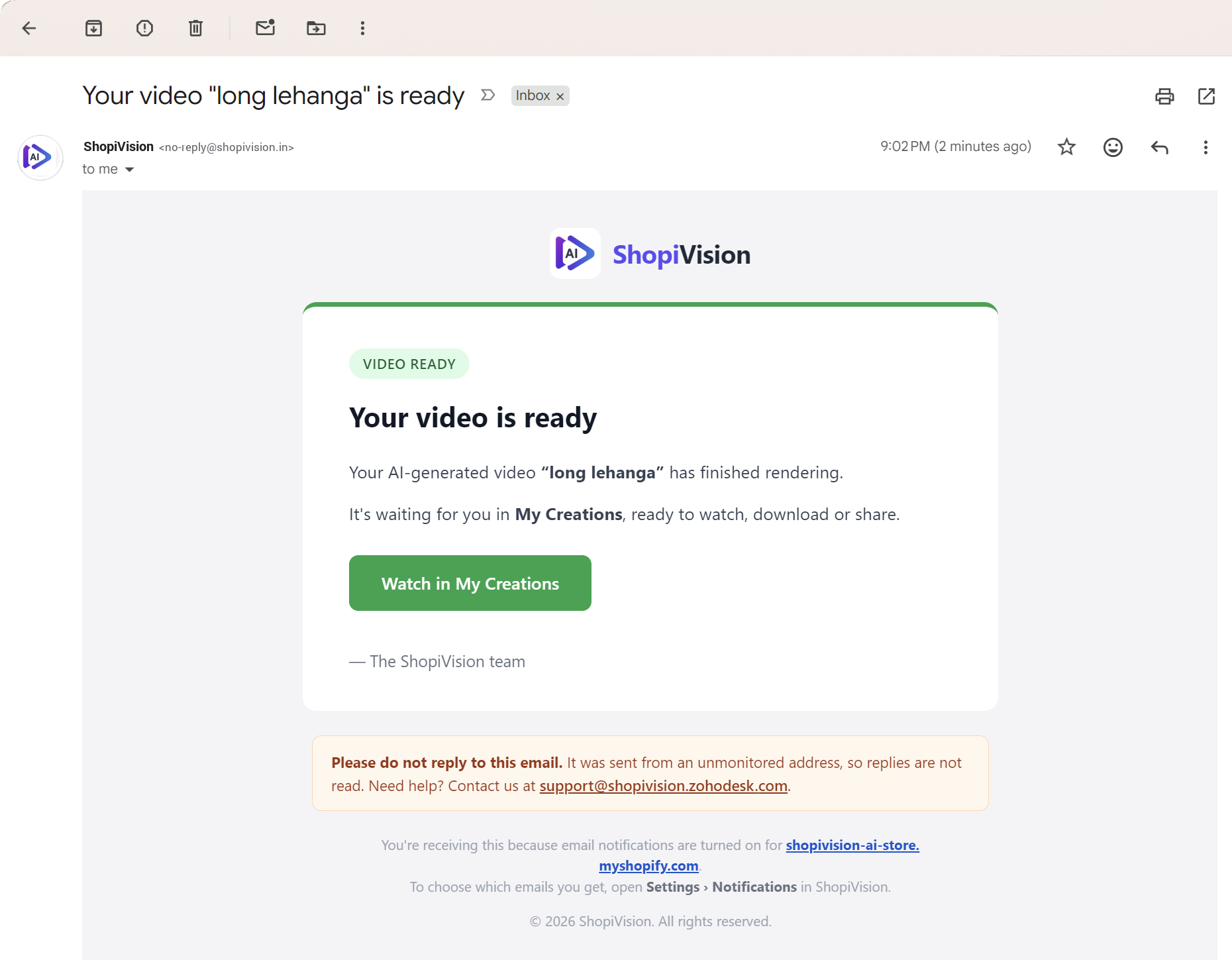
Videos take a little while to render, so there is no need to keep the app open. When one is finished, the email names it and takes you to it.
Turn on Video generation ready to get it, and Image generation ready for the same alert about images. If a creation could not be made, Generation failed tells you instead. See Video Studio.
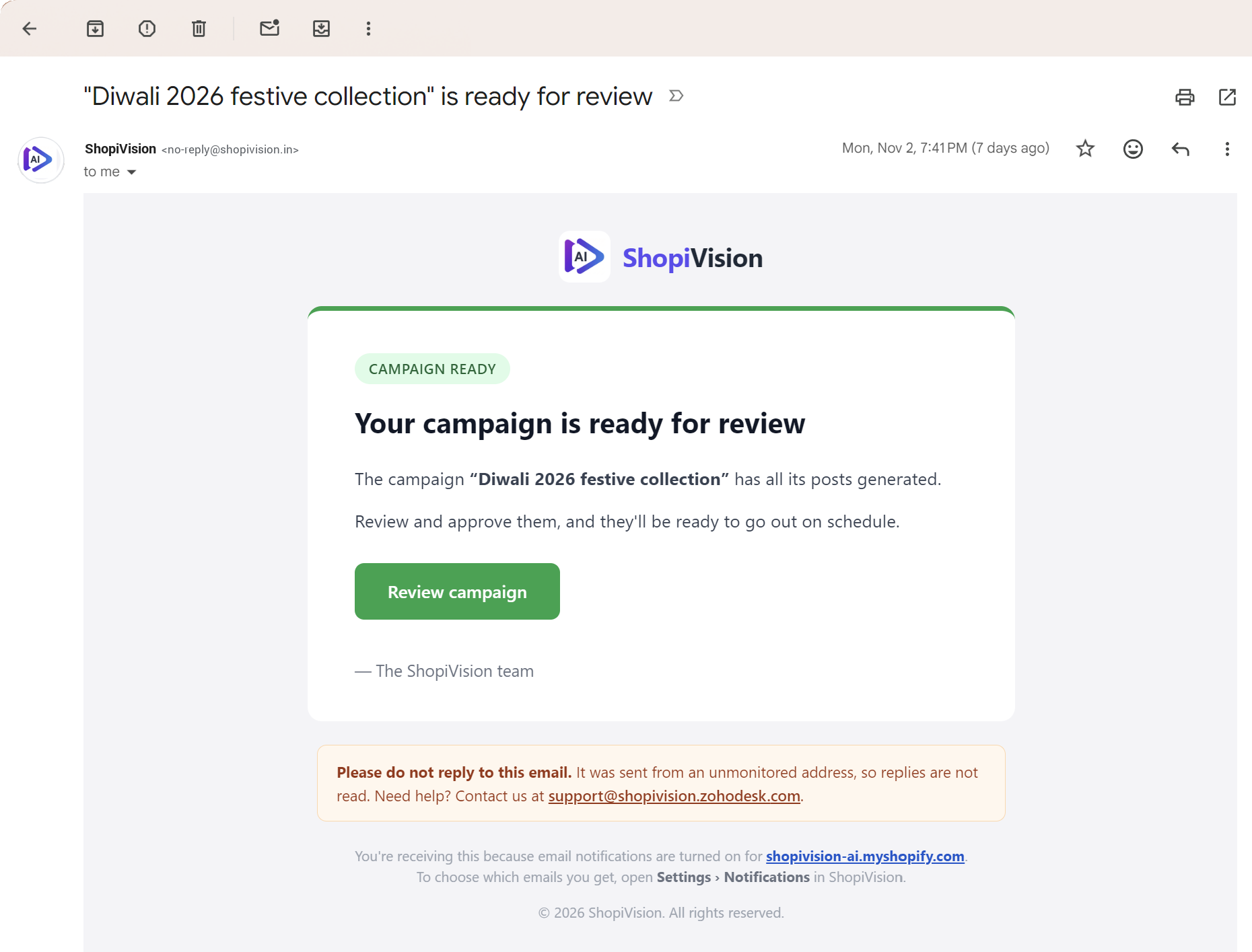
When every post in a campaign has been generated, the email names the campaign in its subject and reminds you that nothing goes out until you approve it.
Turn on Campaign ready for review to get it. Review campaign opens the app, where the dashboard lists the campaign under Needs your attention. See AI Campaign Advisor.
Find it in Settings → Accounts and Settings → Notifications. Included on every plan, including the free trial.
Your ideas, voice-overs, campaign text and product photos are checked before an image or video is made, and every caption, hashtag and image is checked again before a post is published. Ordinary shop content goes straight through; what ShopiVision never makes is stopped, and you are told why.
Fast word rules catch the plain cases instantly, then an AI review reads the text in any language and looks at the pictures, in context. It blocks sexual content, anything sexual involving a child, violence and self-harm, and never publishes a post it could not check.
Lingerie, underwear and swimwear on adult models in a catalogue style are fine, and so are “killer heels”, a bomber jacket or “nude” as a colour. If something is blocked, nothing is charged, and Blocked by mistake? Let us know sends it to our support team for review.
Turn on Strict mode in Settings → Content safety to also keep lingerie, underwear and swimwear off models and leave out suggestive wording. The rules for pictures of children are the same on every store and are never relaxed.
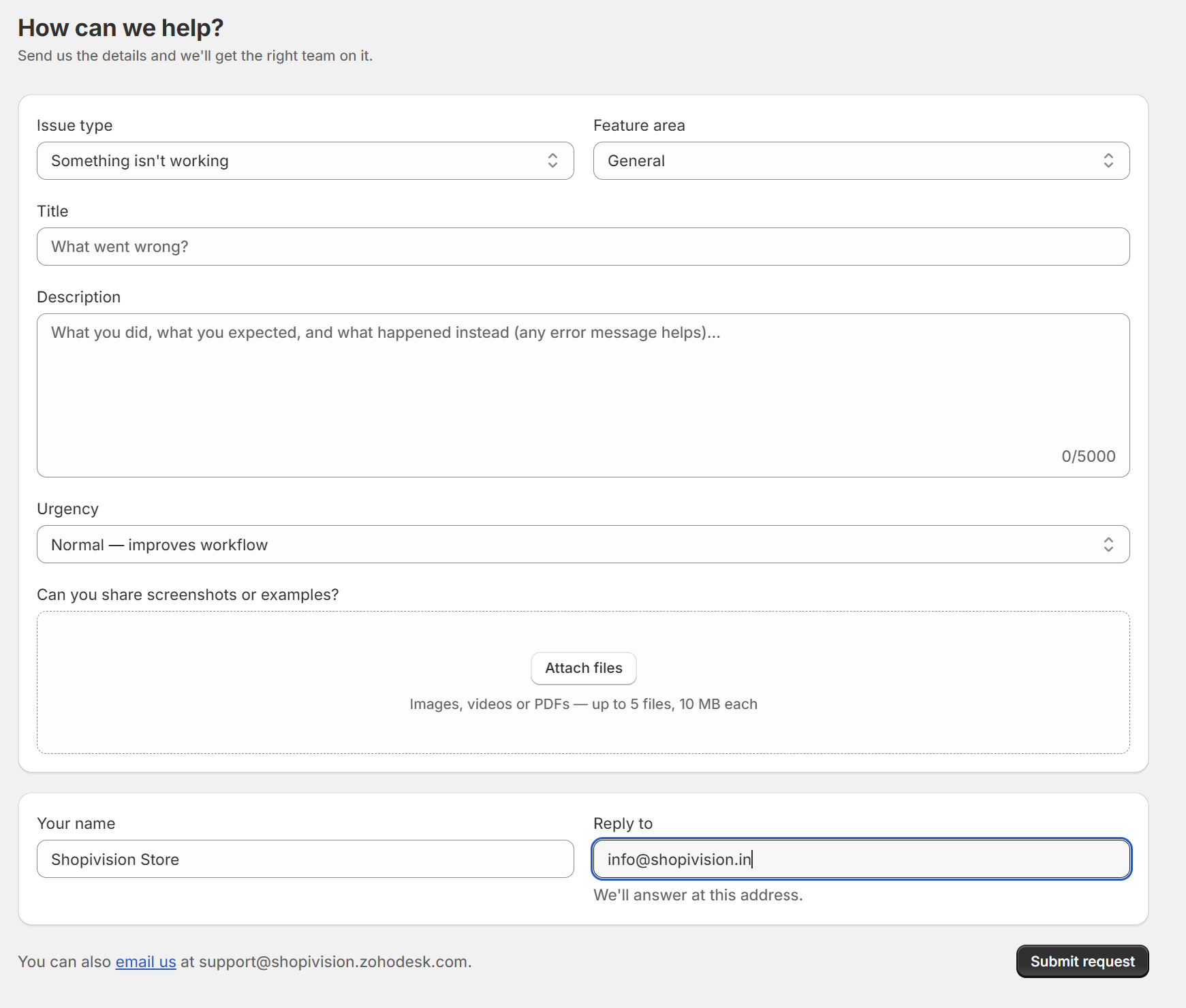
Open Help & Support from the app menu to report a problem, ask a question or request a feature without leaving Shopify. Your request goes straight to our support team as a ticket, routed to the people who can help.
Not using ShopiVision AI Studio yet? Contact us or email support@shopivision.zohodesk.com.
The app tells you when an image or video is ready, when a creation fails and when a post is published, without a page refresh, and can email you and your team when you are away. A small activity panel in the corner follows your images, videos, posts and campaigns on every page. See Notifications.
If a creation fails, its credits are refunded automatically. Retry it when you like. You are charged again only when you press Retry.
A reminder before your free trial ends and when your credits run low, in the app with a button that opens the right part of Billing & Credits, and by email if you turn it on.
Everything you create flows straight into the rest of ShopiVision AI Studio.
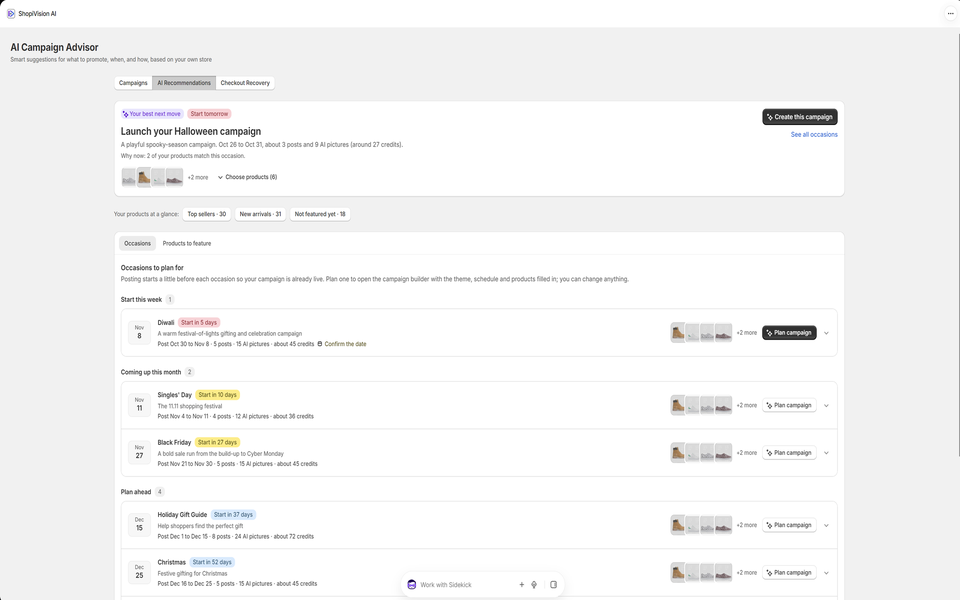
Plan from 27 seasonal templates with AI advice on what to promote next. Nothing is published until you approve it.
Explore AI Campaign Advisor →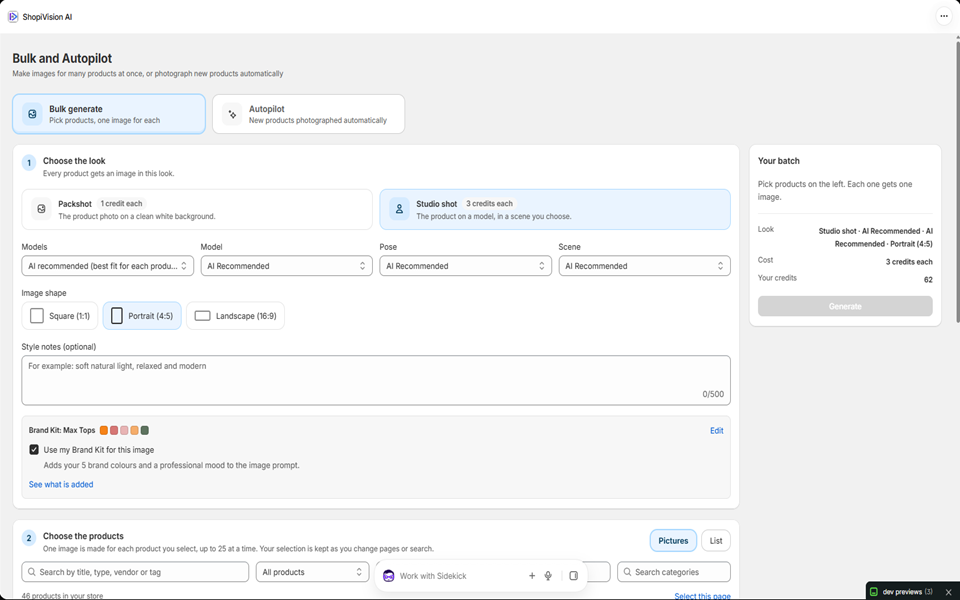
Create for hundreds of products at once, or photograph every new product automatically within the limits you set.
Explore Bulk & Autopilot →
Tracked links and order tracking show which posts bring clicks, visits, orders and revenue.
Explore Social Insights →Start your 14-day free trial and turn your catalog
into content that earns its place.